Accents on Capital Letters?
Solved
Who knows how to put accents on capital letters? It must be really simple, but when you don't know, you look for it!
12 answers
-
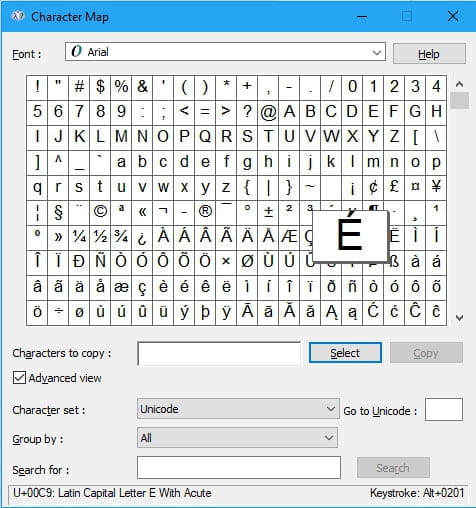
The simplest way is to use the charmap tool by pressing Windows + R, then typing
charmap
.

The tool displays the keyboard shortcut to type the character in question at the bottom right.
That's the basics, note that not everything works everywhere, it's active on most email-type forms on the server like this one....
Á = alt 181 - Â = alt 182 - À = alt 183 - ā = alt 257
Æ =alt 146 - Ã =alt 199
Ç = alt 128 - Ć = alt 262 - C =alt 264
Đ =alt 272, alt 209
Ē = alt 274 - È = alt 212 - É = alt 144
Ñ = alt 165 - Ö = alt 153
Ú = alt 233 - Û = alt 234 - Ù = alt 235 - Ü= alt 154
Ý = alt 237 - Z = alt 381
¿ = alt 168 - ¬ = alt 170 - ¯ = alt 238 - · = alt 250
¯ = alt 713
® = alt 169 - © =alt 184 - Θ Ξ = alt 920 & 926
½ = alt 171 - ¼ = alt 172 - ¾ = alt 243
º = alt 248 - ¹ = alt 251 - ² = alt 253 - ³ = alt 252
« » = alt 174 & 175
¢ = alt 189 - ¥ = alt 190
ß = alt 225 - µ = alt 230 - þ = alt 231 - Ί = alt 906
Þ = alt 232 - - Δ = alt 916 - Ώ = alt 911- Ω = alt 937
f = alt 402 - ? = alt 416 - Λ alt 923 - Π = alt 928
Σ = alt 931 - Φ = alt 934 - Ψ = alt 936 -
ModeratorOtherwise, start > run > charmap
This small program included with Windows allows you to see these characters and type them (or copy them to the clipboard) -
Hello, Djizine's list should work, the small problem is that a zero needs to be added before the numbers.
Here is the list.
You should not press the uppercase key. And you must use the Alt key and not Alt GR
The codes from 0000 to 0126 are the ASCII codes.
Alt+ 0128 €
Alt+ 0129
Alt+ 0130 ‚
Alt+ 0131 ƒ
Alt+ 0132 „
Alt+ 0133 …
Alt+ 0134 †
Alt+ 0135 ‡
Alt+ 0136 ˆ
Alt+ 0137 ‰
Alt+ 0138 Š
Alt+ 0139 ‹
Alt+ 0140 Œ
Alt+ 0141
Alt+ 0142 Ž
Alt+ 0143
Alt+ 0144
Alt+ 0145 ‘
Alt+ 0146 ’
Alt+ 0147 “
Alt+ 0148 ”
Alt+ 0149 •
Alt+ 0150 –
Alt+ 0151 —
Alt+ 0152 ˜
Alt+ 0153 ™
Alt+ 0154 š
Alt+ 0155 ›
Alt+ 0156 œ
Alt+ 0157
Alt+ 0158 ž
Alt+ 0159 Ÿ
Alt+ 0160
Alt+ 0161 ¡
Alt+ 0162 ¢
Alt+ 0163 £
Alt+ 0164 ¤
Alt+ 0165 ¥
Alt+ 0166 ¦
Alt+ 0167 §
Alt+ 0168 ¨
Alt+ 0169 ©
Alt+ 0170 ª
Alt+ 0171 «
Alt+ 0172 ¬
Alt+ 0173
Alt+ 0174 ®
Alt+ 0175 ¯
Alt+ 0176 °
Alt+ 0177 ±
Alt+ 0178 ²
Alt+ 0179 ³
Alt+ 0180 ´
Alt+ 0181 µ
Alt+ 0182 ¶
Alt+ 0183 ·
Alt+ 0184 ¸
Alt+ 0185 ¹
Alt+ 0186 º
Alt+ 0187 »
Alt+ 0188 ¼
Alt+ 0189 ½
Alt+ 0190 ¾
Alt+ 0191 ¿
Alt+ 0192 À
Alt+ 0193 Á
Alt+ 0194 Â
Alt+ 0195 Ã
Alt+ 0196 Ä
Alt+ 0197 Å
Alt+ 0198 Æ
Alt+ 0199 Ç
Alt+ 0200 È
Alt+ 0201 É
Alt+ 0202 Ê
Alt+ 0203 Ë
Alt+ 0204 Ì
Alt+ 0205 Í
Alt+ 0206 Î
Alt+ 0207 Ï
Alt+ 0208 Ð
Alt+ 0209 Ñ
Alt+ 0210 Ò
Alt+ 0211 Ó
Alt+ 0212 Ô
Alt+ 0213 Õ
Alt+ 0214 Ö
Alt+ 0215 ×
Alt+ 0216 Ø
Alt+ 0217 Ù
Alt+ 0218 Ú
Alt+ 0219 Û
Alt+ 0220 Ü
Alt+ 0221 Ý
Alt+ 0222 Þ
Alt+ 0223 ß
Alt+ 0224 à
Alt+ 0225 á
Alt+ 0226 â
Alt+ 0227 ã
Alt+ 0228 ä
Alt+ 0229 å
Alt+ 0230 æ
Alt+ 0231 ç
Alt+ 0232 è
Alt+ 0233 é
Alt+ 0234 ê
Alt+ 0235 ë
Alt+ 0236 ì
Alt+ 0237 í
Alt+ 0238 î
Alt+ 0239 ï
Alt+ 0240 ð
Alt+ 0241 ñ
Alt+ 0242 ò
Alt+ 0243 ó
Alt+ 0244 ô
Alt+ 0245 õ
Alt+ 0246 ö
Alt+ 0247 ÷
Alt+ 0248 ø
Alt+ 0249 ù
Alt+ 0250 ú
Alt+ 0251 û
Alt+ 0252 ü
Alt+ 0253 ý
Alt+ 0254 þ
Alt+ 0255 ÿ
Best regards
Le Schlass -
little clarification:
in French, we do not put accents on initials, but rather on capital letters.
It is a certain laziness or economy of printers and other publishers that has led to the abandonment of the accentuation of capital letters that require it; a school reminder would be welcome.
Fashion is returning and it is a good thing for the French language at a time when there is much talk about cultural roots.
Joël
Ad Augusta Per Angousta-
Capital letters (uppercase) should have accents as much at the beginning and the end, as in the middle or everywhere in the beautiful words of the French language. In fact, accents exist and should be inserted on both uppercase (capital) and lowercase (small letters).
We have lost the knowledge of beautiful letters thanks to technical and technological advancements… just look at the first typewriters which were British and did not accommodate accents. Then with the advent of the web, accents were forgotten since the ASCII code (US-ASCII) is American and therefore does not require accents. But over time and with the Francophonie, codes have changed and clever individuals have found ways to add them back.
We all use fonts integrated into our machines that include accented letters; they exist, so we should use them.
Happy reading. There are plenty of sites that list the proper use of fonts, typefaces, and other graphemes/phonemes, diacritical signs, etc… -
@triagleThank you for your response. I downloaded a small free software for an improved French keyboard by Denis Liégeois that allows me to directly access the keys: ¹æƬ®"¥¿¡SR«»9±0·É×Ç©ß´´ using "ctrl" or "alt gr".
-
You're welcome... but there are also strong advocates for the subject, for example
http://www.mef.qc.ca/respect-accentuation-capitales.htm -
@michelHello Michel
I'm looking for how to insert accents on the capital letters A E U I O
I just read that you downloaded a small software to type the accents
Could you tell me about this little software
Thank you in advance Doucemarinette -
-
-
There are other symbols of course:
alt + 1 = ☺
alt + 2 = ☻
alt + 3 = ♥
alt + 4 = ♦
alt + 5 = ♣
alt + 6 = ♠
alt + 7 = •
alt + 8 = ◘
alt + 9 = ○
alt + 10 = ◙
...
alt + 20 = ¶
...
alt + 30 = ▲
... -
Hello everyone,
I would like to point out that on Ubuntu, there is a possibility to differentiate the Caps Lock key from the Shift key and to use Caps Lock to create accented capital letters instead of numbers. This greatly improves productivity!!!
Is there a setting for that in Vista? I would really like a simple and non-intrusive solution since I am on my work PC, sniff... -
on presses alt and we type codes with numbers while holding down alt:
À=0192
É=0201
È=0200
Ó=0211
←=2587
¼=7852
♥=55555
#=555555
Ò=55555555
õ=5555555556
etc... -
I found the trick to use shortcuts like Alt+0212, Alt+0121, etc. on a laptop.
The problem is that the keyboard is often too small to have a numeric keypad on the right (except on 17-inch laptops), and the codes don't work when using the numbers at the top of the keyboard. To remedy this issue, you need to press the Fn+Scroll keys (Fn is at the bottom left and Scroll is at the top right), which creates a sort of numeric keypad on the letters. In this case:
m = 0
j = 1
k = 2
l = 3
u = 4
i = 5
o = 6
7 = 7
8 = 8
9 = 9
With this function, you just need to press Alt+[the required numbers]
And to return to the normal keyboard, press Fn+Scroll again
Your keyboard might be different from mine, so look for a lock icon or the num-lock function.
Then, to find the codes in question to create characters, you need to go to the character map.
It may happen that for some characters, there isn't a code with an Alt (this code is called a decimal code), but there is only a code like: U+00F3 (this code is called a hexadecimal code).
To find its decimal code, open the Windows calculator.
Set it to scientific calculator mode in the View menu.
Check "Hex" to set it to hexadecimal mode.
In the case of U+00F3, type F3
Check "Dec" to set it to decimal mode.
This should give you the answer 243.
So, to get the desired character, type Alt+0243 which would yield the character "ó".
So there you go,
I hope I was able to help you! -
Hello
Accents on capital letters: You go to "Insert / Special characters, and there .. you can pick what you need .. it’s all there.
@+ -
It's much simpler for WinWord users (all versions).
The key is to go into the AutoCorrect settings (which are done as you type) and select (click on the box) to force accented characters for uppercase letters in French.
For WinWord 2007, for example --> (button at the top left like the Start menu in XP or Vista but at the top) -- Word Options --> Proofing --> click the box "force accent correction for uppercase letters in French."
And that's it! Simple.
Now you just have to type the text in French with accents as usual in lowercase. Once finished, highlight the sentence/title and now uppercase/shift press F3 until the sentence changes from lowercase to uppercase WITH the accents.
And we know it works every time without issues. Good luck. -
Hello!
Clearly, it seems that many people are wondering how to do this.
I posted a solution for configuring the keyboard in this other discussion:
http://www.commentcamarche.net/forum/affich 4478980 e accent aigu majuscule
Otherwise, the download for keyboard configuration on Windows is here:
https://chrisbertrand.net/fr/articles/clavier_fr_esp_maj.html
See you! -
You can do it with keyboard shortcuts.
On my laptop running Ubuntu, I have these default shortcuts, I think it's standard and therefore on all keyboards:
For accents, with the key [% ù]
AltGr + ù then o = ó
AltGr + ù then shift + o = Ó
Same with the other letters:
AltGr + ù then a = á
For the Spanish tilde, with the key [^ ¨]
AltGr + ¨ then o = õ
AltGr + ¨ then shift + n = Ñ