How do you stay stupid?
Solvedbrucine Posted messages 25326 Registration date Status Member Last intervention -
Hello,
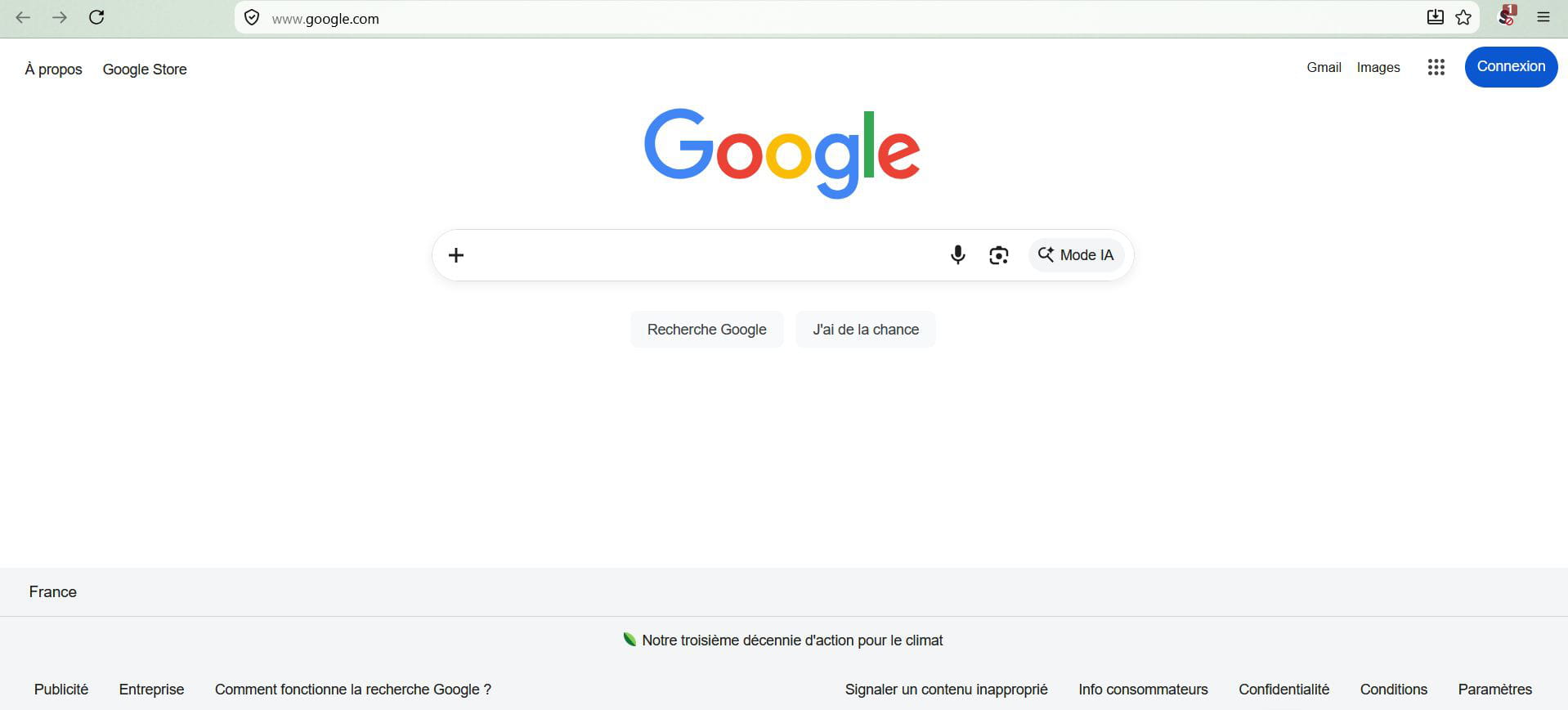
One update Firefox 153 yesterday or a Google update, I can't find in either how to get rid of the "AI mode" and the "suggestions" that come with it as soon as you search for something.
Thank you.
4 answers
-
Hello,
And if you ask how to disable it, doesn’t it want to indicate how to self-destruct? Isn’t there a general law of computing equivalent to cutting the branch you’re sitting on?
I haven’t tested it, but it’s indicated that in the browser you need to create a new search engine with a specific URL.
-
-
I just added this on Firefox and the normal behavior returns without the Google-imposed AI.
https://addons.mozilla.org/fr/firefox/addon/udm-14/
https://korben.info/google-udm14-recherche-sans-ia.html
-
Hello,
Moral of the story, when I tell you I want to stay a bit stupid, it took me a moment to understand.
The click on AI mode is non-operational for me.
I’m being ditched by the two methods aimed at adding a search engine: one of the two syntaxes isn’t accepted, the other is but always returns unknown address when launched even before searching for anything.
On the other hand, without an extension or going through a third-party site that will systematically add udm=14 to the search, the bookmark modification works.
It’s necessary to adapt what is indicated, for example here for udm:
https://brightdata.fr/blog/donnees-web/google-search-url-parameters
If possible, we’ll replace google.com with google.fr and what I took a moment to assimilate is that only the search parameter search?q= followed by the parameter udm=14 matters: if you put something between the two, like %s which is only meant to add the search engine, Google will search for %s.
In short, the bookmark URL is therefore:
https://www.google.fr/search?q=&udm=14
The drawback is that this does not modify the search engine of the address bar, which doesn’t bother me since I always search via bookmarks.
Thanks for your suggestions which helped me find the one that works.As noted, I had not tested the update of the search engine proposed by the CCM article. But the AI responses were starting to annoy me, so I went ahead.
The syntax {google:baseURL}/search?udm=14&q=%s must be Chrome-specific; Firefox doesn’t seem to have keywords of this type.
On Firefox you simply need to use the address https://www.google.fr/search?udm=14&q=%s
This syntax is specific to the search engine since the %s will be replaced by the text you enter in Firefox, in the address bar or in the search box. When you put %s in a bookmark URL, it launches Google with the search for the string "%s", which is not what you want. In your bookmark you can remove q= since there is no text searched passed on the command line, and also search https://www.google.fr/?udm=14 is enough.
After adding this Google search engine without AI, I made it the default engine. On Firefox search engines I set a few keywords, W for Wikipédia, Q for Qwant, Y for YouTube. This allows in Firefox search to select the search engine by typing the letter in front of the text you search, "W falaise". I added on the classic Google a G that will possibly allow me to launch the AI search with this prefix.
- Hello, Indeed, in the bookmarks your syntax is simpler than the one I proposed and it works. For those who use it, I started again with the syntax you propose to add a search engine as I did yesterday and which this time no longer crashes on me. But at least for me, it doesn't add much to the discourse since the search engine, even modified in default search, remains Google next to the left of the address bar and you have to go down the stairs to choose the new one.
-
-
-
Hello again,
-
Firefox allows AI control:
-
menu button
 and select Settings
Select AI Controls on the left
-
Source and explanations :
https://support.mozilla.org/fr/kb/firefox-ai-controls?as=u&utm_source=inproduct#firefox:linux:fx152
-
to check under Windows
Hello,
Update on the countermeasures.
In all cases, they remove the AI item from the Google search window.
The bookmarks bar is inconsistent; sometimes the search is "normal," sometimes it displays an AI summary at the top of the page.
The one that involves adding a search engine and performing a search on its keyword in noIA Tartempion mode in the address bar works 100%, but of course you must begin your search with that keyword.
The one via an extension as well, either the one proposed or another (I tried more or less at random Hide Gemini and Google AI), but by definition it requires installing an extension.
-