External device ejection issue

Hello everyone!
For some time now, my Windows 7 PC no longer displays the little "popup":
- The hardware can be safely removed
Let me explain: The little USB drive is indeed there with the little green checkmark. I click on it. Nothing happens! Sometimes, the icon disappears, and I unplug my device, but sometimes, the icon stays, and I can't remove my hard drive (well, I can, but it causes me problems later on).
So, why does the message "all went well" or "there is a problem" no longer appear? Is there a way to fix it...?
I specify that the problem started before the end of Win7 support.
Thank you in advance,
2 answers
-
Hello,
That the problem has existed since before the end of Windows 7 support means it has been present since 2020?
Regarding the tooltip itself, see here:
https://www.forum-windows7-windows8.fr/viewtopic.php?t=3109
The issue with the ejection itself is more obscure, including under other versions of Windows, as a number of reasons can oppose it, for example, one USB device and not another, one USB port and not another, more generally that a USB port might be damaged, or there could be a USB driver issue...
Some USB controllers are reported to consistently cause this behavior, and there's nothing we can do about it.
I also have this question under Windows 11 for 2 devices, I can't remember which ones.
If we want to refine it, there are eject scripts with dedicated third-party utilities, but in any case, it’s enough to wait for a while to ensure that there’s no more writing to the device to safely remove it.
-
Yes, that's right! The problem has been there for a few years now...
Thanks for the link, I hadn't found it.
But the answer says:- This key exists on your system:
HKCU\software\Microsoft\Windows\Current version\Explorer\advanced (enableBalloonTips)
If that's the case, the value should be set to 0; you need to change it to 1 and restart.
Isn't there a risk with the registry editor?
- This key exists on your system:
-
@poni24
The only risk is making a mistake and modifying something else; the registry applies without warning.
Here, in the worst case, it is enough to note somewhere the path of the key and set its value to 0 if the result is not satisfactory; this particular manipulation cannot crash the system anyway. -
@brucine
Okay, thanks! I'm trying it right away ☺!
-
@poni24
Hello!
I just tried: apparently, nothing! The SuperSpeed-USB tooltip came back, though, as it had also disappeared, but not the one I'm trying to see again... :( -
@poni24
Hi,
Please give us a summary of what has come back and if it's still the info Bubble about:
Do we still need to Remove the Device safely?
Thank you in advance.
-
-
Hello,
Click on the small arrow at the bottom right of the taskbar (near the clock).
Select:
Personalize ......
Look for: Safely Remove Hardware and put it on:
Show icon and notifications.
Often, the icon is hidden.
Otherwise, open File Explorer, then right-click on your USB drive or the connected USB and choose:
Eject.
Also check by restarting the Windows service:
Press Win + R and type:
services.msc and search for Plug and Play to ensure it is running.
If necessary, restart it.
This service manages the appearance of the icon.
Check the USB ports because some users find that the icon only appears on certain USB ports.
Try plugging your device into another port.
If the problem persists, you can use a small free utility like USB Disk Eject that allows you to safely eject devices without going through the icon.
Update all your USB drivers because if there is an outdated driver, it prevents the icon from displaying.
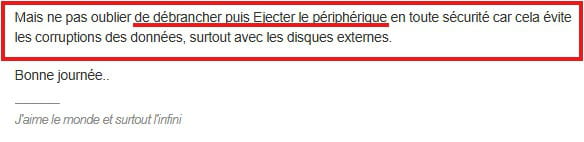
But don't forget to unplug and then eject the device safely as this helps avoid data corruption, especially with external drives.
Have a nice day..
-
-
Thank you very much for this response!
I have already tried plenty of times to tinker with this icon display setting, with no results. Currently, it is set to "Show the icon and notifications":')
I have already tried all the USB ports on my PC!And for now, I prefer not to install any external programs, but thanks anyway.
As for the driver updates, I checked in Device Manager, everything is up to date (or cannot be updated, due to the old age of the PC, perhaps).
And:
- Press Win + R then type:
- services.msc, and search for Plug and Play and make sure it is running.
- If necessary, restart it.
No risks?
Thank you!
-
@poni24
I just tested "services.esc," but Windows run can't find any files with that name.
-
@poni24
Because it's the Plug and Play service not in services.esc but in services.msc
A service is disabled, manual, or automatic.
If it is disabled and essential, we crash.
If it is manual, it only starts at the request of the program that uses it; if it is automatic, it is started permanently.
In the latter case, the only risk is to consume unnecessary resources for a service that such a user does not use (for example, connection sharing, Bluetooth, Fax...). -
@brucine
Hello,
Excuse my late reply,
So, I managed to go to services.msc and:
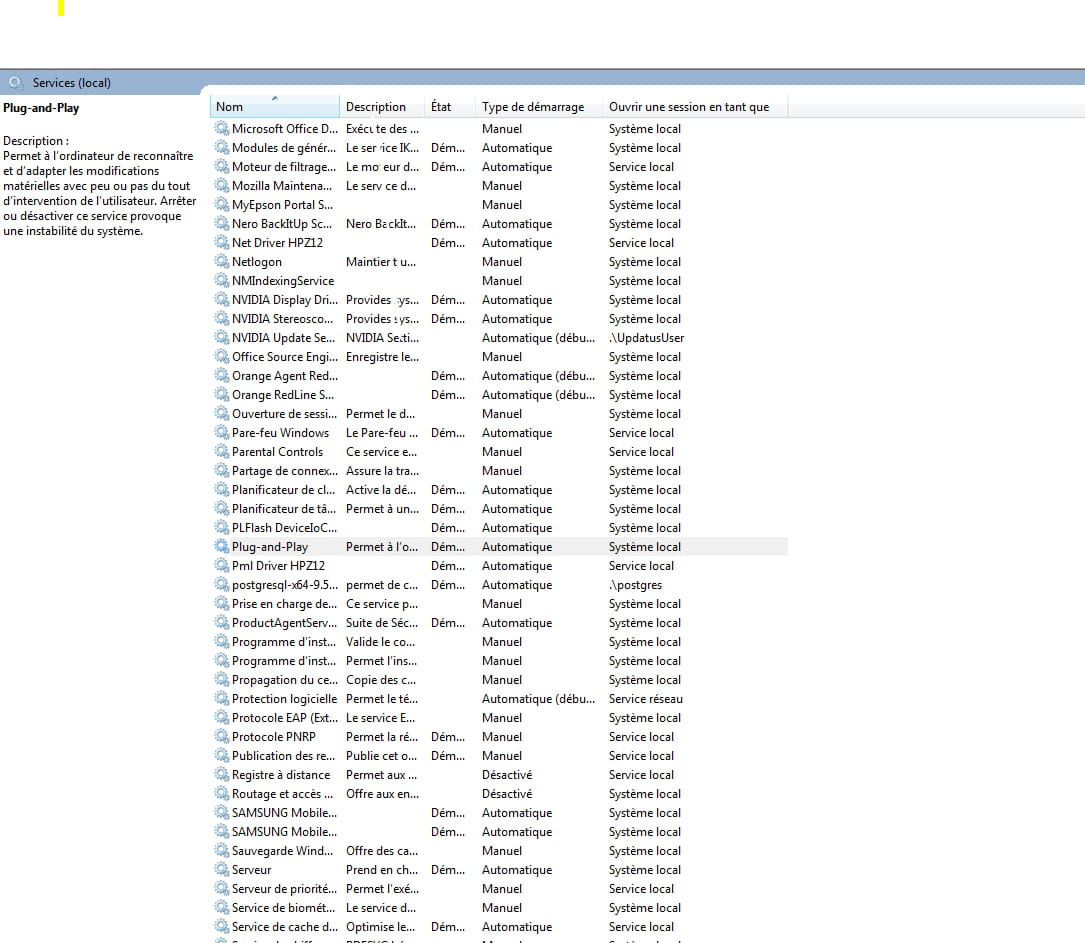
What should I do next?
Thank you very much!
-