Fix, clean, repair, fine-tune Windows

Clean, repair, refine, Fixyfier presents itself as an all-in-one toolkit.
Regardless of your level, whether beginner or expert, Fixyfier aims to identify, diagnose, and resolve common problems in Windows.
A comprehensive toolbox, with a central panel and simplistic menus where each process is automated.

As with all repair or optimization software, it is advisable to create a system restore point.
==► Create a restore point in Windows
Install Fixyfier:
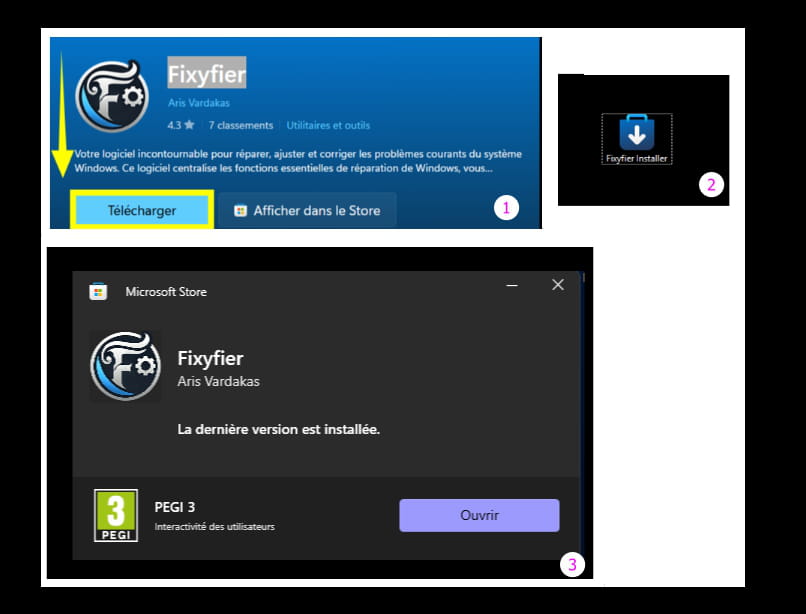
Go to the Microsoft Store ==► Fixyfier
Click on --►Stay in French (France)
Click on --►Show in Store
Click on --► Install

Same if the ''Download'' option is chosen.
Fixyfier Shortcut:
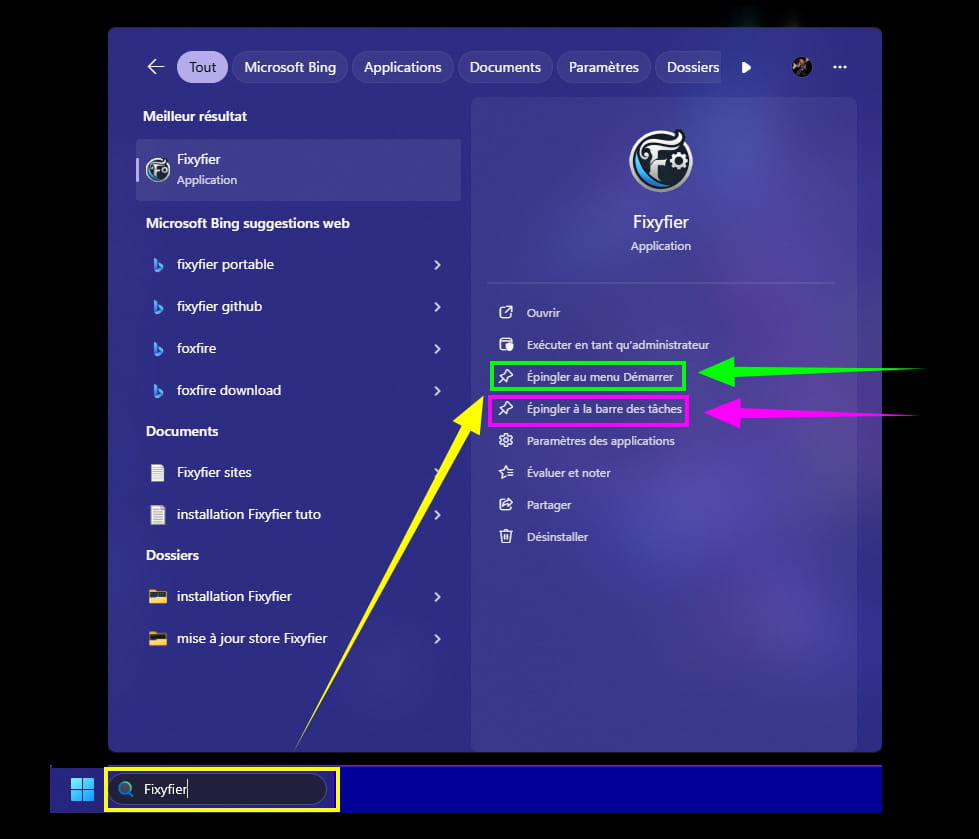
Once installed, add the Fixyfier shortcut to the Start menu or the taskbar.
In the search box on the taskbar, type --► Fixyfier
Pin the shortcut either to the Start menu or the taskbar.
Or go through the Start menu
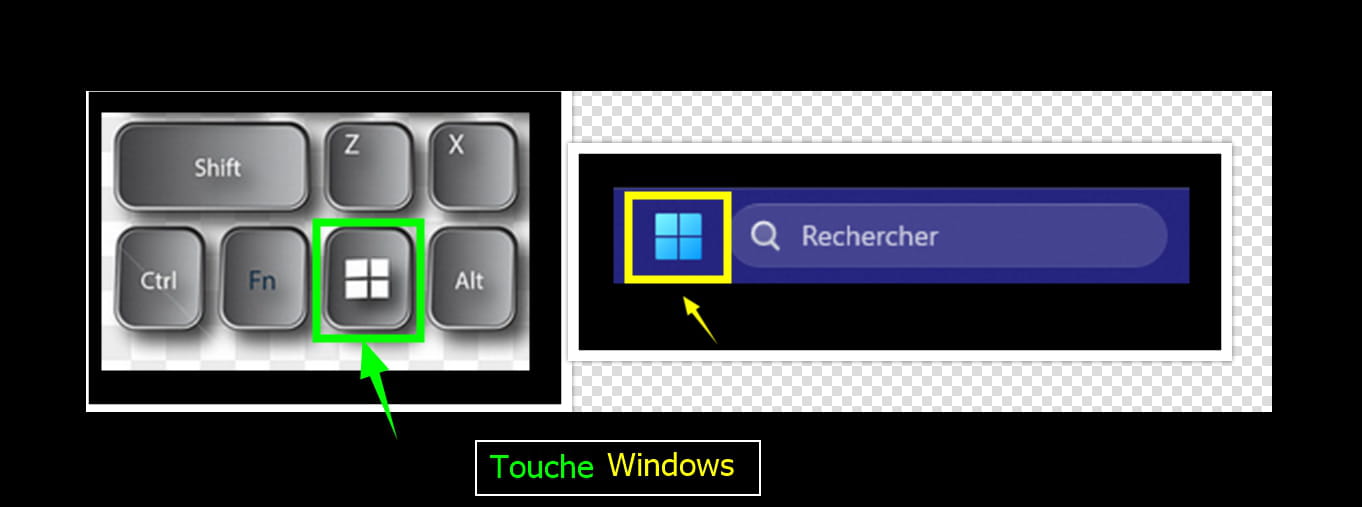
Press the Windows keyboard key or click on the Windows logo located on the left of the taskbar.
Launch Fixyfier:
The main panel:
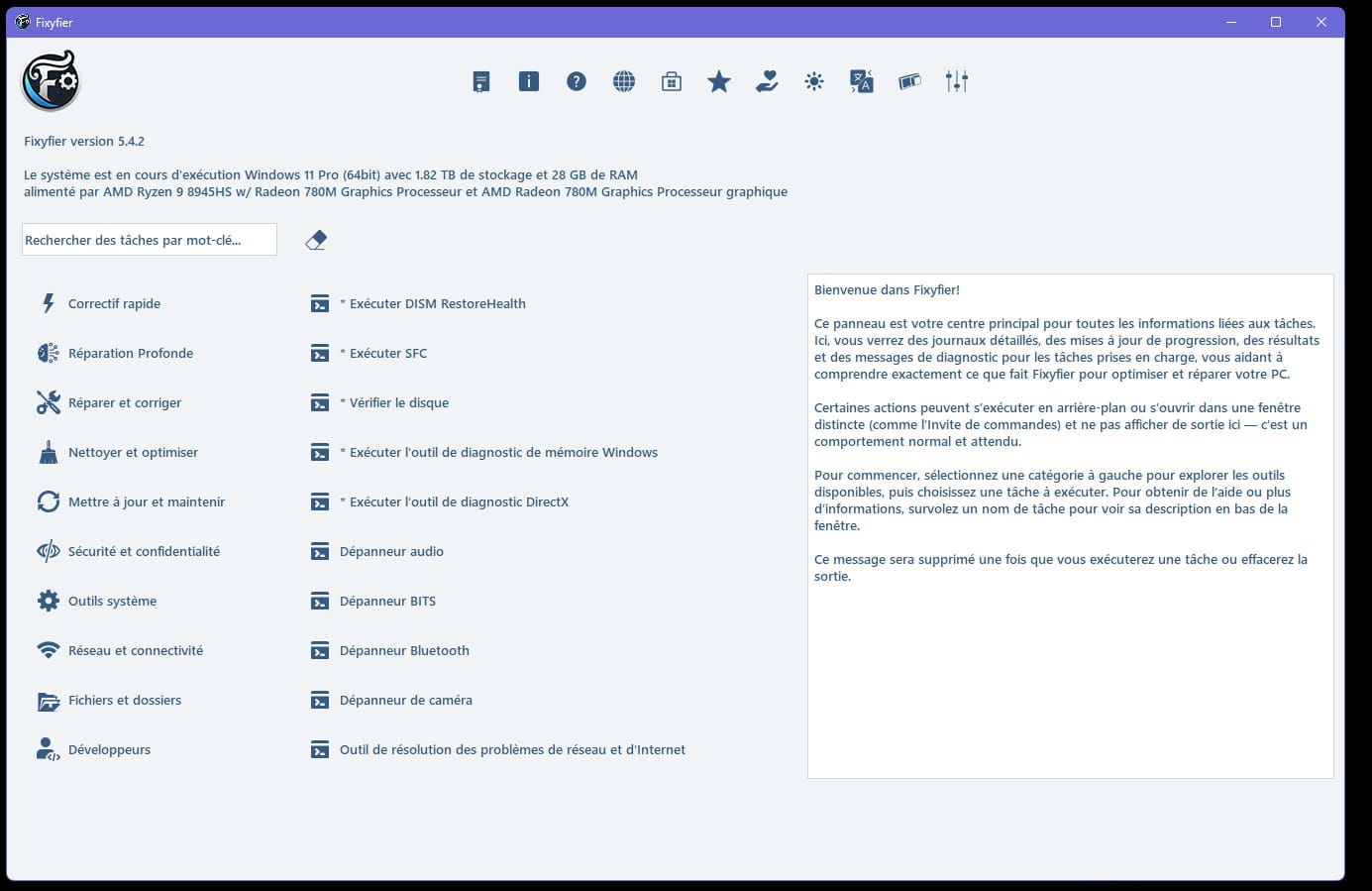
Using Fixyfier Menus:
The various vertical menus are categorized.
Select the menu of your choice based on the encountered problem.
The different menus and their usage:
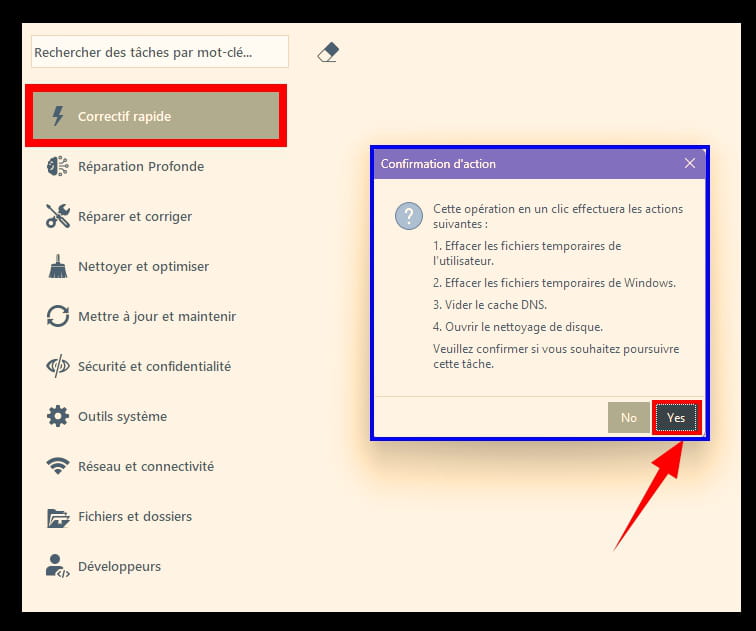
Quick Fixes:
Cleans temporary files, clears cache, disk cleaning.
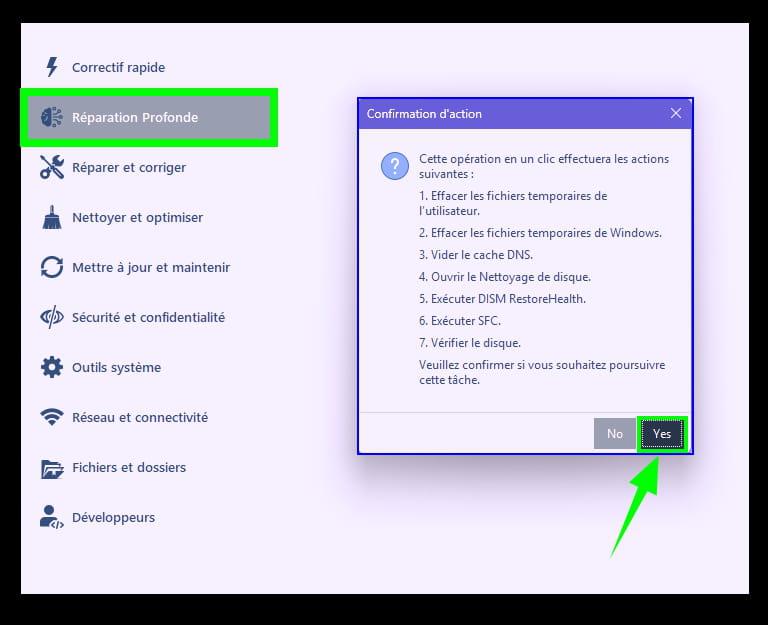
Deep Repair:
Cleans all temporary files, clears DNS cache, cleans or checks disk, runs DISM and SFC.
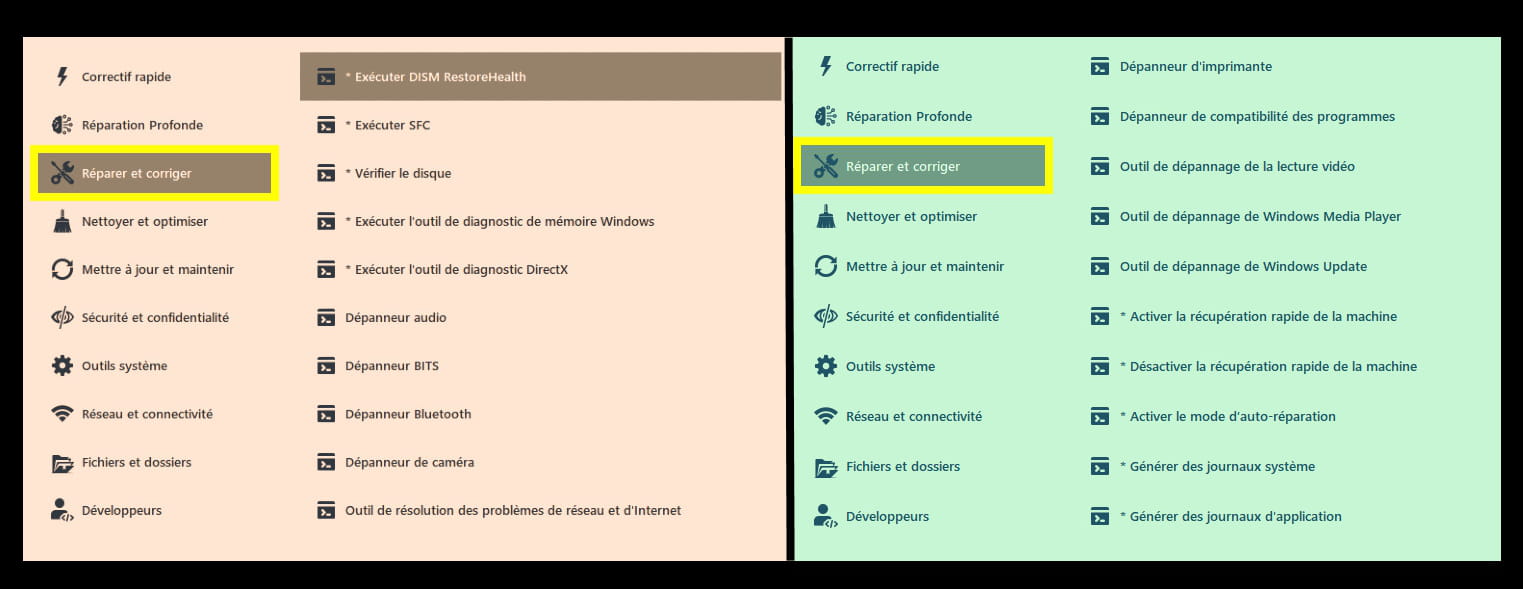
Repair and Fix:
Runs DISM and SFC, checks the disk, runs the memory diagnostic tool, runs the audio troubleshooter, BIT troubleshooter, Bluetooth troubleshooter, camera troubleshooter, network and internet troubleshooter, printer troubleshooter, program compatibility troubleshooter, video playback troubleshooter, Windows Media Player troubleshooter, Windows Update troubleshooter, enables machine quick recovery, disables machine quick recovery, enables self-repair mode, generates system logs, generates application logs, generates security logs.
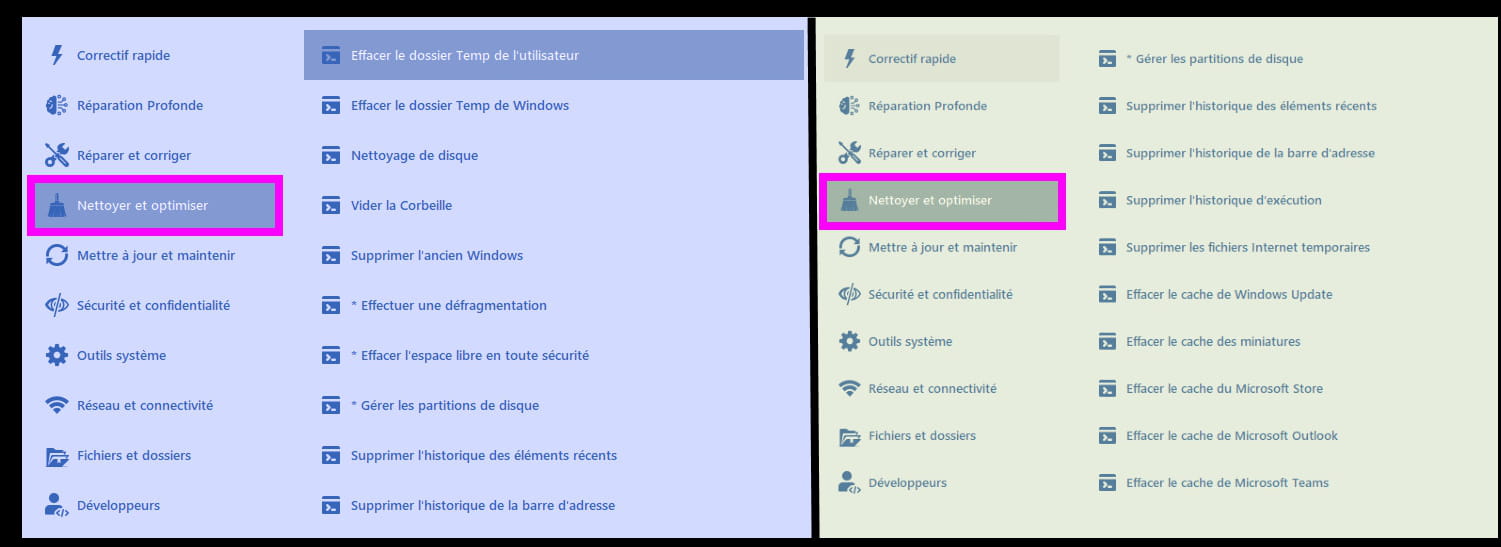
Clean and Optimize:
Clears the user's Temp folder, clears the Windows Temp folder, disk cleaning, empties the recycle bin, deletes old Windows, performs defragmentation, securely wipes free space, manages disk partitions, removes the history of recent items, removes address bar history, removes run history, deletes temporary internet files, clears Windows Update cache, clears Microsoft Store cache, clears Microsoft Outlook cache, clears Microsoft Teams cache.
Update and Maintain:
List of installed programs, list of pinned programs, pin the program, unpin the program, upgrade all programs.

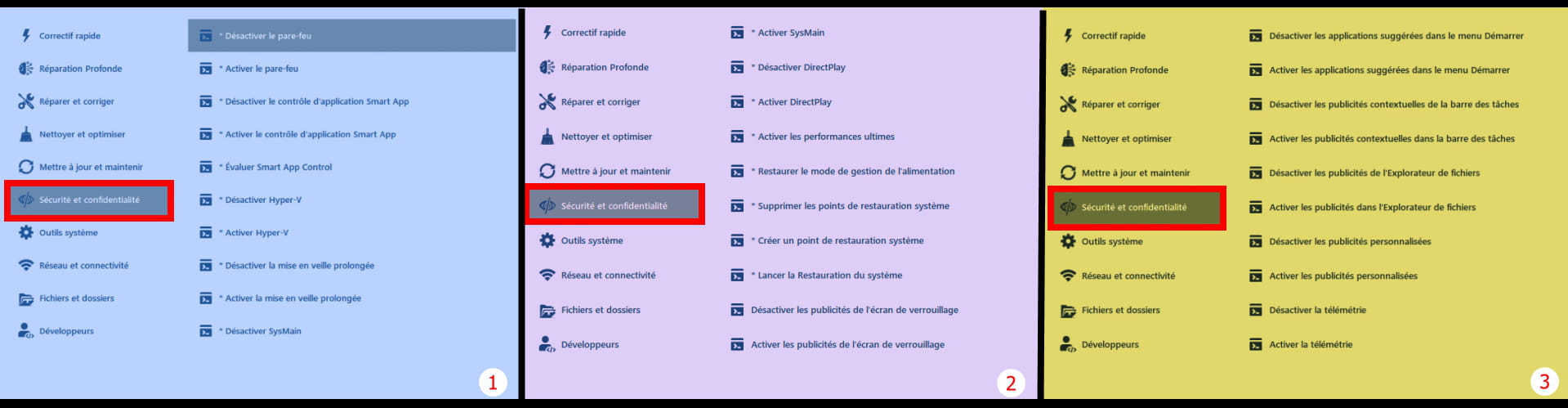
Security and Privacy:
Disable the firewall, Enable the firewall, Disable Smart App control, Enable Smart App control, Evaluate Smart App Control, Disable Hyper-V, Enable Hyper-V, Disable Hibernate, Enable Hibernate, Disable SysMain, Enable SysMain, Disable Direct Play, Enable Direct Play, Enable ultimate performance, Restore power management mode, Delete system restore points, Create a system restore point, Launch system restore, Disable lock screen ads, Enable lock screen ads, Disable suggested apps in the Start menu, Disable contextual ads in the taskbar, Disable File Explorer ads, Enable File Explorer ads, Disable personalized ads, Enable personalized ads, Disable telemetry, Enable telemetry.
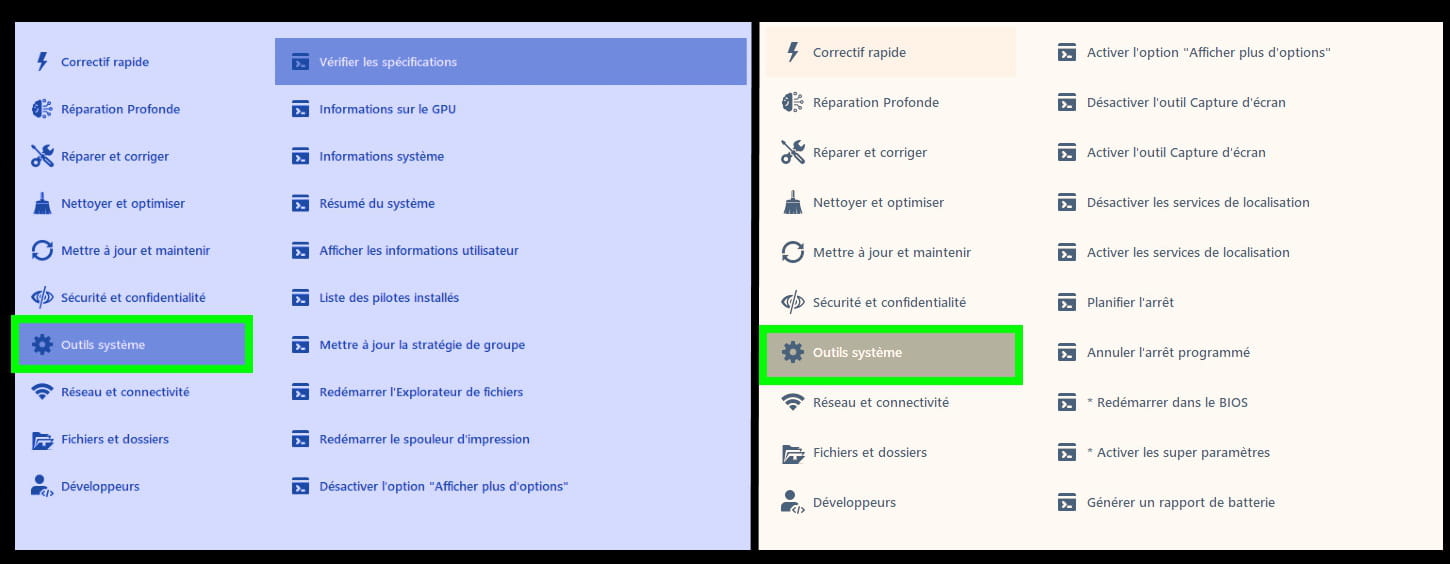
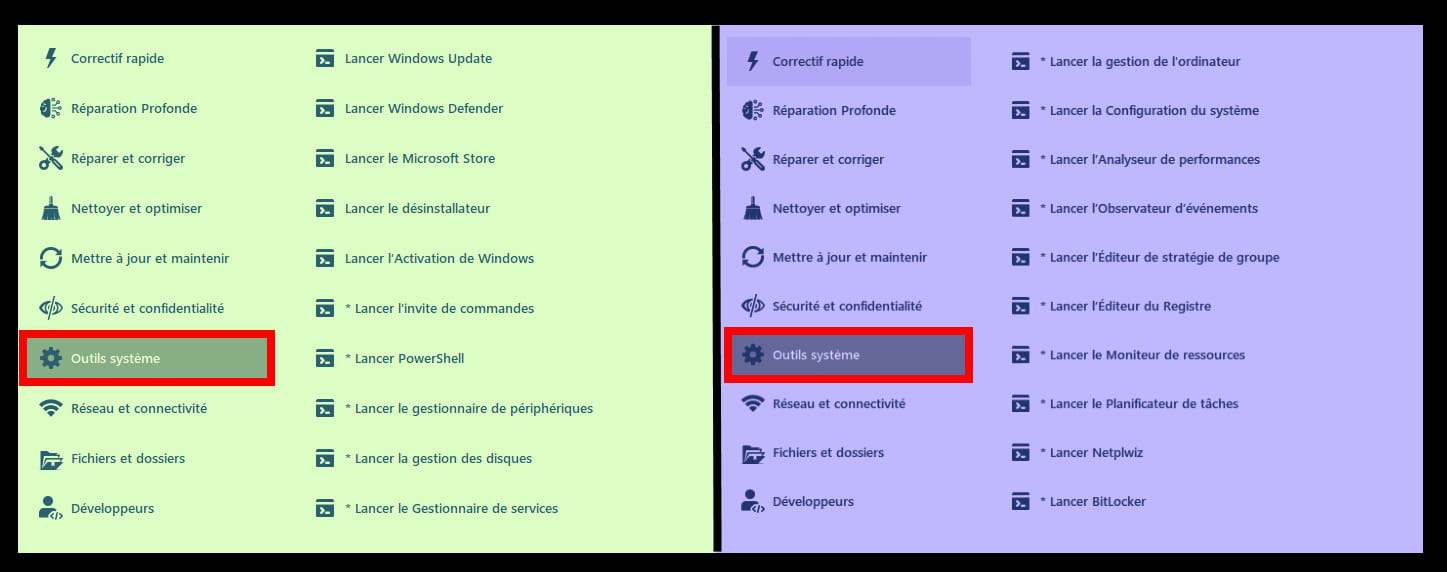
System Tools:
Check specifications, GPU information, system information, system summary, view user information, list of installed drivers, update group policy, restart File Explorer, disable 'More options' option, enable 'More options' option, disable Snipping Tool, disable location services, schedule shutdown, cancel scheduled shutdown, restart in BIOS, enable super settings, generate battery report, launch Windows Update, launch Windows Defender, launch Microsoft Store, launch command prompt, launch PowerShell, launch device manager, launch disk management, launch Services Manager, launch Computer Management, launch System Configuration, launch Performance Analyzer, launch Event Viewer, launch Group Policy Editor, launch Registry Editor, launch Resource Monitor, launch Task Scheduler, launch Netplwiz, launch BitLocker.
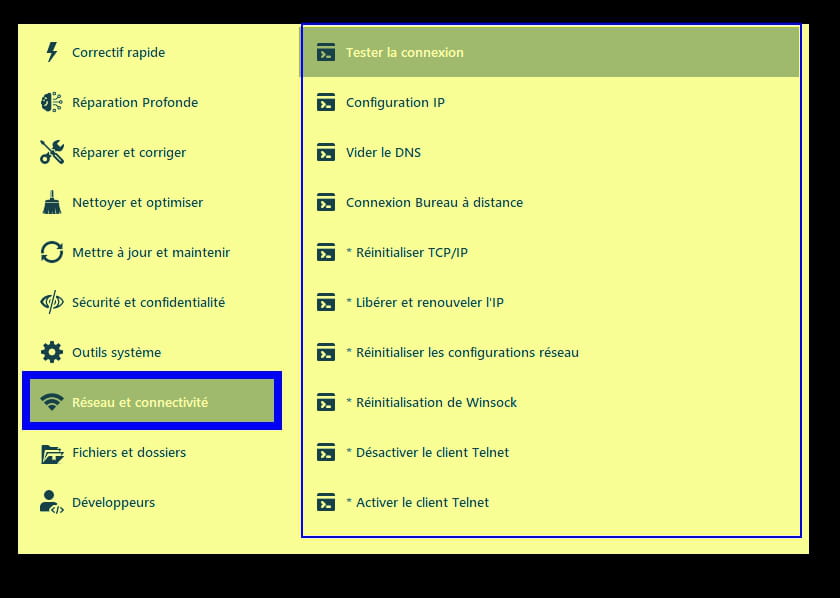
Network and Connectivity:
Test connection, IP configuration, clear DNS, Remote Desktop connection, reset TCP/IP, release and renew IP, reset network configurations, Winsock reset, disable Telnet client, enable Telnet client.
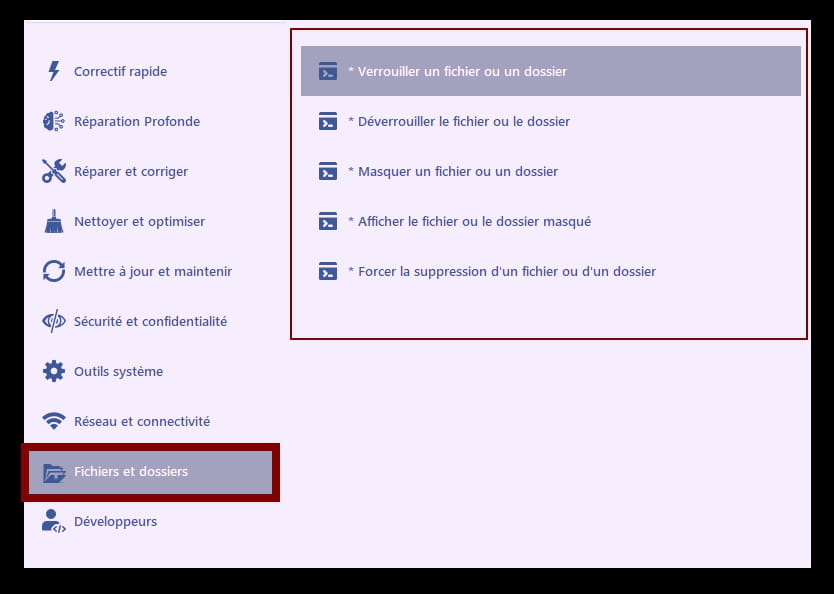
Files and Folders:
Lock a file or folder, unlock the file or folder, hide a file or folder, show a hidden file or folder, force delete a file or folder.
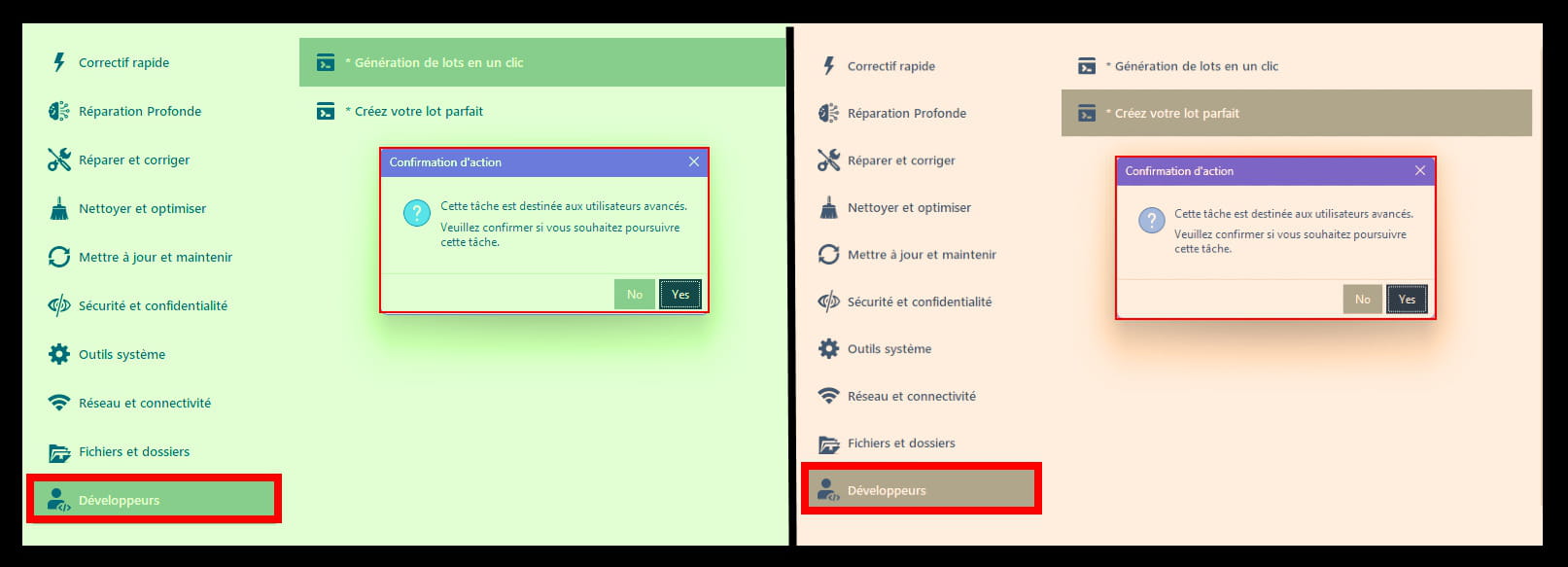
Developers:
(Tasks intended for advanced users).
Generate batch files in one click, create your perfect batch.
Central Menu Bar:
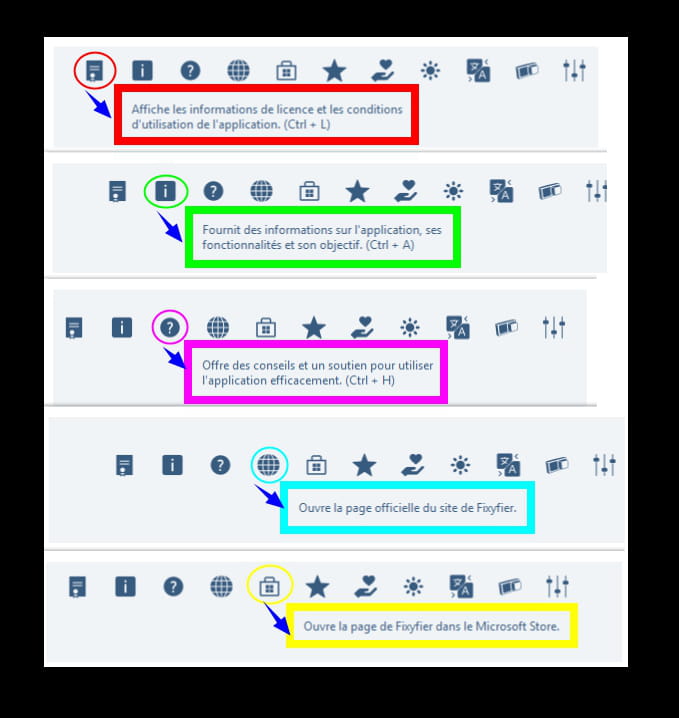
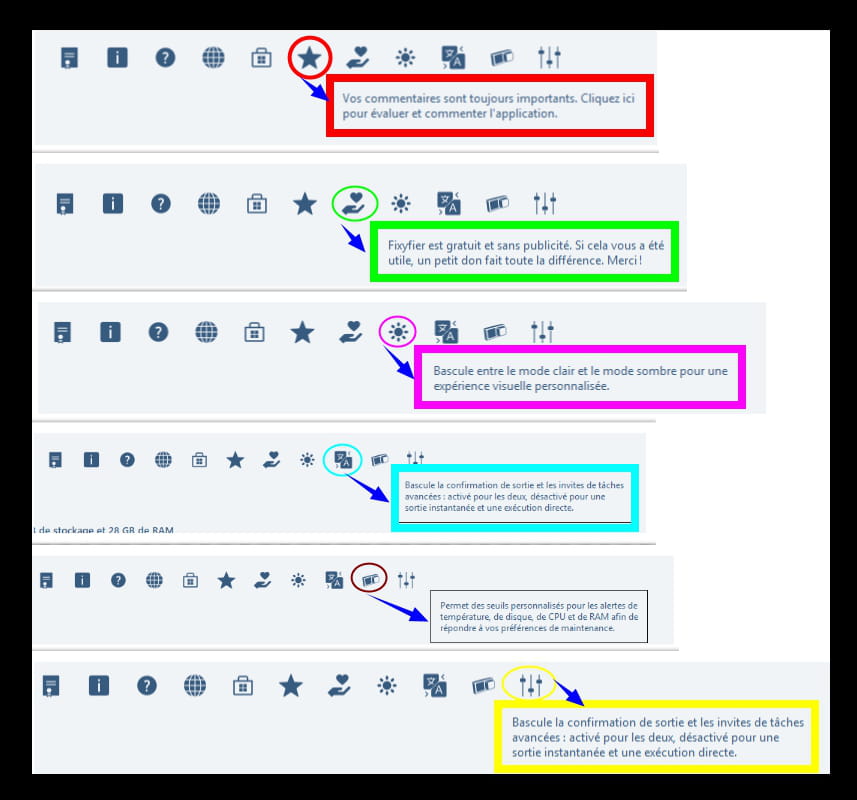
This horizontal menu bar located at the top provides various information.
Monitoring Adjustment:
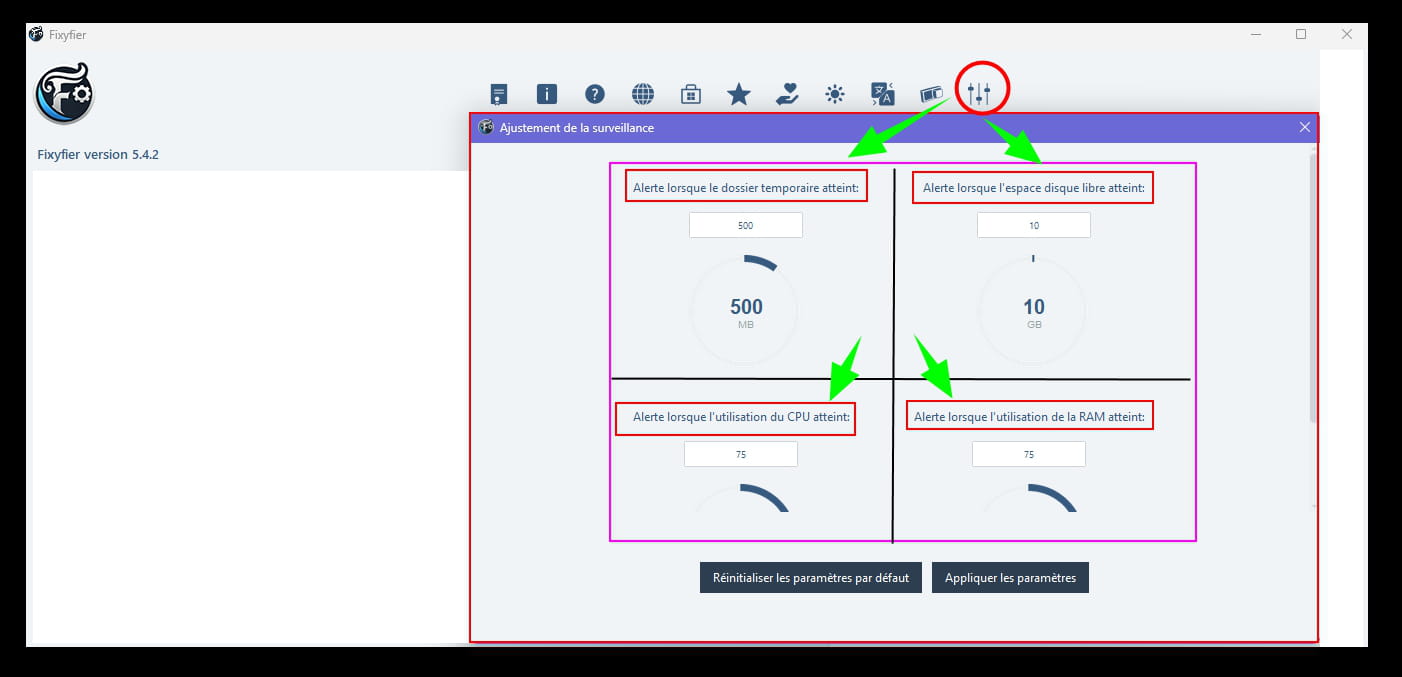
A little extra is the monitoring adjustment with alerts for various options concerning frequent issues, such as RAM = memory, disk, CPU....).
Fixyfier Updates:
As a component, you will need to go through the Microsoft store to keep it updated.
This operation is automatic, but it is still possible to check manually from time to time.
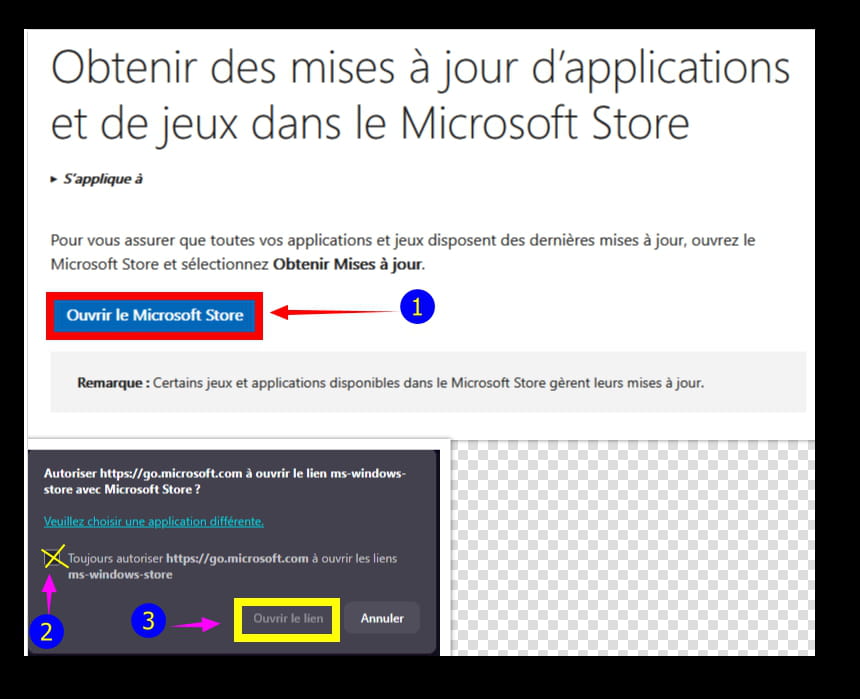
Get app and game updates in the Microsoft Store:
Click on --►Open Microsoft Store
Check the box --►Always allow
Click on --►Open link
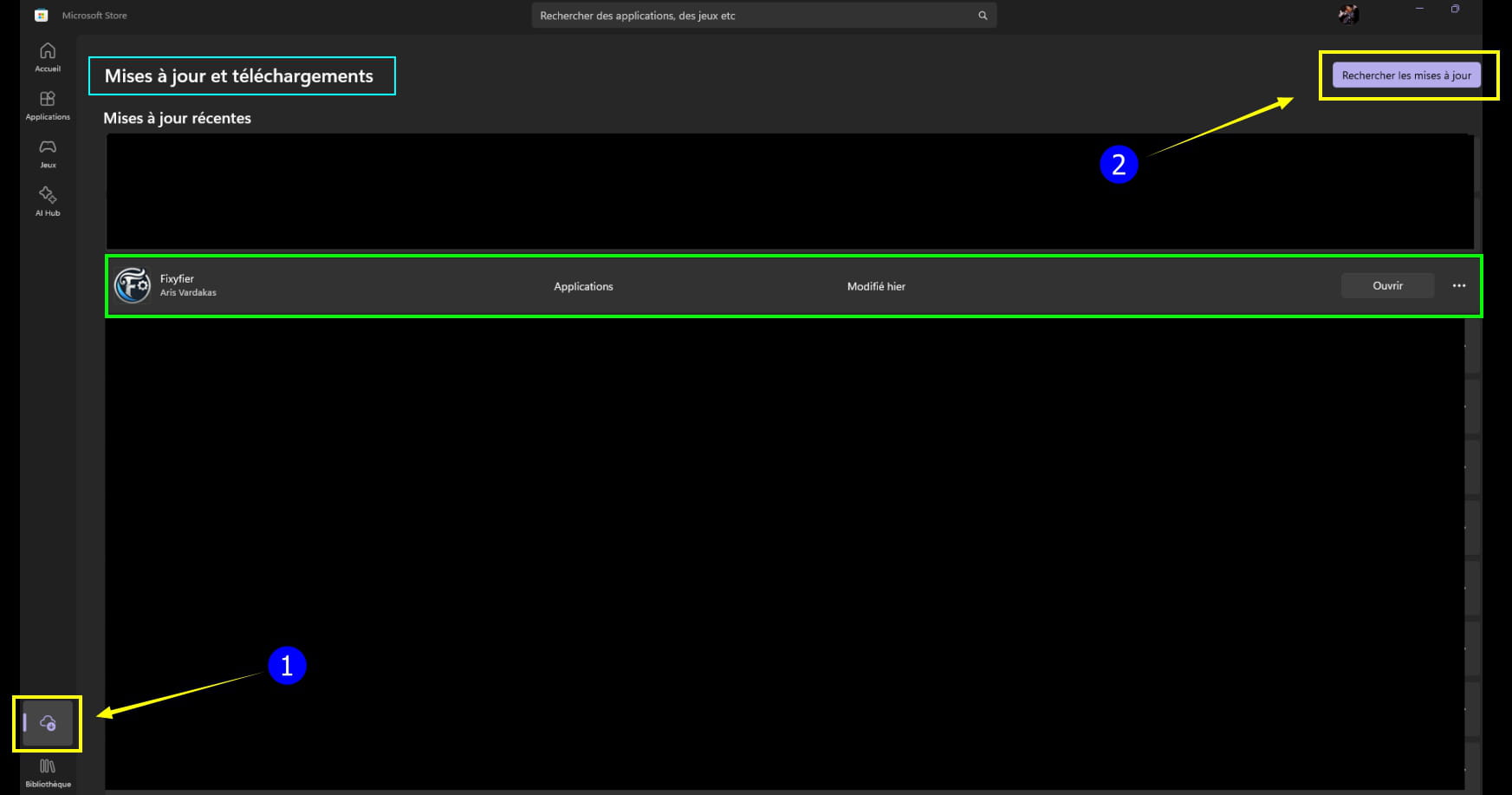
Click once on the box in the upper right --►Check for updates

Then wait, updates will occur gradually, there will occasionally be updates for Fixyfier.
Another method:
Open the Microsoft Store from the taskbar (there's a little cart or document holder on the taskbar, then click the logo with a cloud (Downloads) at the bottom left, and finally click on ''Check for updates''.