
Linux Mint: Install Epson XP-247
SolvedAnitaLeh Posted messages 148 Status Member -
Hello,
I just switched from Windows 10 to Linux Mint 22.2 Cinnamon 64 bits.
I have an Epson (printer and scanner) XP-247 that works both via WiFi and USB.
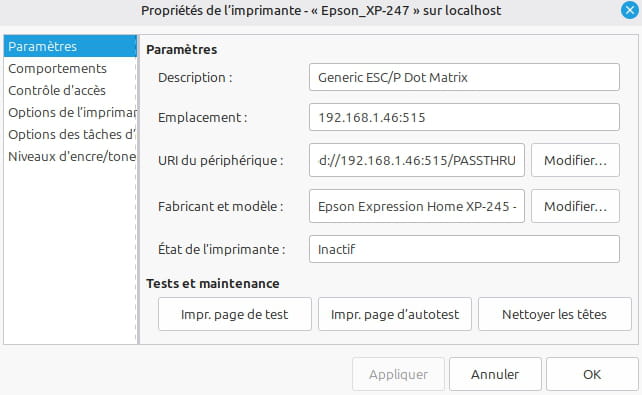
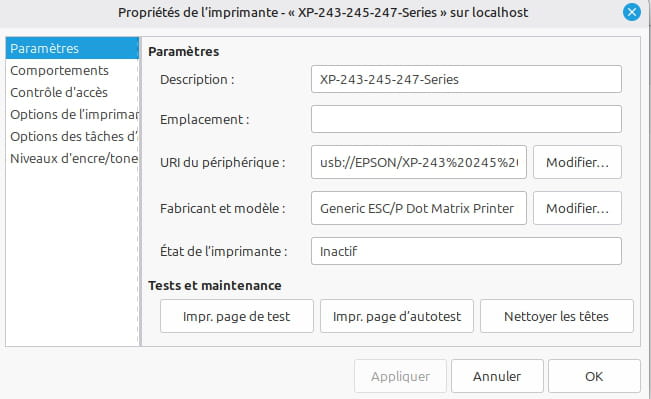
I managed to "install" it via WiFi without any issues, Linux detected it well with its IP address. The scanning works very well (even though I miss some of the functionalities offered by the Epson driver for Windows), and the printer seemed to be working until I tried to print something (a spreadsheet from LibreOffice Calc). The printing seems to start (confirmation window, sending a page), but all that comes out is a blank page.
Since it also works via USB, I connected it through USB: Linux detects the model and installs it automatically, but that does not solve the problem: still printing a blank page.
Does anyone know how to troubleshoot this? I have some basic computer knowledge but not much in Linux!
Thank you.
AnitaLeh
"Everyone's experience is everyone's treasure" - Gérard de Nerval
8 answers
-
Hello,
Prerequisites
Before going any further, it is important to understand how printing works under Linux. The printing chain involves several links, and if one of the links is broken, then it is not possible to print. At this stage, it seems that we have ruled out option 1.
- The hardware (in this case, the printer)
- The driver (which must be able to support the hardware). Under Debian/Ubuntu/Mint, most printer packages are available via the package manager and have a name that starts with printer-*
- Most often, you can install it directly via the software center or via the terminal with apt commands (see #4).
- These two methods are equivalent as they both ultimately use APT. In this case, the driver that seems appropriate is indeed printer-driver-escpr. You can find and install it with the following commands:
- The cleanest way to proceed is #4, as the driver will be updated with the rest of the system.
- Sometimes, by downloading and installing a driver manually (see #1). This is less clean for two reasons.
- You have to trust the third-party site from which you retrieve the driver, instead of just trusting the maintainers of the Linux distribution.
- Unless the driver is provided in ".deb" format and that it configures a dedicated APT repository (see /etc/apt/sources.list.d), the driver will not be updated with the rest of the system.
- Most often, you can install it directly via the software center or via the terminal with apt commands (see #4).
- CUPS (Common UNIX Printing System).
- CUPS can be configured either via the control panel or via the browser http://localhost:631/admin (see #6). To access this interface, CUPS must be installed and running.
- At http://localhost:631/admin you need to ensure that you can print the test page. This doesn't seem to be the case at the moment (see #5), so either the printer is misconfigured in CUPS or the installed driver is inadequate.
- The software that triggers the print:
- For example, LibreOffice, Firefox, Thunderbird...
- In the vast majority of cases, it is not this software that is at fault.
Installation Procedure
Here is what I recommend:
- 1) Update the system. Here we will do it from the terminal to bypass the graphical environment that you are using. Note that the sudo command is used to run commands with administrative privileges. Assuming your user is a sudoer (i.e., has the right to use sudo, which is generally the case for the main user under Mint and Ubuntu), sudo will ask you to type your password blind and then press enter.
sudo apt update sudo apt upgrade- 2) Install CUPS
sudo apt install cups cups-client
- 3) Check that CUPS is running.
systemctl status cups
Example: If CUPS is running, you should see something like this:
● cups.service - CUPS Scheduler Loaded: loaded (/usr/lib/systemd/system/cups.service; enabled; preset: enabled) Active: active (running) since Tue 2025-10-28 10:52:07 CET; 1h 44min ago Invocation: a0583acf998943548c6ae6abf03760ee TriggeredBy: ● cups.path ● cups.socket Docs: man:cupsd(8) Main PID: 1237 (cupsd) Status: "Scheduler is running..." Tasks: 1 (limit: 18805) Memory: 4.9M (peak: 5.2M) CPU: 57ms CGroup: /system.slice/system-cups.slice/cups.service └─1237 /usr/sbin/cupsd -l
- 4) Install the EPSON driver. To find the name of the available package in APT, you can use apt search and install it with sudo apt install (which downloads and installs the appropriate ".deb").
apt search epson
Example: on my machine I get:
printer-driver-escpr/testing,unstable 1.7.17-4 amd64 printer driver for Epson inkjet printers using ESC/P-R
The driver is therefore named printer-driver-escpr and can be installed with the command:
sudo apt install printer-driver-escpr
- 5) Go to the CUPS web interface with your browser of choice: http://localhost:631/ This interface requires your user to be part of the lpadmin group, which you can check with the command:
groups
Example: In the example below, lpadmin appears, so my user (here mando) is indeed part of this group.
mando cdrom floppy sudo audio dip video plugdev users netdev bluetooth lpadmin scannerIf your user does not belong to the lpadmin group, you can add them with the following command:
sudo usermod -aG lpadmin $(whoami)
- 6) In CUPS
- Declare the printer: in CUPS: Administration > Printers > Add a printer > .... When you click on Administration, you will have to enter your login (the result of the whoami command) and your password. This login must belong to the lpadmin group.
- Print a test page.
If you run into difficulties, please report in your next message the results obtained at each step. If one step fails, there is no need to try the following ones.
Good luck
-
Thank you very much for all these explanations.
It's very interesting, and it makes me want to find a Linux user group around here :)
In the end, it was the series of commands sudo apt purge cups followed by sudo apt autoremove and sudo apt install cups that worked.
The installation of Epson drivers was not in vain as I have now regained the full functionality of my scanner, such as adjusting the dpi.
Thanks to everyone.
-
Hello,
Although the printer is automatically recognized by Mint, the drivers are inappropriate. Before starting the installation that follows, I advise you to go back to the settings and remove the printer.
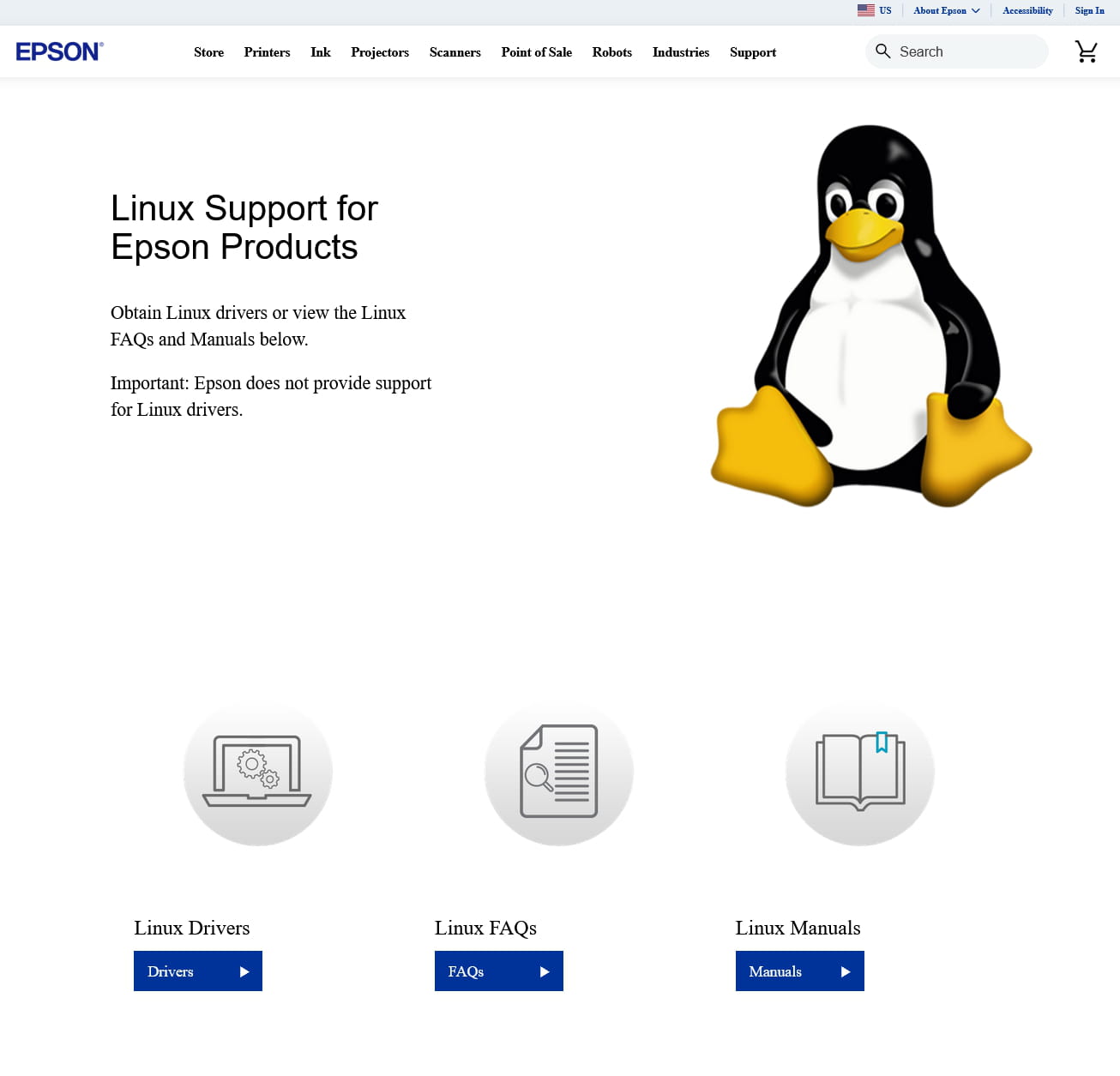
Close everything and then go to this support page: epson.com/Support/wa00821
Click on the link at the bottom (Linux Drivers):
On the next page, specify the printer model: XP -247 ;
Then the type of driver: DEB packages in 64 bits.
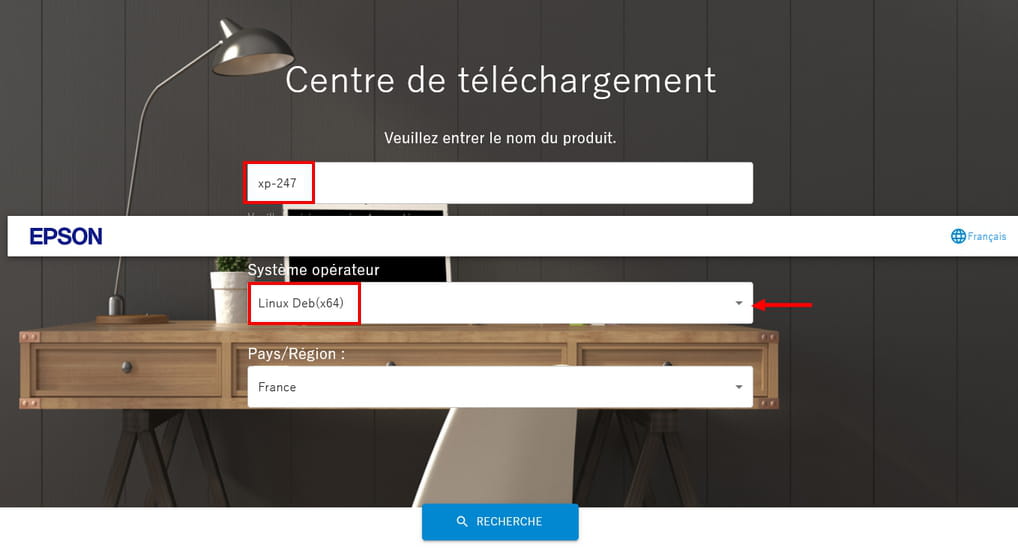
And you search.
You then need to download the three driver packs: two for the printer part, one for the scanner part:
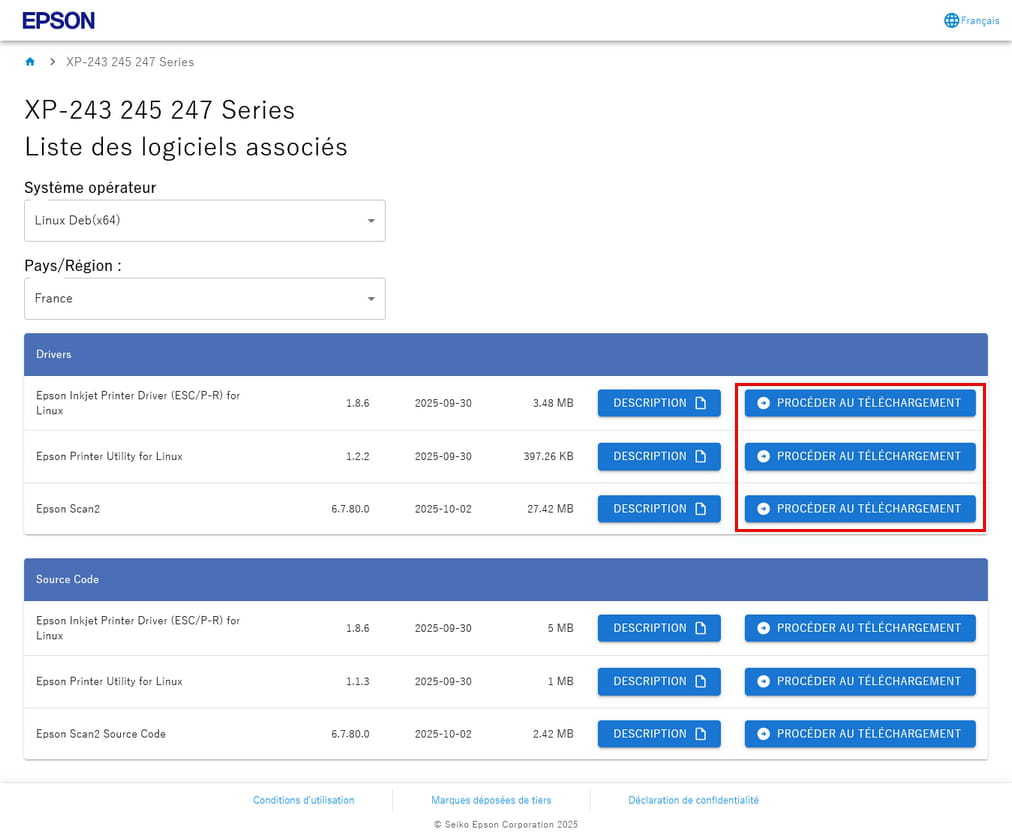
When you click on the first link, a new tab opens, check the box and download:
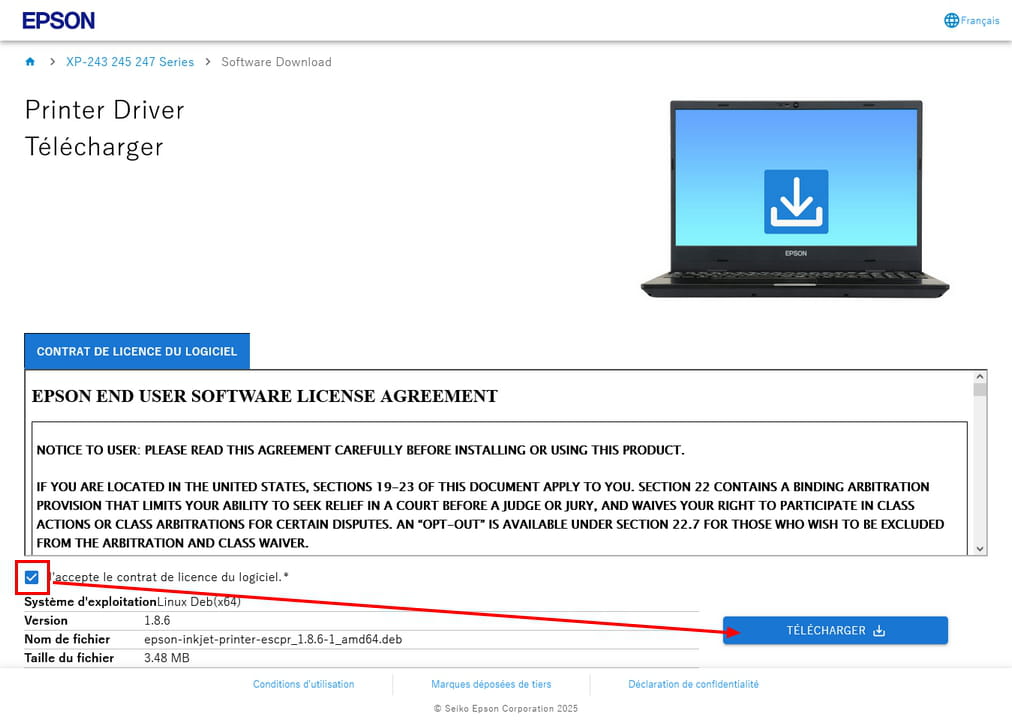
It is likely that the file opens in a new tab instead of downloading. This is not a problem: use the shortcut [Ctrl]+[s] to open the save box.
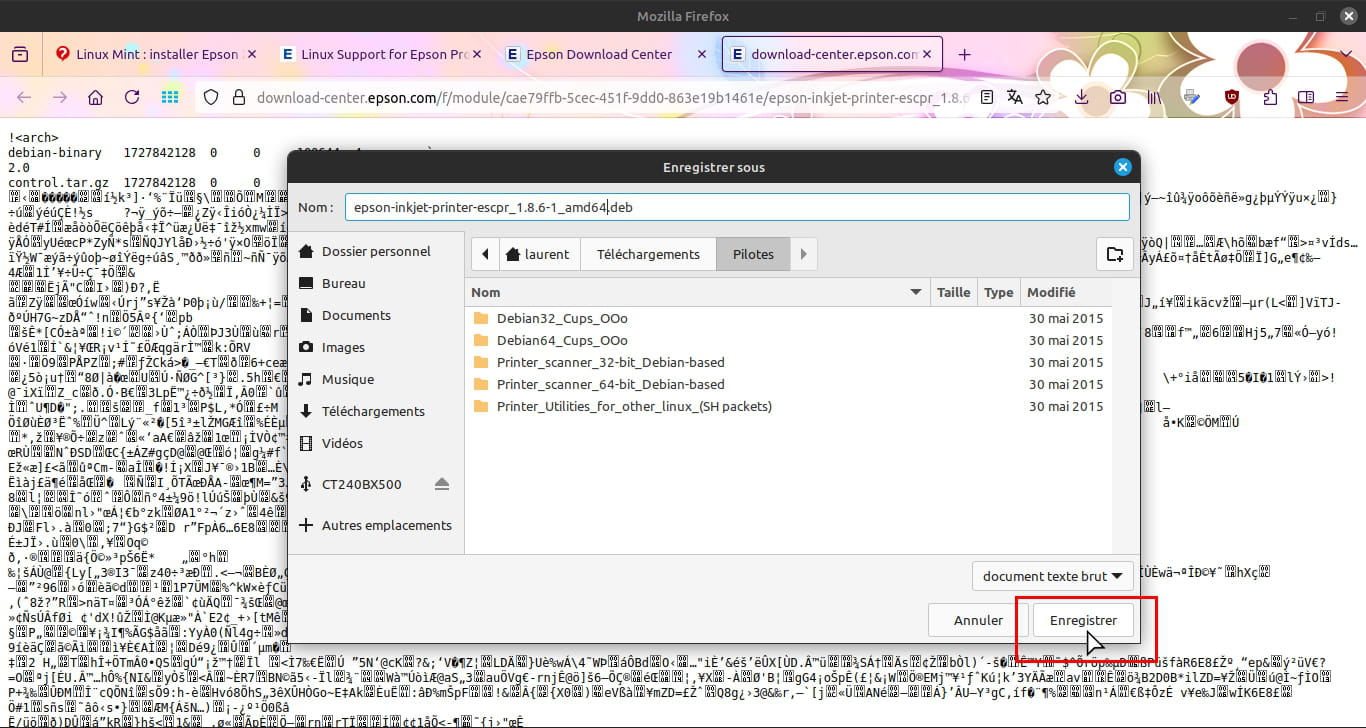
Place the file in a folder of your choice (for example "Downloads")
You just need to go to that folder and then start the installation of the packages.
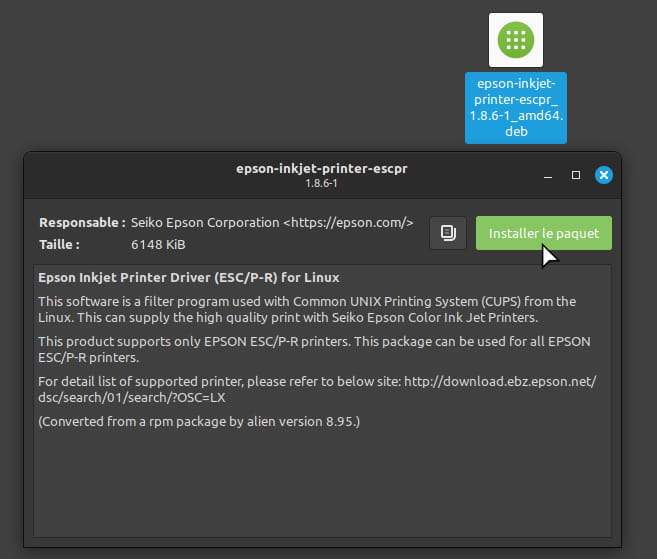
Once installed, close the window and proceed to the next download.
I won't go further in the demonstration, as I do not have this type of printer. However, it worked perfectly when I did it for a third party.
One last thing: before you can see the effects, you will need to restart the PC. After that, the printer should be fully operational.
-
Hello,
Thank you. I followed the process but it still doesn't print.
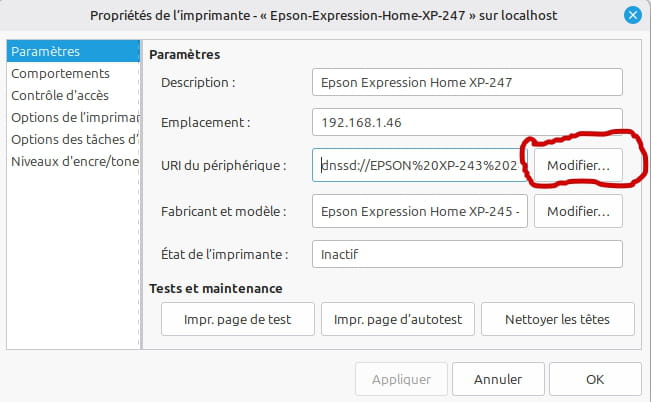
Since this printer also works via WiFi, I modified a setting, but I'm not sure if it's relevant: I added its IP address.
I'm still looking for a solution.
AnitaLeh
"Each person's experience is the treasure of all" - Gérard de Nerval -
AnitaLeh
"Everyone's experience is the treasure of all" - Gérard de Nerval-
Problem solved:
- Terminal: commands sudo apt purge cups followed by sudo apt autoremove and sudo apt install cups
- The installation of Epson drivers, even though they did not solve the problem, allowed the recovery of interesting functionalities
I sincerely thank everyone who took the time to respond to me ????
-
-
Hello,
Here is what Gemini, Google's AI, says:
Step 1: Physical Check (Mandatory)
Even with a good driver, printing cannot occur if the hardware has an issue.
-
Check the Ink: Make sure that all ink cartridges (Black and Colors) are not empty.
-
Cleaning the Printheads:
-
Run a printhead cleaning (and a nozzle check if possible) directly from your printer's control panel. This ensures that the nozzles are not clogged.
-
Step 2: Install Specific Driver (The Most Likely Linux Solution)
The generic driver installed by default by your Linux distribution (via CUPS) may not work correctly with the XP-247 series. You need to install the Epson ESC/P-R official driver.
Option A: Installation via Package Manager (Recommended)
On Debian/Ubuntu/Mint-based distributions (which is often the case in France), the Epson driver is generally available in the repositories:
-
Open a terminal.
-
Install the Epson ESC/P-R driver package:
Bash
sudo apt install printer-driver-escpr -
Then restart the printer and the computer.
-
Go to your System Settings > Printers, delete the existing XP-247 printer, then add it again. The system should now offer you a specific driver for the XP-24* series (often labeled as XP-245 or XP-247 Series - ESC/P-R).
Option B: Download the Driver (If Option A Fails)
If the package is not available or is too old:
-
Visit the Epson support website for Linux and search for your model (XP-247).
-
You should find a file called something like
epson-inkjet-printer-escpr_... .deb. Download it (choose theamd64version for most modern computers). -
Install the LSB package (often required for proprietary drivers):
Bash
sudo apt install lsb -
Install the driver you downloaded (replace the file name with the one you have):
Bash
sudo dpkg -i ~/Downloads/YOUR_EPSON_FILE_NAME.deb -
Follow step 4 of option A (Remove/Reinstall the printer).
Have you already checked the ink levels and performed a printhead cleaning cycle on your XP-247?
-
-
- The printer prints its configuration page very well from its small panel (that's how I retrieved its IP address), it has no technical problems.
- I downloaded the drivers from the Epson website as recommended by laurent2m-l.
I installed them and restarted.
Now, when I start printing the test page, it communicates... but it outputs a series of blank pages.
The same happens when I print a document: the system and the printer communicate, but it outputs blank pages.
AnitaLeh
"Everyone's experience is the treasure of all" - Gérard de Nerval-
Have you installed the lsb package?
You need to restart the PC and the printer.
Before restarting the PC, remove the printer from the printer manager.
Then add a new printer (+), it will detect it (both on the network if it is connected to Wi-Fi and via USB), it will select the correct driver, at that moment run a test page to see.
If still nothing, uninstall cups: sudo apt purge cups
followed by sudo apt autoremove to remove unnecessary dependencies
and finally reinstall cups: sudo apt install cups
If it still doesn't work, try to get it working from your installation live USB to see.
-
-
I installed the 3 packages, removed what I had installed, restarted...
Then, I'm not sure I understand what I need to do
- uninstall cup > is this a Terminal command? Same for reinstalling?
- live-usb: ?
Thank you for your help
AnitaLeh
"Everyone's experience is the treasure of all" - Gérard de Nerval-
Hello,
Yes, these are commands to type in the terminal.
The live-usb is the USB stick you used to install Mint.
You can try installing the printer driver in the live session to see if it works, in which case it would mean that the problem comes from the installation and you would need to redo the installation.
-
-
Hello,
I didn't install Linux myself, it was installed during an install party :)
I'll try the commands via the Terminal tonight. Thanks for the help.
AnitaLeh
"Everyone's experience is the treasure of all" - Gérard de Nerval

