Windows 7 Backup to Windows 11.
brucine Posted messages 24882 Registration date Status Member Last intervention -
Hello,
My parents had an old PC running Windows 7 (no judgment...) that has died.
However, they were making regular backups. So I have an external hard drive with a recent Windows backup.
I can't import the Windows 7 backup directly onto the new Windows 11 PC. But they would like to recover the data from their documents, photos, etc...
I can access the backup manually, and I was able to recover their email profiles from their application... however, manual extraction is not going to be feasible for everything...
I have a backup folder with around 1500 zip folders inside, plus large files split into several...
How can I manage to get "readable" files?, I mean like on Windows Explorer to then copy only the ones I need.
I tried extracting everything with 7-Zip, but that didn't work. Do I need another software?
Thank you in advance.
7 answers
-
Hello,
Did they keep the PC with Windows 7 or not?
-
Yes, they have the PC with Windows 7.
-
Are you talking about the old Windows 7 PC? But that's not possible because it's dead; I only have the Windows backup on the external drive. And right now, I can't directly access the desired folders as stated in my message.
-
And does the DDE not have a USB port?
If it's a Windows system backup via Backup and Restore from 7, it contains .vhd or .wbcat files.
Using the new PC 11, you connect the disk containing the backup.
Open File Explorer and access the folder
Go to the .vhd files in the backup folder.
Once mounted, it will appear as a new drive in Explorer.
If you still see .wbcat files or a "WindowsImageBackup" folder, go to the Windows 7 Control Panel, click on select another backup to restore.
Follow the wizard to restore the files.
If the disk is damaged or unreadable, use the Recuva tool, EaseUS Data Recovery, or TestDisk to attempt file recovery.
You connect the disk as a secondary drive on the new PC to avoid boot conflicts.
I can connect the external hard drive to the new computer via its cable to a USB port on the new Windows 11 computer. I can therefore see the folders and files.
However, as I mentioned, they are in the form of a Windows 7 backup, meaning there are 1500 zip folders containing the large files split inside.
I want to be able to access them in a "directly viewable" way like folders/files in Windows Explorer. Then, yes of course, I will be able to copy the photos, etc., onto the new computer.
Hello,
We'll have it behind us anyway because the system image is "coded" to a virtual format vhdx or equivalent.
The solution likely involves mounting this image in a virtual drive in Windows 11 or installing a Windows 7 virtual machine with VMWare Workstation Player or anything else to restore this backup, transfer the data files to Windows 11, and then delete it.
In the first case, see here:
https://www.lecoindunet.com/ouvrir-image-systeme-windows
In the second case, see here for XP, it's exactly the same otherwise of course you need to download a Windows 7 ISO.
https://www.informatiweb-pro.net/virtualisation/vmware/vmware-workstation-15-5-virtualiser-windows-xp-de-maniere-fluide--2.html
https://www.malekal.com/telecharger-iso-de-windows-7/
In any case and for the future, this shows that the built-in Windows backup (which still exists in Windows 10 and 11) or any backup in a proprietary format is not a good idea; prefer scheduled data backups with software like SyncBack Free or a script.
-
-
When you say that the PC running W7 is "dead"... what do you mean... did it catch fire?
You can try to read the HD by placing it in an external enclosure. Just because W7 won't start anymore doesn't mean the rest of the data is dead. -
I'm going back this afternoon, and I'm going to try all your solutions. But yesterday, on the backup, I only apparently had a catalogs folder and another one with all the zips. So I don't remember seeing a vhd or... but I will still take a closer look.
And I will tell them about the backup other than Windows in the future.
-
If there are only zip files containing the documents, assuming they are not encrypted and they are split, a utility like 7Zip will allow you to recover each group by extracting the first file of its series, but you'll spend your life doing it if there are many.
If the hard drive is functional, you can obviously also connect it to an external USB enclosure as suggested; it doesn't cost a fortune, while obtaining the necessary permissions since it is a system disk. -
-
-
Thanks everyone, it's progressing. I managed to mount a virtual disk with the backup, which is showing up as 456GB.
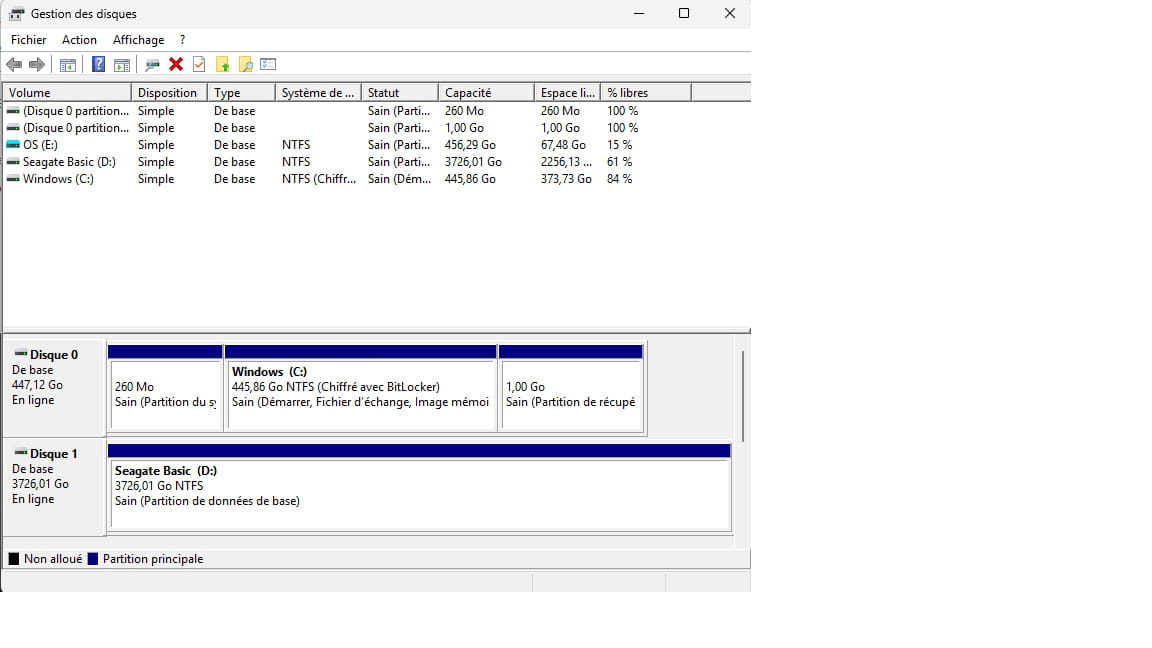
Now, I'm trying to find the documents.
I suppose it's here, but the Windows Explorer has been spinning for several minutes... or is it elsewhere? What is the access path?
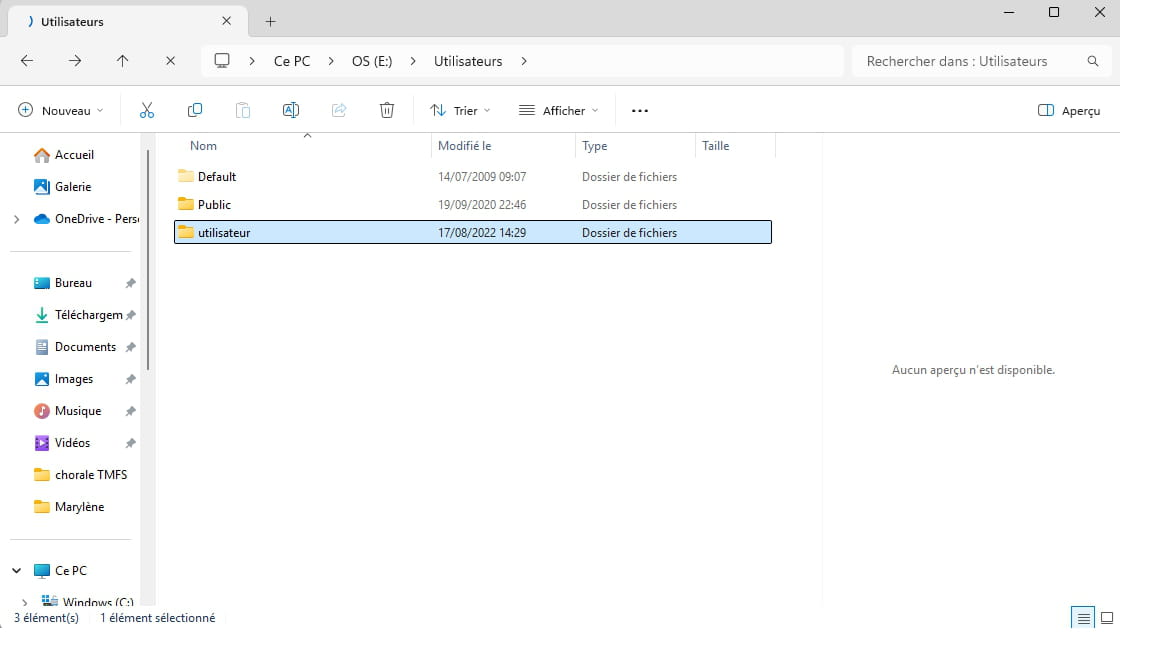
-
Here is the root of the disk, if that can help... but if I add up the folders I see, I find about 100GB. Where are the remaining 350GB? Is it possible that some of the files are hidden from me despite the option to show hidden files?
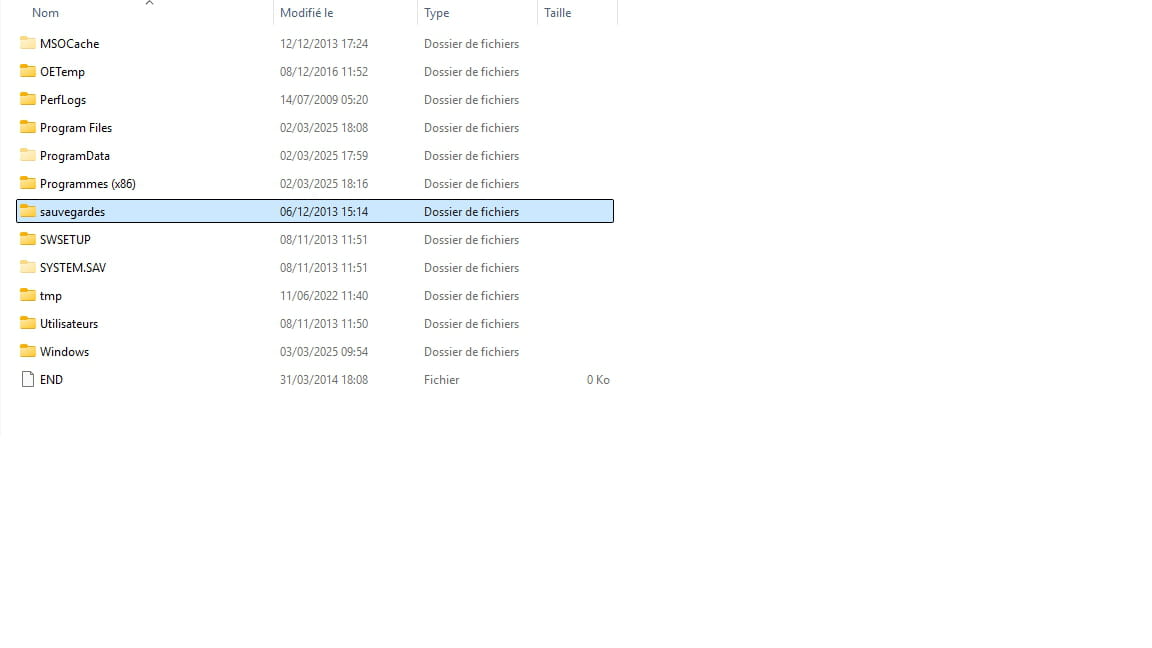
-
Hello,
I have no idea for the second question except that the swap file and the recovery partition, if there is one, have not been mounted but shouldn't take up much space anyway; it might also be the case for other system files. It seems to me that I've had similar issues where exploring a folder didn't report the same size as the total of its root and subfolders.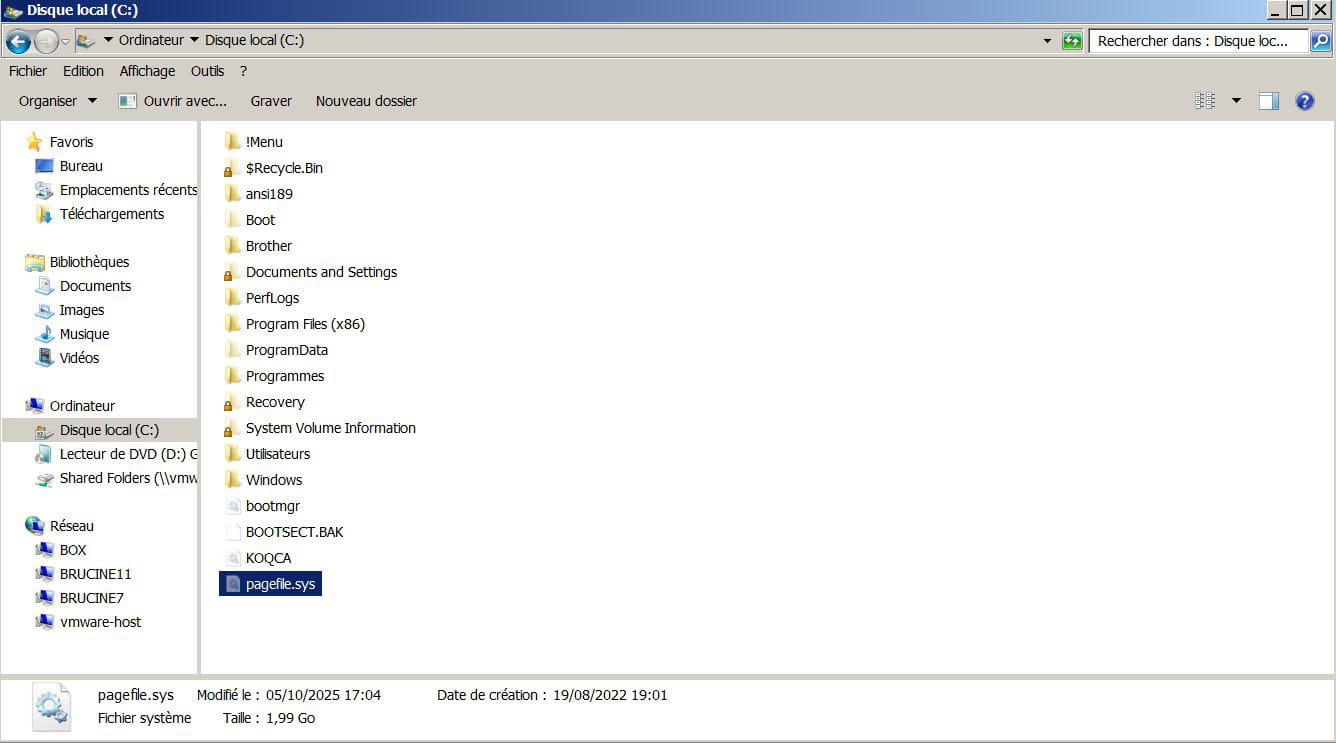
Regarding the first question, I didn't grasp the obvious, which is that the backup is on the hard drive itself, which doesn't make much logical sense.
The virtual disk has therefore mounted the entire disk, not just the backup.
In these conditions, it doesn't make much sense to want to recover it if it's in a proprietary format since what we are interested in are possibly program data in ProgramData and user data.
The first question is unclear, do you have access to nothing or just to the user folder?
It's mounted in NTFS, you may need to acquire read-write rights on this disk via right-click-properties-security.
-