REVERSO ON WINDOWS
SolvedMPMP10 Posted messages 47608 Registration date Status Member Last intervention -
Hello,
To translate a text directly with Reverso on Windows, you need to select the text and then press CTRL+C+C
How can you do +C two times?
Thank you for clarifying.
2 answers
-
-
Hello,
Thank you for the response, but the problem is not about copying and pasting.
Here are the given instructions.
1. Once the download is complete, open the Reverso file in your Downloads folder and follow the instructions.
2. Start translating and correcting instantly with Ctrl+C+C or create your own shortcut.
1. TRANSLATE
Translate with one click, anywhere on your computer
No more copying and pasting! Translate any selected text in a fraction of a second with a simple shortcut: Ctrl+C+C.
Your translation appears directly on your page or document — smooth and uninterrupted.
My question still remains: How do I do CTRL+C+C
-
I installed the software in question to find the solution.
To be able to do "Ctrl + C + once C", you need to save the setting in the interface of the software "Reverso".
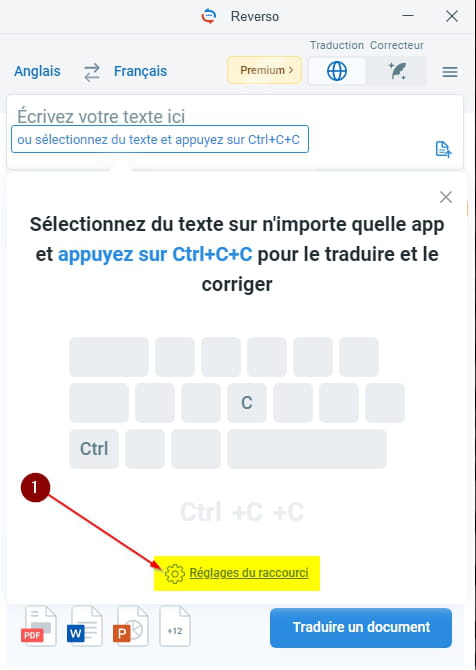
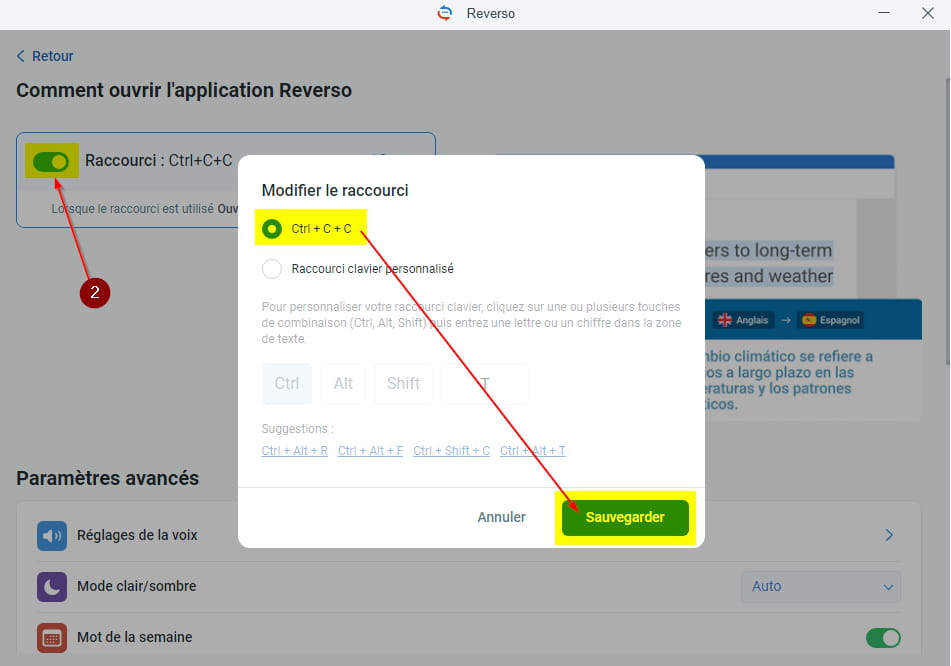
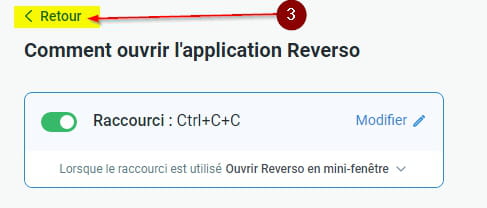
Then, look at " < Retour" at the top left to return to the main view of the software.
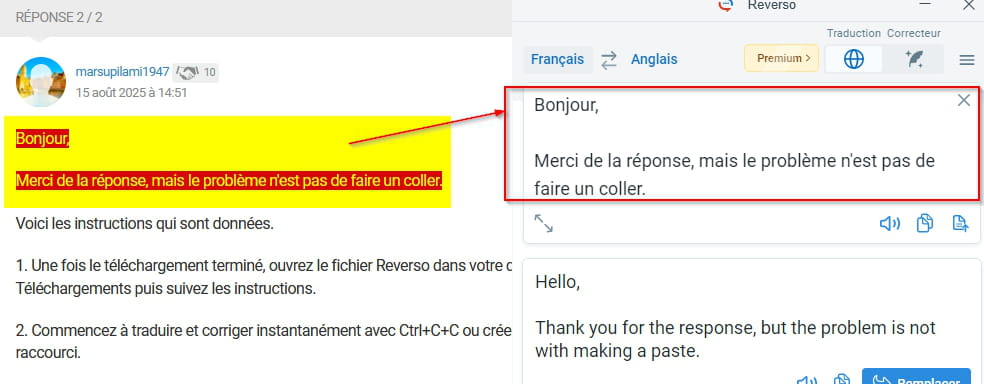
Then, you just have to do "Ctrl + C + C" (you have to press the C key twice quickly...) without releasing the "Ctrl" key.
-