
Optimize Linux Mint Cinnamon
SolvedHello,
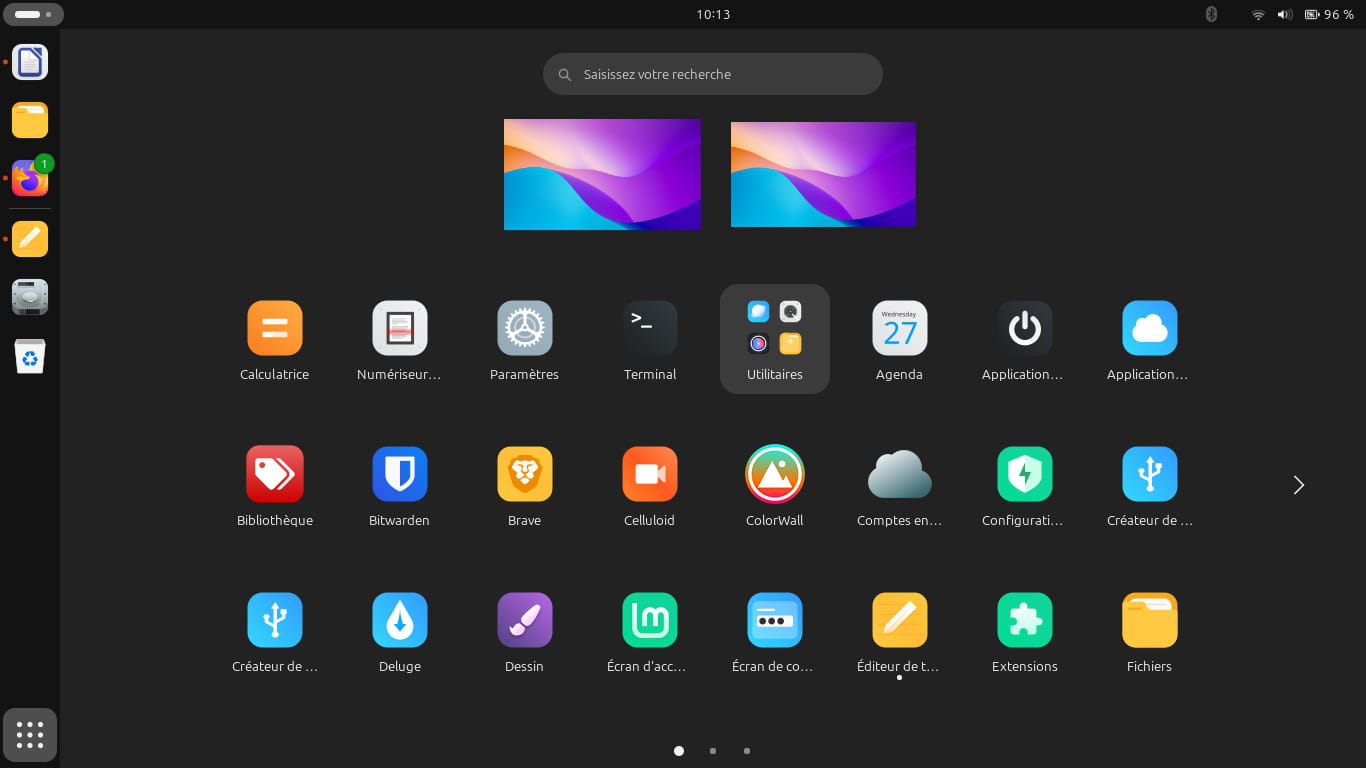
I have an old Lenovo ThinkPad X230 laptop and I have installed Linux Mint Cinnamon with a Gnome desktop alongside Windows 10.
I would like to fine-tune Linux Mint by optimizing it to run faster, and also make the update manager more stable, because when I launch it, most of the time, it closes by itself during the installation of updates.
How can I do this, please?
Thank you in advance.
Best regards.
4 answers
-
Moderator
Hello,
I like this question because it actually raises a deeper reflection. Given the hardware, the choices we make (OS, software, usage) result in more or fewer calculations. The more calculations there are, the more the sense of slowness is felt, but also, the higher the energy cost is. In other words, I think it's important to have a responsible use for oneself and for the planet :-)
Let's return to the initial topic. To make Linux faster, there isn't really a "miracle configuration parameter"; it mainly depends on your hardware and the software involved.
1) Hardware-related aspects (applies to all systems).
- The hard drive: In my opinion, this is the main factor concerning the boot time of the system or an application (NVMe or SSD drives are much faster than SATA drives, which in turn are much faster than IDE drives).
- Memory (RAM): If it is sufficient (which is generally the case if you have >2GB of RAM), the PC does not need to rely on swap (the hard drive) when it runs out.
- The CPU
2) Software aspects. Generally speaking, you should choose to run a minimum number of software applications that are as lightweight as possible. Sometimes you have to compromise because being lighter may come at the expense of comfort; it's up to you to find the right balance.
- Choice of graphics driver: If your PC is equipped with an Nvidia graphics card, you should know that loading the proprietary driver takes about a second or a few seconds to load. However, it is still necessary during intensive GPU usage (for example, for demanding 3D games, for machine learning...)
- Choice of the boot chain: In times past, I would have mentioned upstart, which significantly sped up booting by moving from a synchronous model to an asynchronous model compared to its predecessor init. Nowadays, the current boot chain (systemd) is also asynchronous.
- Choice of the display server: I don't think this changes performance drastically, but for the sake of completeness, I'll mention it
- In the past, we used X11 replaced by xorg
- Nowadays we use xorg and increasingly wayland
- Others exist, like hyprland -- which brings its own graphical environment.
- Choice of graphical environment:
- The heaviest: KDE/plasma, gnome shell
- The intermediates: xfce, lxde, cinnamon
- The lightest (and spartan!): icewm, twm...
- Note that you can install several graphical environments simultaneously. You choose at startup, at the time of logging in to the desktop manager (lightm, sddm, ...), which one to launch.
- Choice of software:
- In a KDE-type environment, you will benefit more from using KDE software than non-KDE software (when the choice is possible).
- Don't hesitate to compare software. A long time ago, I found chromium much lighter than firefox (this is comparable nowadays).
- Network aspects: Sometimes the feeling of slowness comes from network-specific aspects rather than the computer itself, which is just waiting for the network.
- Type of connection (e.g., fiber vs ADSL)
- Nature of the connection (e.g., Wi-Fi vs ethernet)
- Routing (e.g., via a VPN or without VPN)
- DNS server response time (configurable)
- Choice of what we do: Ideally, one should ask their computer to do only what is necessary. I will use more or less simplistic examples below to convey the idea.
- Search on the hard drive: If you have an idea of the folder in which to find a file, it is better to search from there rather than the entire hard drive.
- Internet search: Nowadays, by default, Google often generates AI-generated content. It's sometimes handy, but I personally find it often unnecessary and very polluting. And you can disable it (see this tip).
- Compilation: This operation, which concerns software developers, consists of transforming their programming code into an executable. In case of code modification, you generally do not want to recompile everything because this operation can be very long. This is why a good developer programs modularly (in several files). Since the file is the minimal granularity for compilation, it is then possible to set up a compilation chain that only recompiles the modified/affected files. This is typically the role of a Makefile.
Regarding the update manager, it has no reason to be unstable; otherwise, it's probably a bug. Running an update from the command line can sometimes help understand what is blocking the graphical interface. I think this is a slightly different topic and would be better suited for another discussion thread.
Good luck
-
Good evening Mamiemando,
Thank you for taking the time to write all this to me.
I replaced the hard drive with a 1 TB SSD.
There are 8 GB of RAM in the PC. The processor is an Intel Core i5 3210M, there is no graphics card, it's an Intel graphics chip soldered to the motherboard.
I didn't know that it was possible to install multiple graphical environments, that's good to know.
Sincerely.
-
Moderator
Well, in terms of hardware, all the conditions are in place for it to go well. Since it's a powerful PC, there really aren't any constraints on the software to use. Do you need any further details?
I forgot another aspect in #1. It doesn't really concern you (I'm just mentioning it for the sake of completeness) since you have an SSD.
- When you have several similar drives (which is often the case on servers), it can be interesting to have a single partition spanning multiple drives. This is known as RAID. RAID can be hardware-based (done using dedicated hardware, defined at the BIOS level) or software-based (typically, during installation, at the partitioning stage). Depending on the type of RAID chosen, it is then possible to parallelize read access (RAID1) and/or be less sensitive to hard drive failures by implementing redundancy (RAID1/3/4/5). More details here.
- If you don't plan to use Windows on this computer, you can also use LVM to specify which physical partitions to use (particularly, this can be a RAID drive). LVM doesn’t speed anything up, but like RAID, if you intend to use it, it’s better to do so during installation at the partitioning stage. LVM allows for easier resizing of partitions and potentially encrypting them. Then, you define the Linux partitions from these LVM disks.
- RAID and LVM are not mutually exclusive and each brings its benefits. If you want more details on how to do a RAID+LVM installation, you can check out this excellent tutorial.
Good luck
-
Hello Mamiemando,
No, I don't need any further details, thank you.
Thank you for the explanation about RAID.
For now, I only have one SSD installed in the laptop.
Regarding the update manager that is glitching, I decided to go through the terminal.
Best regards.
