Mouse on Linux Mint 22.1 Cinnamon
Solvedjns55 -
Hello,
After long searches, I can't find a solution.
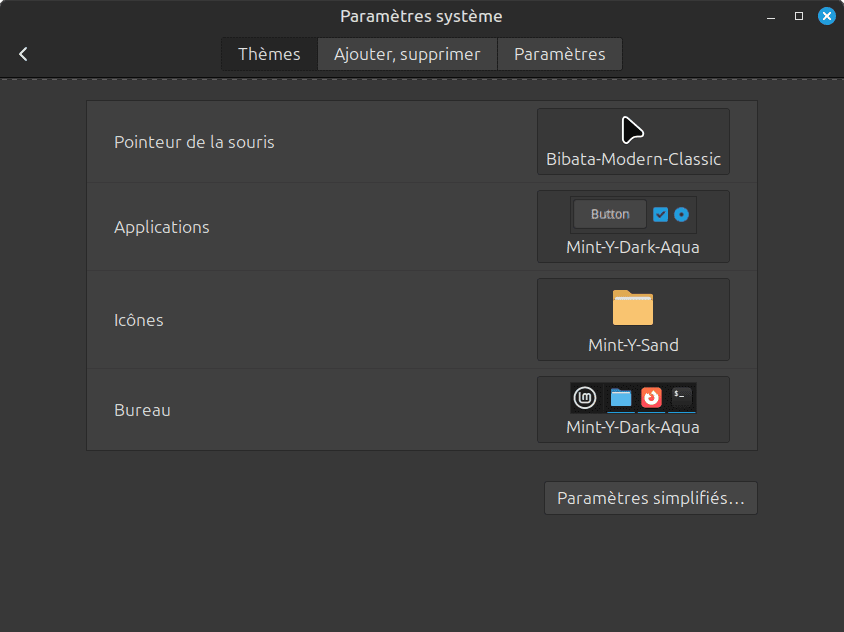
How can I simply change the color of my mouse without changing the theme?
The one currently used is Bibata-Modern-Classic, but it is black and I would like it to be red because my eyes are starting to seriously strain...
Thank you for your help.
5 answers
-
Hello,
A new set of sliders needs to be installed. For example, this one is available in blue, green, yellow, and red.
https://www.gnome-look.org/p/2002505
-
Hello and thank you.
I thought it was possible to simply change a parameter, a file, an image without installing anything else.
I see that apparently it’s not.
Moreover, the one proposed only shows the outline (identical to my mouse) but it’s even less visible than mine currently.
I’m waiting for another response that allows me to do this before marking it as "resolved".
Thank you and have a good day.
-
Hello,
I'm getting back to you because I've tried the #jns55 solution but it doesn't work.
It states in the downloaded folder that it should simply be placed in /home/user/.icons.
This .icons folder does not exist.
So I put it in /usr/share/icons, but it doesn't change anything.
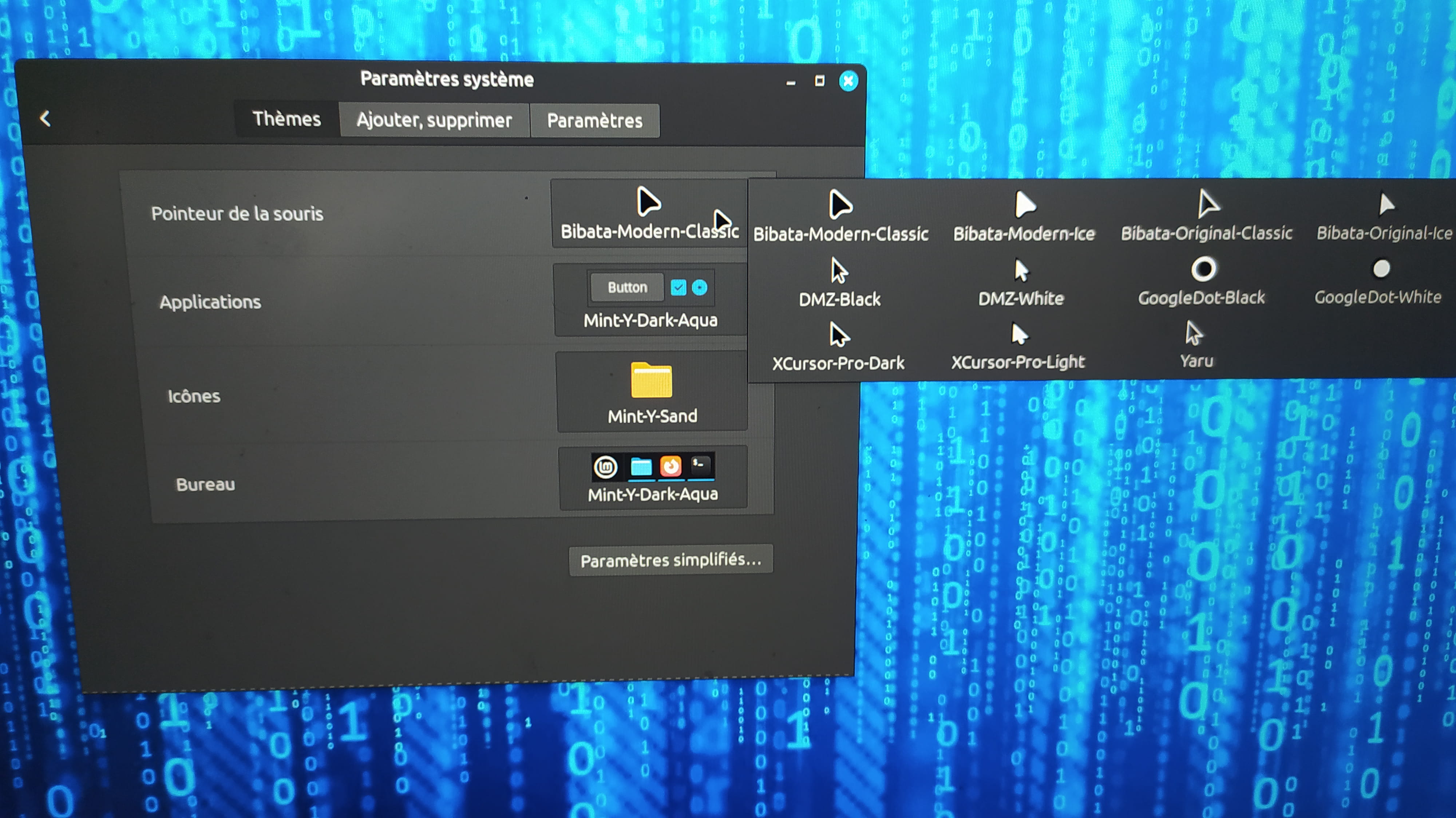
I don't see anything else in my mouse settings:
It's infuriating not to understand how a simple mouse icon works...
Anyway, thanks again for your help...
-
Hello
For the solution of jns55, if /home/user/ exists and it is compatible with your PC without causing any additional issues, you might be able to create the folder /home/user/.icons.
I don't know anything about Linux, but we can assume that this is where you could then put the cursor set since your Linux Mint is supposed to use it when it's there, but I don't know if that's sufficient or if you need to add something somewhere in a line of your Mint or in a menu for this cursor set to be selectable.
Otherwise, you could create a cursor set and make the red cursor that you can see well, but it's more complicated. And we would still need to know how and where to put it like now.
-
-
Thank you, but I created this folder and it doesn't change anything, so I don't know how to get something different from what I have (see photo above)...
-
Hello,
Actually, I think you misunderstood /home/user/.icons:
The user folder does not exist in /home; you should understand /home/username/.icons, meaning the hidden .icons folder located in your home directory.
To make the .icons folder visible in your file browser, you need to enable the "Show hidden files" option by right-clicking in the window and checking the option.
Then, just copy the folder from the extracted archive of the cursors you downloaded from gnome-look into the .icons folder. (double-click on the name of the archive and then Extract at the top left).
Next, launch the settings manager, in Themes activate detailed view, then click on cursors and you will see the name of your cursor set appear in the list; simply select it and it becomes immediately active (move your mouse to see).
I tested with the orange cursor; it works on Mint 22.1, but I find it less readable than the default cursor because only the outline of the cursor changes color. Maybe there are other cursor themes that are more readable; you should search on gnome-look.
-
-
Thank you jns55.
Sorry, but I understood that user was the user's login name.
Indeed, the mouse was present in the mouse settings, but the displayed icon (with its name underneath) does not correspond to the normal image obtained, and that's why I made the mistake of not seeing it.
I will try to find a solution to create the minne since I cannot find what I'm looking for.
Thank you :-) and have a nice day!
-
Hello,
"I will try to find a solution to create the minne since I cannot find what I am looking for."
Yet there is plenty of choice on gnome-look.org, there are hundreds of them. Really something for everyone. It's just a matter of choice.
For example:
https://www.gnome-look.org/p/999749
https://www.gnome-look.org/p/1269768
https://www.gnome-look.org/p/999854
-