
SSD M2 Crucial P3 Plus 4To not recognized by Windows
MaxGix Posted messages 5389 Registration date Status Contributeur Last intervention -
Hello everyone
I installed my new SSD (M2 Crucial P3 Plus 4TB) on my MSI laptop to replace the original 512GB one.
It is recognized in the BIOS but at the time of the Windows 11 installation, I see nothing in the table. "No drives were found."
I tested the SSD and even formatted it on another PC, but I can't install Windows on it.
Can someone help me?
Thank you in advance
18 réponses

Hi NathanDrake2306
were you trying to clone your drive??
> External enclosure (empty) USB 3.0 for M.2 SATA SSD <
you could reuse it to put your 512 GB in
@+

Hello,
I also suspect a driver issue since I've had this problem with several NVMe drives, although installing the same model yesterday (but 2TB) I didn't encounter this detection issue with Windows 11 (USB created with the official tool).
Are these the correct drivers you are downloading?
https://www.crucial.com/support/ssd-support/p3-support
When unzipping, the files from the x64 / x64 legacy folders will be the ones that interest Windows during installation, so they should be placed in the source of the USB drive (different from the installation USB drive).
Hello, it is sometimes necessary to load the SSD drive driver when installing Windows 10 or 11 for it to show up in the disk table. So go to the Intel website or search directly on the internet for *Intel® Rapid Storage Technology Driver Installation Software with Intel® Optane™ Memory (10th and 11th generation platforms)*.
Download the drivers you find, put them on the installation USB, and when you reach the step you mentioned, click on "Load driver" and select the driver that appears and install it.
That's how I solved this problem.

Hello.
Check whether the BIOS boot mode is set to Legacy or UEFI, change the current BIOS boot mode (UEFI or Legacy), and see if it works.
bazfile
Moderator/Security Contributor.
A hello, a reply, and a thank you are always appreciated.
Thank you for your response ????
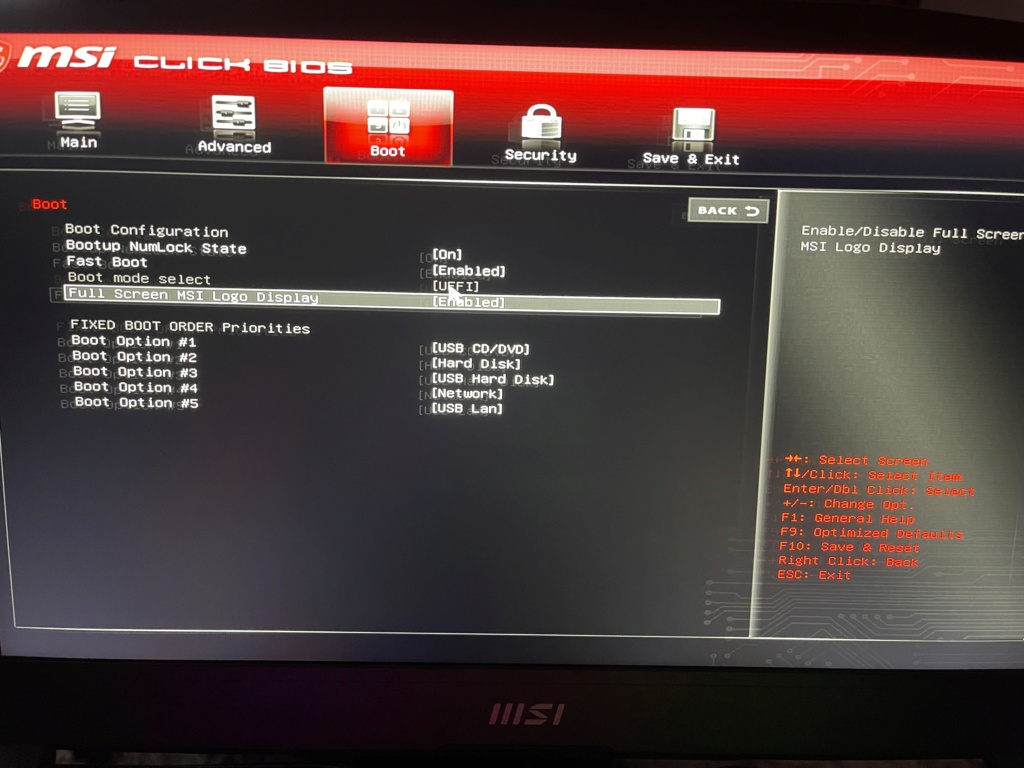
The problem is that in the BIOS, the "Boot mode select" parameter is grayed out
It is currently set to UEFI
Here is a photo
I'm answering myself
Following some research, I also disabled the "secure boot support"
But it's still grayed out
It doesn't solve the problem; he still doesn't see it. However, I made some progress, or at least if we can call it that. I put my original SSD back, and when I try to do a Windows installation, it doesn't see it either, even though it's the original. So there must be something in the BIOS that is blocking me.
It's still surprising that the old one isn't detected either... Does it still appear in the BIOS? If so, is the boot sequence set up correctly?
Have you tried resetting the BIOS? (by applying the default settings, either by doing a CCMOS directly from the motherboard - jumper, button, or removing the battery)
Create a new installation media for Windows 11.
https://www.microsoft.com/fr-fr/software-download/windows11.
bazfile
Moderator/Security Contributor.
A hello, a response, a thank you are always appreciated.
I tried with Windows 11 and Windows 10, it's the same thing. It doesn't see it at the time of installation.
Check if a BIOS update is available for your MSI PC.
bazfile
Moderator/Security Contributor.
A hello, a response, a thank you are always appreciated.
Hello, this is a driver to load when selecting the disk; I encountered this on a laptop. Copy the driver from your SSD onto a USB stick or the installation media. At the disk selection step, click on "load a driver," search for it to install, and once it's loaded, you should see your disk appear.
@Bazfile I already tried; I have the latest BIOS update.
@Gussin I tried putting the SSD driver on a USB drive and loading it, but unfortunately, it didn’t do anything more.
Thanks to both of you for your help, anyway.
@vieu bison boiteu That’s the solution I’m heading towards. I just ordered an NVMe enclosure on Amazon. By the way, if you have a good cloning software to recommend, I’d be glad to hear it :)
@MacGix Yes, those are indeed the ones I took when I went to look for the ones in the x64 folder at the time of installation (since my PC boots in UEFI). I don’t have an error message; it refreshes, but nothing displays nonetheless.
@Armand.ccm Are you talking about a different driver than the one from Crucial? I’ll do a search.
Thanks to all three of you

Hello
I put my original SSD back and when I try to install Windows, it doesn't see it either even though it's the original. So there must be something in the BIOS that's blocking me,
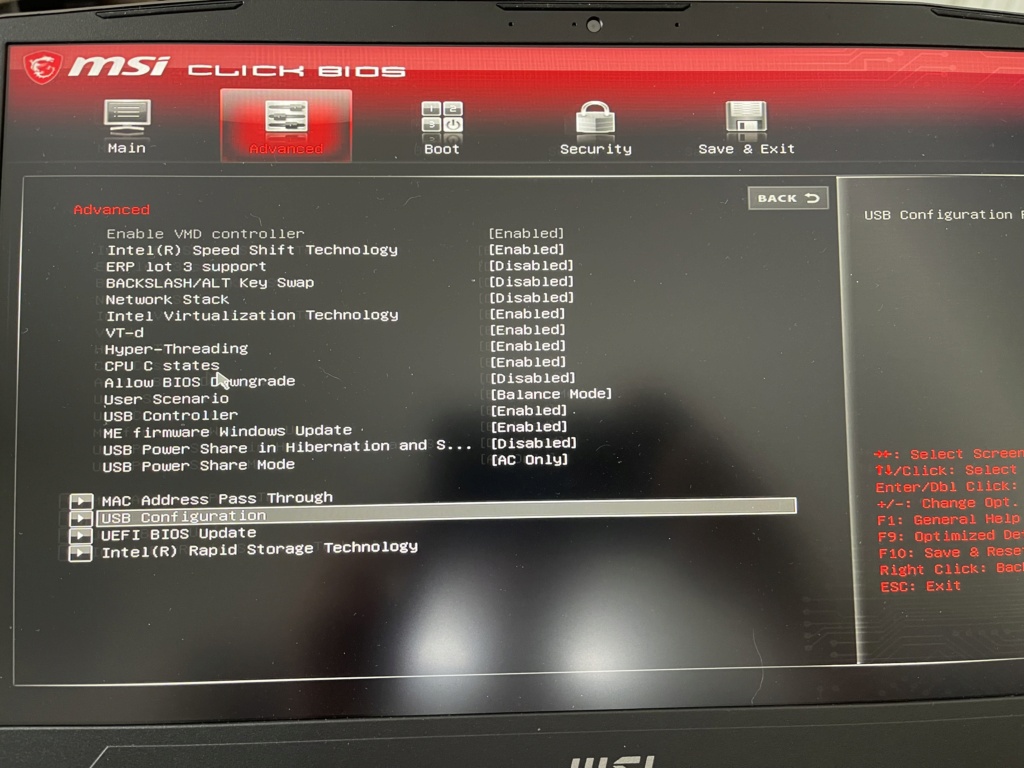
It’s necessary to check that the SATA/M.2 ports are set to something other than AHCI; some BIOS configurations default to RAID, and a clean installation becomes impossible without loading the RAID driver for the SSD. This looks exactly like what I'm reading here.
Boot into the BIOS and set SATA to AHCI mode.
Signature
Waiting for more responses; I'm attracting trolls....



@ Flo88 No, the other 2 languages are Chinese and certainly Mandarin, so it would be even worse :)
Yes, I have explored those tabs indeed, but I can't find the setting.
I think it's the "Intel Rapid Storage" that's causing the problem.
But without the PC in hand...
Make sure to note down the changes made in the BIOS so you can revert if needed.
Otherwise, making a clone as suggested is a good idea, maybe easier and faster.
You can use software like Easeus to do backup.
But cloning is paid; to get around that, you need to create a disk image of your installed SSD, then replace it with the new one and apply the image using the Easeus console (you need to create a recovery media with the software).
Re
> the 5 best cloning software <
@+