Windows does not start after enabling secure boot
Solved
Parloteur
Posted messages
4
Status
Member
-
Anonymous user -
Anonymous user -
Hello, here is my problem.
I installed Windows 11 only with TPM 2.0 enabled.
Today I wanted to play a game called Valorant, but once I launched the game it asked me to enable secure boot.
So I researched how to enable secure boot; after more than an hour, I understood the system and enabled it.
And when secure boot is enabled, I can’t get beyond that:

I am in UEFI and my SSDs are in GPT.
I would like to point out that I reinstalled Windows because I thought it would be impossible to enable secure boot with an already installed Windows.
My BIOS is up to date.
I also tried the technique to "bypass" secure boot.
Yes, I could simply go back to Windows 10 to access Valorant. But I'm a rather stubborn person, so I don't intend to give up and go back to Windows 10.
I installed Windows 11 only with TPM 2.0 enabled.
Today I wanted to play a game called Valorant, but once I launched the game it asked me to enable secure boot.
So I researched how to enable secure boot; after more than an hour, I understood the system and enabled it.
And when secure boot is enabled, I can’t get beyond that:

I am in UEFI and my SSDs are in GPT.
I would like to point out that I reinstalled Windows because I thought it would be impossible to enable secure boot with an already installed Windows.
My BIOS is up to date.
I also tried the technique to "bypass" secure boot.
Yes, I could simply go back to Windows 10 to access Valorant. But I'm a rather stubborn person, so I don't intend to give up and go back to Windows 10.
4 answers
-
Hello,
If the CSM is active, you are not in UEFI.
Check if Windows WHQL is also active. -
Thank you for your response.
My CSM is disabled:
For Windows WHQL, it is indeed activated because when I try to disable it, I receive this error message:
Which can apparently be fixed by disabling secure boot, which I do not wish to do.
I will still test disabling secure boot to disable Windows WHQL in order to reactivate secure boot.
- secure boot disabled
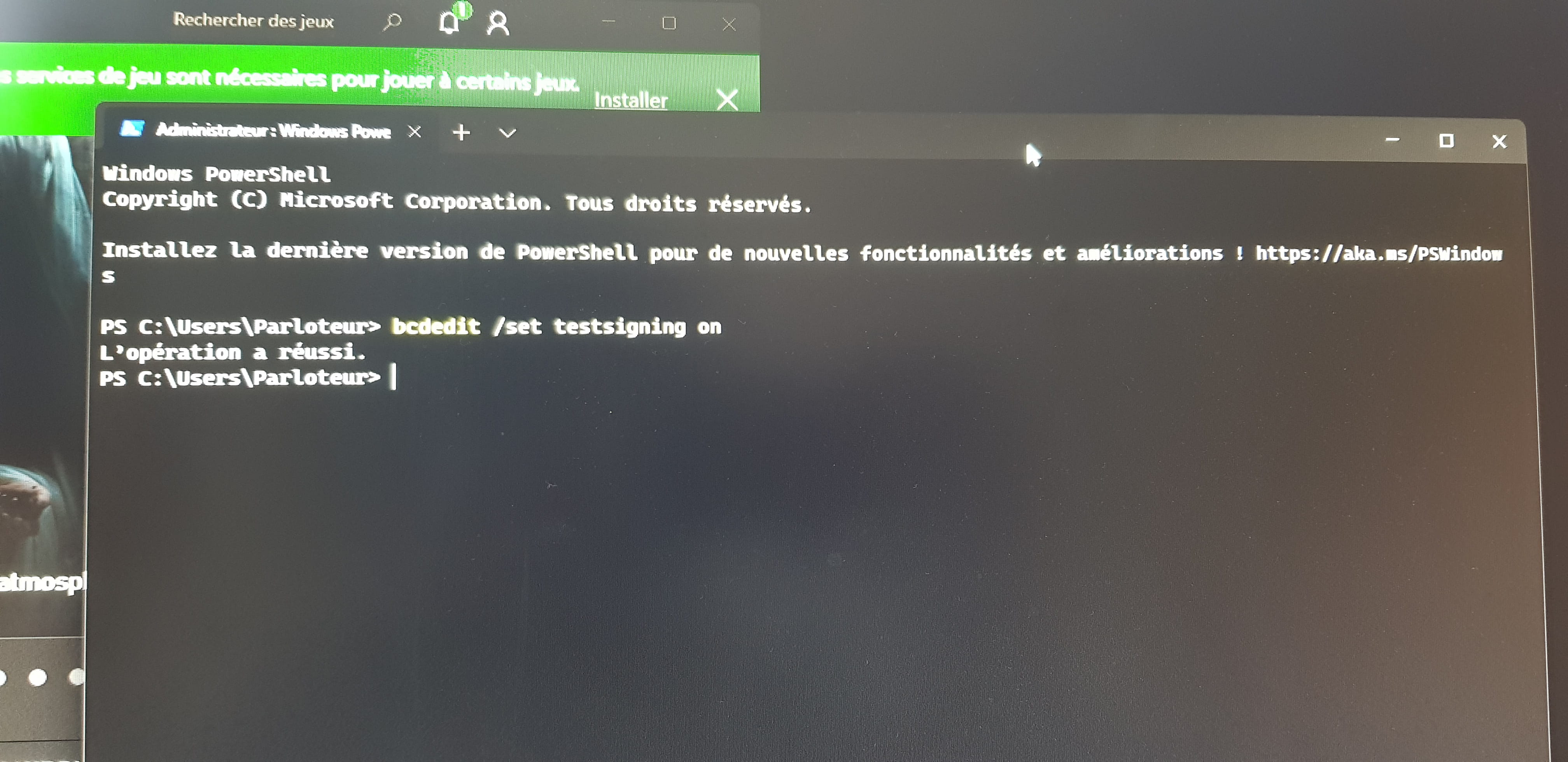
- the command "bcdedit /set testsigning on" to disable Windows WHQL was typed in an administrator-open Windows terminal
- the command worked:
- I restart my PC to open the BIOS and enable secure boot that I had previously disabled
- it does not work:
-
But what are you starting on? The recovery partition? You need to go back; an upgrade is never 100% safe, you need to reinstall Windows 11, and it may also be possible that your storage is faulty or there is another issue.
You shouldn't have bypassed in compatibility mode; this can generate other problems, Microsoft has said that, more issues and no security upgrade.
-
-
If I understood correctly, a complete reset would be very beneficial for my problem?
If so, is there a way for me to back up my data before doing it?-
I'm not talking about a reset but rather a formatting, yes, unless the issue comes from somewhere else, this will fix the problem. To back up your data, you need to use a live USB or put the hard drive in a USB adapter to recover the documents you want from another PC, but everything will need to be reinstalled after formatting: programs, drivers, settings, data, etc...
If you want to avoid losing data, and if there's enough space on the disk, you can install Windows on the same partition again; the old Windows will be under a folder named windows.old, from which you can recover what you need.
Think about it carefully, and do your research before anything else.
-
-
Problem solved :)
I formatted my drive with the Windows tool to put the Windows 11 ISO on it.
I then reset my PC to factory settings by erasing all my files.
I kept secure boot enabled while installing Windows 11 and it worked.
Secure boot is indeed enabled without causing me any issues: