
Install and use a printer without Wi-Fi
Kakou
-
Bsch38 -
Bsch38 -
Hello,
I'm sharing my problem with you. I want to install and use my printer but I'm having trouble.
I don't have an internet box; I have a 130G mobile plan that is more than enough for all my devices (computer, tablet) as I work with a hotspot. I live in Martinique where prices are higher than in mainland France, so I limit unnecessary expenses and therefore do not want to get a box.
However, it's impossible to install and use my brand new HP printer without having WIFI.
Do you have any solutions?
At worst, I can buy another printer, but despite my research, I haven't found one that installs without WIFI.
While waiting for your valuable advice, I wish you a good day????☀️
Karine
I'm sharing my problem with you. I want to install and use my printer but I'm having trouble.
I don't have an internet box; I have a 130G mobile plan that is more than enough for all my devices (computer, tablet) as I work with a hotspot. I live in Martinique where prices are higher than in mainland France, so I limit unnecessary expenses and therefore do not want to get a box.
However, it's impossible to install and use my brand new HP printer without having WIFI.
Do you have any solutions?
At worst, I can buy another printer, but despite my research, I haven't found one that installs without WIFI.
While waiting for your valuable advice, I wish you a good day????☀️
Karine
5 answers
-
Hello,
To install your printer on your computer
1) you should have received cables with your printer, one of which is used to power your printer by plugging it into the wall socket, while the other is used to connect it to your PC (USB port).
Before plugging in your printer, you should also have received a user guide, which should explain how to get your printer working
2) check that there is nothing that could obstruct it (plastic, tape, cardboard, etc.) in the following compartments:
the compartment where you will place the ink (usually it's under a cover at the front), then check the back of your printer. Make sure not to move any tapes, plastics and/or protective cardboards in the area where you will place sheets, envelopes, photo papers, etc.
Also check the rollers, look if there is nothing that could block the paper feed and printing (nozzles)
Once you have gone around the printer and checked everything, remove any items that could hinder the printer during operation.
3) plug the USB cable into your printer; if it is not provided, get one according to the USB connection type of your printer (there are several models) and not for the PC. Then plug in the power cord.
4) Turn on your computer. Once you are on the "desktop" and your computer has finished loading all programs, etc., connect your printer to a free USB port. Your system should logically detect a new connection to your USB port, which will display a message. If you have a CD with the printer, insert it to install the drivers. You may need to configure the printer's Wi-Fi by entering the key (Wi-Fi code/password that looks like this: DE56K7K2). Usually, it can be found on the Bbox. In your case, check on your PC, which I assume has Wi-Fi, and follow these steps:
click on the windows icon

then type in the search settings and click open or double-click the icon on the left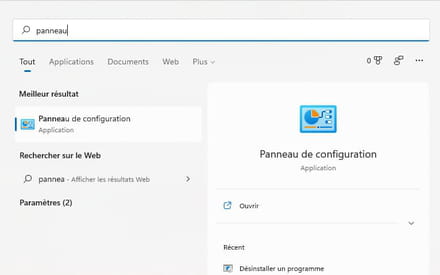
then choose Network and Internet (click on the green link)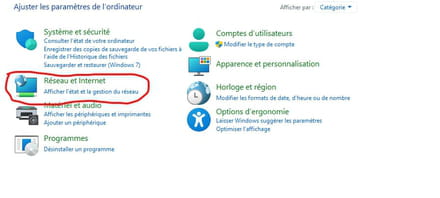
then Network and Sharing Center like here (still the green link)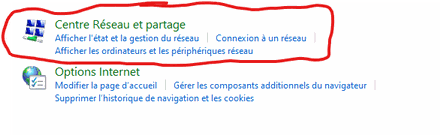
Then a window will appear like the one below, where you need to choose Wi-Fi on the right side.
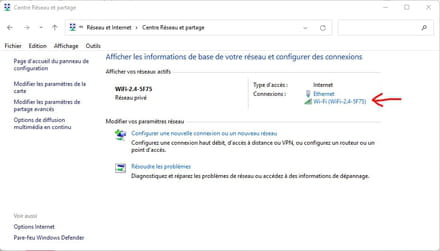
Once you click on Wi-Fi, you will see this menu and press the "Wireless Properties" button shown below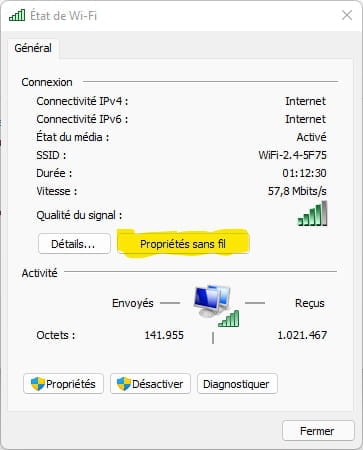
You will bring up a window containing two tabs; click on the tab named: Security to see this: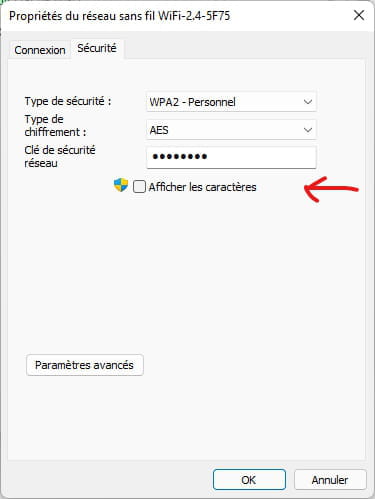
All you have to do is check the box "show characters". You will then be able to find your WPA -WPA2 WEP key.
I hope this helps you with your printer; note down the WPA key code so you can enter it into the printer for its Wi-Fi setup.
Sorry if I was long! ;)
--
Knowledge is gained through experience; all the rest is just information. A. Einstein -
Hello everyone,
@ blackmefias_3350, while I don’t want to contradict the usefulness of your tutorial, upon rereading kakou's post, it doesn’t apply, unless I’m grossly mistaken.
Kakou wants to connect without using a box that she doesn’t own. She is connecting via 4G using her smartphone to browse on her PC.
@ kakou, you should theoretically have Wi-Fi on your smartphone. This is what would allow you to establish a direct connection with the printer. This is referred to as Wi-Fi Direct, provided that your printer is equipped with it, which older printers typically are not.
The "standard" Wi-Fi, if I may say so, is indeed meant for a connection via a box, whatever it may be.
So, it is necessary for the Wi-Fi Direct mention to appear on the printer and you will be "obliged" to use it first to establish the connection, and then for the printer to function.
Some printers also communicate via Bluetooth (an alternative to Wi-Fi), but that’s rarer and it means that you also have Bluetooth on your smartphone, which is widespread but not systematic.
It is also possible to test a wired connection (USB cable) if your smartphone has a port called USB On-The-Go (standard USB port and cable), but I have never tested this setup. You can do it safely, but the driver must have been installed (see below)
But that’s not enough, let’s return to printing via Wi-Fi Direct.
You also need to download and install the corresponding driver (program) for the brand of your printer from the Google Play library (a catalog of games, tools, etc.). You can only use it, if you haven’t already, by signing up, meaning opening a Google account (free).
By typing in the brand name, a printing driver will be proposed. In principle, you should not have any difficulty installing it.
Only by doing this will you be able to spend money on special "inkjet printer" inks.
Finally, even while in Martinique, to be helped effectively, you should make it a habit to indicate the exact model of your PC, the version of Windows installed, and in your case, the model of smartphone. CCM is anything but a site of superheroes who see your setup from 8000 km away.
Looking forward to your reply. Tchimbé rèd.-
Hello,
I have read Kakou's message, but to configure her printer in WIFI mode, she needs to enter the wifi key (WPA, WPA2, or WEP). Since she's using a laptop as well, it will be easier for her to find her key on her laptop rather than on her smartphone.- @georges97,
I don't know about you, but I only use my printer connected to Wi-Fi or not, exclusively through my PC. So, I think KAKOU only needs a Wi-Fi connection to connect his printer to his PC via his Wi-Fi network.
Personally, I don't see the point of accessing the printer from a smartphone (except maybe for business people). Even if it can be rarely useful at times. But then, there would need to be an internet connection while they are on the go. And from what I understand about KAKOU, his modem is his smartphone. Therefore, it becomes unusable while traveling, unless he/she takes all of his equipment with him.
That's why I provided the answer I did, along with images.
Regards to you, Georges97,
Blackmefias_3350 - I also print through my wifi network that includes the router, but from what I understand, Kakou doesn't have a router. Therefore, the connection to the printer can only be established by setting up the PC as a hotspot. That said, I willingly leave it to whoever proposes the simplest procedure. As for printing from the smartphone, I know several people who use it, even if only via phone. But I have a rule of letting everyone decide on their own practices; that's the beauty of what computers and forums offer...
-
-
Hi Kakou,
A thousand apologies for the delay.
"I haven't found one that installs without WIFI": It's incredible what you're saying here!
Do you have a computer? You need to connect the printer and install the drivers.
Although if it's a recent version of Windows, it has the main drivers for new (and older) printers.
"I live in Martinique": you didn't have to say that!
Best regards!
-
Hello everyone,
▸ Kakou: "impossible to install and use my brand new HP printer without WIFI": Personally, I understand that she needs to connect her printer via WIFI and that she doesn't have a router. Okay?
So this implies that the printer must be equipped with WIFI. Right?
We need to know if the printer is recent enough for this type of connection.
▸ Kakou: "my brand new HP printer": Here it should be equipped with WIFI mode.
Kakou's problem is to find the WIFI key. ("I have a 130G phone plan", "I work with a hotspot").
▸ Kakou: "At worst I can buy another printer but despite my research, I haven't found one that installs without WIFI": But why?
All this isn't very clear or maybe I just don't understand her problem...
Best regards!
--
Happiness is the only thing you can give without having it. -
@ kakou
Additionally, some information about wifi-direct from the printer manufacturer HP, but which can also be found in equivalent form from other brands:
https://support.hp.com/fr-fr/document/ish_2389908-2080559-16
https://support.hp.com/ch-fr/document/c04243729
https://www.printofficeandco.com/2021/06/15/comment-connecter-une-imprimante-hp-en-wifi-avec-un-smartphone/
https://fr.letmeknow.ch/unidentified-network-windows-10-7


