
Problem with Terminal
Solved
profiler31
Posted messages
576
Registration date
Status
Member
Last intervention
-
profiler31 Posted messages 576 Registration date Status Member Last intervention -
profiler31 Posted messages 576 Registration date Status Member Last intervention -
Hello,
I am on High Sierra 10.13.6. iMac 27" mid-2011.
I want to use Terminal to enter a "sudo" command.
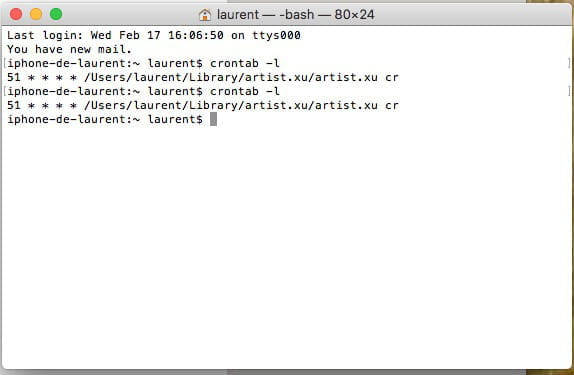
The issue is that when I open Terminal, here's the info I get:
Last login: Tue Feb 16 22:51:47 on ttys000
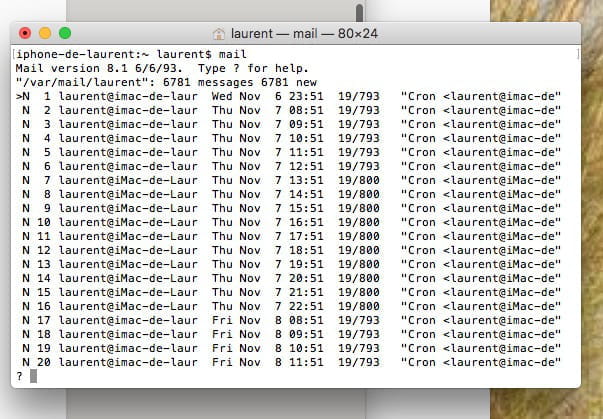
You have new mail.
iphone-de-laurent:~ laurent$
It's not my iMac that appears, but my iPhone.
Why?
I don't know how to switch back to "iMac-de-Laurent:......." to launch my command.
Thank you for your help.
--
Best regards
profiler31 (Toulouse)
I am on High Sierra 10.13.6. iMac 27" mid-2011.
I want to use Terminal to enter a "sudo" command.
The issue is that when I open Terminal, here's the info I get:
Last login: Tue Feb 16 22:51:47 on ttys000
You have new mail.
iphone-de-laurent:~ laurent$
It's not my iMac that appears, but my iPhone.
Why?
I don't know how to switch back to "iMac-de-Laurent:......." to launch my command.
Thank you for your help.
--
Best regards
profiler31 (Toulouse)
27 answers
- 1
- 2
Next
-
Hello,
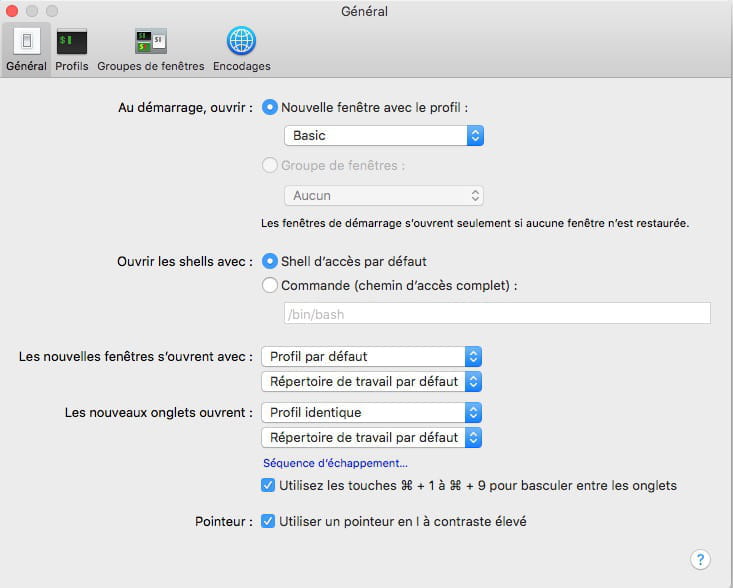
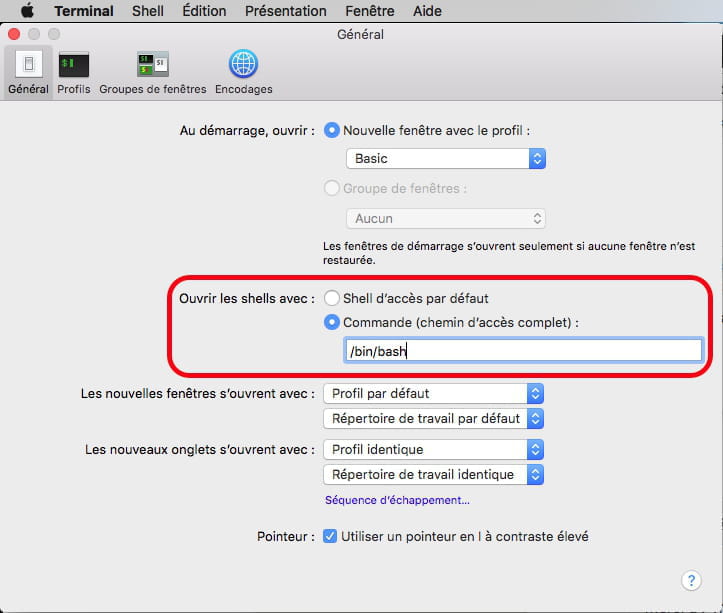
Could you launch Applications -> Utilities -> Terminal and take the following two screenshots: this will help determine if any scripts are running at the startup of the Terminal utility:
- the window obtained with the menu "Terminal -> Preferences ... -> General"
- the window obtained with the menu "Terminal -> Preferences ... -> Profile -> Shell"
Just in case, here’s some help on:
- Taking a screenshot on Mac
- How to insert an image into a discussion
Note: Select the interesting part and not the entire screen; otherwise, the image will be too large and the texts will be unreadable.
Ritchi










- 1
- 2
Next