
How to permanently detach applications from the taskbar
calliewilliams
-
gjurde -
gjurde -
Hello,
On my computer, the taskbar contains applications that I don't use often, so I remove them. Unfortunately, every time I shut down or restart my computer, the applications automatically return to the taskbar.
I was wondering if there is a way to remove them permanently from the taskbar without uninstalling them.
Thank you in advance and have a great day.
On my computer, the taskbar contains applications that I don't use often, so I remove them. Unfortunately, every time I shut down or restart my computer, the applications automatically return to the taskbar.
I was wondering if there is a way to remove them permanently from the taskbar without uninstalling them.
Thank you in advance and have a great day.
22 answers
- 1
- 2
Next
-
pistouri Posted messages 19008 Registration date Status Contributor Last intervention Ambassadeur 8 723
Firefox shouldn't pose any problems in theory, but you're struggling.
For Excel and PowerPoint, these are applications from Microsoft Office.
If you didn't find anything in:
%AppData%\Microsoft\Internet Explorer\Quick Launch
Run this command (the Microsoft Office applications are present there).
In this case, press Windows + R and copy/paste:
%AppData%\Microsoft\Internet Explorer\Quick Launch\User Pinned\TaskBar
Example with Word:
Delete the shortcut and restart the PC.
Run this command and check both folders to see if you see your shortcuts
TaskBar
ImplicitAppShortcuts
Do not delete these 2 folders; open them to see what’s inside.
It’s what’s inside that needs to be deleted.
Press Windows + R and copy/paste:
%AppData%\Microsoft\Internet Explorer\Quick Launch\User Pinned
You never know ==► Exit Windows 10 Tablet Mode
Create a restore point for safety before diving into the action.
See you +
--
scalpel -
Hello,
Right-click on the taskbar and first check if "Lock the taskbar" is not checked. -
pistouri Posted messages 19008 Registration date Status Contributor Last intervention Ambassadeur 8 723
Hello,
1- List the names of the applications on your taskbar that you don’t use often in your next message.
2- The pinned shortcuts on the taskbar.
Press the Windows + R keys and copy/paste:
%AppData%\Microsoft\Internet Explorer\Quick Launch
Then click OK
Check if your pinned shortcuts are present.
Delete the problematic shortcut if necessary.
3- If you don’t see it, it’s going to be more complicated.
Like MSI Dragon Center or MSI Creator Center, for example.
These are the types of applications that are installed by default by your PC's manufacturer.
In that case, press the Windows + R keys and copy/paste:
C:\Users\Default\AppData\Local\Microsoft\Windows\Shell
Then OK.
Similarly, press the Windows + R keys and copy/paste:
C:\Users\%username%\AppData\Local\Microsoft\Windows\Shell
Right-click on --►DefaultLayouts
Then -►Delete
Now, detach your application from the taskbar.
Normally, the program should no longer reappear on the taskbar.
As a precaution, back up the 2 “.xml” files before deleting them.
A+
--
pistouri -
Hello
First of all, thank you for your response.
The applications I am trying to detach are Firefox, Excel, and PowerPoint. -
So:
-I restarted my PC after deleting the shortcuts with %AppData%\Microsoft\Internet Explorer\Quick Launch\User Pinned\TaskBar, but the applications automatically come back, just like on the taskbar after the restart.
-The ImplicitAppShortcuts folder is empty, and the TaskBar folder contains the applications that are on my taskbar - including Firefox, Excel, and PowerPoint, unless I have already unpinned them. -
pistouri Posted messages 19008 Registration date Status Contributor Last intervention Ambassadeur 8 723
-The ImplicitAppShortcuts folder is empty, and the TaskBar folder contains the applications that are on my taskbar -including Firefox, Excel, and PowerPoint if I haven't detached them yet.
1- Remove them from TaskBar. (Firefox, Excel, and PowerPoint)
2- Detach them from the taskbar
3- Restart the PC
If they are still present, detach them again and restart the PC.
A+
--
pistouri -
pistouri Posted messages 19008 Registration date Status Contributor Last intervention Ambassadeur 8 723
Check the task manager under the --► Startup
If you see your applications, right-click and disable them, then restart the PC.
I don't think that's it, but I'm out of solutions ✩·͙*̩̩͙˚̩̥̩̥( ͡ᵔ ͜ʖ ͡ᵔ )*̩̩͙✩·͙˚̩̥̩̥.
-
pistouri Posted messages 19008 Registration date Status Contributor Last intervention Ambassadeur 8 723
Try this:
Start by creating a Windows restore point
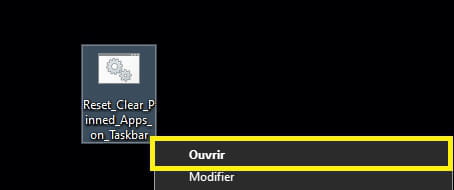
Save the .bat file ==► Reset_Clear_Pinned_Apps_on_Taskbar
Run the file.
Restart the PC.
This will reset and clear all pinned apps from the taskbar in Windows 10.
I don't know if this will work.
Note your current version of Windows 10 in your next message.
Press the keyboard Windows + R or in the search field on the taskbar type -► winver
See you!
-
It really doesn't seem to be working… once the taskbar is reset, the applications automatically appear (Firefox, Excel, PowerPoint, and others like File Explorer and Microsoft Edge…)
(As for the Windows update, I didn't do it on purpose)- Go to -►Start Buttonr (or press the Windows key on the keyboard).
In the list, scroll down to -►Firefox
Right-click on Firefox -►More-►Unpin from taskbar
For Excel l and PowerPoint
In Cortana or the search box (on the taskbar) type Excel
Then right-click -►Open file location
And right-click again on -►Microsoft Excel -►Unpin from taskbar
Same with PowerPoint
Restart the PC and check.
Run a SFC and DISM to repair any system errors, even if you have errors, restart the PC.
For the Windows 10 update, do it when you have a moment, and set aside 2 hours at some point as it will be obsolete.
See you! - For Firefox, I tried to remove it from the taskbar, but it re-pinned itself upon restarting. The same goes for the other two.
Is it possible to temporarily disable applications on Windows 10? That would be a solution, but I'm not sure if it's possible...
-
-

Just to be sure, once executed, will my taskbar be empty? And will this be the only modification made to my PC?-
Hello,
See here for applications and their location to find them:
https://support.microsoft.com/fr-fr/windows/afficher-toutes-vos-applications-dans-windows-10-fde6f576-0fc0-0813-6b0d-d3ec1d244c50 -
-
-
pistouri Posted messages 19008 Registration date Status Contributor Last intervention Ambassadeur 8 723
You are 2 versions behind on W10.
===► How to install the October 2020 update 20H2
A+
--
pistouri -
pistouri Posted messages 19008 Registration date Status Contributor Last intervention Ambassadeur 8 723
If nothing worked at # 21
The Taskband registry key.
Taskband = Taskbar
1- Start by creating a restore point.
2- Press the Windows + R keys or type in Cortana -► regedit
Go to this registry key:
HKEY_CURRENT_USER\Software\Microsoft\Windows\CurrentVersion\Explorer\Taskband
Right-click on -►Taskband
Then -►Export
Choose Desktop as the path and name it Taskband.
Then right-click on Taskband -►Delete
Restart your PC.
Another solution ►shell:appsfolder
Press the Windows + R keys
Copy and paste --►shell:appsfolder
Right-click on your application --►Unpin from taskbar
See you later!
-
shell:appsfolder, same result as usual; the apps come back on restart.
For Firefox, I'm facing something new:
Earlier, I opened the file location (with a right click on the Firefox app) and deleted the shortcut. Upon restarting, Firefox did not come back – finally! – but I can't find it in the start menu, even when I search for it with Cortana – that said, I have other search engines so it's not a problem for now.
However, when I opened Word, I was able to open a Firefox page even though it seems to be uninstalled.
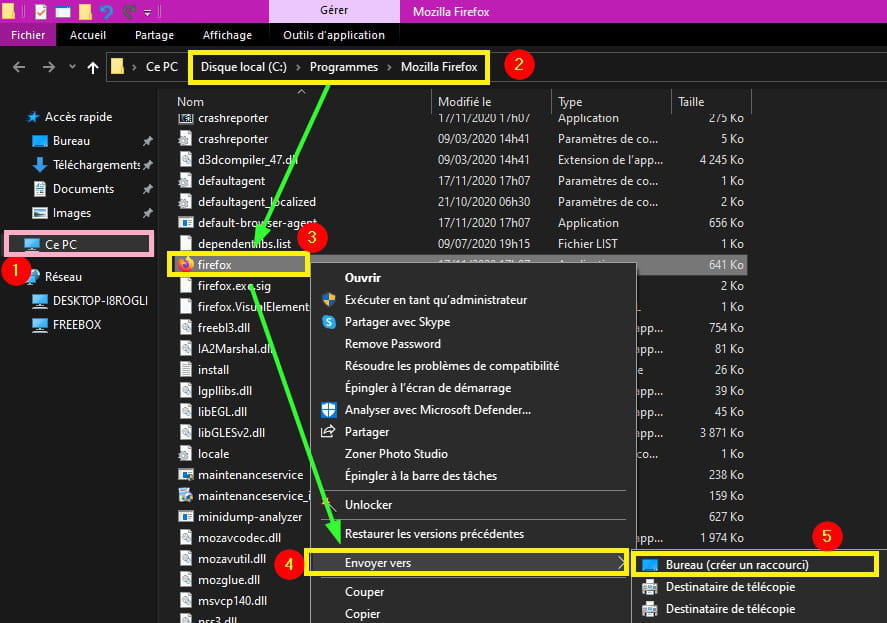
(Unfortunately, I still need PowerPoint and Excel, so I can't do the same, so…)- Go to This PC -► Local Disk (C) -► Programs -► Mozilla Firefox
If you see it, create a shortcut on the Desktop.
Microsoft Office:
Alternative ==► Use Microsoft Office for free with Windows 10
A+
-
-
Re,
Click on the small arrow pointing up at the bottom right of the screen and then see if:
Always show icons and notifications on the taskbar is unchecked.
If it is checked, uncheck it.
Then click OK and restart the PC to see.
Right-click on this arrow, then click on Task Manager and there go to: Application History and right-click on the application, then click on End Task and do this for each application to be removed. -
Hello!
Once you're in the bar, right-click and delete it. Then go to the recycle bin and empty it.
--
@Dionysos-
Hello,
Read the post carefully since it's quite complicated apparently.
# 4
Right-click on the icons to remove (one by one) and detach from the taskbar, that should solve the problem.
... -
A detached application from the taskbar does not go to the recycle bin.
-
-
Hello!
If I delete it from the recycle bin, will the application be uninstalled? -
pistouri Posted messages 19008 Registration date Status Contributor Last intervention Ambassadeur 8 723
Empty the trash, you never know
--
pistol-
:/ Sorry for being so paranoid, but I'm really afraid of uninstalling the apps permanently… I'm really sorry :\
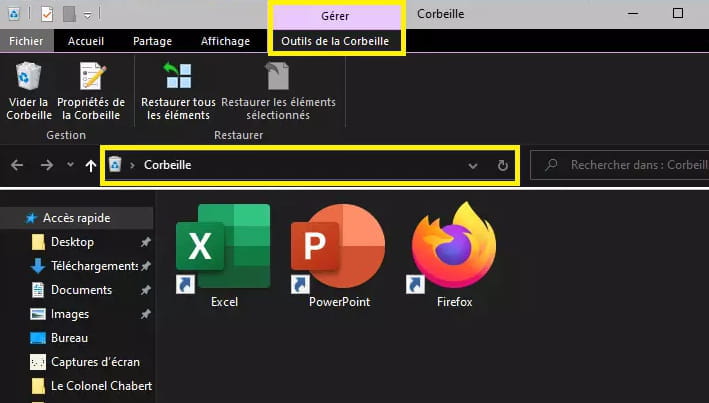
- Don't you have the Recycle Bin on the Desktop?
--► Show the Recycle Bin
And your user folder if it's not on the Desktop.
You do have the Recycle Bin on the Desktop, I just didn't look closely.
Deleting a shortcut does not remove the program installation.
Copy the installation path with a right-click just in case.
Better yet, move them to the Desktop if you don't have them.
You can take action now.
-
-
pistouri Posted messages 19008 Registration date Status Contributor Last intervention Ambassadeur 8 723
Post a screenshot of your Desktop with the taskbar please.
We will see if the 3 icons (Firefox, Excel, PowerPoint) or the 2 icons (Excel, PowerPoint) that you have left are there.
In your screenshot, those are indeed the 3 icons you mentioned, but those same shortcuts are in the Recycle Bin.
The question is therefore whether you want to delete the 3 icons from the Recycle Bin or from the taskbar.
Later!
-
pistouri Posted messages 19008 Registration date Status Contributor Last intervention Ambassadeur 8 723
Hello,
1- The registry key Taskband.
See #22
2- Prevent an application from launching automatically at startup
shell:startup
3- login information
Settings ► Accounts
Disable the option: Use my sign-in info to automatically finish setting up my device after an update or restart.
See you later!
-
pistouri Posted messages 19008 Registration date Status Contributor Last intervention Ambassadeur 8 723
Hello,
The Taskband registry key contains all the items pinned to the taskbar.
Export the Taskband key before deleting it.
Restart the PC to check the icons on the taskbar.
The taskbar will be empty of all pinned icons.
See you later
--
pistouri-
… nothing new under the sun, 5 apps are automatically repinned, including the two I want to remove. The only icons that have disappeared are the ones I added.
- Hello, have you ever tried unpinning it/them instead of detaching it/them from the taskbar?
If you haven't, right-click on the application you want to unpin: the option "detach from taskbar" will appear, as well as a line with the name of the selected application. Then, right-click again on this line with the name of the application and its icon. Various options will appear, including "unpin from taskbar." This should finally help you put an end to this constant recurrence.
Hoping to have been helpful to you.
-
-
pistouri Posted messages 19008 Registration date Status Contributor Last intervention Ambassadeur 8 723
--► … nothing new under the sun :-)
1- Either you upgrade to the next version of W10 20h2
That's what I recommended in this post Update W10.
2- Notification area
Go to Settings ► Personalization
The menu line -►Taskbar
On the right section -►Notification area
Go to ► Select which icons appear on the taskbar
If you see your applications, disable the highlight of the box (the word to find must start with Microsoft for Excel and Powerpoint).
3- Either you perform an in-place repair -►Repair Windows 10 without data loss.
Cya
-
Good evening,
You never know: on my work computer, there are icons that I cannot delete because they are installed in a default profile by our IT department. I am an admin on my machine but not a super-admin. The PC is managed by group policies (machine connected to the domain): I can install or uninstall whatever I want... except manage Windows updates and those famous default icons.
Is there something to explore on that front? Check the policies related to your profile?







 |fancy]

- 1
- 2
Next