My BIOS no longer detects my internal hard drives.
Solved
derouss
-
derouss Posted messages 5 Status Member -
derouss Posted messages 5 Status Member -
Hello,
My PC that I built in July was working fine until today.
I decided to go to Asus and retrieve all the latest updates for my motherboard (which I didn't do during the build) TUF GAMING X570-PLUS WIFI.
I downloaded the graphics card drivers (Version 27.20.1020.1), BIOS (Version 2607), Audio (Version 6.0.8971.1), LAN (Version 10.42.526.2020), Utilities (Version 1.93), CHIPSET (Version 2.05.04.352), SATA (Version 9.3.0.38) that Asus offered.
Everything went well, I finished with the BIOS update which, once completed, automatically restarted my PC.
The PC reopened the BIOS and it no longer sees any disks. My Windows on my external hard drive cannot repair the problem.
Can you help me?
My PC that I built in July was working fine until today.
I decided to go to Asus and retrieve all the latest updates for my motherboard (which I didn't do during the build) TUF GAMING X570-PLUS WIFI.
I downloaded the graphics card drivers (Version 27.20.1020.1), BIOS (Version 2607), Audio (Version 6.0.8971.1), LAN (Version 10.42.526.2020), Utilities (Version 1.93), CHIPSET (Version 2.05.04.352), SATA (Version 9.3.0.38) that Asus offered.
Everything went well, I finished with the BIOS update which, once completed, automatically restarted my PC.
The PC reopened the BIOS and it no longer sees any disks. My Windows on my external hard drive cannot repair the problem.
Can you help me?
12 answers
-
Hi
Updating the BIOS can sometimes affect the settings of the controllers, specifically SATA and M.2.
It's a common issue with Asus.
Ideally, you should check and remember the controller settings and the boot order before updating.
Since this step seems to have been overlooked, try reloading the default values in the BIOS. On an Asus, when you're in the BIOS, it's usually the F5 key (at the bottom of the page, the function is called "defaults" or "optimized defaults").
This will load the basic settings; if you hadn't changed anything in the BIOS when you installed your setup in July, this should be enough to regain control, otherwise you will need to remember the settings you had in the BIOS and redo them.
--
Signature
Euskadi Ta Askatasuna -
Hello
it might be a bug from the BIOS update
revert to the previous version of the BIOS
--
If my answer helped you, click the Thank you button. -
-
I review my position
I just unplugged my hard drives, then reconnected them one by one.
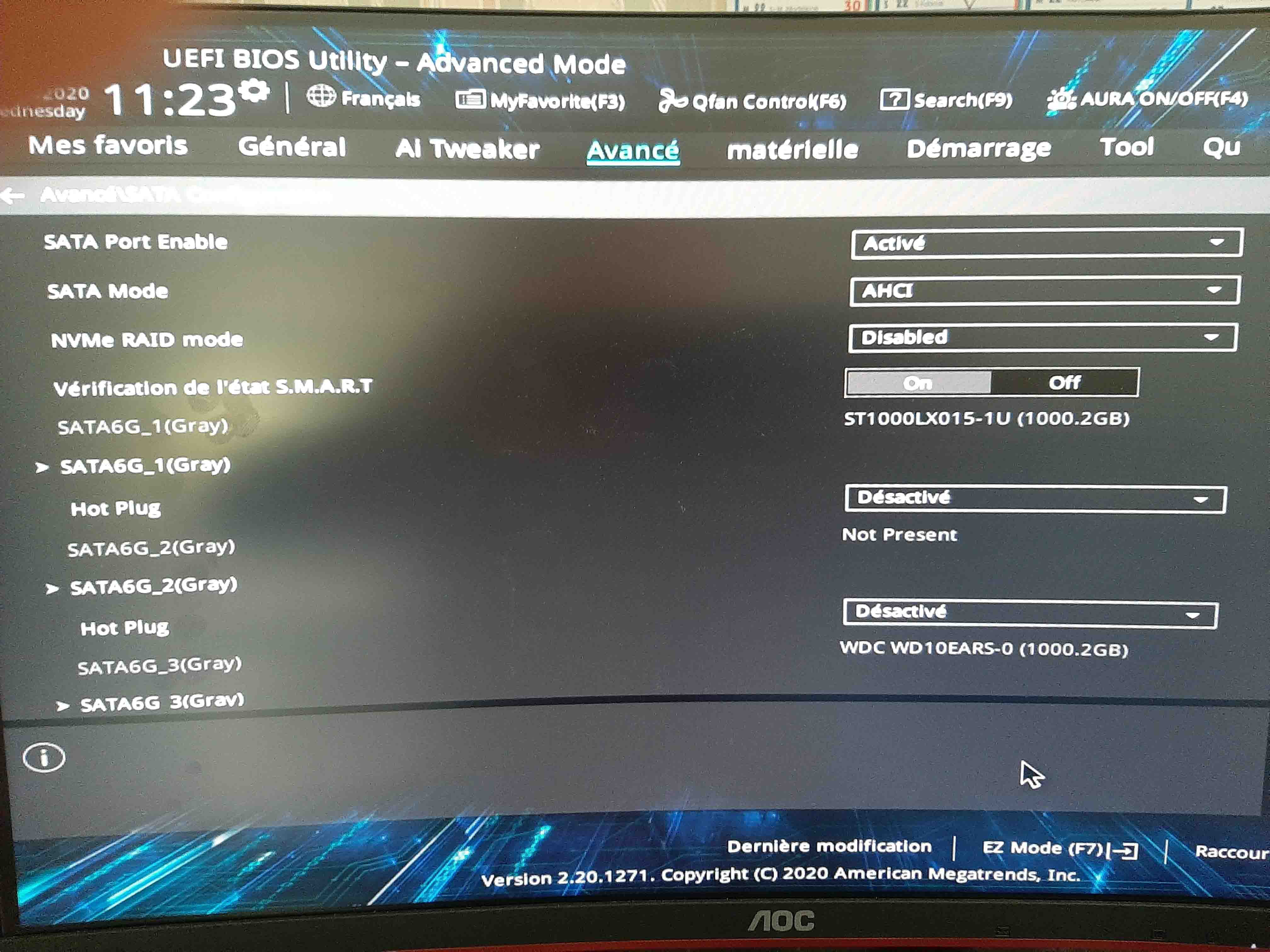
In fact, the BIOS sees my three hard drives, 2 AHCI and 1 NVME.
The "Boot priority" section of my motherboard's BIOS is empty.
My Windows disk cannot repair itself
And cannot reinstall Windows. When I select a disk, it tells me:
"This disk has an MBR partition table on EFI systems. Windows can only be installed on GPT disks."
Indeed, the title of my BIOS is "UEFI BIOS Utility- EZ mode" -
Yes, I've read this recommendation several times online.
The problem is, I can't find the field in the BIOS that allows me to change this setting????? -
In response to "ffoBB"
I think I have used this option before.
I just did the action again
nothing is happening at all.
The "Boot Priority" section is still empty! -
So my mistake, the CSM parameter does exist....
It's actually in the "boot" section, to try out.
Otherwise, check the controller settings in the "advanced menu" then "sata config"
--
Signature
Euskadi Ta Askatasuna -
-
Okay, do you have multiple HDDs? At least two of 1 TB, right?
But which one has Windows? You also have an M.2, I suppose that's the one with Windows?
From the first page, if you go to the boot menu (F8 key), what do you see?
If you see the M.2, set it as the first priority, then save and exit the BIOS.
-
-
If I press F8, I open a "Boot Menu"
"The system cannot find any bootable device" -
Thank you both (flo88, jfmimi) for your help and also for the existence of the CCM site. Its function is essential for people like me.
Indeed, by enabling "CSM execution," everything has returned to NORMAL, I have retrieved my BOOT and thus Windows is functioning.
jfmimi: I modified D.O.C.P. It doesn't show "enable," it presents "Profile#1" (D.O.C.P. DDR4-3200 16-18-18-36-1.35V) I think it's the same thing?
In fact, the BIOS update came because I was looking for a way to completely cut off the power to my PC when I turned it off (as the USB ports remain powered when the PC is off).
To achieve this, I need to act on the power supply switch, and this action is not satisfactory.
Can you help me?
The reason for my need is that I want to connect my computer system to a power strip with a master socket and make my PC the MASTER. However, the power consumption of the USB ports prevents the power strip from detecting the PC's shutdown.
Thanks again for your help.-
-
In fact, the reason for updating my BIOS was that I was looking for a way to completely cut off the power to my PC when I turned it off (since the USB ports remain powered when the PC is off).
To achieve this, I need to act on the power supply switch, and this action is not satisfactory.
Can you help?
The BIOS update will not change this.
You need to set the ErP option to enabled.
Advanced menu -> Advanced power management (APM config) -> ErP Ready
-
-
Indeed, you're right
But the option you're talking about is indeed mentioned in the motherboard manual.
I searched for it a lot, but it doesn't exist in my BIOS (or it’s called something else)
I was thinking that the update might bring me a new version with this option. -
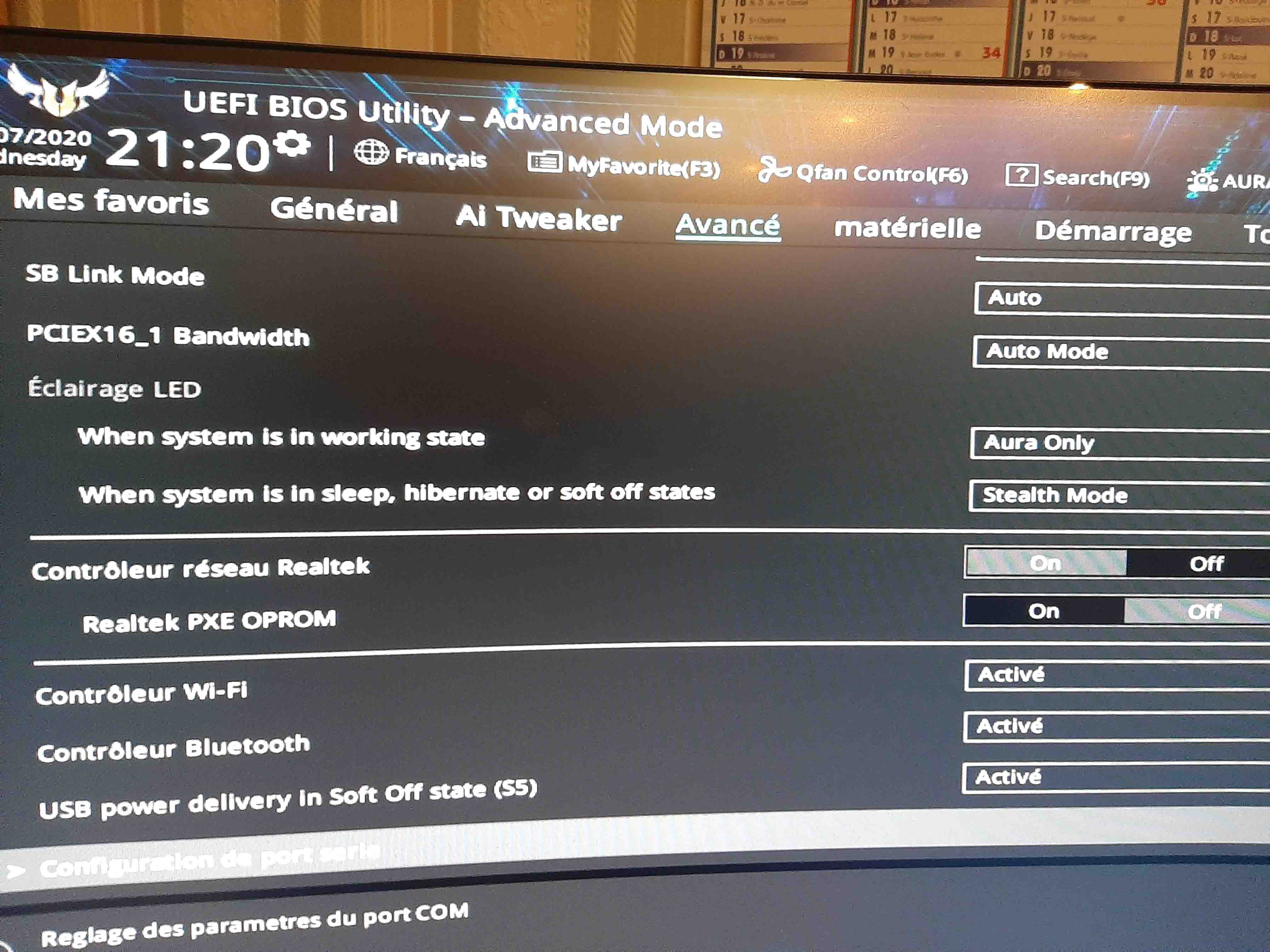
I just tried setting the USB power delivery option to soft off again and now it works. My USB ports lose power when my PC is turned off.
End of the story
Thanks again flo88