Double audio in a video recording on OBS Studio
Solved
RaphNew
Posted messages
58
Registration date
Status
Member
Last intervention
-
pistouri Posted messages 19010 Registration date Status Contributor Last intervention -
pistouri Posted messages 19010 Registration date Status Contributor Last intervention -
Hello, I have a quick question about using OBS Studio, which I installed just two days ago and I don't know much about its capabilities yet. So far, I've only used it for a few video recordings, primarily to familiarize myself with the software. However, the recorded voice seems to be doubling and there's a kind of echo that duplicates the original voice with a few seconds delay. For illustration, since we can't insert video on CCM, I've imported a short example on YouTube (https://www.youtube.com/watch?v=FXZ0fAV9bDM&feature=youtu.be), which, for transparency, is taken from this video (https://www.youtube.com/watch?v=utb5pBQZaiM&t=16s). This echo problem comes up quite often in forums regarding OBS. However, from what I’ve seen, it’s usually an issue with the microphone or during a streaming session, while in my case it only stems from a simple “screen capture + audio capture (input)”. What adjustments should I make to fix this issue? I should mention that I've already made some settings adjustments in the options related to obtaining at least some audio and the smoothness of the image (which isn't perfect, but it's already something).
Configuration: Windows / Chrome 80.0.3987.149
Configuration: Windows / Chrome 80.0.3987.149
4 answers
-
pistouri Posted messages 19010 Registration date Status Contributor Last intervention Ambassador 8 732
Hello,
I don't know OBS Studio.
Try these methods.
1- Echo occurs when you stream with a camera (Webcam).
The echo issue comes from the fact that when integrating the camera, OBS’s default settings link it to the built-in microphone.
It is also activated in OBS's audio settings.
Go to your video capture settings, disable the microphone, and leave the one in the audio settings enabled.
2- It could be that audio monitoring is enabled.
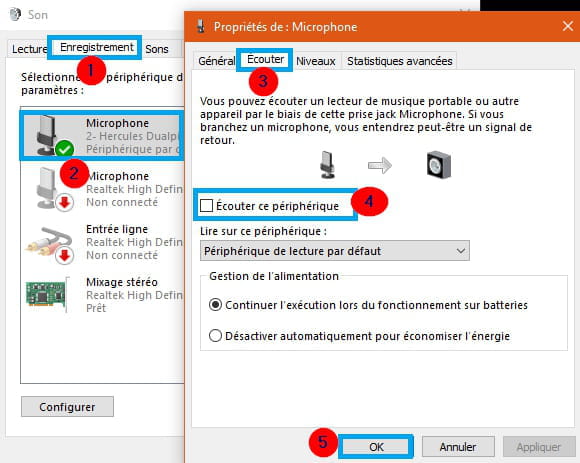
In that case, type "audio" in your Windows search bar, then "Manage audio devices", and in the "Recording" tab, look for your microphone, click on it and uncheck "Listen to this device" in the "Listen" tab.
Bonus: Create a shortcut for Windows 10 volume
3- Filter section "noise reduction" in OBS
4- Change OBS audio bitrate to 128 instead of 192
Or 124 instead of 160
(settings then in OBS output).
5- Check if the audio driver is up to date on the manufacturer’s website.
Nahimic sometimes causes issues (its own effects, to be disabled in sound manager).
6- Go to the camera properties in OBS, and disable the audio device.
7- Microphone adjustment tutorial
8- Alternatives to OBS.
- Open Broadcaster Software OBS
Open Broadcaster Software, often referred to as OBS, is a free, open-source video capture and live streaming software. It allows you to save gameplay video while simultaneously streaming it on online services (YouTube, Facebook Live, or Twitch).
It enables you to mix audio from your videos in real-time, and in Studio Mode, you can preview your scenes.
- Nvidia ShadowPlay if you have a Nvidia graphics card.
- Camtasia
Limitations of the trial version:
The trial version limits its use to 30 days and adds a watermark in the center of the produced video.
- Screencast-O-Matic
it is possible to record screen activities, from the webcam, or both at the same time via four modes: full-screen, 720p, or 480p, or simply the active windows. The strong point of Screencast-O-Matic is its very simplistic interface where users only need to click the red button to start recording.
However, note that the free online version of the program imposes some limitations, such as a recording duration limited to 15 minutes and the audio source supporting only the microphone.
A+
--
pistouri