Computer that won't start after antivirus update.
Solved
Jeremy
-
DoubleRation -
DoubleRation -
Hello
I updated my antivirus Avast which asked me to restart my computer. I restarted it, but my computer never booted up. My screen turns on, seems to start Windows, then shows "program cancellation" ... and goes in a loop of restarting like this over and over ... what can I do???
Thank you in advance for your help
Sincerely
I updated my antivirus Avast which asked me to restart my computer. I restarted it, but my computer never booted up. My screen turns on, seems to start Windows, then shows "program cancellation" ... and goes in a loop of restarting like this over and over ... what can I do???
Thank you in advance for your help
Sincerely
4 answers
-
Okay,
Start with the advanced system recovery options using method 1 from this page: Windows Advanced Recovery Options.
The principle is to restart on the page where you are asked for the password, with the icon at the bottom right and holding down the shift key.
If you do NOT reach the window where Windows asks for passwords, due to a blockage or crash beforehand...
Turn off the computer twice during the Windows loading.
It will enter repair mode, which will also give access to the advanced system recovery options.
(If starting from the advanced recovery options is impossible, you need to create a USB drive to boot from, there is a link on the previous page for that).
More help:- This tutorial that provides all the methods: Start on Windows 10 Troubleshooting and Recovery Options
- And also this video: https://www.youtube.com/watch?v=2Z34STeNSCs
Once there, go to Troubleshoot, you can then try:
From the settings menu, restart Windows and go into safe mode, from there you can uninstall a troublesome application like your antivirus.
If that doesn’t help, try to uninstall and reset Windows 10.
-
In this case,
Reinstall Windows 10 without formatting:
The principle is to create a Windows 10 installation USB drive and boot the computer from it to reinstall Windows without formatting in order to keep the data.
Since the computer is stuck, you need to create this from another functioning computer.
To create the USB drive:
You need a USB drive of at least 8 GB.- Create a USB drive with Media Creation Tool: Download and create a Windows 10 USB drive with Media Creation Tool
- Boot from it by modifying the boot sequence and indicating the USB drive or DVD: How to boot the computer from USB drive
If the USB drive does not work, try making one again with Rufus: how to download Rufus.
Download the ISO file, for example with Adguard: Download Windows ISO
Launch Rufus and then specify the path of the ISO file
In partition scheme, choose GPT.
For more details, refer to this tutorial for details: how to create a Windows installation USB drive
The Windows 10 installer should then start:
Follow these tutorials which explain how to install Windows 10:
All steps are given from A to Z with advice at the end to secure Windows 10.- Let yourself be guided to install Windows 10.
- Choose custom (not upgrade)
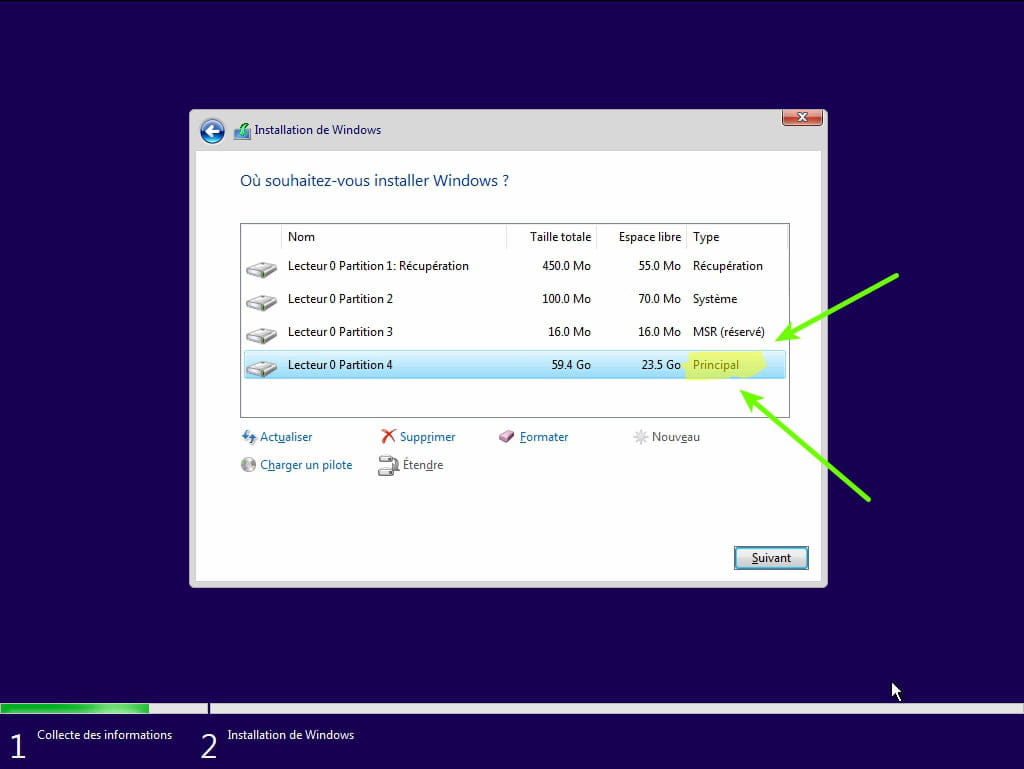
- During the partition phase, select the main partition and click next.
- The installer will tell you that Windows is already present and offer to move it.
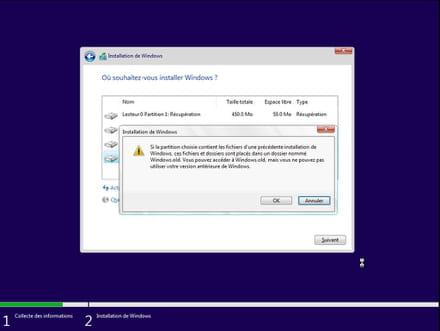
- Follow the Windows installation procedure using the tutorial above.
Do not format.
Your user data will be copied to the Windows.old folder.
Once Windows is installed, I recommend following this advice to properly configure and use Windows: Advice after reinstalling Windows.
--
Please press a key to continue the disinfection... -
Hello,
Is this a Windows 10?
--
Please press any key to continue the disinfection... -
At startup, my computer boots up and then a brief message appears: cancelling changes to your computer... a large black square as if a program is opening and the computer keeps restarting endlessly...
I don't know much about this, I tried safe mode but I can't seem to launch it.