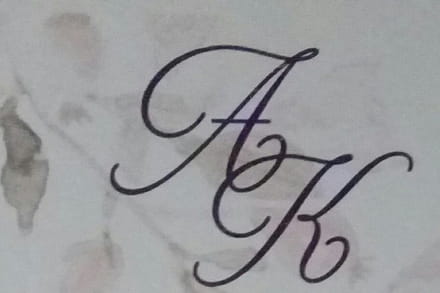
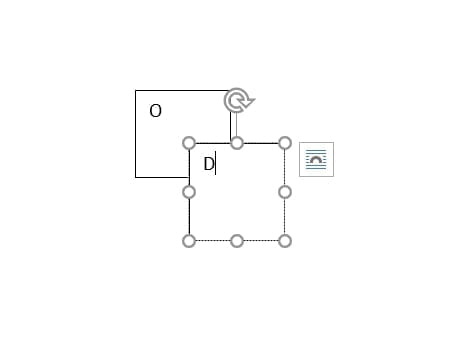
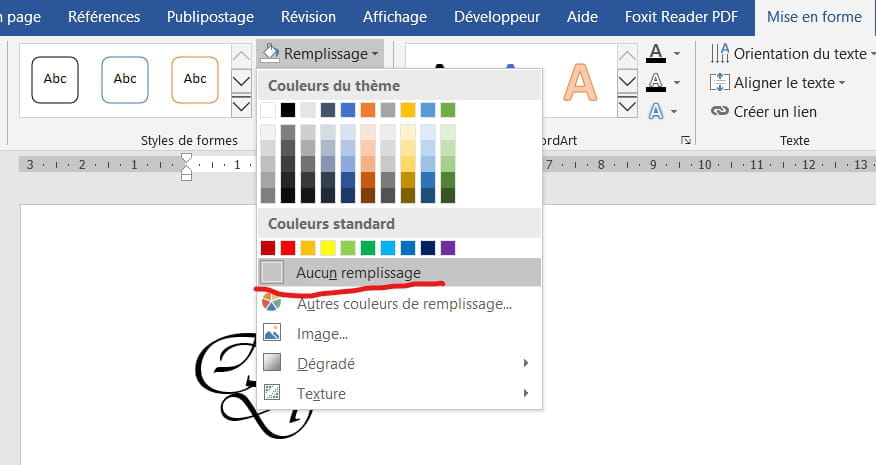
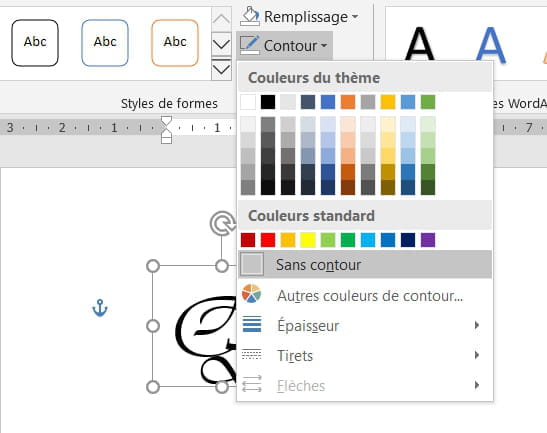
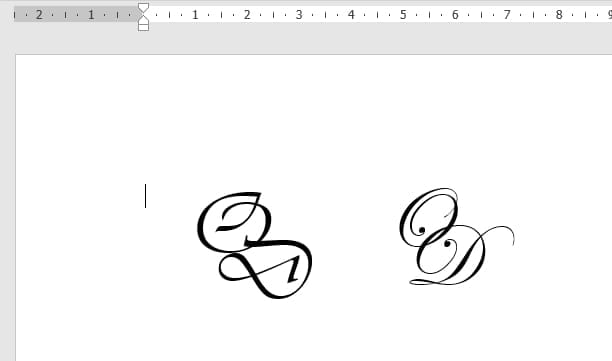
Publisher should be able to help you. You need to type the first letter, create a text box with a transparent background, type the second letter in it, move the text box by placing it over the first letter and positioning it slightly offset. Once the two letters are correctly placed, use the Windows screenshot tool to select the two letters. Save the screenshot as an image, import it into Word, and rotate the image to achieve the desired result. Give it a try.
cylia2015
Posted messages60StatusMembre
Hello, it's a bit complicated here; could you send me an example on Publisher?
With Word, you can do some stylistic tricks if you use certain TrueType fonts. There are few of them because typographers still need to take the time to fill in all the boxes!! Then, you show an example but we don't know what you want, if it’s exactly what you’re showing, or something along those lines, etc.
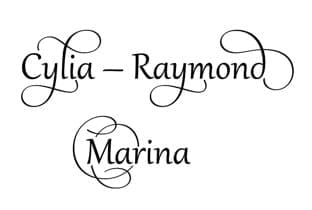
For example, the following text is made with Word, using the Gabriola font (which everyone has), and with stylistic set 7.
m@rina -- At least half of the users ask a question and never come back. Sometimes I wonder why I keep answering...
There are also plenty available online if the ones integrated into Office by default are not enough, here for example, (just be careful, not all of them are free of rights).
I found a much simpler solution than with Publisher. - Open Paint - At the top, in the ribbon, click on the A - Click on the blank space and type the first letter of the initials in the font of your choice, in a large size (at least 48). - Click anywhere next to it. The letter will be fixed. - Click again on the letter A in the ribbon. - Not far from the first one, type the second letter. Position the cursor over the text box, the cursor will change to a cross and the box with the second letter can be moved. - Place the second letter over the first one to achieve the desired effect, then click anywhere to fix the second letter. - Click on the selection tool to crop the letters, then click on the Crop button to keep only the letters. - Click on File then on Save as to obtain an image. - Import the image into Word, place it in the desired location, resize it, and rotate it (if necessary) to achieve the desired effect.
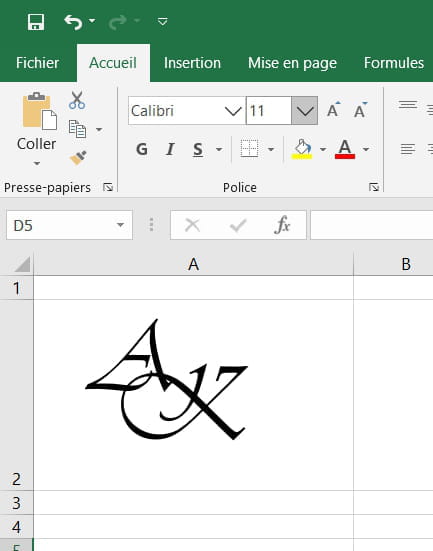
Inserting two text boxes and repositioning them is doable across the entire Office suite and is much more practical than Paint from my point of view... Even in Excel ^^
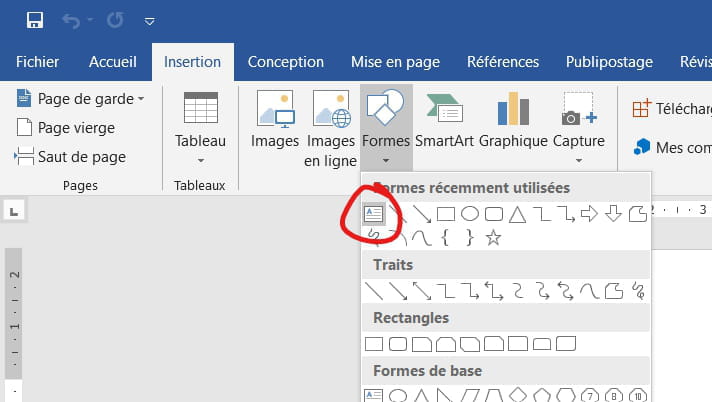
Insert/Shape/Text Box (insert two boxes to position them staggered of course) then Format/No Outline and No Fill.
cylia2015
Posted messages60StatusMembre
It's a bit complicated, if it's possible to do it with these two letters (O and D), thank you in advance.
Indeed, using LibreOffice myself, I know that it's very easy to do with this program. I was just trying to find a solution to his problem because he is using Word and one of the first responses indicated that it wasn't possible with Word.
The ambiguity was really the word "write". Can we write like that with Word?
Of course, we can do a lot of things with drawings in various software, text boxes arranged in certain ways, etc., but "writing" was not the original question.
m@rina
-- At least half of the users ask a question and never come back. Sometimes I wonder why I continue to respond...
Yes, originally it was writing. Since we were immediately told that this wasn't possible in Word, we looked for another solution. For my part, (I don't use Word) I think what can be done with LibreOffice should certainly be doable with Word. We should look into text boxes in Word and try writing a letter in each box, then moving the second one on top of the first, as T3chN0g3n did in LibreOffice.
I was talking about the Microsoft Office suite ;) So yes, it's doable since I've done it x) It's true that writing in overlapping diagonal is not simply possible :p
Thank you for your response. I tried all your suggestions, but it's not working. If you could provide me with an example using the two letters (O and D)