Unable to change my wallpaper after W10 reset
Solved
zKirua
Posted messages
38
Registration date
Status
Member
Last intervention
-
pistouri Posted messages 19010 Registration date Status Contributor Last intervention -
pistouri Posted messages 19010 Registration date Status Contributor Last intervention -
I don't know where to post my topic so I'm putting it here
Hello,
Following a reset of my PC due to some issues, I can no longer change my wallpaper. I’ve tried every method that Windows offers and nothing works: right-click desktop > personalize / right-click image > set as desktop background, etc.… Nothing helps, I can only set solid colors from Windows. However, I can change my lock screen wallpaper.
I then did some research and noticed that I have a problem with regedit:
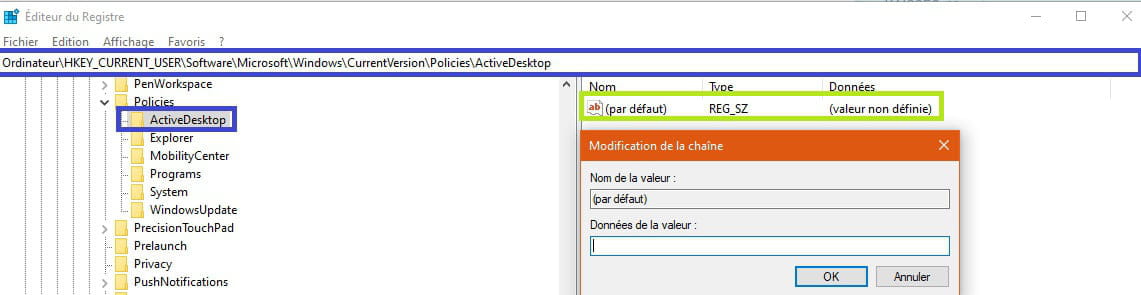
In: HKEY_CURRENT_USER\Software\Microsoft\Windows\CurrentVersion\Policies\ActiveDesktop, I don’t have the ActiveDesktop subfolder at the end and therefore don’t have the NoChangingWallPaper key that it is supposed to contain
In: HKEY_LOCAL_MACHINE\SOFTWARE\Microsoft\Windows\CurrentVersion\Personalization, I have a key AllowPersonalization set to 1 that I cannot change to 0 because I don’t have permission and cannot grant it to myself
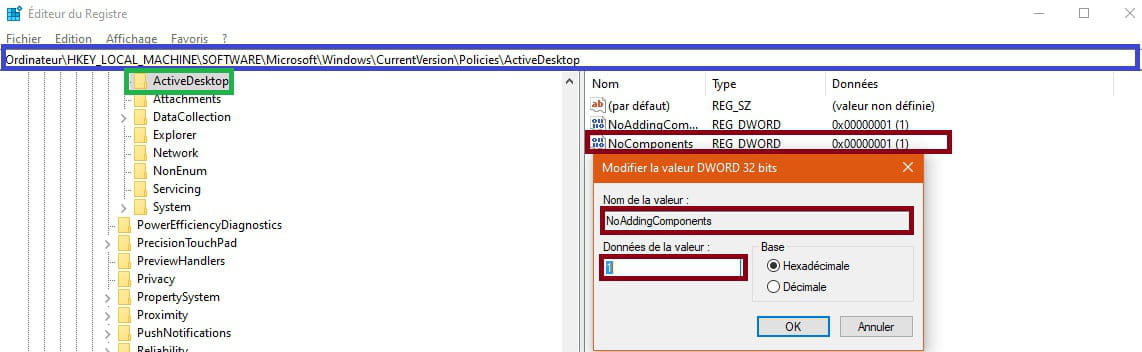
In: HKEY_LOCAL_MACHINE\Software\Microsoft\Windows\CurrentVersion\Policies\ActiveDesktop, everything was set to 0 by default so it seems OK
I don’t know if ActiveDesktop is related to the Windows activation key but I do have one
If I’m looking this far it’s because all the basic solutions to my problem haven’t worked :(
I’ve explained everything now, I’m counting on you to help me ;). See you soon
Hello,
Following a reset of my PC due to some issues, I can no longer change my wallpaper. I’ve tried every method that Windows offers and nothing works: right-click desktop > personalize / right-click image > set as desktop background, etc.… Nothing helps, I can only set solid colors from Windows. However, I can change my lock screen wallpaper.
I then did some research and noticed that I have a problem with regedit:
In: HKEY_CURRENT_USER\Software\Microsoft\Windows\CurrentVersion\Policies\ActiveDesktop, I don’t have the ActiveDesktop subfolder at the end and therefore don’t have the NoChangingWallPaper key that it is supposed to contain
In: HKEY_LOCAL_MACHINE\SOFTWARE\Microsoft\Windows\CurrentVersion\Personalization, I have a key AllowPersonalization set to 1 that I cannot change to 0 because I don’t have permission and cannot grant it to myself
In: HKEY_LOCAL_MACHINE\Software\Microsoft\Windows\CurrentVersion\Policies\ActiveDesktop, everything was set to 0 by default so it seems OK
I don’t know if ActiveDesktop is related to the Windows activation key but I do have one

If I’m looking this far it’s because all the basic solutions to my problem haven’t worked :(
I’ve explained everything now, I’m counting on you to help me ;). See you soon
6 answers
-
pistouri Posted messages 19010 Registration date Status Contributor Last intervention Ambassador 8 732
Hello,
1- Go to Control Panel (with the view set to "small icons")
Then "Ease of Access => Make the computer easier to see"
Scroll down to the section "Make the items on the screen easier to see"
Check that the box "Remove background images (where available)" is unchecked.
If it is not, uncheck it and then Apply and OK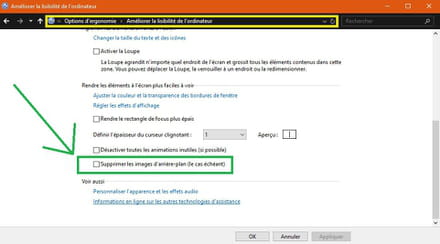
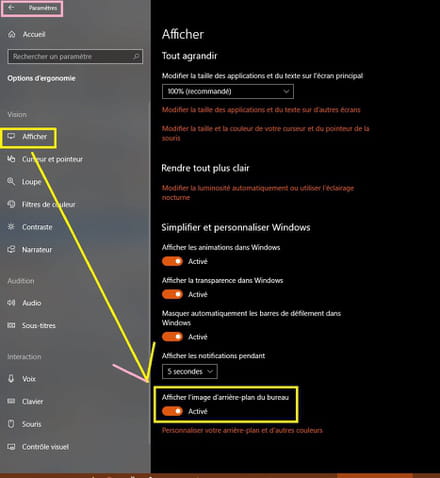
2- Go to Settings then click on the Ease of Access box
Click on the line → Display
In the right window scroll to the bottom.
Enable if it is not → Show the desktop background
3- Try putting a theme as a background instead of an image.
If that doesn’t work.
In the search bar or keyboard key Windows + R copy/paste:
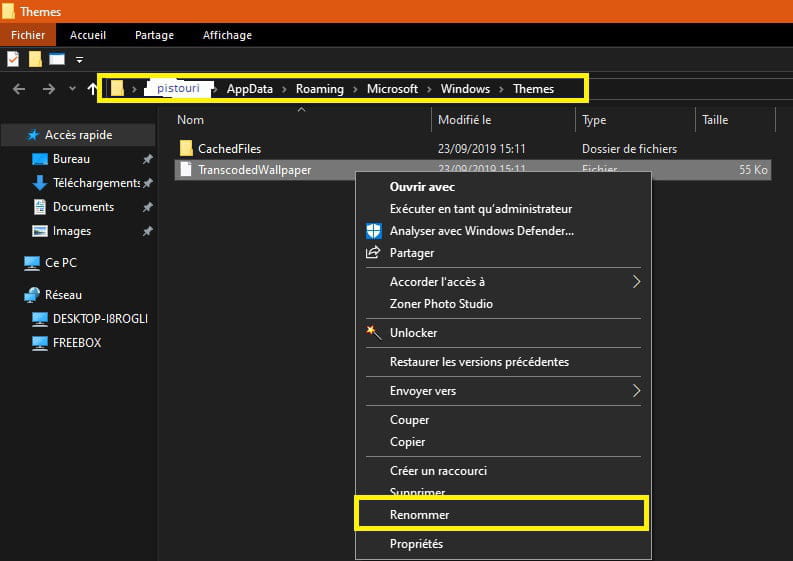
%USERPROFILE%\AppData\Roaming\Microsoft\Windows\Themes\
Then OK
Right-click on the file TranscodedWallpaper.jpg, then click Rename
Replace the file name with → TranscodedWallpaper.old
(just add .old at the end)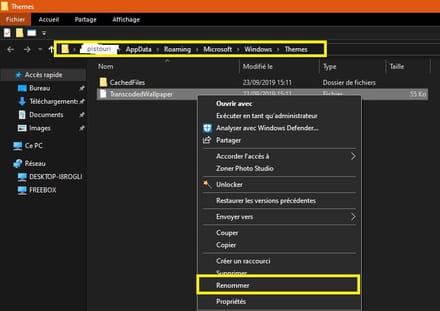
→ → →
By the way, you have a folder → CachedFiles
It is the cache of your wallpaper image if present.
Close the window.
Try putting a background image again.
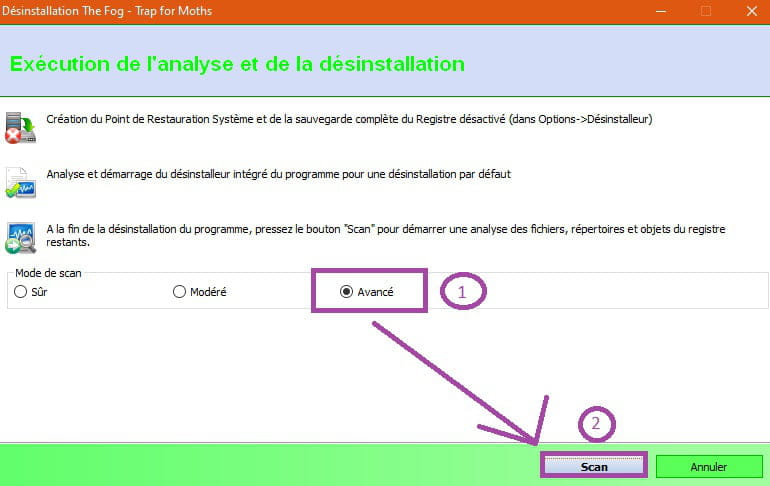
4- Run Malwarebytes
After the scan, delete the quarantine if any items are found.
Restart the PC.
Uninstall Malwarebytes.
Try again.
5- Clean the desktop background images with One-Click Registry Hack
Download to the Desktop RemoveBackgroundHistoryImages
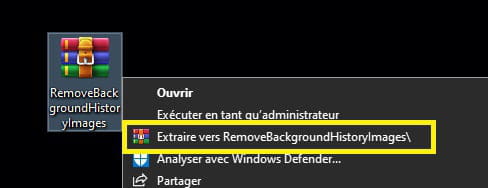
It is an archive to extract with WinRAR trial version or with 7-Zip
Right-click on the archive then Extract to →RemoveBackgroundHistoryImages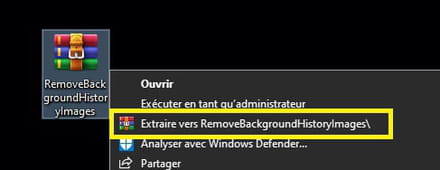
Open the newly created folder and run →RemoveBackgroundHistoryImages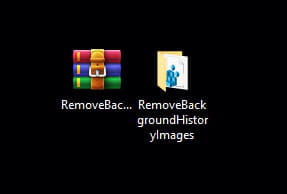
If you want, you can right-click then →Merge
Restart the PC.
Try again to set a background image.
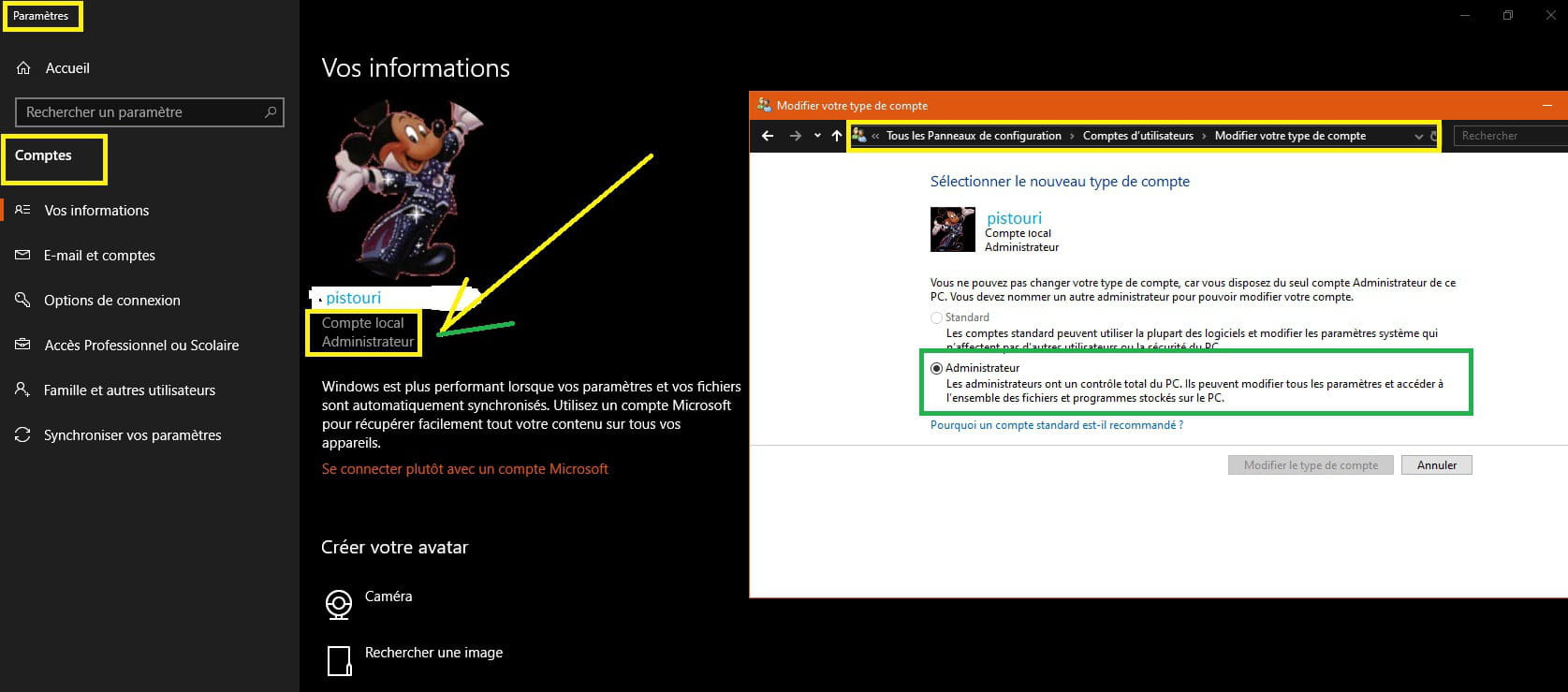
6- If you have a Microsoft account, switch to a local account.
Settings → Accounts → Your info.
Select → Sign in with a local account instead.
7- Create another user account and check if the problem is resolved.
A+
--
pistouri