Change lock screen wallpaper Windows 10
lolomusic667
Posted messages
2527
Status
Membre
-
pistouri Posted messages 19008 Registration date Status Contributeur Last intervention -
Good evening,
I don’t know if this is normal, but the lock screen background on my Windows 10 laptop has been the same for a while.
How can I change it to a slideshow, for example, so that it changes automatically and regularly?
Thank you in advance,
Laura
I don’t know if this is normal, but the lock screen background on my Windows 10 laptop has been the same for a while.
How can I change it to a slideshow, for example, so that it changes automatically and regularly?
Thank you in advance,
Laura
7 réponses
pistouri
Posted messages
19008
Registration date
Status
Contributeur
Last intervention
Ambassadeur
8 719
Hello,
What is your version of Windows 10?
Home, Pro, Enterprise?
To find out, type in the Cortana search box → winver
Note the version
Latest version 1803 .....17134.254
Have you removed or disabled Windows applications like Microsoft Edge or others like telemetry?
It is possible to repair or unlock Windows Spotlight, also known as Windows at a Glance.
Create a system restore point like this
1-Manual Method
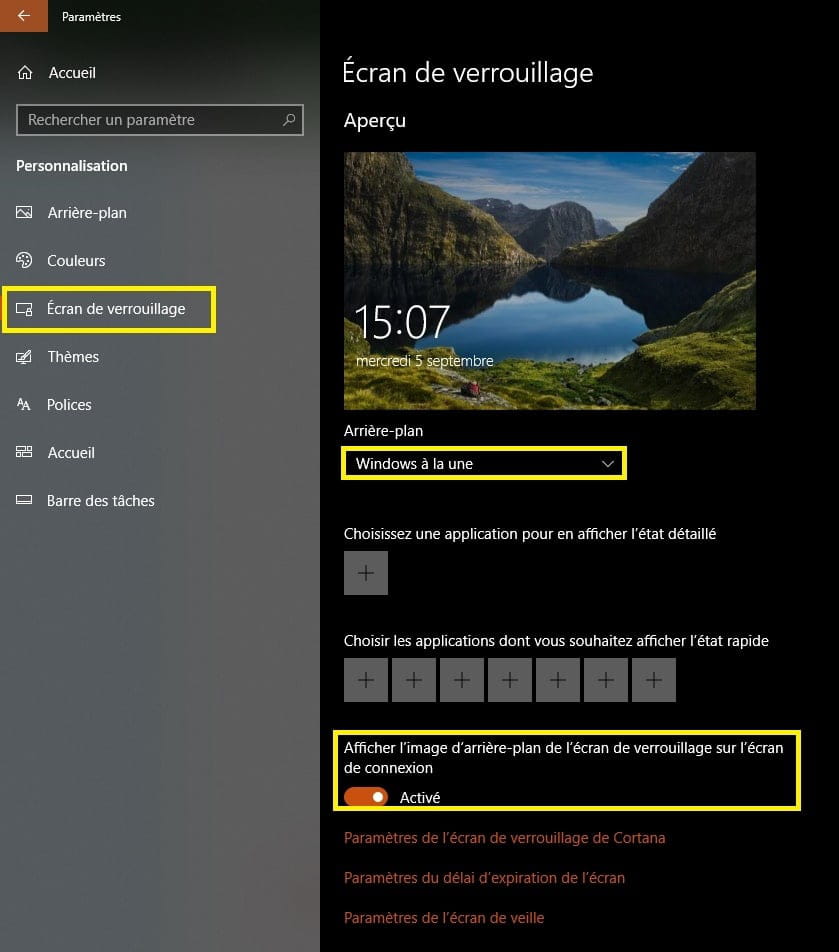
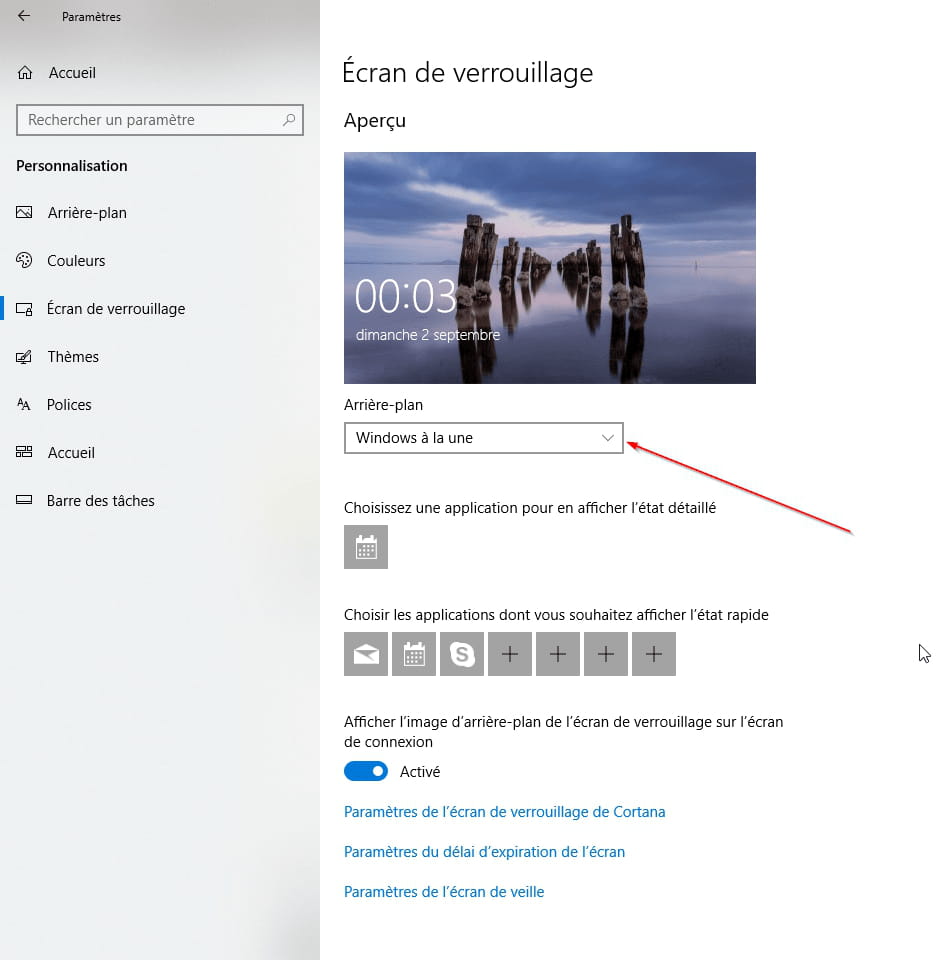
Go to Settings > Personalization > Lock screen.
In the Background section, choose Picture and set an image as the default lock screen background.
On the Desktop, open This PC
Go to View and check the box → Hidden items (this is to show hidden files and folders)
Then go to Drive C\Users\your_username\AppData\Local\Packages\Microsoft.Windows.ContentDeliveryManager\Settings\Settings
Open → Settings
Delete the 2 files → roaming.lock and settings.dat
Go to View and uncheck the box → Hidden items
Close the windows
Go back to Settings > Personalization > Lock screen.
In the Background section, choose → Windows Spotlight
Restart the PC
2-Method with a .bat file to reset Windows Spotlight (easier than method 1)
Save or download Reset_and_re-register_Windows_Spotlight.bat → here
Run the .bat file
Restart the PC
Go to Settings > Personalization > Lock screen.
Background, choose → Windows Spotlight
3-Method "SpotBright"
Windows Spotlight is only available on the Home version.
Available on the Windows Store
Using "SpotBright" may help resolve the situation here
Once installed, click on the line "Search for images"... be patient, this may take a while, but you can stop at any time
Then click on "Download new images".
Restart the PC
You can resume the procedure at any time to search and download new images
SpotBright can be found in the Start menu under the letter S
Or you can type SpotBright in Cortana
If you are having trouble, you can:
- Use SFC to repair system files here
- System Restore (often works poorly or not at all)
- Refresh the PC without losing documents
- Wait for the next major update (from October)
- Create a new user account.
Talk to you later
--
pistouri
What is your version of Windows 10?
Home, Pro, Enterprise?
To find out, type in the Cortana search box → winver
Note the version
Latest version 1803 .....17134.254
Have you removed or disabled Windows applications like Microsoft Edge or others like telemetry?
It is possible to repair or unlock Windows Spotlight, also known as Windows at a Glance.
Create a system restore point like this
1-Manual Method
Go to Settings > Personalization > Lock screen.
In the Background section, choose Picture and set an image as the default lock screen background.
On the Desktop, open This PC
Go to View and check the box → Hidden items (this is to show hidden files and folders)
Then go to Drive C\Users\your_username\AppData\Local\Packages\Microsoft.Windows.ContentDeliveryManager\Settings\Settings
Open → Settings
Delete the 2 files → roaming.lock and settings.dat
Go to View and uncheck the box → Hidden items
Close the windows
Go back to Settings > Personalization > Lock screen.
In the Background section, choose → Windows Spotlight
Restart the PC
2-Method with a .bat file to reset Windows Spotlight (easier than method 1)
Save or download Reset_and_re-register_Windows_Spotlight.bat → here
Run the .bat file
Restart the PC
Go to Settings > Personalization > Lock screen.
Background, choose → Windows Spotlight
3-Method "SpotBright"
Windows Spotlight is only available on the Home version.
Available on the Windows Store
Using "SpotBright" may help resolve the situation here
Once installed, click on the line "Search for images"... be patient, this may take a while, but you can stop at any time
Then click on "Download new images".
Restart the PC
You can resume the procedure at any time to search and download new images
SpotBright can be found in the Start menu under the letter S
Or you can type SpotBright in Cortana
If you are having trouble, you can:
- Use SFC to repair system files here
- System Restore (often works poorly or not at all)
- Refresh the PC without losing documents
- Wait for the next major update (from October)
- Create a new user account.
Talk to you later
--
pistouri
Hello,
For me, it’s the opposite
Have you blocked updates, otherwise 1803 will be proposed to you again, you have a whole bunch of tutorials to block it
Maybe the problem comes from there or from somewhere else...(Migration, Antivirus, network driver..corrupted files...)
A reset of your PC could solve the problem
How are the proposed methods working?
See you!
I don’t approve version 1709
For me, it’s the opposite
Have you blocked updates, otherwise 1803 will be proposed to you again, you have a whole bunch of tutorials to block it
Maybe the problem comes from there or from somewhere else...(Migration, Antivirus, network driver..corrupted files...)
A reset of your PC could solve the problem
How are the proposed methods working?
See you!
If you are using Windows Defender, it is the Smartscreen filter that gives you this message
you just need to disable the option in → App and browser control
Resetting (refreshing the PC) remains a solution
The PC will return to the correct settings
Windows Update
You will not be able to keep your PC up to date in this case
See you!
you just need to disable the option in → App and browser control
Resetting (refreshing the PC) remains a solution
The PC will return to the correct settings
Windows Update
I haven't blocked anything but it does nothing.
You will not be able to keep your PC up to date in this case
See you!
pistouri
Posted messages
19008
Registration date
Status
Contributeur
Last intervention
Ambassadeur
8 719
Hello,
Try this simple method:
Go to Settings > Personalization > Lock screen.
Background, choose → Windows Spotlight
Press the Windows key or click the Start button at the bottom left of the taskbar
Click on your username
Click on lock
Now on the login screen, look at the top right (sometimes on the left)
A sentence asks you if you like this image
Answer (you click on the line) → No, I don't like this image
Return to your session
- press the Enter key then → log in
- or double click anywhere then → log in
On the lock screen, switch several times between "Picture" and "Windows Spotlight"
Do this 2 or 3 times
Then leave it on → "Windows Spotlight"
Don’t forget to enable → Show lock screen background picture on the sign-in screen.
Logically, you should have different images on the sign-in screen.
See you later
Try this simple method:
Go to Settings > Personalization > Lock screen.
Background, choose → Windows Spotlight
Press the Windows key or click the Start button at the bottom left of the taskbar
Click on your username
Click on lock
Now on the login screen, look at the top right (sometimes on the left)
A sentence asks you if you like this image
Answer (you click on the line) → No, I don't like this image
Return to your session
- press the Enter key then → log in
- or double click anywhere then → log in
On the lock screen, switch several times between "Picture" and "Windows Spotlight"
Do this 2 or 3 times
Then leave it on → "Windows Spotlight"
Don’t forget to enable → Show lock screen background picture on the sign-in screen.
Logically, you should have different images on the sign-in screen.
See you later
Look at the message 13
Pay close attention to the values:
Check the following values:
- LockImageFlags
Value data → 3
Pay close attention to the values:
Check the following values:
- LockImageFlags
Value data → 3
pistouri
Posted messages
19008
Registration date
Status
Contributeur
Last intervention
Ambassadeur
8 719
If the simple method doesn't work, make sure to check from time to time if the image changes
Start button → (User Logo avatar) → Lock
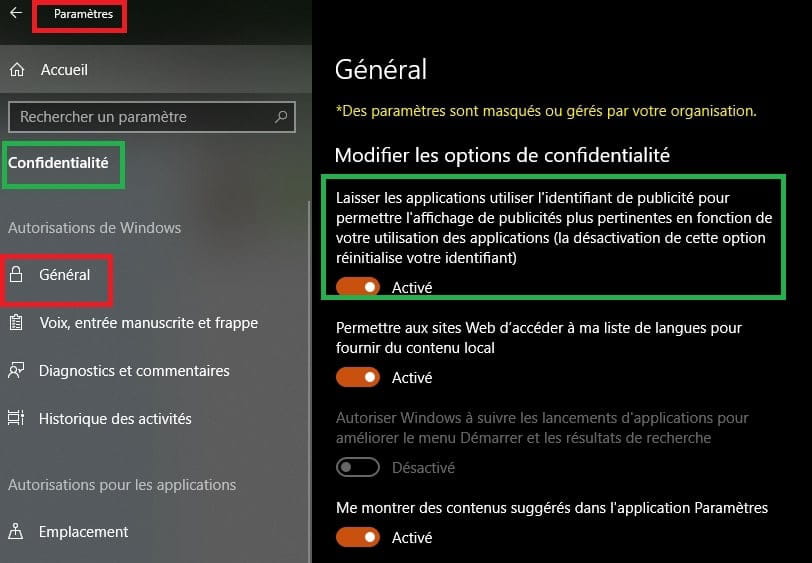
Also check to enable it if that is the case:
Go to Settings → Privacy
The line → General
Enable → Let apps use my advertising ID to allow .......
Start button → (User Logo avatar) → Lock
The image should change in principle.
You can then disable this option after a few startups
Nothing works:
In this case, use the method with a .bat file to reset Windows Spotlight
It works well, I modified the value of a registry key to test and I remained on the same image.
Right-click on Reset_and_re-register_Windows_Spotlight → Run as Administrator
Therefore, can you check in the Windows registry if you have the correct values
In Cortana type → regedit
Or right-click on the Start button and then on → Run
Then go to this registry key
HKEY_LOCAL_MACHINE\SOFTWARE\Microsoft\Windows\CurrentVersion\Authentication\LogonUI\Creative
Click on → Creative
Then on the 2nd line → S-1-5-21-826134325-3229497062-2753576501-1001
In the right pane
Default → Do not click on it
Check the following values:
- LockImageFlags
Value data → 3
- RotatingLockScreenEnabled
Value data → 1
It is LockImageFlags with Value data 3 that you need to pay close attention to
Another more detailed solution (I haven't tested) without really knowing what to modify
With Windows Pro, you can use Group Policy to change settings
You have options for the lock screen
This does not exist on the Home version
Malekal whom I greet proposes the procedure here, which I did.
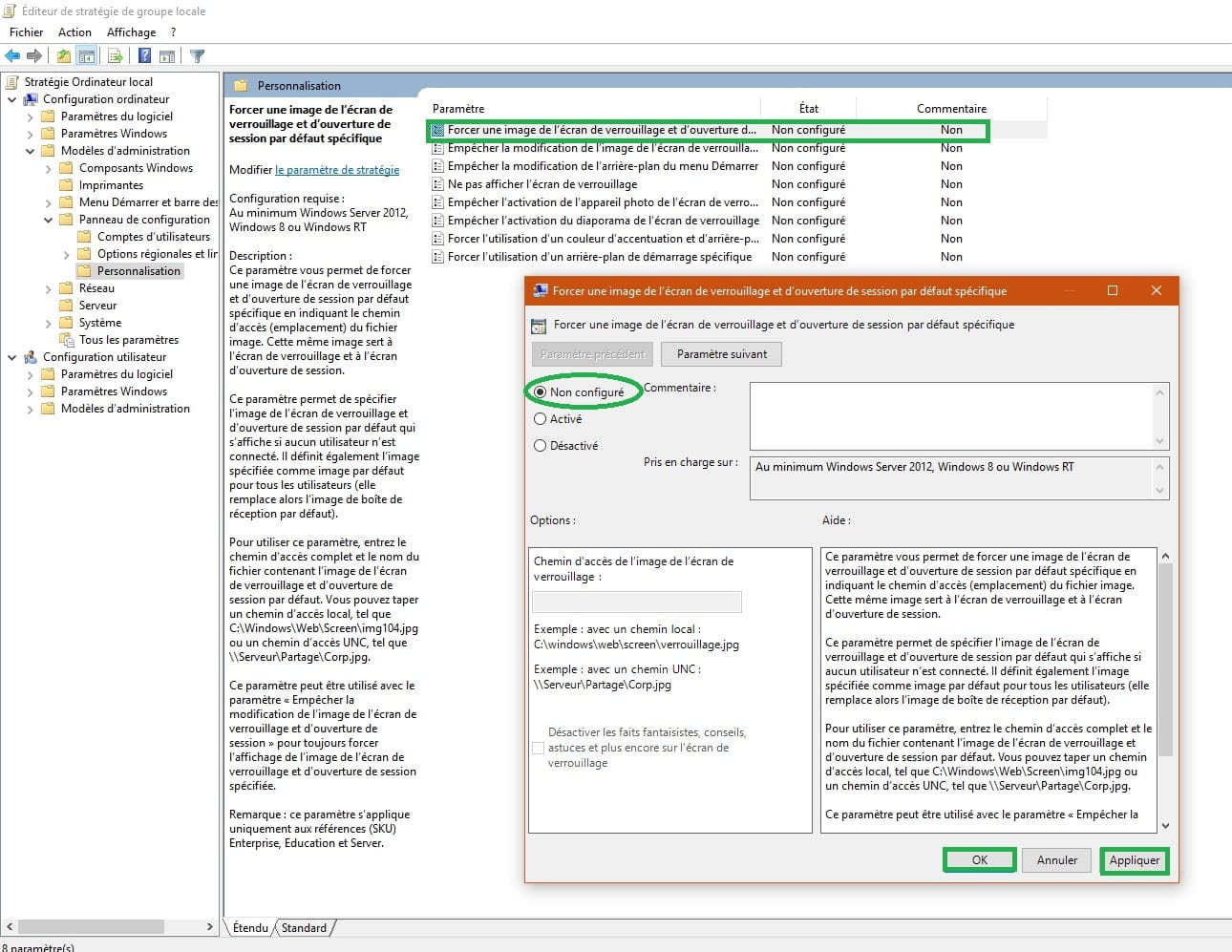
In Cortana or right-click on the Start button and then on Run, type → gpedit.msc
You can copy/paste if you prefer → gpedit.msc
Once opened, go to:
Administrative Templates ---> Control Panel ---> Personalization
(double-click each time)
In the right pane, various options like in this image
Logically it should be on → "Not Configured"
These are the default settings.
Example with the 1st line → Force a specific default lock screen and logon image
I can't say more, except to try setting the option to Enable and save the changes
A+
Start button → (User Logo avatar) → Lock
Also check to enable it if that is the case:
Go to Settings → Privacy
The line → General
Enable → Let apps use my advertising ID to allow .......
Start button → (User Logo avatar) → Lock
The image should change in principle.
You can then disable this option after a few startups
Nothing works:
In this case, use the method with a .bat file to reset Windows Spotlight
It works well, I modified the value of a registry key to test and I remained on the same image.
Right-click on Reset_and_re-register_Windows_Spotlight → Run as Administrator
Therefore, can you check in the Windows registry if you have the correct values
In Cortana type → regedit
Or right-click on the Start button and then on → Run
Then go to this registry key
HKEY_LOCAL_MACHINE\SOFTWARE\Microsoft\Windows\CurrentVersion\Authentication\LogonUI\Creative
Click on → Creative
Then on the 2nd line → S-1-5-21-826134325-3229497062-2753576501-1001
In the right pane
Default → Do not click on it
Check the following values:
- LockImageFlags
Value data → 3
- RotatingLockScreenEnabled
Value data → 1
It is LockImageFlags with Value data 3 that you need to pay close attention to
Another more detailed solution (I haven't tested) without really knowing what to modify
With Windows Pro, you can use Group Policy to change settings
You have options for the lock screen
This does not exist on the Home version
Malekal whom I greet proposes the procedure here, which I did.
In Cortana or right-click on the Start button and then on Run, type → gpedit.msc
You can copy/paste if you prefer → gpedit.msc
Once opened, go to:
Administrative Templates ---> Control Panel ---> Personalization
(double-click each time)
In the right pane, various options like in this image
Logically it should be on → "Not Configured"
These are the default settings.
Example with the 1st line → Force a specific default lock screen and logon image
I can't say more, except to try setting the option to Enable and save the changes
A+
pistouri
Posted messages
19008
Registration date
Status
Contributeur
Last intervention
Ambassadeur
8 719
You have the method with Powershell
In the Cortana search field type → powershell
Right-click on powershell → Run as Administrator
Copy and paste this command:
Get-AppXPackage -AllUsers |Where-Object {$_.InstallLocation -like "*SystemApps*"} | Foreach {Add-AppxPackage -DisableDevelopmentMode -Register "$($_.InstallLocation)\AppXManifest.xml"}
Then Press Enter
Close the window when it's done
Now, on your keyboard, hold down the Windows key and press L to see if Windows spotlight is working.
If you see a new lock screen image, wait at least 2 minutes or restart the PC and
we could say that’s great!
Ps: sometimes you might need 2 or 3 restarts to verify it
See you later
In the Cortana search field type → powershell
Right-click on powershell → Run as Administrator
Copy and paste this command:
Get-AppXPackage -AllUsers |Where-Object {$_.InstallLocation -like "*SystemApps*"} | Foreach {Add-AppxPackage -DisableDevelopmentMode -Register "$($_.InstallLocation)\AppXManifest.xml"}
Then Press Enter
Close the window when it's done
Now, on your keyboard, hold down the Windows key and press L to see if Windows spotlight is working.
If you see a new lock screen image, wait at least 2 minutes or restart the PC and
we could say that’s great!
Ps: sometimes you might need 2 or 3 restarts to verify it
See you later
Did you right-click on Powershell → Run as Administrator
I have the impression that your Windows is corrupted by a simple command (your Administrator account or something else)
This will eventually lead to a reset (Refresh the PC without losing documents) if nothing works or the creation of another account
Try the Reset_and_re-register_Windows_Spotlight.bat file here
Ignore the warning from the Defender antivirus
This restores the correct values for the lock screen in the Windows registry, that’s what I did, even the
''I like or I don’t like this image'' have reappeared
See you later!
I have the impression that your Windows is corrupted by a simple command (your Administrator account or something else)
This will eventually lead to a reset (Refresh the PC without losing documents) if nothing works or the creation of another account
Try the Reset_and_re-register_Windows_Spotlight.bat file here
Ignore the warning from the Defender antivirus
This restores the correct values for the lock screen in the Windows registry, that’s what I did, even the
''I like or I don’t like this image'' have reappeared
See you later!
I don't have much left to offer you
you have to wait a bit, the image takes 2 minutes to change according to readings or after several restarts as I told you
Give me in your next message → LockImageFlags with Data value 3 which you need to pay attention to
Knowing that the lock screen needs an internet connection at PC startup to change images
you can reset the network (the network card) as you did a rollback to the previous version
You have a line in Settings → Network & Internet → Network reset
or Settings → Network & Internet → Status → Network reset.
Make sure that Windows Defender (Security Center) is green, no alert messages
See you later
you have to wait a bit, the image takes 2 minutes to change according to readings or after several restarts as I told you
Give me in your next message → LockImageFlags with Data value 3 which you need to pay attention to
Knowing that the lock screen needs an internet connection at PC startup to change images
you can reset the network (the network card) as you did a rollback to the previous version
You have a line in Settings → Network & Internet → Network reset
or Settings → Network & Internet → Status → Network reset.
Make sure that Windows Defender (Security Center) is green, no alert messages
See you later
pistouri
Posted messages
19008
Registration date
Status
Contributeur
Last intervention
Ambassadeur
8 719
To make it reappear → ''I like or I don't like this image''
Go to Settings → Personalization → Lock screen
Instead of Windows Spotlight, select → picture
Activate → Personalize the lock screen, including anecdotes and tips
Select again → Windows Spotlight
Then go to Settings → System → Notifications & actions
Activate → Show notifications on the lock screen
Keyboard keys Windows + L to check
Then Enter key to exit the image or double-click then log in
Or restart the PC
Ps: the photos are taken with Windows 1803 so the text may slightly change
A+
--
pistouri
Go to Settings → Personalization → Lock screen
Instead of Windows Spotlight, select → picture
Activate → Personalize the lock screen, including anecdotes and tips
Select again → Windows Spotlight
Then go to Settings → System → Notifications & actions
Activate → Show notifications on the lock screen
Keyboard keys Windows + L to check
Then Enter key to exit the image or double-click then log in
Or restart the PC
Ps: the photos are taken with Windows 1803 so the text may slightly change
A+
--
pistouri
pistouri
Posted messages
19008
Registration date
Status
Contributeur
Last intervention
Ambassadeur
8 719
We will compare the 2 registry keys
HKEY_LOCAL_MACHINE\SOFTWARE\Microsoft\Windows\CurrentVersion\Authentication\LogonUI\Creative
Click on → Creative
Then on the 2nd line → S-1-5-21-826134325-3229497062-2753576501-1001
-LockImageFlags
- RotatingLockScreenEnabled
Please post a screenshot like this
The image of my setting in the Windows registry
It would be interesting and welcome to see if Malekal or another participant has the same settings
A+
--
pistouri
HKEY_LOCAL_MACHINE\SOFTWARE\Microsoft\Windows\CurrentVersion\Authentication\LogonUI\Creative
Click on → Creative
Then on the 2nd line → S-1-5-21-826134325-3229497062-2753576501-1001
-LockImageFlags
- RotatingLockScreenEnabled
Please post a screenshot like this
The image of my setting in the Windows registry
It would be interesting and welcome to see if Malekal or another participant has the same settings
A+
--
pistouri
I set value 3 for lockimageflags. I am already at value 1 for rotatinglockscreen. Also, I do not have the same thing regarding the second line except that it ends with 1001 and I do not have the same thing in the second line ending with 1001; I have additional items (I have by default, lockimageflags, rotatinglockscreen) where I modified the value if needed, but I also have additional things not shown in the screenshot.
What else do you have in terms of lines?
Your setting is the same as mine for LockImageFlags (value 3), so that's good on that side.
Try changing the LockImageFlags value to 4.
Source here
Restart the PC.
Your setting is the same as mine for LockImageFlags (value 3), so that's good on that side.
Try changing the LockImageFlags value to 4.
Source here
Restart the PC.
For the Startup, check what launches at startup in the task manager.
We can also assume that Windows Update is working in the background, as you must remember that you reverted to the previous version and that it downloads the major update 1803, and it's a large file. It resumes the download every time you restart until the installation prompts you to restart the PC since you haven't blocked Windows Update. Sooner or later, a message will appear.

Just in case it unlocks something.