Stuck on "Choose an option" after PC reset
PandaWasabi
Posted messages
43
Status
Member
-
Malekal_morte- Posted messages 178136 Registration date Status Moderator, Security Contributor Last intervention -
Malekal_morte- Posted messages 178136 Registration date Status Moderator, Security Contributor Last intervention -
Hello,
To sell my Lenovo Miix 700 PC/tablet, I performed a complete reset of Windows 10, deleting all files, applications, accounts, and cleaning the drive (Recovery menu, reset this PC....)
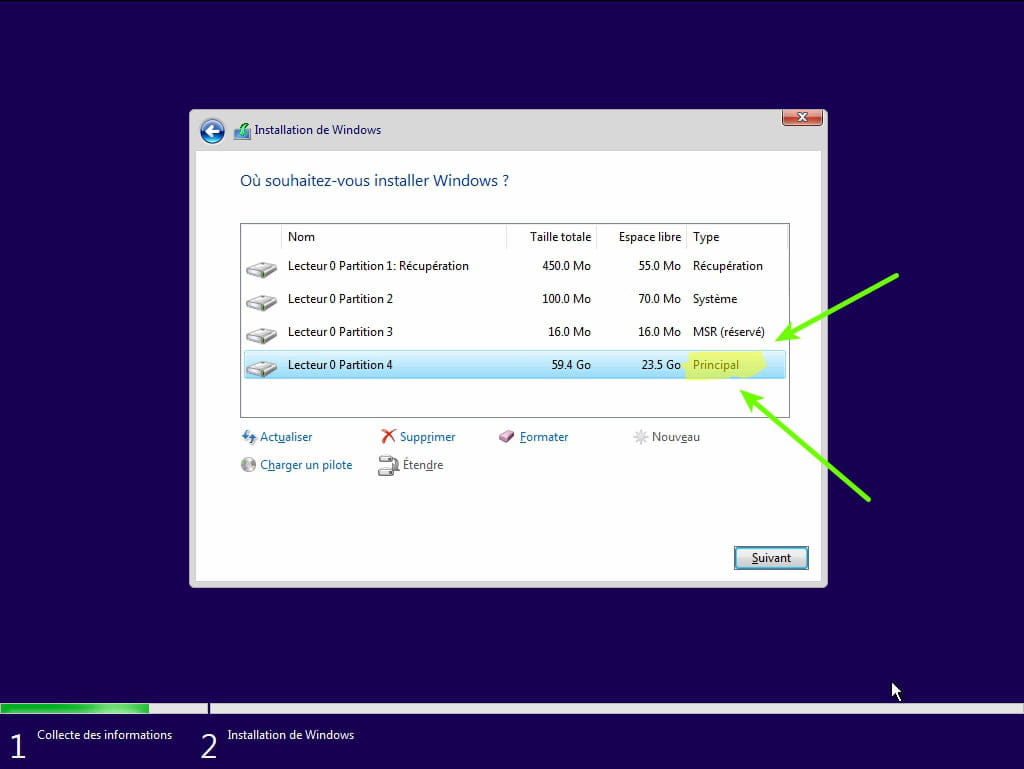
The PC completed the procedure successfully, and I was able to restart it twice. However, on the third boot, the PC won't start and gets stuck on "Choose an option" as shown in the photo.
None of the options work: I have no previous restore point, and the startup diagnostics find nothing...
Before turning it off the second time, I was on a train, so I used the public wifi to install SpyBot and Ccleaner, but I didn’t install anything else...
Does anyone know what might be causing the problem and how to fix it quickly without necessarily using a Windows recovery drive? For example, using the command prompt?
Thank you for your help!
To sell my Lenovo Miix 700 PC/tablet, I performed a complete reset of Windows 10, deleting all files, applications, accounts, and cleaning the drive (Recovery menu, reset this PC....)
The PC completed the procedure successfully, and I was able to restart it twice. However, on the third boot, the PC won't start and gets stuck on "Choose an option" as shown in the photo.
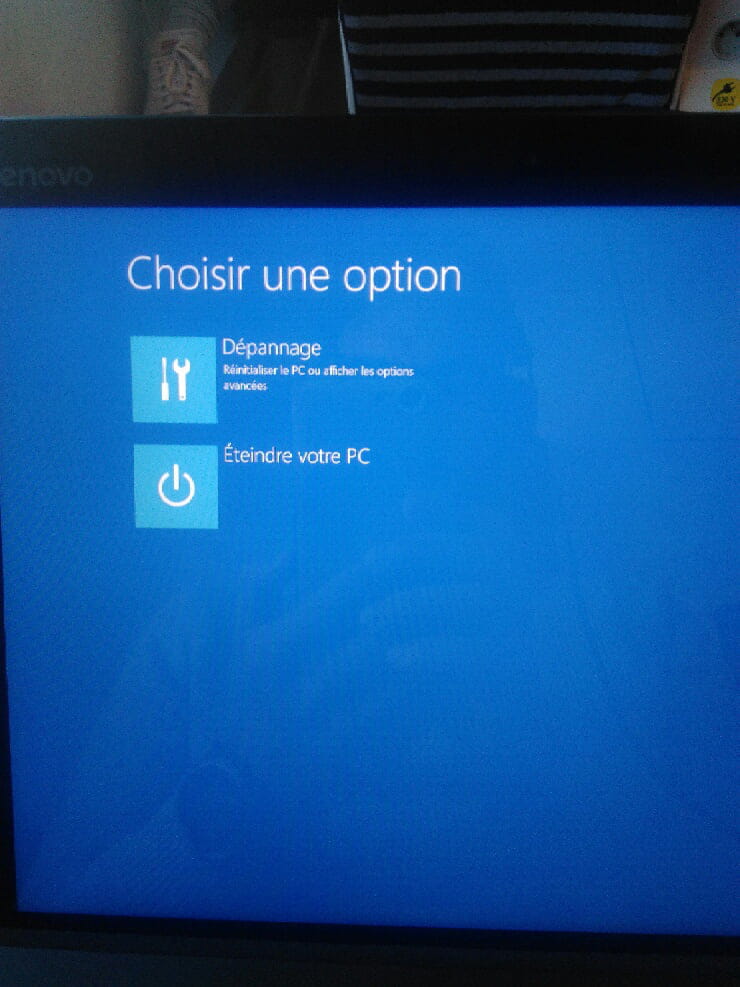
None of the options work: I have no previous restore point, and the startup diagnostics find nothing...
Before turning it off the second time, I was on a train, so I used the public wifi to install SpyBot and Ccleaner, but I didn’t install anything else...
Does anyone know what might be causing the problem and how to fix it quickly without necessarily using a Windows recovery drive? For example, using the command prompt?
Thank you for your help!
Related links:
- Internet Options has disappeared!
- Changed advanced option of the BOOTS file (1/4 cores) dangerous?
- Your PIN is no longer available due to a change in settings.
- Stuck on the Choose an option menu
- The Sleep option in the Start menu has disappeared in Windows 10.
- PC stuck on startup with blue screen asking to choose an option.
1 answer
-
Hello,
Reinstalling Windows 10 without formatting:
The principle is to create a Windows 10 installation USB drive and boot the computer from it to reinstall Windows without formatting.
Since the computer is crashed, you need to create this from another functional computer.
To create the USB drive:
You need a USB drive with a minimum of 8 GB.- Create a USB drive with Media Creation Tool: https://www.malekal.com/windows-10-media-creation-tool/
- Boot from it by modifying the boot sequence and indicating the USB drive or DVD: How to boot your computer from a USB drive
If the USB drive doesn’t work, try making another one with Rufus: how to download Rufus.
Download the ISO file, for example, using Adguard: Download Windows ISO
Launch Rufus and specify the path to the ISO file
In partition type, choose GPT.
For more details, refer to this tutorial for specifics: how to create a Windows installation USB drive
The Windows 10 installer should then start:
Follow this tutorial that explains how to install Windows 10: how to install Windows 10.
All steps are provided from A to Z with tips at the end to secure Windows 10.- Let yourself be guided to install Windows 10.
- Choose customize (not upgrade)
- During the partition phase, select the main partition and click next.
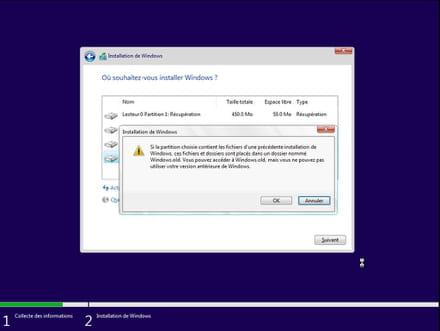
- The installer will tell you that Windows is already present and offers to move it.
- Follow the procedure to install Windows using the tutorial above.
Definitely do not format.
Your user data will be copied to the Windows.old folder.
Once Windows is installed, I recommend following these tips to properly configure and use Windows: Tips after reinstalling Windows.
--
Please press a key to continue the disinfection...-
Thank you, Malekal, for your response. I have already come across your site with these methods.
Is there no other way without using a bootable USB key? It involves quite a bit of work, especially since the tablet is clean and freshly formatted; I have no files or applications, so a factory reset doesn't bother me.
Could a command like "systemreset" in cmd or another command potentially solve my issue?
Thanks anyway for the response. If nothing else exists, I will follow this tutorial :)