Synchronization "suspended" at Google Chrome launch

belin69
Posted messages
216
Registration date
Status
Member
Last intervention
-
DGPS -
DGPS -
Hello
Why is the synchronization always "paused"? It forces me to repeatedly enter my password, both when opening chrome and in my Outlook email
What should I do? Thank you in advance.
Why is the synchronization always "paused"? It forces me to repeatedly enter my password, both when opening chrome and in my Outlook email
What should I do? Thank you in advance.
2 answers
-
pistouri Posted messages 19010 Registration date Status Contributor Last intervention Ambassador 8 732
Hello,
Solution 1:
Open Google Chrome
Go to the small dots located at the top right
Settings
Advanced Settings at the bottom of the page
Section→ Privacy and security
Content settings
Cookies
Disable the highlighted blue box → Keep local data only until I quit my browsing session
To go a bit faster:
Clear everything in the Google Chrome address bar and copy/paste:
chrome://settings/content/cookies
Then press Enter or right-click ...Paste the URL and access it
Note:
You can also disable in the Privacy and security section:
Disable → Allow Chrome sign-in
Disabling this option allows you to sign in to Google sites like Gmail without signing in to Chrome
Solution 2:
Click at the top right on "paused"
"synchronization is paused"
Disable the first line.
Reconnect to your account.
Chrome will ask you to confirm the sign-in.
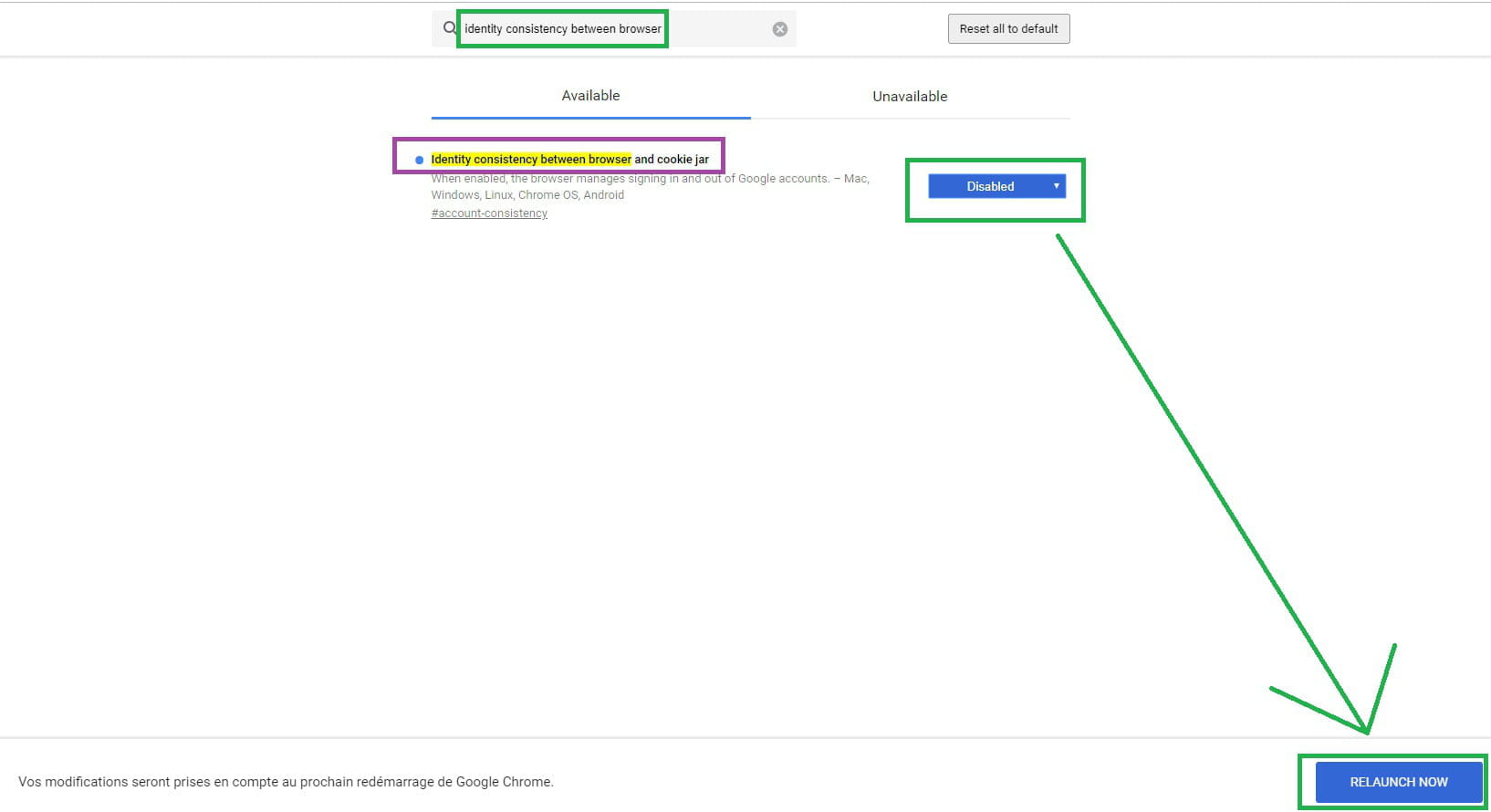
Solution 3:
Clear everything in the Google Chrome address bar and copy/paste:
chrome://flags
Then press Enter or right-click ...Paste the URL and access it
In the search field, copy/paste:
identity consistency between browser and cookie jar
Select → Disabled
Click at the bottom of the page → RELAUNCH NOW
Solution 4:
Reset Google Chrome
Clear everything in the Google Chrome address bar and copy/paste:
chrome://settings/resetProfileSettings?origin=userclick
Click on → Reset settings
Ps (optional): Uncheck the box Help us improve Chrome by reporting your current settings.
Or with ResetBrowser
A+