Create a decor kit from an EPS template
tchounga04
Posted messages
28
Registration date
Status
Member
Last intervention
-
contrariness Posted messages 343 Registration date Status Member Last intervention -
contrariness Posted messages 343 Registration date Status Member Last intervention -
Hello,
I downloaded Illustrator because I have a template for a motorcycle decoration kit in EPS format that I want to customize myself.
It looks like this:
I bought it from a website, and they sent it to me in EPS format.
But I can't draw "inside" each shape: insert an image without it "overflowing" or going outside the shape, etc.
How do I do that?
I would like to create a sort of white stencil with the blue shapes "punched out" to insert my objects behind, but I can't manage and I'm not sure if that's the right way to do it...
Thank you in advance for your help!
I can do what I want in Ulead but not in Illustrator... And since it would be for printing with a professional... ;).
Here's roughly what I would like to do:
Thanks!
Configuration: Windows / Firefox 59.0
I downloaded Illustrator because I have a template for a motorcycle decoration kit in EPS format that I want to customize myself.
It looks like this:
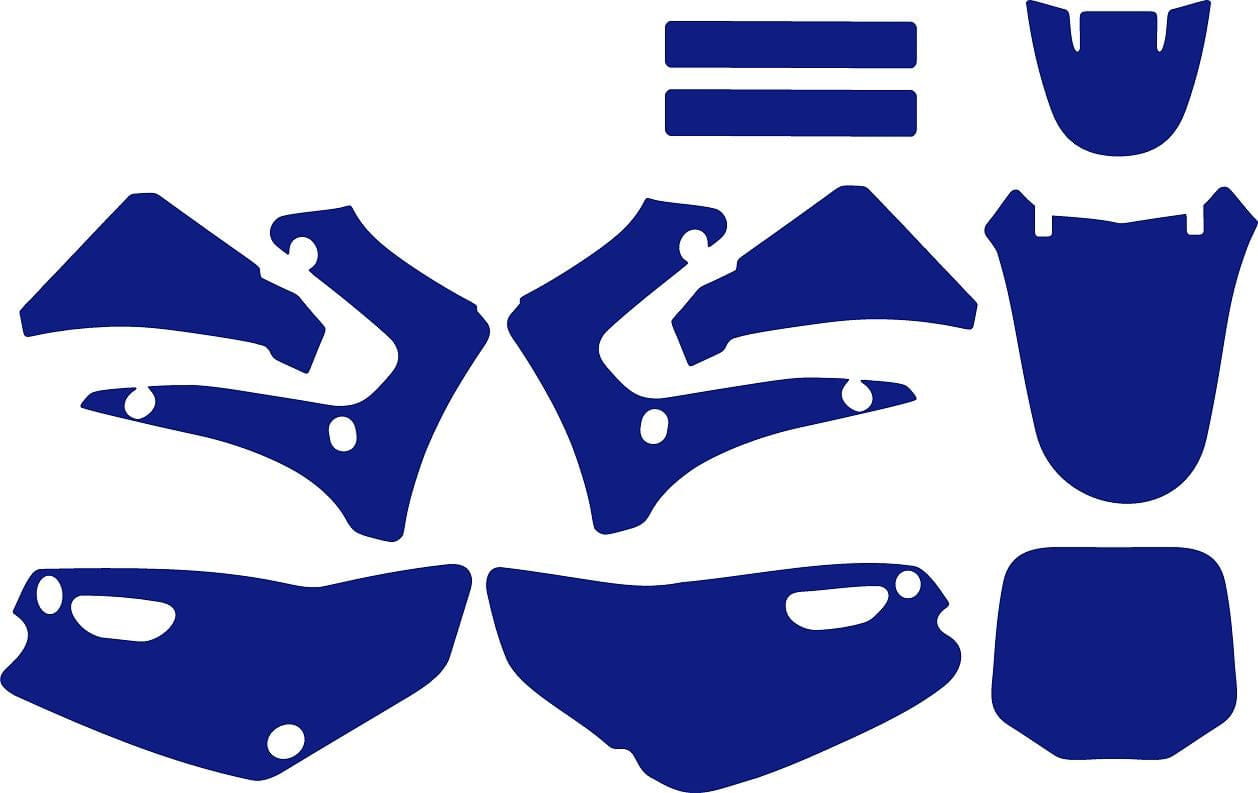
I bought it from a website, and they sent it to me in EPS format.
But I can't draw "inside" each shape: insert an image without it "overflowing" or going outside the shape, etc.
How do I do that?
I would like to create a sort of white stencil with the blue shapes "punched out" to insert my objects behind, but I can't manage and I'm not sure if that's the right way to do it...
Thank you in advance for your help!
I can do what I want in Ulead but not in Illustrator... And since it would be for printing with a professional... ;).
Here's roughly what I would like to do:
Thanks!
Configuration: Windows / Firefox 59.0
5 answers
-
Import your EPS file into Illustrator.
Check that they are not grouped objects; if they are, you need to ungroup them (Shift+Ctrl+G).
Check the dimensions (they may be scaled). Since these are vector shapes, you can resize them without loss.
The best approach is to work on each shape independently... copy and paste a shape into a new document. You will give them a different name for each shape.
Depending on what you want, the service provider will ask you for a cutting path or just a shape... (you need to ask them)...
To achieve what you want: import your image, place the shape on your image, and select both objects at the same time.
Then: right-click/create clipping mask... -
Hello and thank you for your response!
Indeed, I think the shapes are grouped together: when I hover my mouse over one of them, they all highlight. And when I click on one of them, the group is selected: the rectangle to move or resize them appears around them like this:

However, I can't seem to ungroup them as you said! The option remains greyed out in the Object menu. I can only click on Group, Hide, or Lock...
On the other hand, when I double-click on one of the shapes, it shows "Isolation Mode" instead of "Layers" on the right side, and I can click on each shape independently of the others.
Should I do it this way?
I haven't checked the dimensions yet, but it should be to scale: on the site where I purchased it, it says "The models are all clean .eps files, perfectly scaled. Ready to just fill in with your designs and print."
How do I create a new document? (keeping the exact dimensions since they are to scale)
As for the rest of what you mentioned, I see what you mean and that's what I was thinking of doing (but I didn't know how...).
Thank you for your response! -
Re.
I may have succeeded in creating each shape as an object.
Here’s how I proceeded, piece by piece:
I click once on the group of shapes, take the lasso, go around the piece I want to isolate, copy, and paste.
For the pieces with holes, I click on Combine and then with the Shape Builder, I remove the holes with Alt.
So I have all my shapes on the same layer.
Is this okay, having done it this way?
I will try to put each one on a different document.
Should I create a document? Or a workspace for each in my current document?
Thank you. -
Normally, you should be able to select a shape using the "white arrow" tool (and not the black arrow)...
Personally, I prefer to create a new document that is just slightly larger than the shape to be placed inside.
The provider will likely ask you for a PDF, and it's easier to have a document in the right format than a tiny thing on a large sheet...
Later on at printing, it's easier to impose PDF pages than to divide one... But that's also something to discuss with the provider... everyone has their own method of working...
Illustrator isn't a "real" multi-page tool... the system of multiple artboards is a nightmare without a name...-
Hello,
Indeed, until now I was using the black arrow... But I tried with the white arrow and it does the same:
If I click on one of the shapes, it selects them all, but just their outlines (not a big rectangle around all the shapes).
If I just enclose one with the white arrow, it selects it by its outlines but still, I can't ungroup...
If you want, I can send you the .EPS file because honestly, I don't see what I'm doing wrong! It's strange that it doesn't work...
Does it work then, if I keep the shapes that I ungrouped with the lasso?
I will do as you said, one document for each shape, slightly larger than the shape.
While watching the tutorials on the Adobe site, they keep talking about creating different artboards, but it’s true that it doesn’t seem practical! So I will listen to you, it will be easier!
I will still call my printer to confirm, but in any case, he told me he wanted the file in .ai or .eps.
I will try to put each shape in a new document, considering the dimensions. Unless you tell me that the way I did it (with the lasso) is not suitable?
Thank you anyway for taking the time to respond to me! =). Once I get the hang of the actions, it will get better!
-
-
Re.
Well, I called my printer, and I will have to go see the graphic designer because he didn't know. Other than that, it needs to be in AI.
Apparently, there is no need for a cut line if I want it cut exactly to shape.
However, I tried what you told me with the image and the clipping mask, and it doesn't work. It's not what I want, let's say. Indeed, if I do that, I can no longer move or edit my image...
Actually, here's how I do it on my Ulead software:
I import my blue shape (on a white background), then I select it and invert the selection so that I end up with a sort of white layer over the original image, cut out where the blue shape is. Between the two, I can insert my images, texts, etc., and modify them as I wish.
Can't I do the same thing with Illustrator, by creating a white layer cut out in the shape I want, to be able to insert whatever I want "inside this hole"?
Do you understand what I mean?
Thank you!-
Discussing with the provider makes things much easier!!...
Furthermore, everyone has their own working method... adapted to their equipment...
In the vast majority of cases, the PDF format is the standard in printing as it virtually eliminates issues with fonts, transparencies, etc...
But it is still necessary for the file to meet the correct standards!
-