FaceTime Activation Error on Mac High Sierra
Solved
Marajoba
Posted messages
32
Status
Member
-
Marajoba Posted messages 32 Status Member -
Marajoba Posted messages 32 Status Member -
Hello,
I'm using a MacBook Air High Sierra 10.13.3.
Since a system update, I can't activate FaceTime and Messages, which were working perfectly until then.
I've looked for solutions but found nothing to help me; most of the proposed solutions are for iPhone or iPad or are from 2010.
So I've already checked my Wi-Fi connection, the time zone, etc.
Please help me, I'm pulling my hair out since I switched to Apple, everything is so complicated!!! Thank you :-)
Configuration: Macintosh / Chrome 64.0.3282.140
I'm using a MacBook Air High Sierra 10.13.3.
Since a system update, I can't activate FaceTime and Messages, which were working perfectly until then.
I've looked for solutions but found nothing to help me; most of the proposed solutions are for iPhone or iPad or are from 2010.
So I've already checked my Wi-Fi connection, the time zone, etc.
Please help me, I'm pulling my hair out since I switched to Apple, everything is so complicated!!! Thank you :-)
Configuration: Macintosh / Chrome 64.0.3282.140
17 answers
-
Hello Dédé, Hello Ritchi
Well, that's settled. I contacted Apple support, and it's a problem with the Apple ID that was blocked, we don't know why. Only a supervisor can unlock it. So feel free to call them... :-)
Thanks to both of you for helping me. -
When you start up, as explained, you arrive at the utilities window, where you see, among other things: "reinstall OSX" and "disk utility"
The disk utility, as its name suggests, is used to handle the hard drive, either to format it or to repair/check it. Reinstalling OS X allows you to reinstall the OS without erasing personal data, while the disk utility can erase all content, so don’t get confused.
When you launch the disk utility, there is a SOS menu that allows you to repair disk errors without deleting content, so you should not click on "erase" after selecting the disk but only on SOS.
As I mentioned at the beginning, if this operation doesn’t yield anything, you restart on the recovery partition by holding down cmd+R, and in the utilities window, you click on "reinstall OS X," which will not affect your data at all; only the system will be reinstalled.

Is this better?
--
When it's urgent, it's already too late (Talleyrand)
When all else fails, read the manual ;) -
Hello,
It seems that the last update of High Sierra is causing problems in a few areas.
While we wait for a fix to come out, you can try booting from the recovery partition by holding down the cmd and R keys until you reach the utilities window. Then, launch Disk Utility/select the hard drive (HD) and run First Aid.
Let it run, and when it's finished, restart and check. If it doesn't work, restart the same way, but in the window, choose to reinstall Mac OS; it won't touch your data.
Please note that for system updates/installation, it's better to be connected via Ethernet, as Wi-Fi can sometimes cause issues.
--
When it’s urgent, it’s already too late (Talleyrand)
When all else fails, read the manual ;)-
Thank you Dédé, I just launched SOS but I got a message: unable to repair the volume because other APPS volumes are present in its container.
I found some information here https://support.apple.com/fr-fr/guide/disk-utility/dskutl1040/mac
I don't really feel like reinstalling HD. What does it imply? Are you sure it won't format and lose my data?
-
-
I reinstalled it, but I still have the same problem: an error occurred during activation.....
-
Look at these aids
https://support.apple.com/fr-fr/HT204408
https://communities.apple.com/fr/thread/220021842
That's exactly what I was saying, update bug, it even happens to Apple, which is no longer what it used to be :-(
Good luck -
-
-
Under MacBook Air 13, High Sierra.
So I've: restarted my router, checked for updates, verified the date and time, deleted preferences, changed the DNS, done a safe boot, attempted an SOS repair (impossible because APFS volumes are present in the container), reinstalled MacOS....
I don't know what else to do. I would prefer to avoid formatting.
Among the proposed solutions, I couldn't go into FaceTime preferences to see if it's activated since I CAN'T activate it, so Preferences is greyed out.... maybe that's where the problem lies.-
Hello Marajoba,
One thing we haven't tried is to delete the preference files of the apps that are malfunctioning, which are located in your user library/Preferences folder and whose names start with "com.Apple.ficetime.plist" and the same for Messages.
To access your user library, from Finder/Go menu while holding down the option (alt) key, it will appear in the dropdown menu.
The plist files are automatically rebuilt when the app is launched; only the preferences set by the user need to be redone. -
-
-
-
-
There is a FaceTime folder in your user/library/Containers/FaceTime, try to remove it, put it in the trash, without emptying it, try to relaunch FaceTime to see if it works, if it does, you can empty the trash after checking that the folder has been recreated, if no changes, put the folder back in its place.

--
When it's urgent, it's already too late (Talleyrand)
When everything has failed, read the manual ;)-
-
-
If you do a Google search, you will find many topics on this issue in the MacGénération forums:
HERE -
-
-
Hello,
Restart your Mac with CMD+R
Choose "Disk Utility"
Select "Show all devices" in the "Disk Utility -> View" menu
Can you take a screenshot like this?
In case here is a help on:
- How to take a screenshot
- How to share a screenshot
Ritchi-
Hello Dédé,
I wasn't able to take the screenshot. I tried Shift Command 4, Shift Command 3, and when I did Shift Command Space, I got a message: the disk could not be ejected because it is in use, and when I press Shift Command ?, it says that there is no help available. But anyway, I noted that there is APPLE SSD SMOR/container disk 1/ Macintosh HD
Then disk image/Apple disk image/OSX Base system
capacity 2GB, 1.29GB used - 726.6MB available, ownership enabled.
-
-
Hello,
As Ritchi explained to you, whom I greet by the way, to take a screenshot, you need to press cmd + shift + 3 for a full screen capture, or 4 for a partial capture, using the mouse/trackpad to define the area to copy.
Keys represented on this keyboard without a numeric keypad, the number keys located on the number bar:

You then hold down the two bottom keys (cmd and shift) + the number key of your choice. With the 3 key, the capture is automatic, with the 4 key you surround the area to copy by holding down the mouse or trackpad button, and when you release after defining the selection, the copy is made.
To insert it, Ritchi gave you the explanation.
--
When it's urgent, it's already too late (Talleyrand)
When everything has failed, read the manual ;)-
-
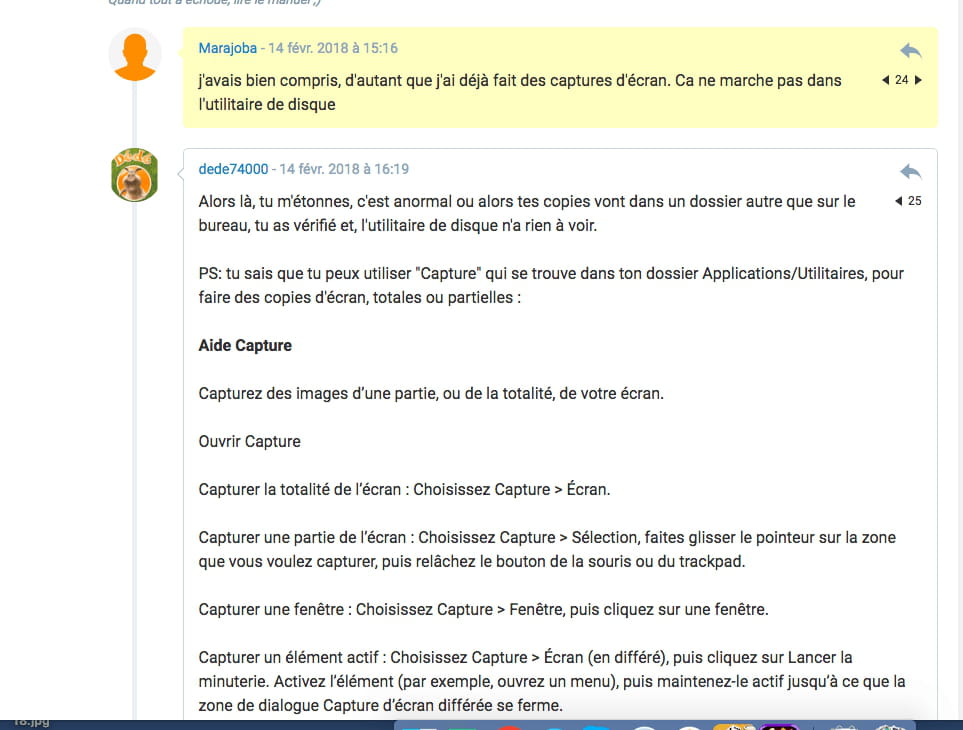
Well, that surprises me, it's abnormal or your copies are going into a folder other than the desktop, you checked and the disk utility has nothing to do with it.
PS: You know that you can use "Capture" located in your Applications/Utilities folder to take screenshots, either full or partial:
Capture Help
Capture images of part or all of your screen.
Open Capture
Capture the entire screen: Choose Capture > Screen.
Capture a portion of the screen: Choose Capture > Selection, drag the pointer over the area you want to capture, then release the mouse or trackpad button.
Capture a window: Choose Capture > Window, then click on a window.
Capture an active element: Choose Capture > Screen (delayed), then click Start Timer. Activate the element (for example, open a menu), then keep it active until the delayed screenshot dialog box closes.
Enable sound effects: Choose Capture > Preferences, then select Enable sound. When you take a screenshot, you'll hear a camera shutter sound.
Include a pointer in a screenshot: Choose Capture > Preferences, then select a pointer. The pointer appears where it was located at the time the image was captured.
Display information about a screenshot: Choose Edit > Inspector.
Save a screenshot: After taking a screenshot, choose File > Save, enter a name, add a tag (optional), then choose a folder. Screenshots are saved in TIFF format.
-
-
My screenshots usually go to the desktop. In the cmd R utility, when I use the 3 commands, I don't hear the click of the capture and with 4 there is no cursor to select and I don't have access to the Applications folder in cmd R.
When I go to the Applications/Utilities folder, there is indeed Capture, but it doesn't open. Usually, I do them with keyboard commands.
I'm attaching one taken just now to show you that it works in normal startup but not in cmd R
-
What are you telling me with your "cmd R"? The cmd+R keys, held down at startup, allow you to boot into the recovery partition to access utilities, not screenshots; I don't understand what you mean, sorry, can you explain?

PS: my bad, I got it!! It's for taking the screenshot, as requested by Ritchi :-))
I'll have to try this method and let you know.
When it's urgent, it's already too late (Talleyrand)
When everything has failed, read the manual ;)-
-
Hello Dédé,
I'm also on El Capitan and I've indeed noticed that in Recovery mode (Cmd+R) you can't take screenshots using keyboard shortcuts.
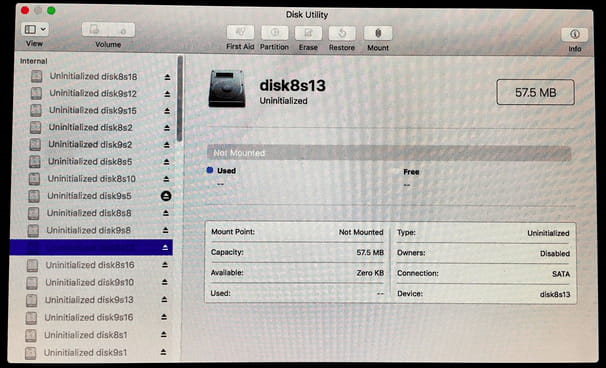
The screenshot I provided above is taken from an Apple discussion page reporting a similar issue (Uninitialized disk):
https://discussions.apple.com/message/32336357#32336357
Since it seems that there isn't this multitude of "Uninitialized disk", I don't know what to advise Marajoba regarding the next steps.
Ritchi
-
-
Oops, I didn't realize it was Richie and not Dédé who was asking me for the screenshot :-)
And is a photo okay for you?
-
Hello,
If you select "APPLE_SSD..." and click on the top left button "Overview" and then on the submenu to display all devices (I only know the English name for this submenu), do new items appear in the left column?
If so, a new picture of this window would be welcome.
If not, then we will need to explore another avenue that remains to be discovered.
Ritchi
-
-
-
Hello,
I see that there is indeed nothing left.
For your issue with FaceTime and Messages, you can try the following:
1) Perform a "Reset NVRAM" ( https://support.apple.com/fr-fr/HT204063 )
then retest Messages
2) Perform a "Safe Boot" ( https://support.apple.com/fr-fr/HT201262 )
then retest Messages
Ritchi-
Hello Ritchi,
I'm sorry, I was busy today. I just followed your instructions but... when I do the NVRAM reset commands it opens the utility like when I do cmd R. I tried 5 times in a row while preparing my finger position carefully... And as indicated in your link, I checked, there is no password enabled for the internal program, so that's not the issue. -
Hello!
In this message the author was partially helped by Apple, and regarding Messages, it seems that all old messages need to be deleted, go read what is said. -
-
-
Hello and thank you all
you just saved me! I was struggling for ages with a blocked ID!!! -
Hi, I have the same problem ugh, but I can't call Apple because I'm deaf :(
I can't activate iMessage and FaceTime. -
Hello, you can contact them via chat and explain your situation.
In the Apple support page "what's happening with your Mac", choose "Software and Usage" which will take you to the option to contact them via chat.
Only the technical supervisor is authorized to unlock the ID, but he does it remotely, you don't have to follow any instructions.
I hope this helps you.
Mara-
-
-
https://getsupport.apple.com/?caller=cups
When you're there, click on Mac, then on software and usage, you should arrive at a support page for both phone and chat assistance.
-
-
Hello
so I've tried all the tips from this thread.
nothing works. I don't understand, I have 2 MacBooks. on one there's no problem. on the other, despite using the same iCloud account, it doesn't work. I can't connect. out of frustration, I even did a clean installation of High Sierra and it didn't help.
if you have a solution, I'd be interested. I've been looking for information online for 2 days without success.
thank you for any responses you might have.-
Hello, but none of the tips in this thread worked! The only way is to contact support. You can do it via chat; they respond fairly quickly and have a technical manager call you back within 5 minutes. Only he can unlock it. This is included in the free support, regardless of the purchase date (maybe not for 10 years). I struggled for weeks and they fixed it in just a few minutes. They will ask you your security questions to make sure you are the owner. Good luck!
-