Caméra
vulcain.34
Posted messages
3
Status
Member
-
Papounet17000 Posted messages 26460 Registration date Status Member Last intervention -
Papounet17000 Posted messages 26460 Registration date Status Member Last intervention -
Hello
I bought a spy camera stk 3350 because I think the nanny is stealing money from me.
Everything is in Chinese and as you've guessed, I don't speak Chinese... Can someone explain to me how to connect it to my phone... I have a charger and a USB cable and, of course, the camera.
Thank you because I want to be sure.
Have a good evening.
I bought a spy camera stk 3350 because I think the nanny is stealing money from me.
Everything is in Chinese and as you've guessed, I don't speak Chinese... Can someone explain to me how to connect it to my phone... I have a charger and a USB cable and, of course, the camera.
Thank you because I want to be sure.
Have a good evening.
1 answer
-
Hello,
http://lib.store.yahoo.net/lib/3btech/UFO-STK3350-instructions-new.pdf
And keep your wallet with you.-
-
It's not my wallet, it's in my bag, but she's looking in the cupboards at the few pieces of jewelry I have... well, I think, but I'd like to be sure.
- Approximate translation.
Table of contents
Feature list
1: Direct WiFi connection
2: Enable AP client
3: Install the micro SD card (not included)
4: Configure the camera using a PC
5: Connect to the camera via the Internet
Functions list
• Power supply voltage: DC 5V
• Power supply current: 300 ~ 500mA
• Default wireless settings: displays SSID as STK3350_XXXXXX
• The battery lasts about two hours on a full charge or use the provided charger.
• Acts as an access point to extend the range of your existing wireless network
• Multiple devices can connect and receive video and audio streams.
• TUTK ID allows you to access the camera from anywhere in the world
Section 1: Direct WiFi connection
On an iPhone or Android device, download and install the P2PCamLive app from the Google Play Store, or P2PCam_Live from the Apple Store.
After installing, connect to the camera by turning on your WiFi and searching for the SSID that looks like this: displays SSID as STK3350_XXXXXX
The password is 888888888 (nine eights).
Once connected, you can view it from a phone or tablet via the P2P Live Cam application, available on the app store.
Open the P2PCamLive app, and tap the camera icon that says "Click here to add the camera".
Tap the search button, and the app will automatically find your camera and prompt you to enter the password.
The password is 888888 (six eights).
Section 2: Enable AP client
You can also access the device from your wireless device:
HTTP configuration: http://10.10.10.254
Username: admin
Password: admin
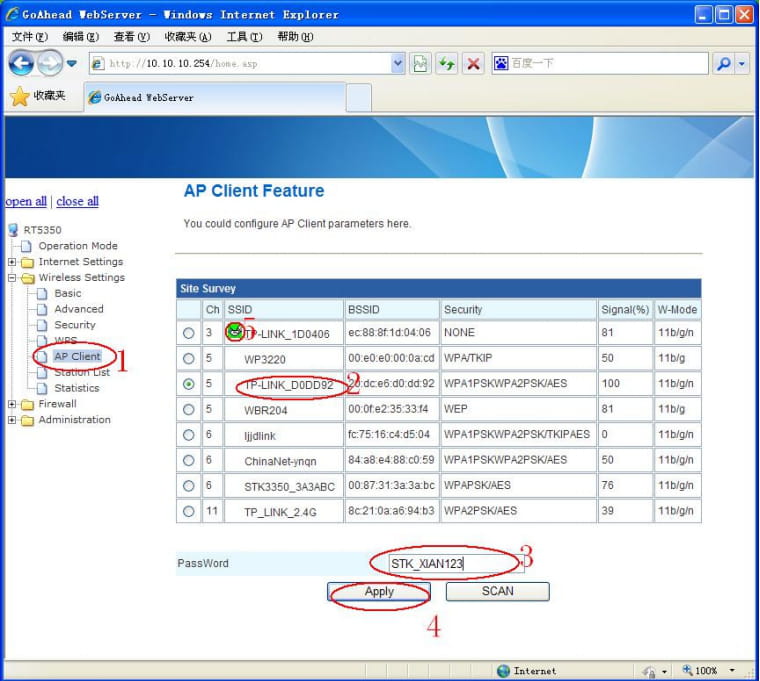
From your browser settings, connect to a wireless router as a client,
Open the wireless settings folder and go to the AP client page.
Once there, find the SSID broadcast of your local router.
Select the radio button next to this broadcast, type the password for this broadcast, and click the Apply button.
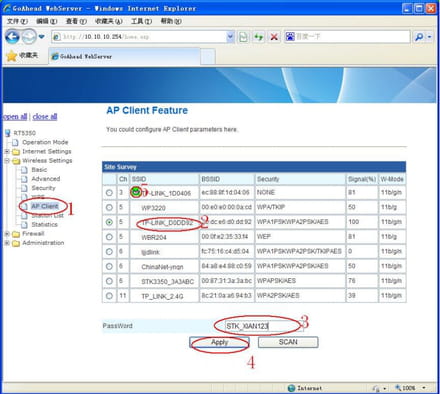
Once the device is configured as an AP, you can access the camera either by the camera's SSID (STK3350_XXXXXX) or your local router's SSID.
You will also be able to access the Internet through
the camera's SSID if your local router allows access to the Internet.
Section 3: Installing the micro SD card (not included)
To record video, you need to install a micro SD card in the camera.
To install the micro SD card, remove the two screws on the bottom of the camera.
Gently remove the base, taking care not to damage the cables leading to the battery.
The micro SD card slot is located inside the dome.
Carefully insert the micro SD card and reattach the base.
Section 4: Configuring the device using a PC
The supplied disk contains the client software to connect to your camera using a PC.
To use the client side WIFI software, insert the disk into your PC and copy the folder named WIFI client side software to your computer.
We recommend copying the folder to a convenient location such as
your desktop.
Once done, the client side software can be found in the folder WIFI client side software \ PC \ 13.06.23.01.RR. Run the 5350 Client application found in this folder.
To connect to the camera, first ensure that you are connected to the same network that the camera is connected to.
This could be the camera's SSID (STK3350_XXXXXX) or your local router's SSID if you have enabled AP client mode, run the 5350 client application, then click the search button.
The software will search for your camera and you should see it in the results pane.
Click OK.
An information pane will appear.
You will need to enter a nickname for your camera.
A good example would be to name the camera after the room you place it in.
Secondly, you need to enter the remote control password for the camera.
The default password is admin.
Once these fields have been filled, click the OK button.
Section 5: Connecting to the camera via the Internet
First, in order to connect to the camera via the Internet while you are away from home, you will need to allow the AP client.
If you have not done so already, please read and follow the instructions in Section 2.
To connect to the camera with your mobile device, open the P2PCamLive app.
Then tap the area "Click here to add the camera".
Locate the QR code on the bottom of the camera, and in the PTPCamLive app tap the Scan button.
Scan the QR code on the bottom of the camera.
Finally, enter the password to view the camera.
The default password is 888888 (6 eights).
You will then be able to view your camera on your mobile device wherever you have an internet connection.
To connect to the camera with your computer via the Internet, you must first connect to the camera locally.
Run the 5350Client application, and click the search button.
When the software finds the camera, click the OK button.
You will need to ensure that all basic information and details are entered. The default password is admin and the default TUTK password is 888888 (6 eights).
Once these fields have been filled, click the OK button.
You should now be able to access the camera anywhere you have an internet connection.
-