Windows 7 Update Error Code 8007000E
Solved
Hello...
On a friend's configuration that I set up myself, which works perfectly except for this:
Motherboard: Asus P5KPL-AM
Processor: Intel Core2 E5300
Memory: 4GB (2x2)
O.S.: Windows 07 (32-Bit)
Hdd (320GB): Western Digital (Partition C:/: 90GB, Partition D:/: 207GB (Personal Files))
The updates "worked" perfectly, then, following the installation of one of them (In a package!), these updates no longer "work", giving the message each time: "Windows Update Error Code 8007000E"...
I have already done some research everywhere, especially on "CCM", but the proposed solutions didn't yield any results "applied" to this config... I also applied "Fix-It" and other utilities suggested, but no solution "worked"!...
So, I am reaching out to you with "my" own question...
How to resolve this problem, knowing that I subsequently installed various things that surely "require" their own updates (Office 2007, various drivers, Skype, Google Earth, webcam, wireless mouse, sound card, etc.! )...
Thank you in advance for your help...
Note: since this "machine" is not/ no longer with me, I will need a "certain" time to test the questions-solutions you propose, so, thank you for your patience before my own "responses"...
Best regards,
Jean Maurice
On a friend's configuration that I set up myself, which works perfectly except for this:
Motherboard: Asus P5KPL-AM
Processor: Intel Core2 E5300
Memory: 4GB (2x2)
O.S.: Windows 07 (32-Bit)
Hdd (320GB): Western Digital (Partition C:/: 90GB, Partition D:/: 207GB (Personal Files))
The updates "worked" perfectly, then, following the installation of one of them (In a package!), these updates no longer "work", giving the message each time: "Windows Update Error Code 8007000E"...
I have already done some research everywhere, especially on "CCM", but the proposed solutions didn't yield any results "applied" to this config... I also applied "Fix-It" and other utilities suggested, but no solution "worked"!...
So, I am reaching out to you with "my" own question...
How to resolve this problem, knowing that I subsequently installed various things that surely "require" their own updates (Office 2007, various drivers, Skype, Google Earth, webcam, wireless mouse, sound card, etc.! )...
Thank you in advance for your help...
Note: since this "machine" is not/ no longer with me, I will need a "certain" time to test the questions-solutions you propose, so, thank you for your patience before my own "responses"...
Best regards,
Jean Maurice
2 answers
-
Hello
Try this:- 1- In Control Panel, open Windows Update > click on Change settings > select Never check for updates (not recommended) > hit OK > there will be a security exception: ignore it!
- 2- Download the update KB3102810 for Windows 7 32 or 64 bit here https://sospc.name/windows-7-apres-reinstallation-windows-update-pas-de-mises-a-jour/
- 3- Apply the information from this webpage > if it doesn’t work, try this:
- 4- Go to Windows Services > open a command window (Windows key+R) and type services.msc, validate with Ctrl+Shift+Enter to run it as administrator
- 5- At the bottom, double-click on Windows Update > Click Stop then OK (leave Windows Services open)
- 6- In C:\Windows > rename the SoftwareDistribution folder to SoftwareDistribution.old
- 7- In Windows Services, double-click on Windows Update > Click Start then OK > close Windows Services
- 8- In Control Panel, open Windows Update > Click Check for updates
- 9- A new SoftwareDistribution folder will be created in C:\Windows
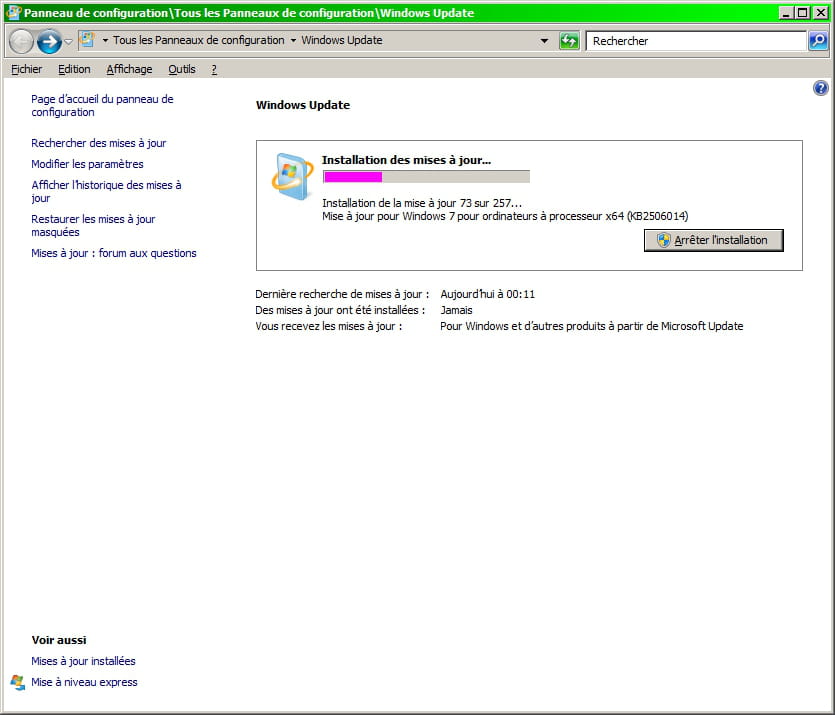
10- The update search will begin and in less than 15 minutes: as of 14-05-2016, 257 important updates will be available for installation!!! (1.942 GB)
Tested solution this Saturday 14-05 and it works!!!

A big THANK YOU to marc025hand:
https://forums.commentcamarche.net/forum/affich-33430823-windows-uptade-tourne-en-boucle-sur-windows-7
@+
-
-
-
-
@BROCHKOI don't know if this will work for Vista (tested with Win 7).
-
@didmedHello, thank you for your help. I have successfully accessed WINDOWS UPDATE, but I am still at the same point (given my lack of skills). I have tried several methods without success. If you could assist me a bit more, that would be nice.
Best regards
BROCHKO