Sony Vegas Pro 13 for perfect rendering?
Solved
Windooowss
-
hounia -
hounia -
Hello,
I recently downloaded the trial version of Sony Vegas Pro 13, and I would like to know the best settings to achieve perfect output. The tutorials available online are mainly for optimizing videos for YouTube, but I just want to avoid losing too much quality after the editing (I won't be putting these videos on YouTube, so the settings for YouTube don’t suit my need for viewing with VLC or any other video player. I'm reaching out for help here).
I’m not sure if I was very clear, feel free to ask me if you didn’t understand well.
Configuration: Windows / Chrome 46.0.2486.0
I recently downloaded the trial version of Sony Vegas Pro 13, and I would like to know the best settings to achieve perfect output. The tutorials available online are mainly for optimizing videos for YouTube, but I just want to avoid losing too much quality after the editing (I won't be putting these videos on YouTube, so the settings for YouTube don’t suit my need for viewing with VLC or any other video player. I'm reaching out for help here).
I’m not sure if I was very clear, feel free to ask me if you didn’t understand well.
Configuration: Windows / Chrome 46.0.2486.0
3 answers
-
Hello,
The output video must have the same parameters as the original video. To do this, you need to disable resampling, choose the same format, the same frame rate, and the same video bitrate.
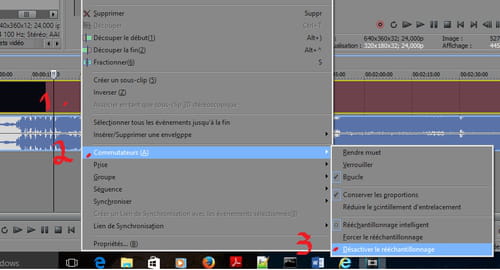
To disable resampling, select your video(s) in the timeline, right-click on it, then go to "Switch" and left-click on "Disable Resampling". Here is an image:
For the other parameters, they are set when you click on "Render As". If your video is in a non-interlaced format (for example; AVI, MOV, DnxHD, ArriRaw, Mp4, ...) I recommend using the mp4 format, then select "Internet HD 1080p" and click on "Customize Template". Here is an image: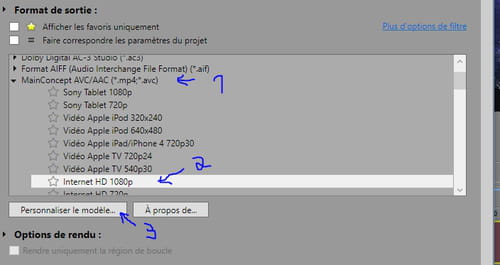
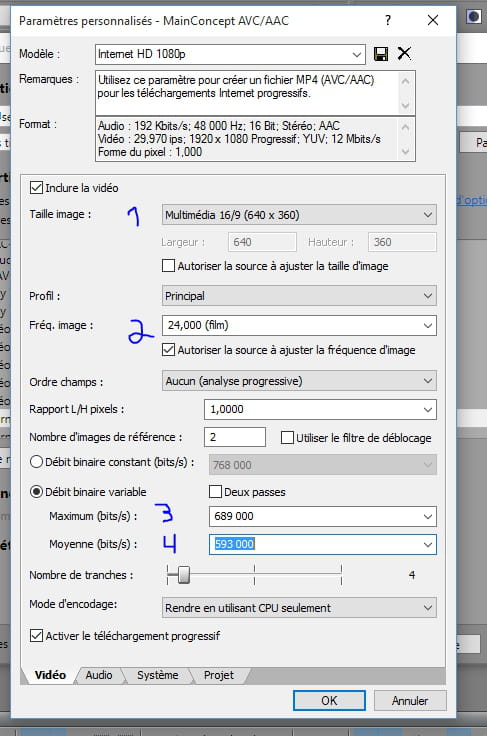
In the window that opens, you will need to choose the resolution, the number of frames per second, and the bitrate. Here is an image: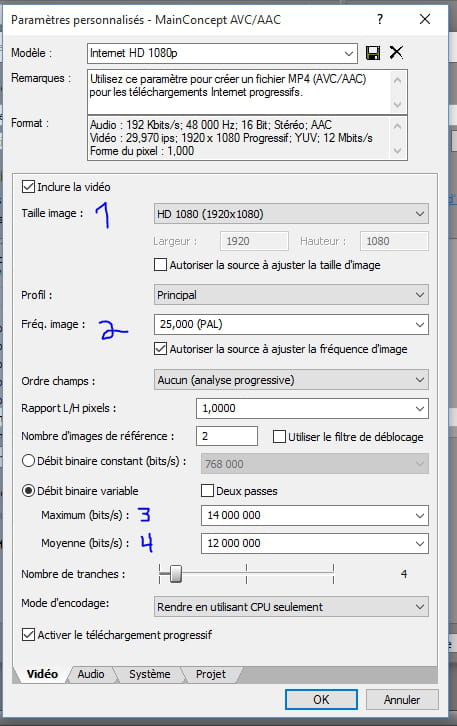
You must set the same parameters as your original video.
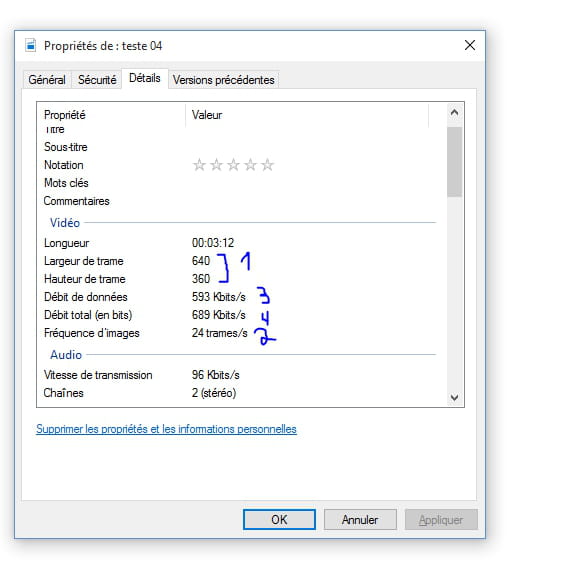
To find out, look for an original video in Windows Explorer, right-click on it, then left-click on "Properties". A window will open, go to the "Details" tab. You can see the parameters of your video in this tab.
Here is an example of video parameters: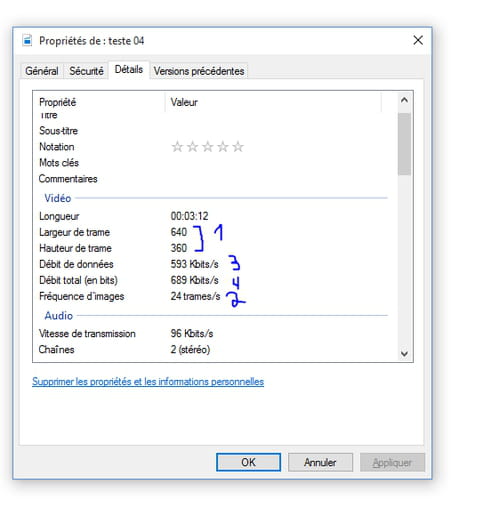
Based on the parameters you see in my image above, I will set the same ones in the render customization in Sony Vegas Pro. Namely: resolution: 640 X 360, frame rate: 24 frames/second, maximum bitrate: 689 Kbps (~0.68 Mbps), average bitrate: 593 Kbps (~0.59 Mbps). Here they are re-encoded in the Vegas Pro parameter list: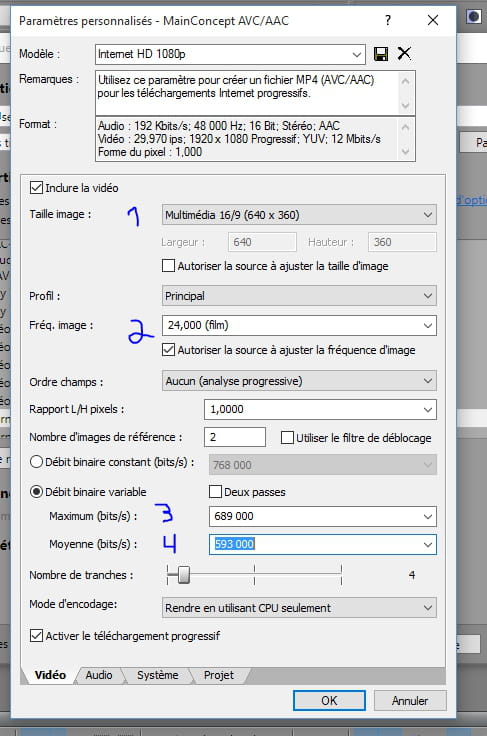
Finally, you can start the rendering and you should logically achieve the best quality/size ratio (you will have the best quality video without making it unnecessarily heavy).
Note: If your video is in an interlaced format, such as AVCHD, choose the "AVCHD" format and also customize the parameters based on your original video. Here are the formats to choose for AVCHD: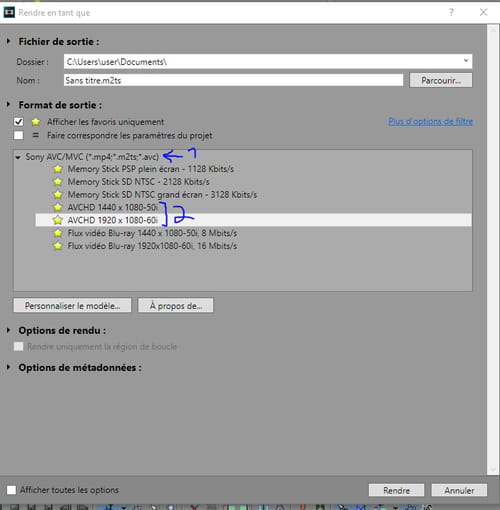
PS: If you are converting a video from a heavy format (AVI, RAW, RedCode,...) you obviously won't set the same bitrate as that of the original video (you won't set a bitrate of 400 Mbps for an MP4 video in full HD). If you have a heavy video in full HD (1920 X 1080), I suggest setting an average bitrate of 12 Mbps and a maximum of 16 Mbps.
For 4K (4096 X 2160), I would say around 35 Mbps (be careful not to go too high in bitrates as low-powered PCs may not be able to play the video smoothly).-
-
Hi,
I was absent for a few months on CCM but I will still respond to this question.
There is no need to encode your final output at 112Mbits because at such a bitrate, the video will have finer nuances but invisible to the eye.
You can indeed encode your UHD video at a bitrate between 30 and 35Mbits. Beyond that, I believe that everything you save in detail no longer becomes visible.
If you upload it to YouTube, I believe that YouTube will convert it to h265 (so that it has a lighter video without loss of detail). In general, YouTube caps UHD video bitrates at 14Mbits in h265 (~ equivalent to 30Mbits in h264). That's also why I think it's unnecessary to render your video h264 above 35Mbits.
That's to answer the question. To go further, we can ask ourselves: why encode videos at high bitrates like 112Mbits?
A video with a high bitrate will contain more information that will be useful for color grading (= retouching) the video.
If you have more information, your retouching on the video will suffer less: if you increase exposure in the shadows, you will have less noise; if you play with color settings like saturation, your images will have fewer "solid color patches".
It's exactly the same principle with photos: if you retouch a JPEG photo (a compressed format), the flaws in the photo will appear more quickly (noise in the shadows, burnt image in the highlights). On the other hand, if you retouch a photo in Raw (a heavy uncompressed format), those flaws will appear much less and you will be able to retouch the image much more easily. I encourage you to search online for the advantages of Raw to understand the usefulness of filming at high bitrates.
And once your video is retouched, you can render it at a low bitrate because you will not retouch it anymore. By the way, you have 2 choices to organize yourself, either:
- You color grade all your videos, you render them, and with those renders, you do your editing. I recommend against this method if you have a lot of video (let's say more than 1.5 hours of video)
- You do your editing, and once finished, before rendering, you color grade your videos with the tools offered by Vegas Pro. Personally, I use this technique. Note that I do the color grading last (after editing) because playing pre-graded videos lags (unless you have a good CPU for video. If you're looking for a good processor for video encoding, AMD with its Ryzen R7 beats the best Intel i7 and all of this for 2X less than these Intels).
But you will understand that it is only useful to film at high bitrates if you are going to color grade your video. If you know that you do not intend to retouch it, then you can start filming at lower bitrates.
-