Total duration of multiple video files
Tipiak
-
Rigobert59 Posted messages 2 Status Member -
Rigobert59 Posted messages 2 Status Member -
Hello,
I'd like to know if anyone has a way to measure the total duration of several video files to the exact second.
At one point, Windows Media Player allowed this! You could select multiple video files to add to the playlist, and automatically, you would get the total playback duration of all the selected video files! But with the transition to version 10 and then 11 of Media Player, this feature disappeared!
Does anyone have an idea of how to get this information now?
Indeed, I’m burning a DVD with 84 episodes of "Les Guignols de l'info," each approximately 5 to 6 minutes long! And I’d like to find a way to determine the total duration precisely without having to use the Windows calculator to manually add up the duration of these 84 videos!
Does anyone have a suggestion?
Thanks in advance!
I'd like to know if anyone has a way to measure the total duration of several video files to the exact second.
At one point, Windows Media Player allowed this! You could select multiple video files to add to the playlist, and automatically, you would get the total playback duration of all the selected video files! But with the transition to version 10 and then 11 of Media Player, this feature disappeared!
Does anyone have an idea of how to get this information now?
Indeed, I’m burning a DVD with 84 episodes of "Les Guignols de l'info," each approximately 5 to 6 minutes long! And I’d like to find a way to determine the total duration precisely without having to use the Windows calculator to manually add up the duration of these 84 videos!
Does anyone have a suggestion?
Thanks in advance!
Configuration: Windows XP Internet Explorer 7.0
2 answers
-
Prerequisites
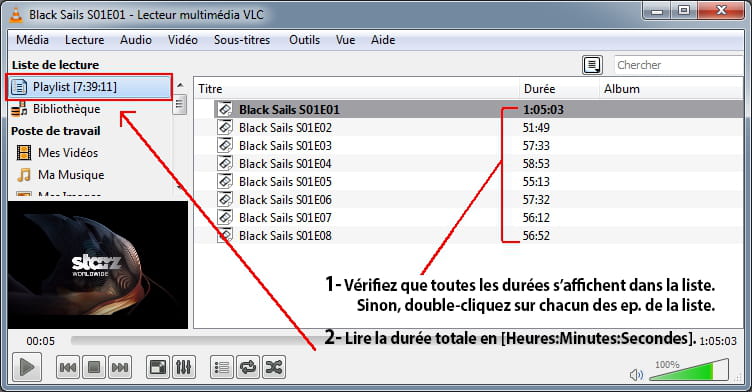
To do this, you need to have VLC installed
Procedure
- Add all episodes from the pack to the playlist in VLC.
Simply by dragging and dropping your folder onto the VLC shortcut on your desktop.
Or by opening VLC, then dragging and dropping your folder into the application window.
- Press Ctrl + L to display the playlist, then
-
Hi,
Windows Media Player 11 still does that, you just need to select the files in question in the library, and you will see the total number of selected files as well as their total duration at the bottom right. But you need to be a bit quick to note this duration because it disappears for a moment, I would say 2 seconds :)
@ +
--
►╠◊◊fĀĥĔďŎὫ◊◊╣ ; Call me Fahd ;-)-
Thank you for your response, but no! I don't see anything in the bottom right! How can I switch to "display additional information in the right column"? Also, how is their total duration displayed? In minutes? Or in hours and minutes, like, for example, 1.7 hours? I would prefer it in minutes!
Thanks in advance!- Here you go, I made a screenshot: http://img5.imageshack.us/img5/3432/musickvo.png
I didn't adjust any settings, the display is default. Just in the library > Maximize the window > Select the relevant items > Note the display at the bottom right (in minutes, normally).
See you later
--
►╠◊◊fĀĥĔďŎὫ◊◊╣ ; Call me Fahd ;-)
-