Lien excel vers outlook

Bonjour à tous,
Malgré différentes recherches je ne trouve pas de solution à mon problème,
J'aimerai en créant un lien sur le texte d'une cellule donnée que cela ouvre un nouveau mail dans outlook. Lorsqu'il s'agit d'un seul destinataire et dans le champ "à" aucun soucis. Par contre ce que je voudrais faire c'est que ce lien ouvre un mail avec plusieurs destinataires définis et dans le champs "cci". Est ce possible ?
Si en plus on peut y rajouter un objet ça serait vraiment parfait !
Merci à tous et bonne journée !
Malgré différentes recherches je ne trouve pas de solution à mon problème,
J'aimerai en créant un lien sur le texte d'une cellule donnée que cela ouvre un nouveau mail dans outlook. Lorsqu'il s'agit d'un seul destinataire et dans le champ "à" aucun soucis. Par contre ce que je voudrais faire c'est que ce lien ouvre un mail avec plusieurs destinataires définis et dans le champs "cci". Est ce possible ?
Si en plus on peut y rajouter un objet ça serait vraiment parfait !
Merci à tous et bonne journée !
Configuration: Windows / Chrome 71.0.3578.98
1 réponse
-
Contributeur
-
-
ContributeurAllez dans sur la feuille concernée et Faire Alt F11 pour accéder à l'éditeur.
Mettre ce code:
Option Explicit
'necessite d'activer Microsoft.Outlook, allez dans Outils Références cochez Microsoft.Outlook xxx Object Library
Sub Import_Contacts()
'Propriétés
'https://msdn.microsoft.com/fr-fr/library/office/ff869394.aspx
    'Outlook objects.
    Dim olApp As Outlook.Application
    Dim olNamespace As Outlook.Namespace
    Dim olFolder As Outlook.MAPIFolder
    Dim olConItems As Outlook.Items
    Dim olItem As Object

    'Excel objects.
    Dim wbBook As Workbook
    Dim wsSheet As Worksheet

    'Location in the imported contact list.
    Dim lnContactCount As Long

    Dim strDummy As String

    'Turn off screen updating.
    Application.ScreenUpdating = False

    'Initialize the Excel objects.
    Set wbBook = ThisWorkbook
    Set wsSheet = wbBook.Worksheets(1)

    'Format the target worksheet.
    With wsSheet
        .Range("A1").CurrentRegion.Clear
       ' .Cells(1, 1).Value = "Company / Private Person"
        '.Cells(1, 3).Value = "Postal Code"
       ' .Cells(1, 4).Value = "City"
        .Cells(1, 1).Value = "Nom"
        .Cells(1, 2).Value = "Prénom"
        .Cells(1, 3).Value = "E-mail"
        .Cells(1, 4).Value = "Téléphone"
        .Cells(1, 5).Value = "Mobile"
        .Cells(1, 6).Value = "Adresse"
        With .Range("A1:F1")
            .Font.Bold = True
            .Font.ColorIndex = 10
            .Font.Size = 11
        End With
    End With

    wsSheet.Activate

    'Initalize the Outlook variables with the MAPI namespace and the default Outlook folder of the current user.
    Set olApp = New Outlook.Application
    Set olNamespace = olApp.GetNamespace("MAPI")
    Set olFolder = olNamespace.GetDefaultFolder(10)
    Set olConItems = olFolder.Items

    'Row number to place the new information on; starts at 2 to avoid overwriting the header
    lnContactCount = 2

    'Pour chaque contact: si elle est un contact d'affaires, écrire l'information d'affaires dans la feuille de calcul Excel; ; 'Autrement, écrire l'information personnelle.
    For Each olItem In olConItems
        If TypeName(olItem) = "ContactItem" Then
            With olItem
                If InStr(olItem.CompanyName, strDummy) > 0 Then
                   ' Cells(lnContactCount, 1).Value = .CompanyName
                   ' Cells(lnContactCount, 3).Value = .BusinessAddressPostalCode
                    'Cells(lnContactCount, 4).Value = .BusinessAddressCity
                    Cells(lnContactCount, 1).Value = .LastName
                    Cells(lnContactCount, 2).Value = .FirstName
                    Cells(lnContactCount, 3).Value = .Email1Address
                    Cells(lnContactCount, 4).Value = .HomeTelephoneNumber
                    Cells(lnContactCount, 5).Value = .MobileTelephoneNumber
                    Cells(lnContactCount, 6).Value = .BusinessAddressStreet
                Else
                   ' Cells(lnContactCount, 1) = .FullName
                   ' Cells(lnContactCount, 2) = .HomeAddressStreet
                    'Cells(lnContactCount, 3) = .HomeAddressPostalCode
                    'Cells(lnContactCount, 4) = .HomeAddressCity
                    Cells(lnContactCount, 1).Value = .LastName
                    Cells(lnContactCount, 2).Value = .FirstName
                    Cells(lnContactCount, 3).Value = .Email1Address
                    Cells(lnContactCount, 4).Value = .HomeTelephoneNumber
                    Cells(lnContactCount, 5).Value = .MobileTelephoneNumber
                    Cells(lnContactCount, 6).Value = .BusinessAddressStreet
                End If
               ' wsSheet.Hyperlinks.Add Anchor:=Cells(lnContactCount, 6), _
                                       'Address:="mailto:" & Cells(lnContactCount, 6).Value, _
                                     '  TextToDisplay:=Cells(lnContactCount, 6).Value
            End With
            lnContactCount = lnContactCount + 1
        End If
    Next olItem

    'Null out the variables.
    Set olItem = Nothing
    Set olConItems = Nothing
    Set olFolder = Nothing
    Set olNamespace = Nothing
    Set olApp = Nothing

    'Sort the rows alphabetically using the CompanyName or FullName as appropriate, and then autofit.
    With wsSheet
        '.Range("A2", Cells(2, 2).End(xlDown)).Sort key1:=Range("A2"), order1:=xlAscending
        .Range("A:F").EntireColumn.AutoFit
    End With

    'Turn screen updating back on.
    Application.ScreenUpdating = True

    MsgBox "Liste créee avec succès!", vbInformation

End Sub
ensuite sélectionnerSub Import_Contacts()
et faire F5
Voilà, si difficulté envoi d'un classeur exemple -
Contributeuravec plusieurs destinataires définis et dans le champs "cci"
pour répondre à cette question, changer le code du lien fourni par ceci:
With xMailItem ' .To = xEmailAddr .CC = "" .BCC = xEmailAddr .Subject = "" .Body = "" .Attachments.Add Nom_Fichier ' ActiveWorkbook.FullName ' classeur actif .Display End With -
Super cela a bien importé ma liste de contact,
Mais la page envoyé explique comment faire une sorte de publipostage, mais pas comment créer un lien avec ces contacts,
Je m'explique :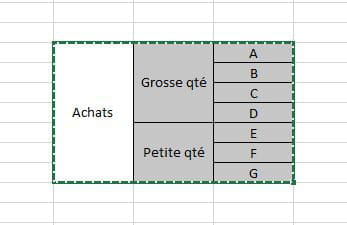
J'aimerai quand je clique sur achats j'aimerai qu'un nouveau mail s'ouvre avec A;B;C;D;E;F;G en cci
Si je clique sur Grosse qté idem mais avec A;B;C;D en cci
Et idem avec Petite qté avec E;F;G
J'espère avoir réussi à être claire,
Merci de votre aide -
-