Wifi functional but no internet only on my PC
Solvedkaneagle Posted messages 86298 Registration date Status Moderator Last intervention -
Hello,
On my Lenovo Legion 5 laptop, I can connect to my router or my phone's hotspot, but I have no internet.
Other devices connected to the router are working fine, so it's my PC that has the problem.
I think the network card may have failed after 4 years. Before rushing to replace the network card, do you have any ideas or tips to resolve this?
Thank you in advance for your help.
12 answers
-
-
hi
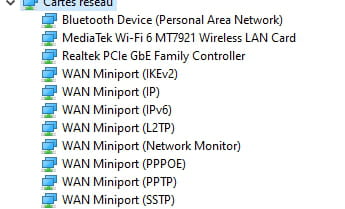
check in the device manager ==> network adapter if it's recognized/present
post a screenshot of your device manager ==> click here
bye
-
It looks like everything is working
hi
if you connect via Ethernet (with the cable), what does it give?
@+
Hello,
what is the error message when you try to connect here for example?
And there you go ....
But goodness, those line spacing are so annoying!!-
-
-
-
Hi
What DNS do you have?
Post the result of the command ipconfig /all :
Press and hold the Windows key, then press the R key and release them both
Type (or copy/paste to avoid typos) in the dialogue box that opened
cmd /k ipconfig/all > tt.txt & notepad tt.txt
Then click OK
Copy/paste what appears on the screen into Notepad, in your next response
-
Hello
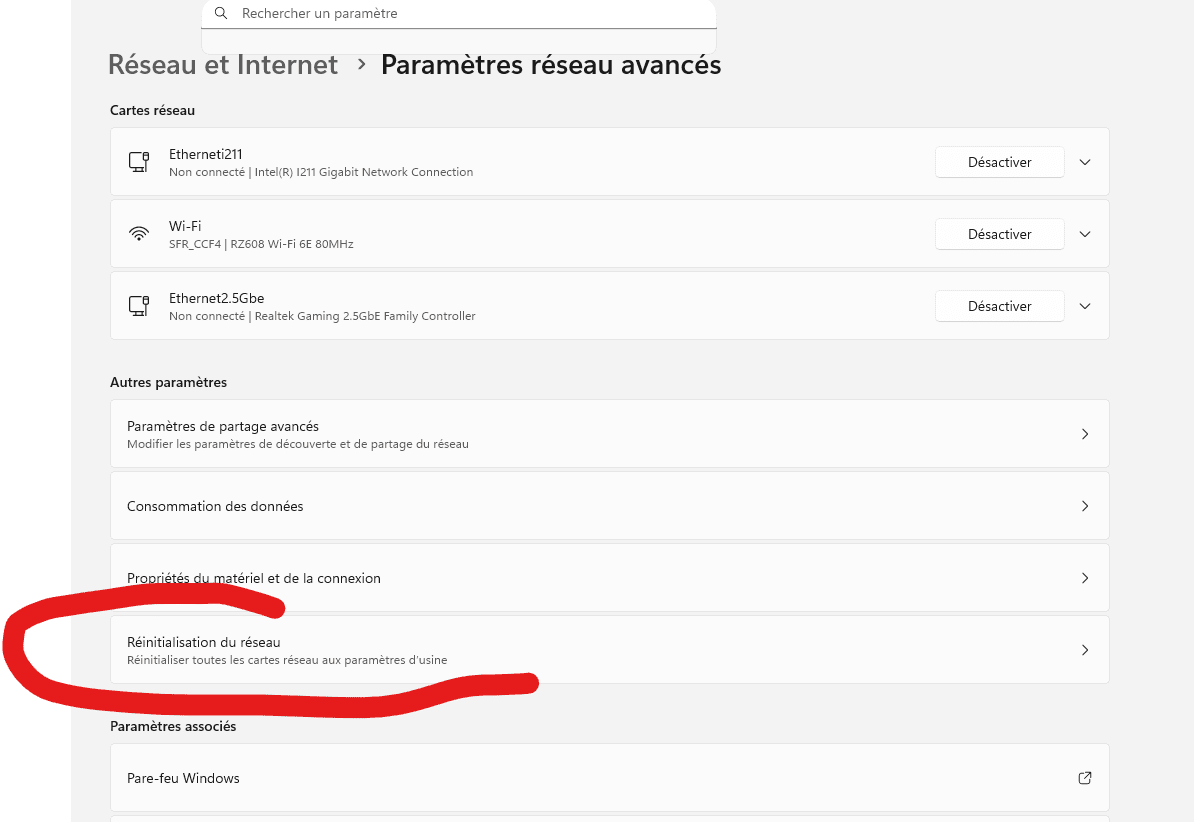
reset your network cards
Hello,
If the problem is recent:
Perform a system restore and choose a date prior to the issue.
Windows + R
Type --> rstrui.exe and OK.Too bad, I don't have a backup...
@Yamete-Onii-Chan StatusMember
Check the internet protocol:
Windows key + R
Type --> ncpa.cpl and OK.
Right-click on wireless connection
Properties
Select --> Internet Protocol version 4 (TCP/IPv4)
Click on --> Properties
Make sure these two boxes are checked:
--> Obtain an IP address automatically
--> Obtain DNS server addresses automatically
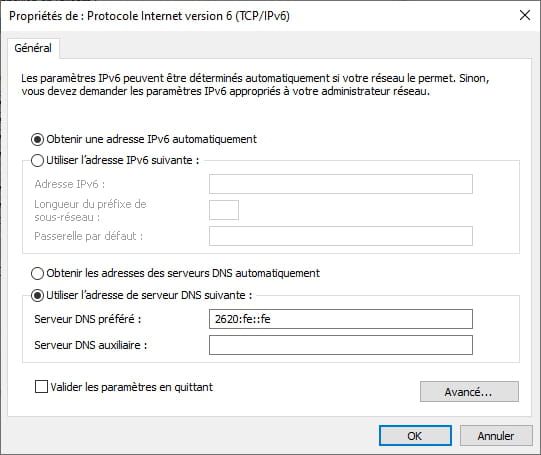
Do the same with Internet Protocol version 6 (TCP/IPv6)
Example image: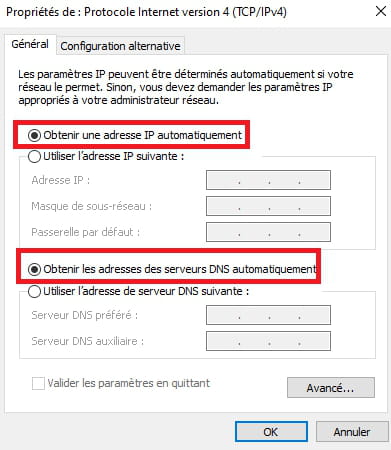
---------------------------------------------------------------------------------------------------------------------------
If everything is correct:
Turn off the PC
Unplug the modem (box) and router from the wall outlet
Wait a few minutes
Plug the modem and router back into the wall outlet
Wait for all the LEDs to be on
Start the PC.
---------------------------------------------------------------------------------------------------------------------------
If it doesn't work, try these 8 commands:
Windows key + X
Select --> Windows PowerShell (admin) or Terminal (administrator) and confirm.
Type these 8 commands and press enter each time:
ipconfig /flushdns
netsh winsock reset
netsh winhttp reset proxy
netsh winhttp reset tracing
netsh winsock reset catalog
netsh int ip reset all
netsh int ipv4 reset catalog
netsh int ipv6 reset catalog
Restart the PC.Unfortunately, I did everything correctly but nothing has changed. I ordered an ethernet cable, but if it doesn't work, what should I do?
Thanks for the ipconfig/all, the useful part is here:
Wireless Wi-Fi Network Adapter:
DNS Suffix specific to the connection. . . : lan
Description. . . . . . . . . . . . . . : MediaTek Wi-Fi 6 MT7921 Wireless LAN Card
Physical Address . . . . . . . . . . . : C8-94-02-BA-28-1F
DHCP enabled. . . . . . . . . . . . . . : Yes
Automatic configuration enabled. . . : Yes
IPv6 Address. . . . . . . . . . . . . .: 2001:861:3240:640:f2cf:1998:1aaf:2a93(preferred)
Temporary IPv6 Address . . . . . . . .: 2001:861:3240:640:9430:4efc:c1be:61db(preferred)
Link-local IPv6 Address. . . . . . . .: fe80::1ce:7c4f:e8cc:227e%11(preferred)
IPv4 Address. . . . . . . . . . . . . .: 192.168.1.72(preferred)
Subnet Mask. . . . . . . . . . . . . : 255.255.255.0
Lease Obtained. . . . . . . . . . . . . : Wednesday, November 19, 2025 2:26:16 PM
Lease Expires. . . . . . . . . . . . . : Thursday, November 20, 2025 2:26:16 PM
Default Gateway. . . . . . . . . . . . . : fe80::4615:24ff:fe1f:3e64%11
192.168.1.254
DHCP Server . . . . . . . . . . . . . : 192.168.1.254
DHCPv6 IAID . . . . . . . . . . . : 197694466
DHCPv6 Client DUID. . . . . . . . : 00-01-00-01-29-BE-D3-90-84-A9-38-96-38-CA
DNS Servers. . . . . . . . . . . . . : 2001:861:3240:640:4615:24ff:fe1f:3e64
192.168.1.254
NetBIOS over Tcpip. . . . . . . . . . : Enabled
DNS Suffix Search List:
It already shows that you have both IPv4 and IPv6 connectivity with your Bouygues box,
For DNS servers, you have your box, so if it doesn't work, it's blocking there, try restarting it to see.
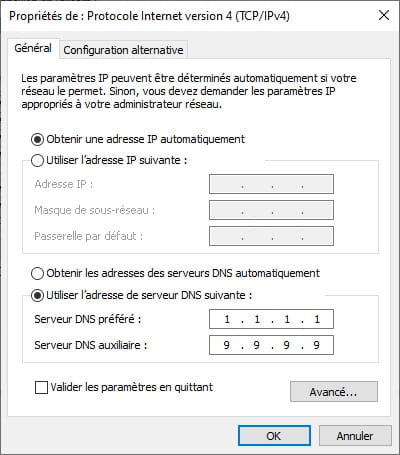
Otherwise, try setting other DNS like 1.1.1.1 and 9.9.9.9 for example and 2620:fe::fe in IPv6 on your Wi-Fi configuration.
It shouldn't work any better with an Ethernet cable.
You said you have other devices that work on this box?
If you have another PC, run an ipconfig/all on it as well to compare.
And there you go, voilà ....
But damn, how annoying the line spacing is!!-
I hope everything is fine; it didn't yield anything.
I can get another PC, but really not right now.
Microsoft Windows [version 10.0.19045.6466]
(c) Microsoft Corporation. All rights reserved.
C:\Users\Shit Bag>Ping 9.9.9.9
Sending a 'Ping' request to 9.9.9.9 with 32 bytes of data:
Reply from 9.9.9.9: bytes=32 time=6 ms TTL=58
Reply from 9.9.9.9: bytes=32 time=4 ms TTL=58
Reply from 9.9.9.9: bytes=32 time=6 ms TTL=58
Reply from 9.9.9.9: bytes=32 time=6 ms TTL=58
Ping statistics for 9.9.9.9:
Packets: Sent = 4, Received = 4, Lost = 0 (loss 0%),
Approximate round trip times in milliseconds:
Minimum = 4ms, Maximum = 6ms, Average = 5ms
C:\Users\Shit Bag>Tracert 9.9.9.9
Tracing route to 9.9.9.9 with a maximum of 30 hops.
1 2 ms 2 ms 1 ms 192.168.1.254
2 * * * Request timed out.
3 * * * Request timed out.
4 9 ms 4 ms 5 ms 212.194.171.69
5 * * * Request timed out.
6 10 ms 4 ms 7 ms 37.49.236.92
7 7 ms 4 ms 3 ms 9.9.9.9
Route determined.
C:\Users\Shit Bag>Tracert 2620:fe::fe
Tracing route to 2620:fe::fe with a maximum of 30 hops.
1 85 ms 2 ms 1 ms 2001:861:3240:640:11fe:a75e:cbcb:5fd8
2 * * * Request timed out.
3 * * * Request timed out.
4 * * * Request timed out.
5 8 ms 4 ms 11 ms 2620:fe::fe
Route determined.
C:\Users\Shit Bag>Nslookup www.commentcamarche.net
Server: dns.quad9.net
Address: 2620:fe::fe
Non-authoritative answer:
Name: e12525.b.akamaiedge.net
Address: 104.85.39.57
Aliases: www.commentcamarche.net
www.commentcamarche.net.edgekey.net
OK,
perfect, you are pinging the DNS resolvers correctly and you are getting a response regarding CCM, so there’s no reason for the internet not to work. Try reinstalling another browser, possibly downloading it from another machine, and also try disabling your firewall.
I think you have a virus that is blocking your browser, but the internet connection is working fine.
Good luck with the next steps, you might need a Windows repair.
Right-click on the MediaTek Wi-Fi card ......
Properties
Details tab
In Property, select --> Hardware IDs
Post this no. in your next message.
Example image: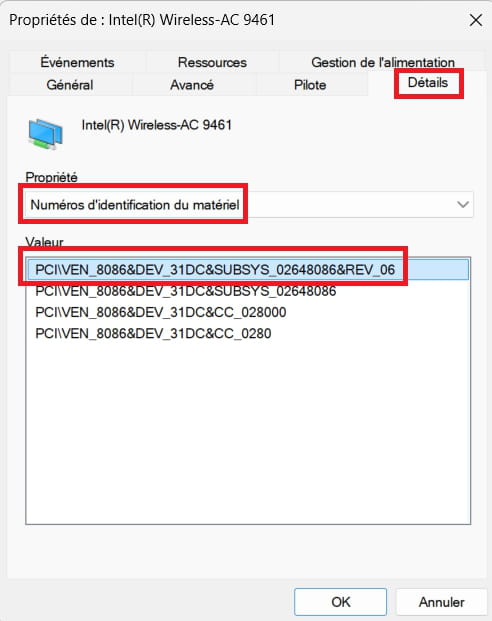
----------------------------------------------------------------------------------------------------------
What is the current date and version of the driver?
Example image: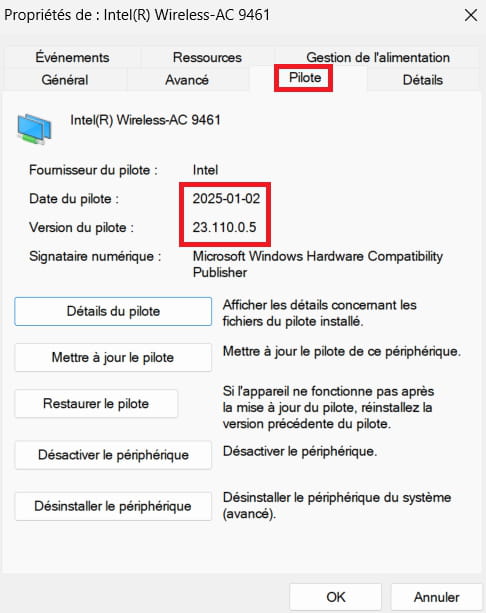
-
Equipment identification number:
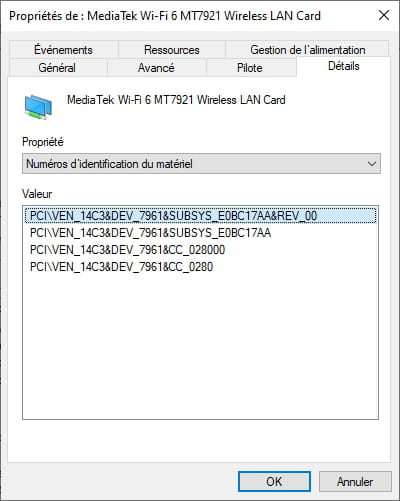
Driver date and version:
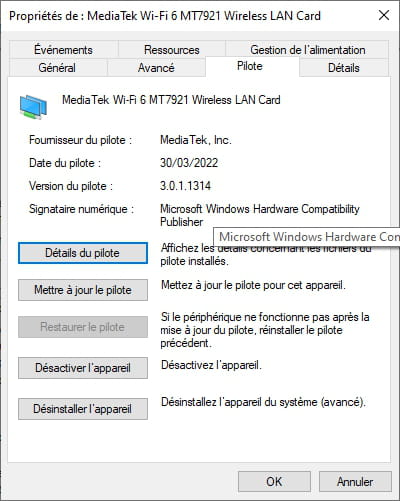
Update the MediaTek card with this latest driver version (3.4.0.1304):
From another PC:
Download --> 7Zip 64 bits
Download this driver --> MediaTek
Put them on a USB stick
Transfer them to the problematic PC
Install 7Zip
Afterwards, right-click on the driver --> MediaTek_WLAN(v3.4.0.1304).zip
Select --> 7Zip
Choose --> extract to "MediaTek_WLAN(v3.4.0.1304)\"Go to Device Manager
Right-click on the MediaTek Wi-Fi card ......
Update driver
-->> Browse my computer for drivers <<–
-->> Choose from a list of drivers on my computer <<–
-->> Have Disk <<–
-->> Browse <<–
Go to the unzipped driver folder --> MediaTek_WLAN(v3.4.0.1304)
Folder --> Drivers
Select the file --> mtkwl6ex.inf and OK.
Restart.
Latest Discussions -
Defective sector zones on a cylinder
at 19:17 -
Order responses
at 19:11 -
Add email address
at 18:53 -
Install vocalinux on linux mint
at 18:34 -
Looking for a remote desktop software (windows)
at 18:19 -
Hp designjet 500ps plus 64"
at 17:47 -
Powerpoint slide show (.ppsx) to modify
at 17:42 -
Permanent security alert!
at 17:33 -
Installing linux on hp elitebook 1030 g3
at 17:32 -
Access denied to my old external hard drive
at 17:31
Other languages
-