Disable personalized experiences in the Microsoft Store

brucine Posted messages 25319 Registration date Status Member Last intervention -
A new option has been added in the settings for Microsoft Store since a June 2025 update to customize the content of recommendations and advertisements.
This gives the user the ability to manage 'targeted' advertisements.
In this tip, 4 options will allow you to disable or limit as much as possible the personalized experiences for W10 and W11.
1) Disable personalized experiences in Microsoft Store:
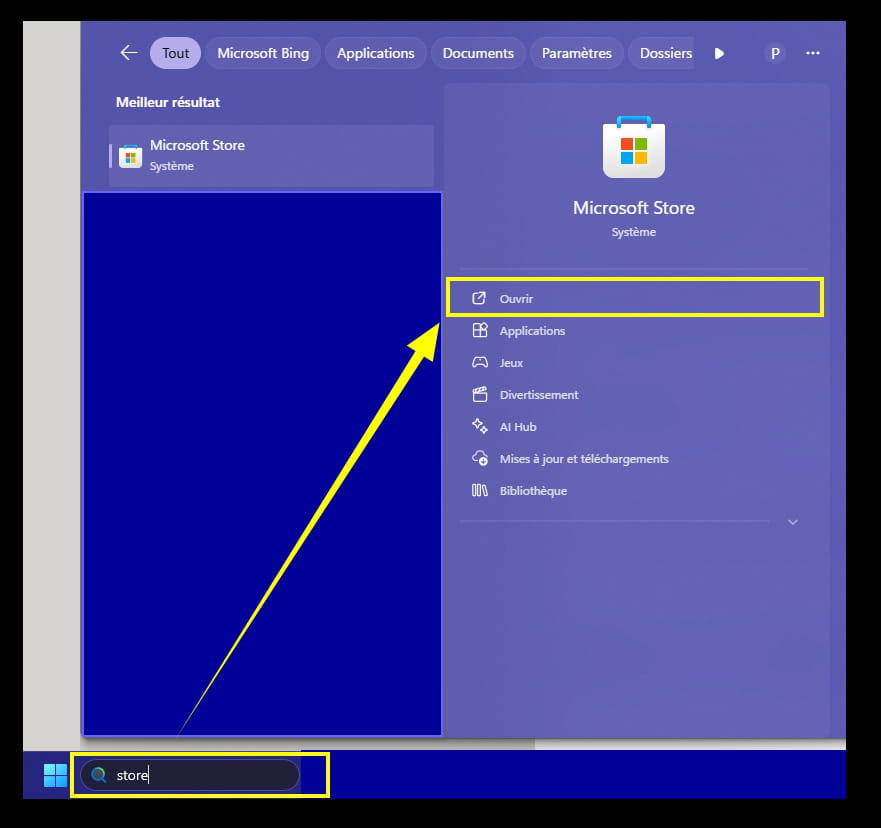
Open the Microsoft Store.
It's the shopping basket icon with the 4 Microsoft symbols.
Or type the word ''store'' in the taskbar search.
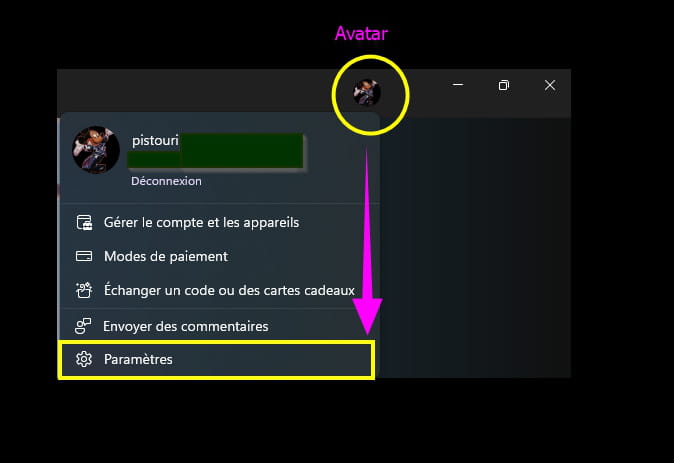
Click at the top right on the avatar (Microsoft).
Click on --►Settings
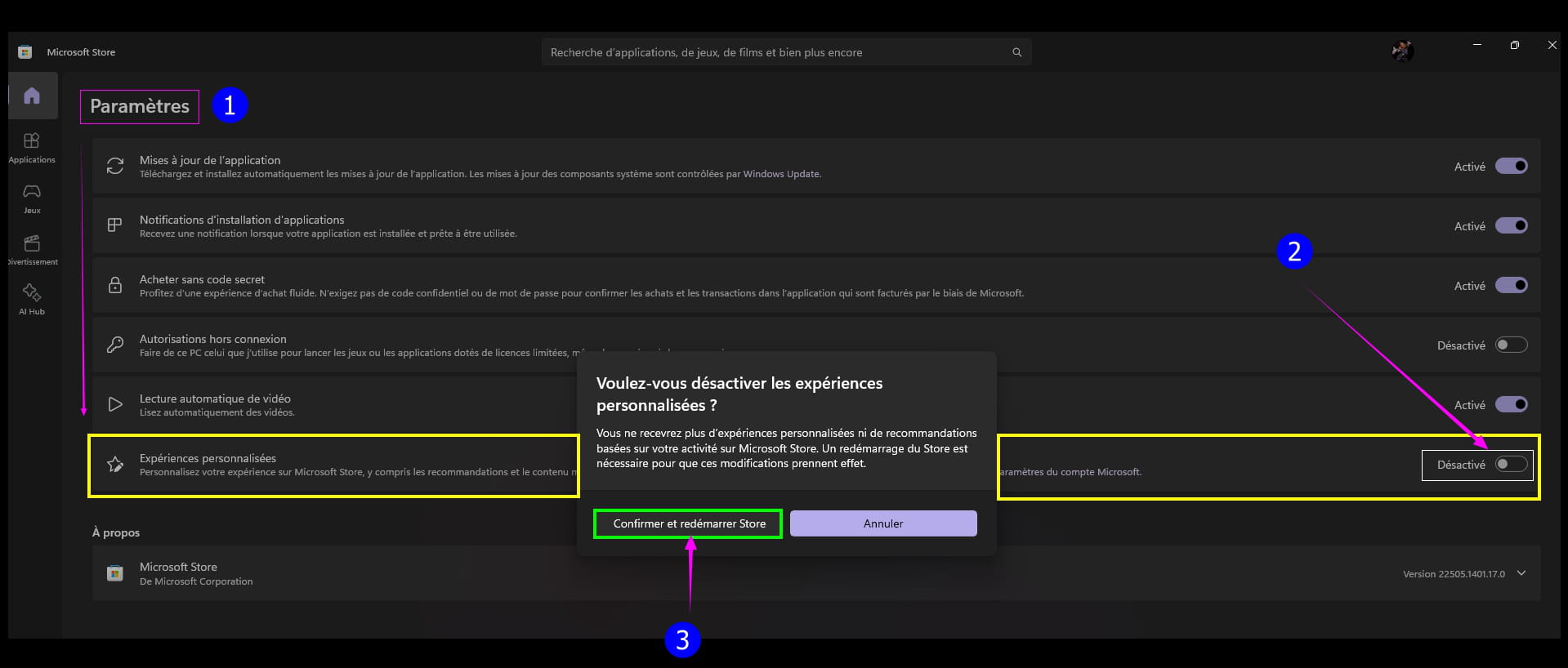
In the ''Settings'' section, the ''Personalized Experiences'' option is enabled by default.

Uncheck the highlighted box:
Click on --►Confirm and restart Store
After restarting the Microsoft Store, close the Store.
2) Disable personalized experiences of your Microsoft account:
Log in to your Microsoft account.
In the left menu --►Privacy
Section --►Manage advertisements and promotional communications
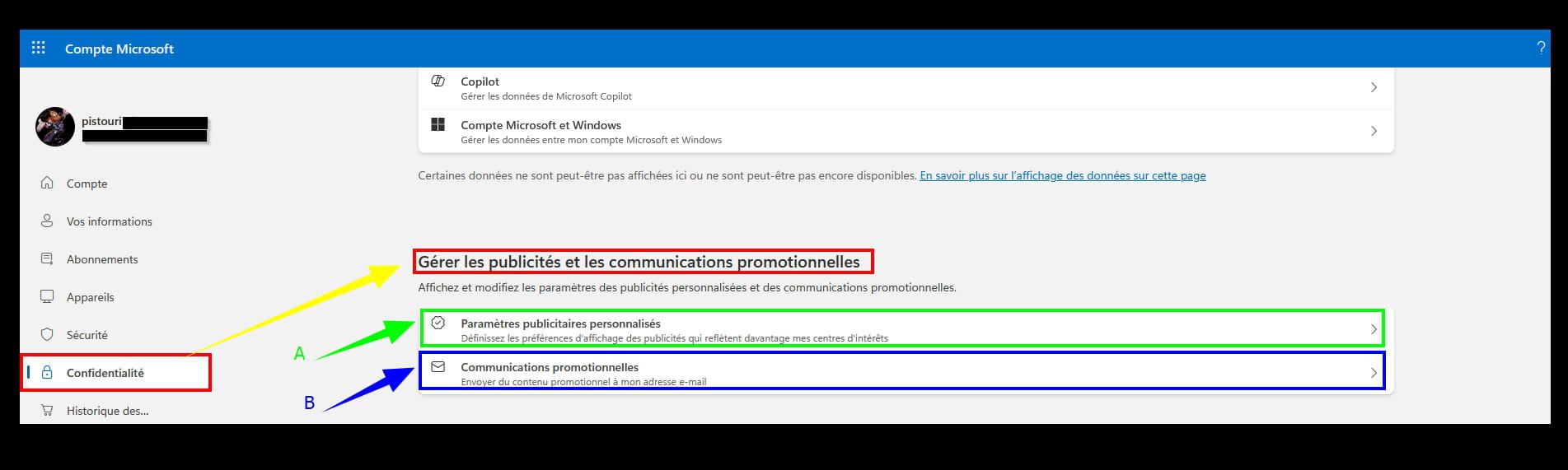
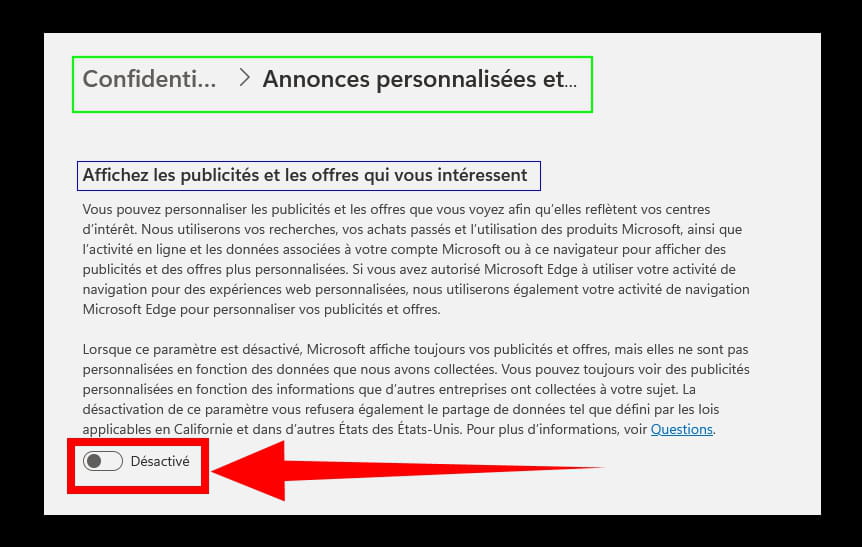
Disable the 2 options:
A) Personalized advertising settings:
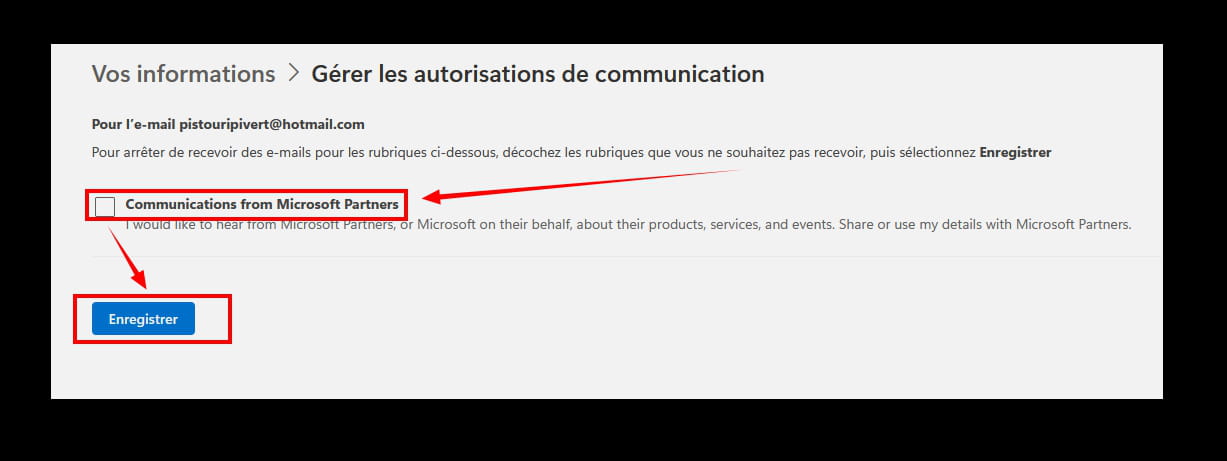
B) Promotional communications:
Uncheck the box --► Communications from Microsoft Partners
Click on --►Save
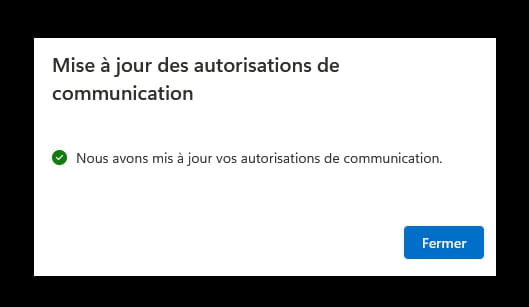
Close the dialog box --► Update communication permissions
Another solution to access the Microsoft account:
Go back to the Microsoft Store settings (same procedure as option 1).
On the ''Personalized Experiences'' line, click on --► visit your Microsoft account settings

3) Manage personalized advertisements on your device:
This will limit the so-called 'targeted' advertisements.
W11
Settings --► Privacy and security
Section --►Windows permissions --►General
Disable the highlighted toggle --►Allow apps to use my advertising ID to show me personalized ads
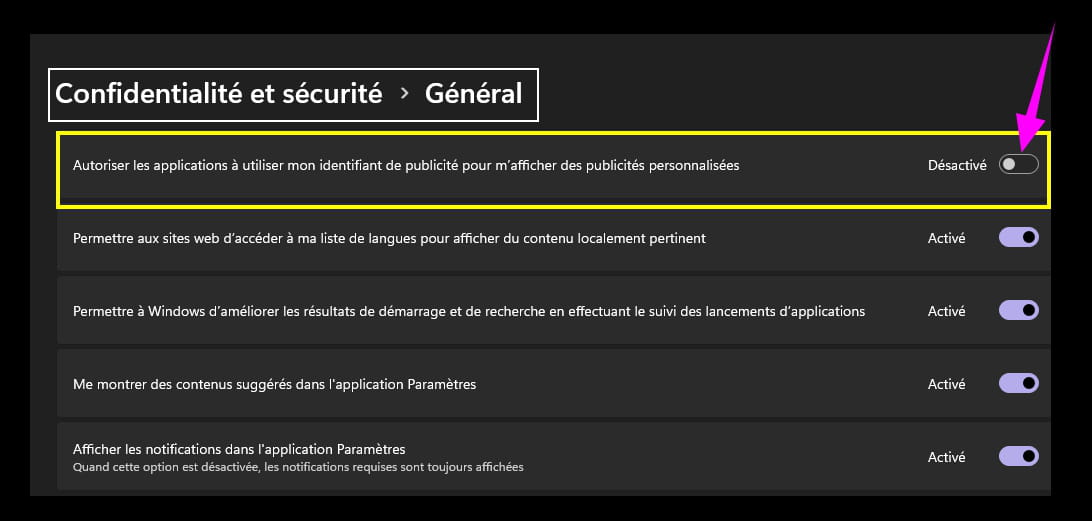
W10
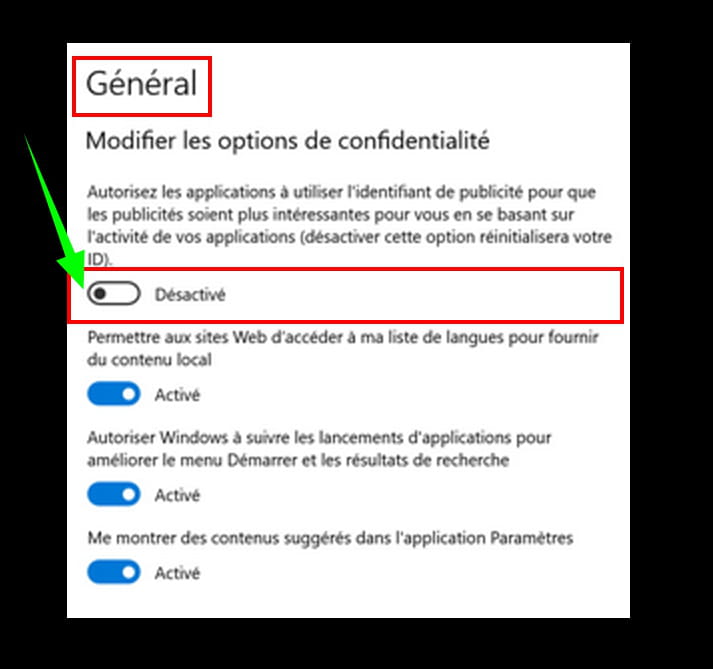
Settings --► Privacy --► General
Section --► Edit privacy settings
Disable the highlighted checkbox for 'Let apps use the advertising ID to show you more relevant ads based on your app activity''.
Disable Edge privacy:
Edge and the Microsoft Store are closely linked, links leading to the Microsoft Store open with the Microsoft Edge browser, and consequently, Microsoft can track the user using cookies and subsequently target advertisements, recommendations, and more.
Edge Cookies:
We use cookies to respect your choice to no longer see personalized ads in this browser
If you delete your cookies after declining, you will need to reset your decline.
Stop data collection in Microsoft Edge:
Open Microsoft Edge.
Click on the three dots in the top right corner.
Click on the line --►Settings
In the left menu, click on --►Privacy, search, and services
Faster method:
Open Edge and copy-paste --►edge://settings/privacy
Click on the line --►Privacy
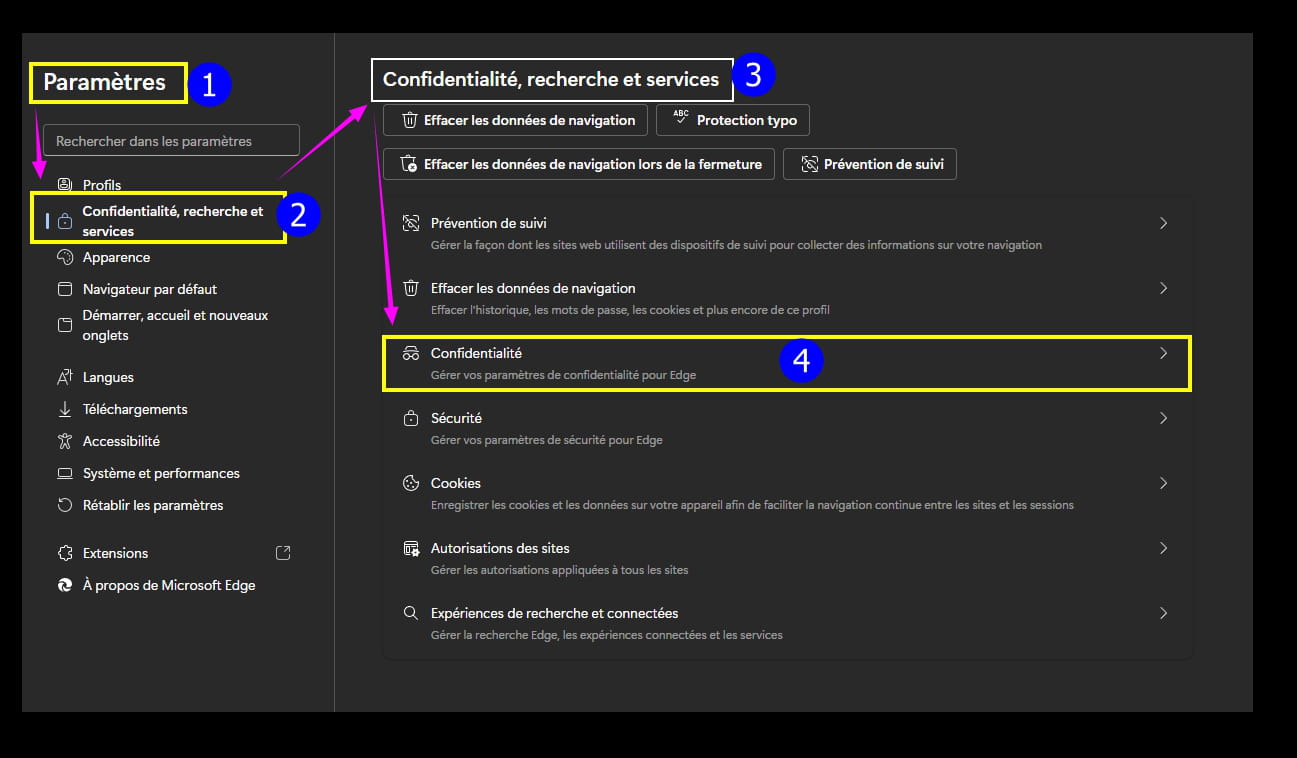
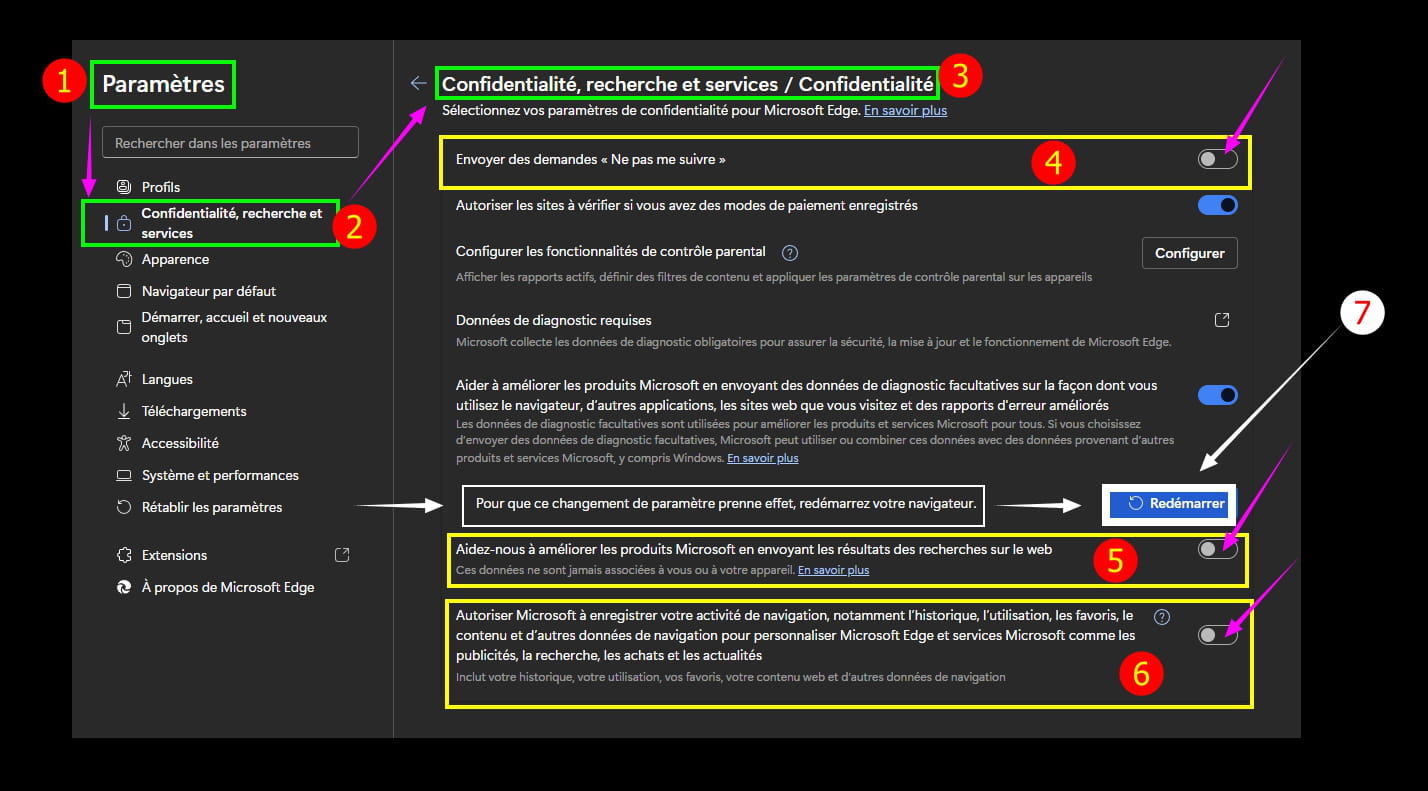
Disable the highlighted boxes:
* Send "Do not track" requests.
* Help improve Microsoft products by sending optional diagnostic data about how you use the browser, other apps, the websites you visit, and enhanced error reports.
* Help us improve Microsoft products by sending web search results.
Click on --►Restart
Close Edge.
FAQ on personalized experiences:
To go further, Microsoft explains in the form of a FAQ about personalized ads and offers.
This is explained in the Microsoft account, under the Privacy section.
Summary below:
What are personalized ads?
Personalized ads are advertisements focused on your interests that are, in our view, more interesting and useful to you. They are based on data that comes from your devices and other data you share with us, including your searches, website visits, and the topics you often explore. You cannot access personalized ads if you have disabled the settings on this page. For example, if you search for "luxury cars" on Bing, we may use your search to display an ad for a luxury car manufacturer when you visit the MSN website or use MSN mobile.
What are personalized offers?
When you see a personalized promotion for a feature, application, service, or hardware sold by Microsoft or one of our partners in a Microsoft product, it is a personalized offer. Unlike advertisements, Microsoft does not get paid to promote these products. Instead, we choose certain products to promote to you based on the data you have shared with us, as we believe they will enhance your experience. For example, if you stream movies in your browser, Microsoft may recommend an app from the Microsoft Store that streams more effectively. If you are running out of space in OneDrive, we might suggest that you purchase additional OneDrive storage space. We do not display personalized offers if you disable the options to see ads and offers that interest you.
How is this related to personalized offers that I see in Windows?
Windows also has a personalized offers setting that replaces "Personalized experiences" in newer versions of Windows. When the option to see ads and offers that interest you is turned off, Windows does not display personalized offers or experiences (in older versions of Windows) when you are logged into your devices using your Microsoft account. Windows may still display generic offers, but they will not be personalized based on the data you have shared with Microsoft, including Windows data or data collected by other Microsoft products.
Why does Microsoft present personalized ads?
We display personalized ads so that our customers can more easily find products and services they have expressed interest in and for advertisers to more easily reach customers who have already shown interest in their products. We want the ads that appear on Microsoft products and services to be useful and relevant to you, and for our advertisers to reach customers most likely to purchase their products and services.
How does Microsoft display personalized ads?
Microsoft partners with internal and third-party vendors to display personalized ads on MSN, Outlook.com, and other websites and applications. Microsoft also distributes search ads to Bing and our search syndication partners. To learn more about Microsoft's privacy practices and those of Xandr, read the Privacy Statement. You can learn more about personalized ads from our partner Yahoo in Yahoo.
Does my choice follow me from one browser to another?
Your choice will be respected as soon as you log in with this Microsoft account, including when you log in using different browsers.
How is the list of my interests populated?
Based on your browsing, search, and other online activity data, Microsoft deduces interests that might appeal to you and adds them to the list. Some of the ads you see are based on these interests. In some cases, these interests may not appear in your language. Specific interests only appear if you are logged into an account.
How else can I see personalized ads from other companies and advertising networks?
Even if you disable the settings on this page, you may still have access to personalized ads from other companies and advertising networks. To learn how to stop seeing personalized ads from other companies and advertising networks participating in self-regulation programs, visit the following websites:• In the United States: Digital Advertising Alliance (DAA)• In Europe: European Interactive Digital Advertising Alliance (EDAA)• In Canada: AdChoices: Digital Advertising Alliance of Canada (DAAC)
When does Microsoft use your browsing activity on Microsoft Edge for advertising purposes?
We use your Microsoft Edge browsing activity for ad personalization only if you have chosen to share browsing activity for Microsoft products and services and ad personalization.
1 answer
-
Hello,
Thank you for this fabulous tutorial.
-
Hello,
The tutorial for this tip itself is likely to be modified over time, if for example another new option is rolled out by Microsoft.
I could have added as a bonus an upcoming feature from the Microsoft store:
==► The Microsoft Store will soon let you install apps directly from the top featured sections
This saves a step: you just need to open the Store app and click directly on the app banner if it's on the homepage.
I am a bit surprised and undecided about how to respond/validate a PM from CCM (bobot) regarding this tip:
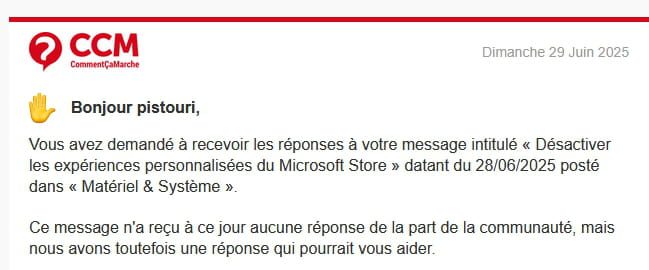
Plus a new reminder:
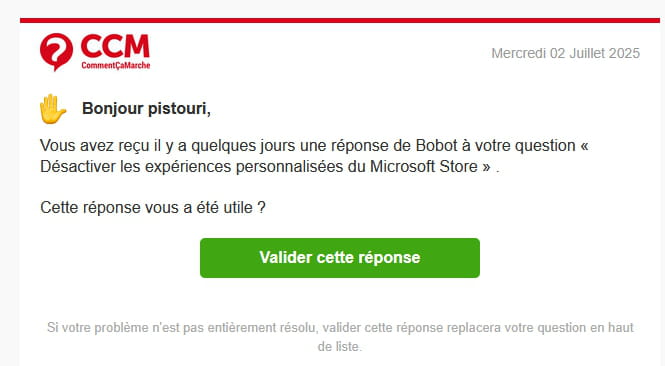
If I validate, I don’t know if this will replace my tutorial (bobot, the AI from CCM gives other procedures) or if it will be added as a response or comment.
I could use it to modify the tip but that’s not the purpose, especially coming from the AI, but it’s what I’ve basically described in this tip.
A first for me.
Hello,
The ineffable Poltergeist responds to everything that has gone unanswered for 24 hours and adds more if there is no reaction.
If treated with contempt, nothing happens; if validated, the response appears on the thread as if it were made by a real person, with no other effect.
That being said, I have a simpler way to avoid the ads from the Microsoft Store, both targeted and non-targeted: I use a local account, a different browser than Edge, and a script blocker; the urgency of the Microsoft Store and Microsoft in general is limited to when I need to open it to install a new application.
Of course, a Microsoft account remains practical because of OneDrive on the go, although in the free version, it fills up quite quickly, or for those who need to use Office 365 due to its particular features, or for instance, a domain or an Intranet—not everyone...
-