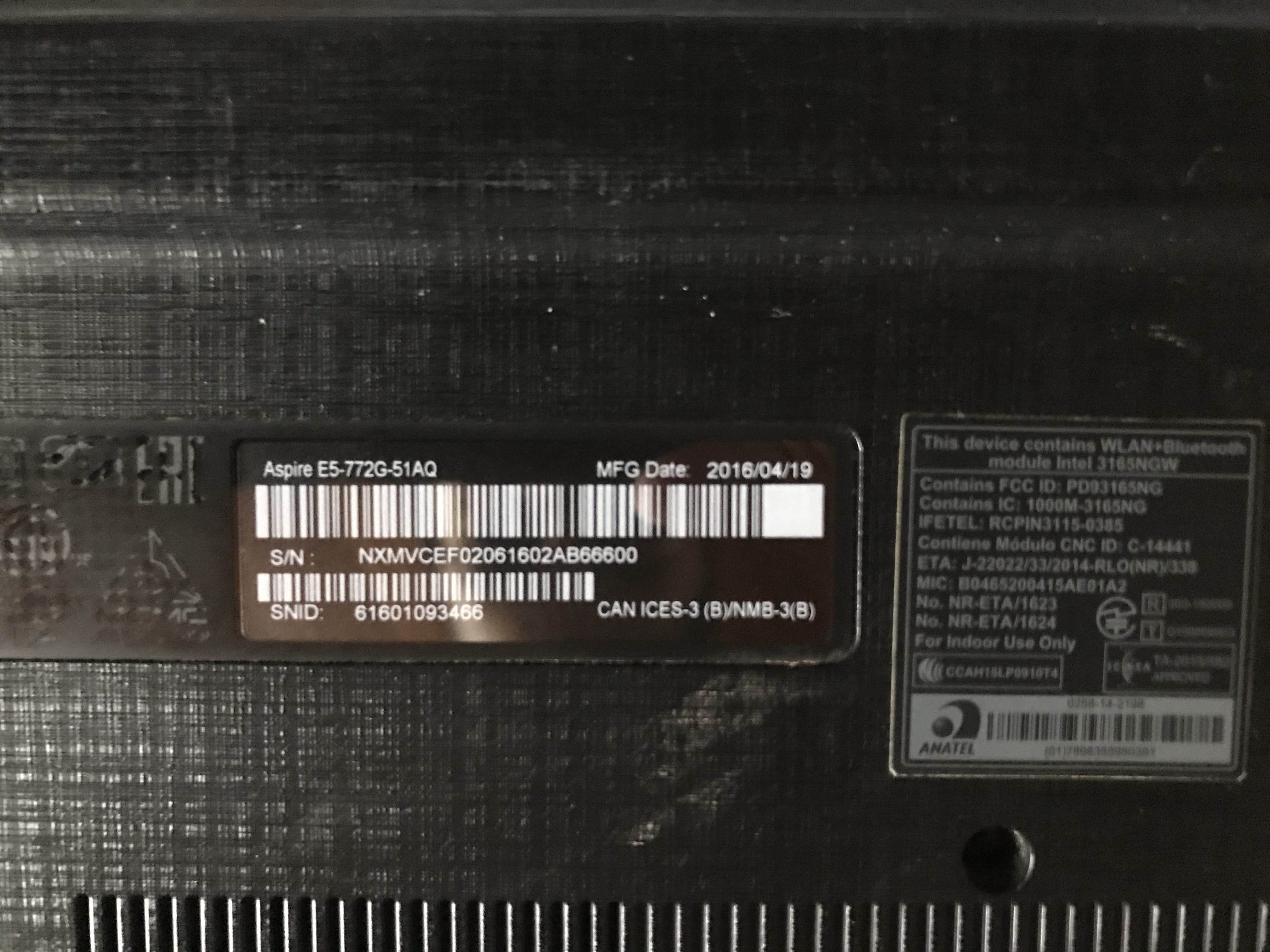
Crash after screen panel replacement
Achtague
-
Achtague -
Achtague -
Hello everyone, I'm having an issue with my Acer laptop after changing the screen (by myself); the computer keeps crashing.
At first, the logo appeared with the message "Preparing automatic repair," and then the screen went black, not completely off but dark.
Then, after multiple shutdowns and restarts, the recovery page showed up with an error code. There were 3 choices at the bottom, but I couldn't select any as the keyboard wasn't responding. I'm not sure if it was due to slowness or the keyboard itself.
And finally, it starts up but is stuck on the Acer logo. There's no visible loading animation on the screen (by loading animation, I mean the circular dots you see when it's searching). I can just hear the disk or something else (I'm not sure), rebooting, like when the computer turns off and you hear that noise just before it completely shuts down. I'm not sure if that's all clear, lol.
If you have any advice, tips, or solutions, I would appreciate it!
At first, the logo appeared with the message "Preparing automatic repair," and then the screen went black, not completely off but dark.
Then, after multiple shutdowns and restarts, the recovery page showed up with an error code. There were 3 choices at the bottom, but I couldn't select any as the keyboard wasn't responding. I'm not sure if it was due to slowness or the keyboard itself.
And finally, it starts up but is stuck on the Acer logo. There's no visible loading animation on the screen (by loading animation, I mean the circular dots you see when it's searching). I can just hear the disk or something else (I'm not sure), rebooting, like when the computer turns off and you hear that noise just before it completely shuts down. I'm not sure if that's all clear, lol.
If you have any advice, tips, or solutions, I would appreciate it!
2 answers
-
Good evening,
If it was working before the screen panel replacement and is experiencing issues afterwards, something must have happened during the handling; in my opinion, there are no other explanations!
Best regards.
--
The one who doesn't bring joy upon arriving always does so when leaving.
O Breizh ma bro, me 'gar ma bro !-
Good evening and thank you for your response. I didn't do anything special other than change the screen! The computer wasn't originally mine, and the person wasn't using it anymore because of the broken screen. So really, other than changing the panel, I didn't do anything more. Is there something concrete I can do?
Best regards :-)- I just removed the bottom cover to check that nothing was incorrectly connected or damaged, but there’s nothing to report. I didn’t touch, unplug, change, or do anything else. After that, I don’t know if there was an underlying issue with the PC and perhaps that’s what caused the impact that broke the screen.
- Breaking the screen when the PC is supposed to be malfunctioning is not the best solution; it doesn’t help in any case!!!
If, as you explain in your initial question, you are encountering so many described issues, the PC must be at fault, and it will require some trial and error; it's difficult to pinpoint exactly where the problem lies.
-
-
Hello,
the problem as you described it is either a faulty hard drive or a faulty Windows. Try entering the BIOS by pressing Esc or F2 during startup (usually it's one of those keys).-
-
Hello Achtague,
What would also be good for you to tell us is which model of Acer we are talking about, its exact references.
Possible, based on your descriptions, that it has received a shock, in which case perhaps a bad contact on a component of the PC could be the cause of the issues, which is why I pointed out earlier that we will need to proceed by feeling around.
The hard drive, for example, may have slightly moved and is no longer making contact to function properly.
The ideal would be to open this PC to check that everything is properly connected and in place.
Best regards. -
-
Normally, on this model when you separate the keyboard (upper part) from the bottom, you have to disconnect 3 connectors to remove this component.
You mentioned that you didn’t see anything special, very well, but are you sure that all these connectors are properly in place and securely clipped? Have you checked this?
For example, it’s enough that the keyboard connector isn’t well connected for it not to work!
You wrote this:the keyboard was not responding
You have a disassembly video for this model HERE, it’s in English but you don’t need to understand it, just watch!
It might help you!
@+ -
-