
How to Install an Ethernet Printer on a PC without Internet Connection
Sosopop
-
Anonymous user -
Anonymous user -
Hello, so let me explain: I have a receipt printer but the problem is that it only has an Ethernet output (no USB output unlike my old one that broke down) and so I want to connect it directly to my PC which serves as a cash register that is not connected to the internet.
If you could detail the steps because I'm not very familiar with this, thank you for your responses.
If you could detail the steps because I'm not very familiar with this, thank you for your responses.
Related links:
- install an Epson SX235W printer without CD
- Install the Stylus SX105 printer without a CD on a netbook.
- How to install Canon Pixma MP230 printer without installation CD
- install an epson stylus sx 218 printer without the cd
- install an epson stylus sx415 printer without disks
- Install an sx535wd printer without a cd in French please.
1 answer
-
Hello
Do not confuse Ethernet (wired or wireless network) with the Internet, also known as the network of networks.
Ethernet is present in most computers either through the presence of an RJ45 connector or also wirelessly via Wi-Fi (yes, it's also Ethernet, but wireless...)
So if your printer is Ethernet, it must have an RJ45 connector to plug in the corresponding cable.
For a novice, it is preferable to connect the printer and the computer using an RJ45 cable to a device (a router) that will assign both devices an "identity" (IP address) on this mini network created thanks to its DHCP system (An Ethernet switch looks similar to a router but does not have a DHCP system, so it’s not good).
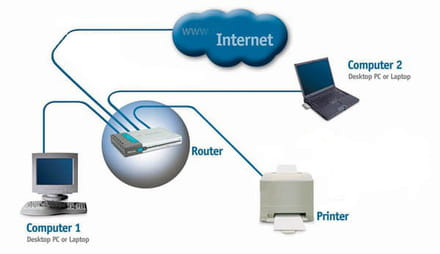
You can connect the printer with an RJ45 cable directly behind the computer, but since you are not familiar with it, this will complicate the setup. You will have to configure both the computer and the printer manually (it’s a bit complicated, especially for the printer).
Internet boxes are also routers and are equipped (in the majority of cases) with at least 4 RJ45 connections to plug in computers, printers, and other Ethernet accessories...
See you later
If the answer helped you: a little thank you is nice. If it's resolved: the green button at the top is better ;-)
Let he who has never opened a user manual throw the first mouse.
