Unable to unpin a folder from Quick Access
Solved
hattousil
-
pistouri Posted messages 19008 Registration date Status Contributor Last intervention -
pistouri Posted messages 19008 Registration date Status Contributor Last intervention -
Hello,
the unpin command from Quick Access is ineffective on a folder in Quick Access. The shortcut is also the only one that points to a folder in OneDrive. Is there a causal relationship? The other folders unpin without issue, except for this one!
Is it possible to force the removal from the Quick Access list?
Configuration: Windows / Edge 85.0.564.41
the unpin command from Quick Access is ineffective on a folder in Quick Access. The shortcut is also the only one that points to a folder in OneDrive. Is there a causal relationship? The other folders unpin without issue, except for this one!
Is it possible to force the removal from the Quick Access list?
Configuration: Windows / Edge 85.0.564.41
4 answers
-
pistouri Posted messages 19008 Registration date Status Contributor Last intervention Ambassadeur 8 723
Hello,
1- Start by disabling OneDrive synchronization
2- Open Windows Explorer.
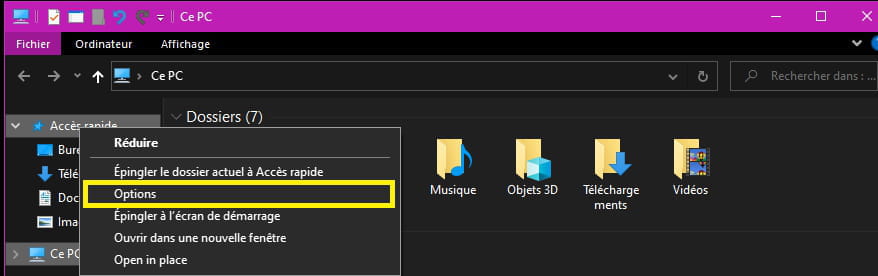
Right-click on Quick Access.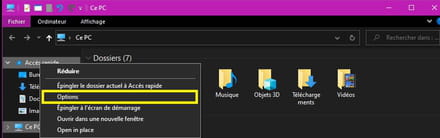
In the next window, click on the General tab.
Section → Privacy Statement
Check the 2 boxes
-Show files......
-Show folders......
Click on → Clear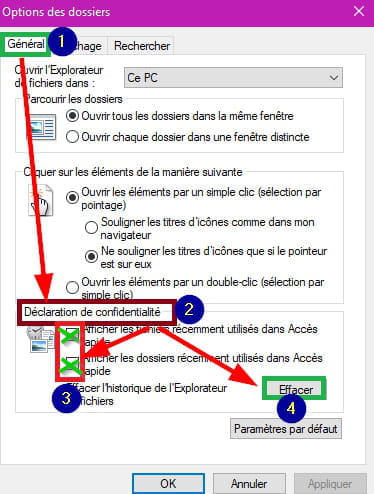
Close and restart Explorer to check
3- Using a command prompt:
In the search box on the taskbar type → cmd
Right-click on Command Prompt → Run as administrator
Copy/paste:
del /F /Q %APPDATA%\Microsoft\Windows\Recent\AutomaticDestinations
Then press Enter.
Close the black CMD window.
A PC restart may be necessary.
4- With Unlocker
Once installed, right-click on the problematic shortcut.
In theNone action box select → Delete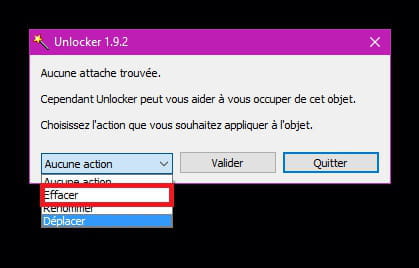
5- Reactivate OneDrive synchronization if you use it.
See you later
--
scalpel -
-
Hello Pistouri,
While fiddling around, before using your method, I drag & dropped the folder in question into Quick Access, and the unpin command worked!!!
So, I'll keep your method in case I run into another issue.
See you! -
pistouri Posted messages 19008 Registration date Status Contributor Last intervention Ambassadeur 8 723
Hello,
I dragged and dropped the folder = Drag and drop
Thank you for your feedback, I hadn't thought of that.
Have a nice day.
--
pistouri