Copying files from a Mac to an external hard drive using the Terminal
Lulu21
-
talithannekcb -
talithannekcb -
Hello, my MacBook Pro has broken down, it turns off during the boot process. I have some files that I need to recover pretty quickly but I only have access to the command line and Disk Utility.
In the command line, I enter:
cp -R /Users/me/desktop/folder to copy/ /USB.
I have named the hard drive "USB."
After this command, all the files scroll with the end of the lines saying "No such file or directory."
If anyone has a solution, thank you in advance and have a good day.
In the command line, I enter:
cp -R /Users/me/desktop/folder to copy/ /USB.
I have named the hard drive "USB."
After this command, all the files scroll with the end of the lines saying "No such file or directory."
If anyone has a solution, thank you in advance and have a good day.
12 answers
-
Hello,
and with this way of using the cp command:
cp -R /Users/yourname/folder_to_copy /Volumes/USB
? -
Hello,
For my part, I only see the last line as the command line. Here I see that you are trying the command as the root user??
Why? If you can run the Mac as the root user, you should be able to run it under your username...
Then I see the double slash with a space just before the destination volumes/USB
In the example command I provided earlier, I had this
cp -R /Users/yourname/folder_to_copy /Volumes/USB
? -
In my example, there is a space right after the name of the folder to copy and before the last slash.
-
I just ran a test as root.
PS: I still don't understand why you don't use your username for the operation. The current case is like trying to hack into a folder belonging to another user without going into their directory...
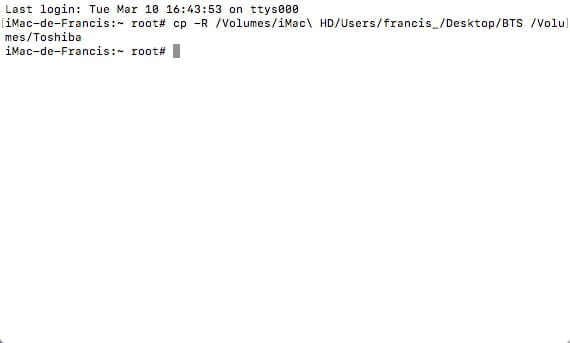
That said, being as root, the command is different; you need to indicate the exact path. Here's an example where my source disk is named "imac HD" and the destination disk is named Toshiba. I created a test folder for this purpose that I named BTS.

It works. -
I am on a MacBook Pro. And I don't know how to switch users to avoid being in root. In reality, I don't know much about commands on a Mac..
.
I don't know which version of OS this Mac is running, but a Mac doesn't enable root mode "on its own"; you need to understand the basic functioning of the Mac for that.
Is this Mac yours? When you take possession of a Mac and configure it for the first time, you are asked to provide a username and password. Did you do that?
We see that you know the name of a user, "Lulu," is that you? If it's you, you also know the associated password.
So, you close your root session that has been opened by a method I don't know, through the Apple menu / Log Out root.
Then in the window that appears, you enter the username and password that correspond to you.
More help here:
https://support.apple.com/fr-fr/guide/mac-help/mchlp2439/mac -
So, attempt a system repair after booting from the recovery partition - start up while holding down the cmd and R keys, then Disk Utility, then click the SOS button...
See the procedure here:
https://forums.commentcamarche.net/forum/affich-37641569-entretenir-et-reparer-macos-x-10-12-10-13-et-suivants -
If the Mac can start from the recovery partition (cmd R at startup), there are several options:
Disk Utility to repair the system. If the repair does not succeed, there is the option to reinstall the OS. This reinstallation is done "on top" of the damaged OS, without erasing existing data.
EDIT: It is also possible to install macOS on an external drive, then start the Mac from this external drive (holding down the option key at startup), and then access the contents of the internal drive. -
OS reinstallation crashes at the end
After booting from the recovery partition, perform a macOS installation on an external drive. Then boot the Mac from this external drive. -
Hello,
Is the installation done on an external drive?
External drive formatted as "Mac OS Extended (Journaled)" on a GUID partition scheme?-
- The remaining time indication is not reliable, as it varies depending on the instantaneous speed, which in turn varies based on the types of files and possibly the internet speed... therefore, this indication of remaining time can increase or decrease... you have to let it finish, even if sometimes you feel like nothing is happening while the system indicates that less than a minute has been left for nearly an hour...
-
-
Hello, the procedure has been successfully completed. Upon startup, the screen turns dark gray and nothing happens. Should I call a data recovery service? Or could there still be a solution?
-
Hello,
Data recovery service... it's going to be very expensive, better to try doing something else on your own instead.
What I would do, for example:
Depending on the exact model of the MacBook Pro, it is more or less easy to remove its internal drive, so, remove the internal drive, then place it in a commercial USB enclosure, then read it from another Mac and recover what needs to be recovered.
A friend's Mac, an acquaintance's... will do the job, no matter the model.
Or even a PC running Windows on which a utility has been installed to allow Windows to read Mac drives, like MacDrive or MacDisk.
https://www.macdrive.com
https://www.macdisk.com/mdfr.php
In the meantime, put a new drive in the Mac, start it using these 3 keys pressed down:
alt cmd R
this to force it to boot from a recovery partition from Apple's servers via the internet, then launch Disk Utility, format the hard drive as Mac OS Extended (Journaled) on GUID scheme, and finally install the OS anew on this new internal drive. -
I have a new Mac, so the old one doesn't need to be restarted. The MacBook I had is about this model: https://www.fnac.com/mp28421882/MacBook-Pro-13-3-pouces-A1278-Intel-Core-i5-2012/w-4
Does it require a specific USB enclosure?-
Francis, thank you for your kindness and patience towards this "LULU"
I was amazed, but your availability and knowledge in the service of this gentleman impressed me. In any case, thank you for him and for me, the reader.
I had a red screen at startup. The Apple service did a lot of manipulations without knowing the reason. I actually found out that the RED background of the MACBOOK at startup is a sign that the SSD IS FULL...
-