I lost my "PERSO" folder in "c:/User".
Solved
sciuro
Posted messages
290
Registration date
Status
Member
Last intervention
-
pistouri Posted messages 19010 Registration date Status Contributor Last intervention -
pistouri Posted messages 19010 Registration date Status Contributor Last intervention -
Hello,
I just switched to Windows 10 (I'm still figuring things out…) and after a mishap, I lost the "PERSO" folder that was located next to the "Public" folder in C:/Users.
When I type "users" in the search area of the "Start" menu, Win10 offers me:
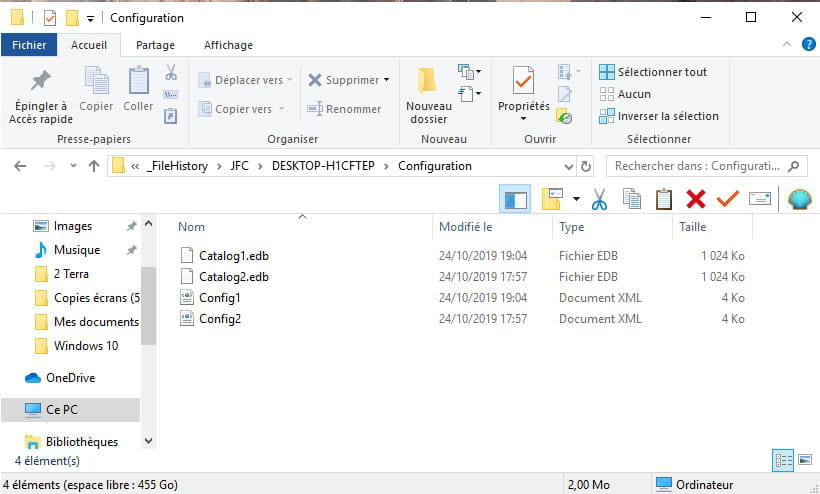
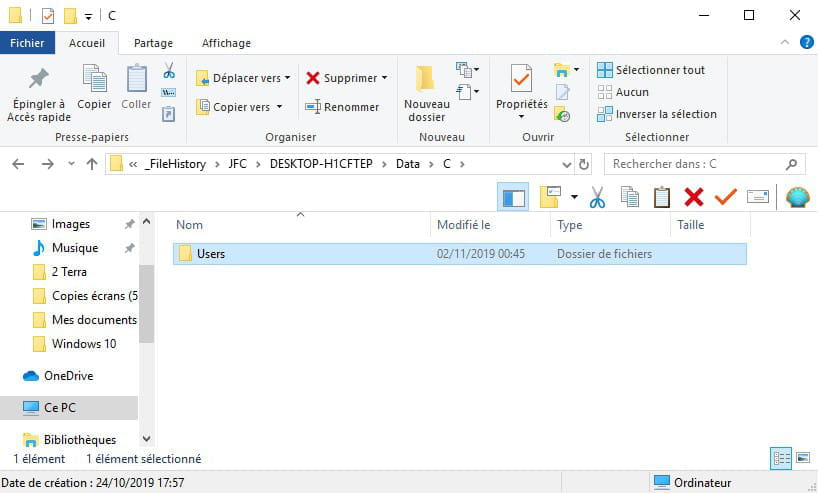
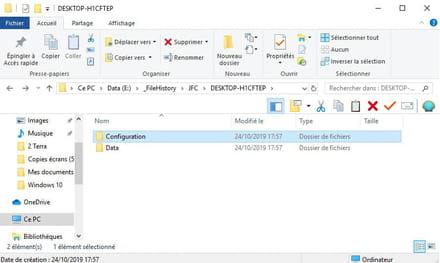
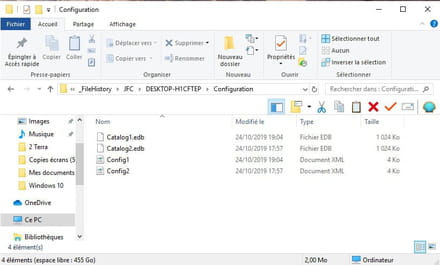
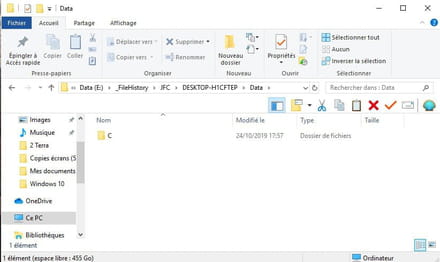
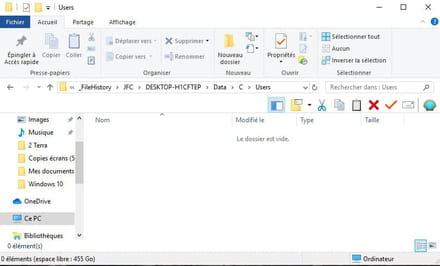
E/: _FileHistory<"PERSO">DESKTOP-H1CFTEP>Data>C>(empty)
C: is the SSD where Windows and my software are located
E: is the other internal drive where I store all my documents/images/music/etc.
For the proper functioning of Windows later on, it seems to me that I should transfer "PERSO"><desktop-h1cftep>Data>C>(empty)
to C:/ Users, next to the "Public" folder, right?
Is a copy/paste enough? Is there another way to proceed?
Note that in C:/ Users, instead of the original "PERSO" folder, a new (slightly grayed out) folder named "Default" has appeared. When I click on it, nothing appears (it’s empty), although its "Properties" show that it contains 62 files/51 folders of 2.73 MB. Will it disappear on its own when "PERSO" is back in place? Should I merge it with "PERSO" to have the two original folders back in "Users"? If so, how do I do that?
Thank you in advance for your help.</desktop-h1cftep>
I just switched to Windows 10 (I'm still figuring things out…) and after a mishap, I lost the "PERSO" folder that was located next to the "Public" folder in C:/Users.
When I type "users" in the search area of the "Start" menu, Win10 offers me:
E/: _FileHistory<"PERSO">DESKTOP-H1CFTEP>Data>C>(empty)
C: is the SSD where Windows and my software are located
E: is the other internal drive where I store all my documents/images/music/etc.
For the proper functioning of Windows later on, it seems to me that I should transfer "PERSO"><desktop-h1cftep>Data>C>(empty)
to C:/ Users, next to the "Public" folder, right?
Is a copy/paste enough? Is there another way to proceed?
Note that in C:/ Users, instead of the original "PERSO" folder, a new (slightly grayed out) folder named "Default" has appeared. When I click on it, nothing appears (it’s empty), although its "Properties" show that it contains 62 files/51 folders of 2.73 MB. Will it disappear on its own when "PERSO" is back in place? Should I merge it with "PERSO" to have the two original folders back in "Users"? If so, how do I do that?
Thank you in advance for your help.</desktop-h1cftep>
15 answers
-
Where does your Documents folder or Desktop point to??
In "This PC," you have a quick access bar on the left; you just need to right-click on "Desktop," for example, and then Properties.
In the "Location" tab, you have a path that tells you where the "Desktop" folder currently being used is located.
Personally, I recommend relocating all folders that might contain a lot of data, such as the "Downloads" folder, which fills up quite quickly.
--
By KrondaliX -
The "Bureau" folder is located at:
c:\Users\PERSO\Desktop
but when I open C\, there's no sign of the "Users" folder, and in the "Users" folder, there's no sign of the "PERSO" folder. -
pistouri Posted messages 19010 Registration date Status Contributor Last intervention Ambassador 8 732
Hello,
The continuation of the problem on this post.
That's two problems now.
Disk 'E'
→In the other one, nothing (empty), but in the address appears:
E:\_FileHistory\JFC\DESKTOP-H1CFTEP\Data\C\Users.
(JFC is the new username entered)
→ E: is the other internal disk where I store all my documents/images/music/etc.
It should be called 'D' in principle if it hasn't been renamed.
Pistouri → I have the idea that your new Start button/menu is the source of the problem.
I don't know if you did the manipulations from this added Start button
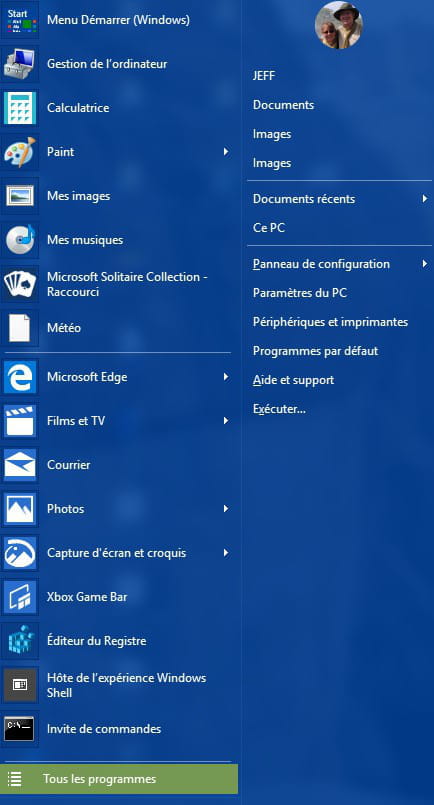
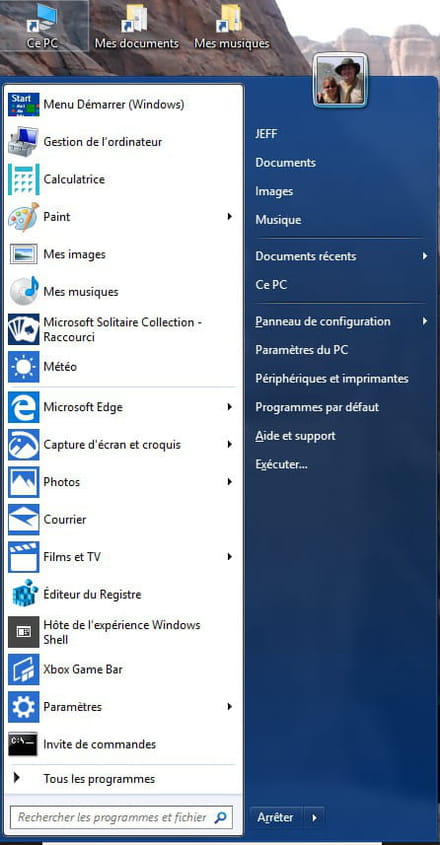
sciuro→I meant to say that after downloading a small software, the Windows 10 Start menu appears in the form of the Windows 7 Start menu. (see below):
You should uninstall this new Start button software.
The option to uninstall it may be present in the software itself or go through the control panel.
We don't know the name of this software even by zooming in on your screenshot in the top left.
It looks like 'Start 10' or something similar: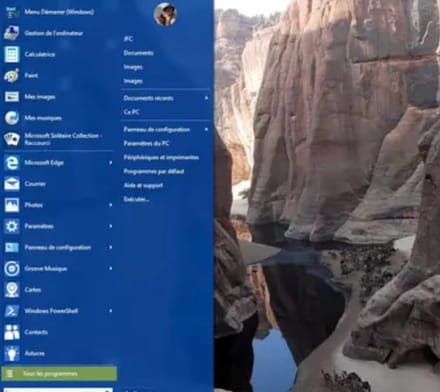
→ it's a friend who installed Windows 10 on a new PC for me
Was there not an external disk or an HDD connected at the same time during the installation hence this
partition ''E''?
You need to remove all of that at the beginning and leave only the SSD to install W10.
Good luck for the rest.
-
With your help and that of my neighbor, everything seems to have returned to "normal" (I've found the JEFF from the beginning and I’m abandoning the modification to JFC) except for three things:
1- In (C:) "Users", the folder "Default" still exists (icon paler than the other two ("JEFF" and "Public"). All the folders in "Default" are empty except for "AppData". All the folders in "AppData" are also present in "JEFF". Is there a way to get rid of "Default"?
2- In "ProfileList", my two user profiles are still present. The one ending in 1001 (JEFF → C:/User/JEFF)
The one ending in 1002 (JFC → C:/User/JFC)
Since C:/User/JFC no longer appears, can I directly delete the line "1002)" in "ProfileList"?
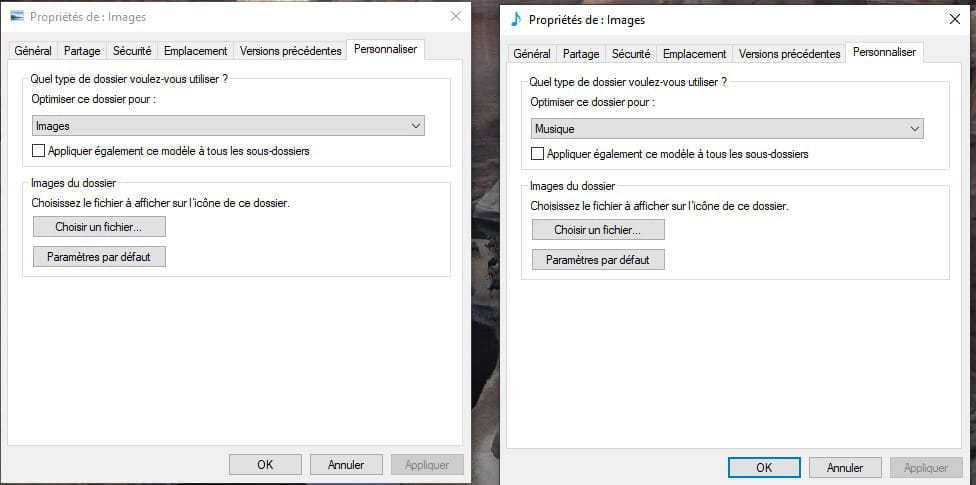
3- The issue with the two "Images" folders (one -OK- pointing to images, the other to audio files) in the right column of the "Start" menu is not resolved. I have executed the two .dat files you sent me and restarted the PC, but they haven’t changed names... It's just the name "Images" that is incorrect, the content is indeed audio.
-
-
pistouri Posted messages 19010 Registration date Status Contributor Last intervention Ambassador 8 732
Hello,
1- Is there a way to get rid of "Default"?
Leave it for now
You must have checked the box to show hidden folders and files.
You won't see it anymore by unchecking the box.
Open the explorer, go to View and on the far right uncheck → Hidden items
2- Can I directly delete the line "1002)" in "ProfiliList"?
Yes.
Create a restore point before that, it takes less than 2 minutes.
3- I have successfully executed the two .dat
They are .bat files and not .dat (no big deal...)
We will see what happens after performing step 2, it is possible that after deleting the 1002 profile you will still have JEFF as the username.
To be checked.
Send a screenshot if it persists.
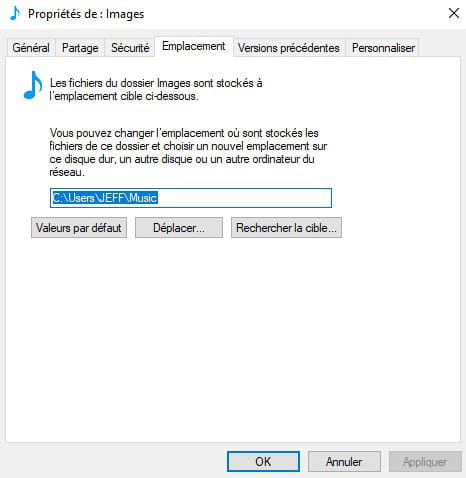
You can right-click on this Image folder then properties and check the default location.
It should point to → C:\Users\JEFF\Pictures
You shouldn't be able to rename it in principle.
Or, back up your audio files and try to delete it.
Don't restore your audio files
Restart the .bat image file → here
See you later
--
pistouri -
pistouri Posted messages 19010 Registration date Status Contributor Last intervention Ambassador 8 732
Hello,
1- Music Folder.
Download and run the .bat file Music
Restart the PC
Check in your Start button if you still see your "Pictures" folder twice
2- Checking Libraries.
Open This PC
Check in the right pane if you see your "Pictures" folder twice
Check in the left pane if you see your "Pictures" folder twice
In:
-Quick access
-This PC
You cannot delete it, but you can "Unpin" it if present.
If you see it, do nothing for now, it could bypass the issue.
Open it first to see what it contains, the goal is to delete the "Pictures" folder that contains your audio files.
If it’s a duplicate, you can right-click on the "Pictures" folder → Include in library
Select → Pictures
Open This PC.
Click on View
Click on Navigation pane
Select (you'll see a check, it’s a white line) → Navigation pane
Select → Show Libraries
Now click on Libraries in the left column, it may be in Quick access or This PC
See if you see your "Pictures" or "Music" folder twice.
You now have the option to delete the duplicate with a right-click.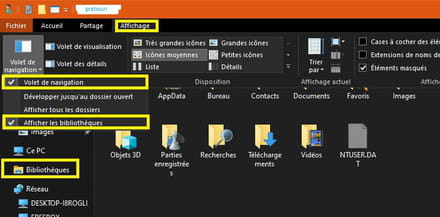
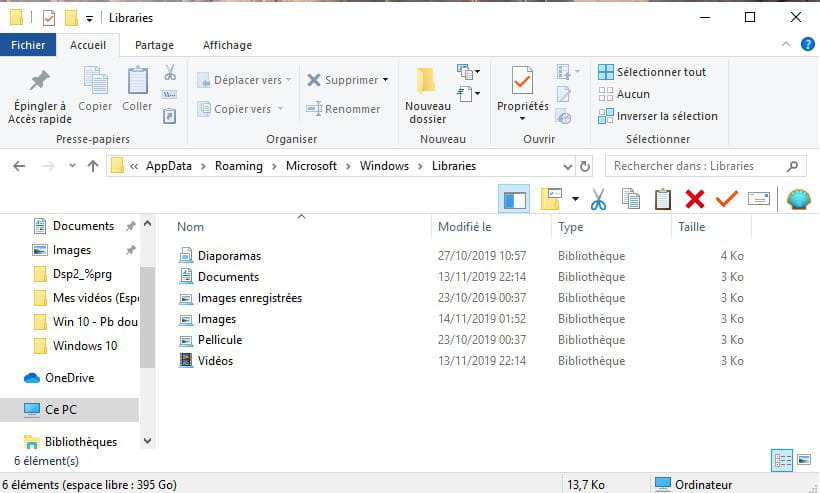
3- Path of Libraries.
Show hidden files and folders. (see image message7).
Go to this path
"C:\Users or User\Your session or user name\AppData\Roaming\Microsoft\Windows\Libraries
Check if you see your "Pictures" or "Music" folder twice
Delete the duplicate if present.
Ps: You should only see Libraries (Type).
WARNING: this also deletes included folders.
To delete a library without deleting the folders, you must remove them from the library.
For that, right-click on the library and select Properties.
Then select the location and delete it (this won't delete the folders).
Once the library is empty, you can delete it without losing any folders.
Hide hidden files and folders.
4- Windows Registry default locations to check.
That’s what the .bat files I gave you do.
Let's check all that:
In the search bar with Windows key + R type → regedit
The registry editor opens
Delete the word →Computer
Copy and paste:
Computer\HKEY_CURRENT_USER\Software\Microsoft\Windows\CurrentVersion\Explorer\User Shell Folders
Then press Enter.
Go to the registry line →User Shell Folders
In the right pane, everything should point to → %USERPROFILE%
Check if you see any duplicate " My Pictures" or " My Music"
It’s normal that everything is in English, don’t worry.
It’s the path that matters to us.
If you see an anomaly, take a screenshot.
We will correct it with a .bat file
That’s why I suggest the .bat files as there is no room for error in the registry.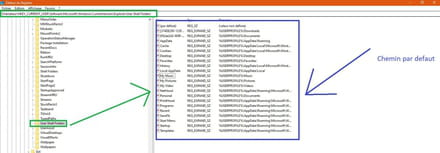
5- Your Start button that you installed.
If the previous steps yielded no results the image folder is only present on your Start button.
In this case, uninstall it.
Then perform a disk cleanup
Restart the PC
Reinstall it if you want and be sure that you see only one instance of the " Pictures" folder
Ps: I would really like to know the name of this Start button please (I’m pondering over this).
See you later
--
pistouri -
pistouri Posted messages 19010 Registration date Status Contributor Last intervention Ambassador 8 732
Info,
Make sure to check the 1 music folder from message 9.
I think the second image folder should correspond to ''Music''.
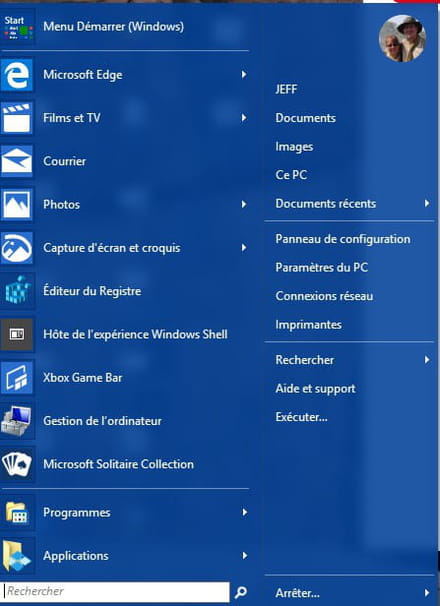
Image randomly found (Start10) -------- (Where I'm pondering).
You can clearly see a Music folder (''Musique'' in French, you must have set it up in English).
It's in your visible panel to the right of your Start button.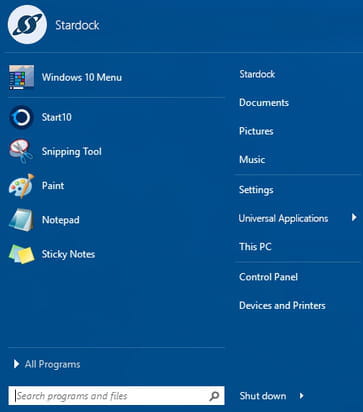
This is what you should have by default:
- Documents
- images (Pictures)
- Music (Musique)
This below your username which is → JEFF
Further down there is a separator line, no need to check, it’s the same.
Ps: CCM offers this here but it is paid.
I don't know how you got it, maybe a crack?
A+
--
pistouri-
A good point, I only have one folder "Images" in the "Start" menu, but I haven't recovered "Music."
Here are my screenshots corresponding to the different steps:
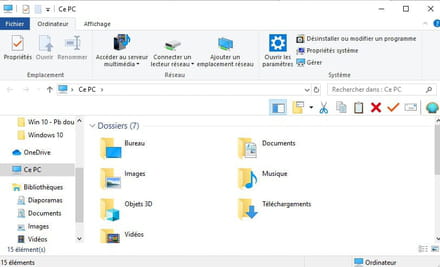
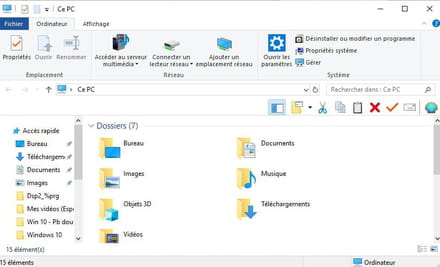
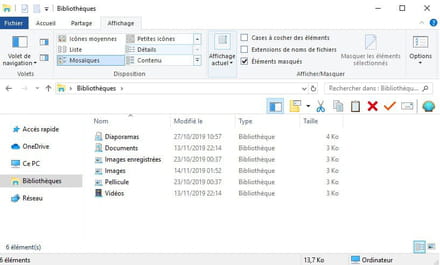
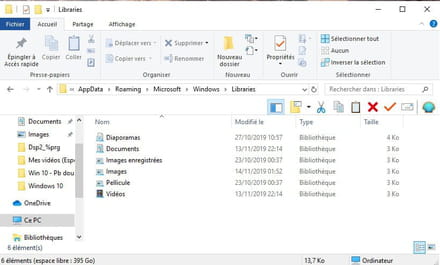
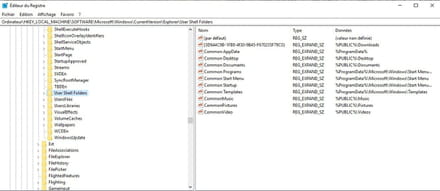
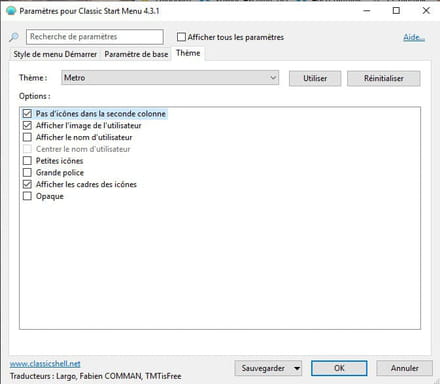
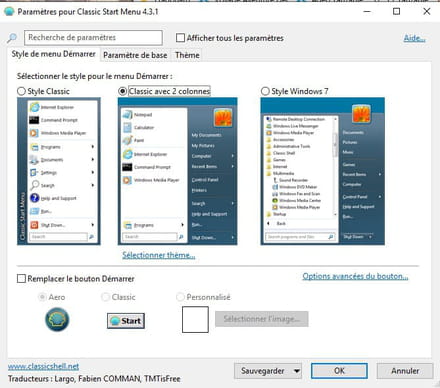
The 5a is the result I obtained by right-clicking on the "Start" button. I think it should indicate the software I downloaded.
The 5b shows the visual of the "Start" menu that I selected, but which is different from the one that appears when I press the "Start" button, as shown in image 5c (current visual of my Start menu, with only 1 "Images" and no "Music")
See you soon.
-
-
pistouri Posted messages 19010 Registration date Status Contributor Last intervention Ambassador 8 732
Hello,
Thank you for the screenshots (No more pondering!)
Photo 1
Explorer is good, you have all the libraries in the right pane.
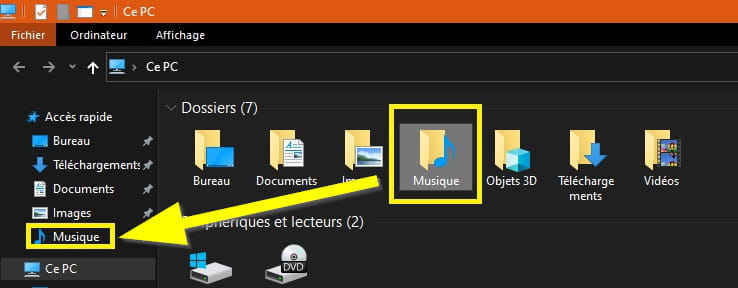
You don’t have Music in quick access.
You can drag the "Music" library and then release your left click.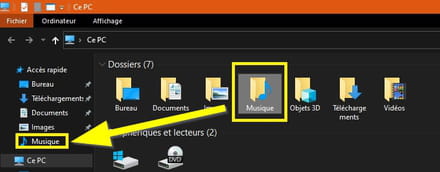
Same for This PC.
If it doesn’t work in This PC;
Start by checking if your PC is 32 or 64 bits.
The Tutorial
Then save or download the .reg file that will add "Music" to This PC.
Restore only the Music folder from this PC
With 32-bit PC →32-bit_Restore_Music_Folder_in_This_PC.reg
With 64-bit PC → 64-bit_Restore_Music_Folder_in_This_PC.reg
Double click on the desired file.
Or right-click on the .reg file → Merge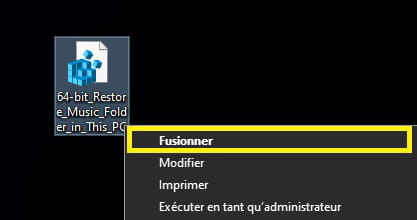
Restart the PC or refresh the explorer with the keyboard key F5.
Photo 2
No issues.
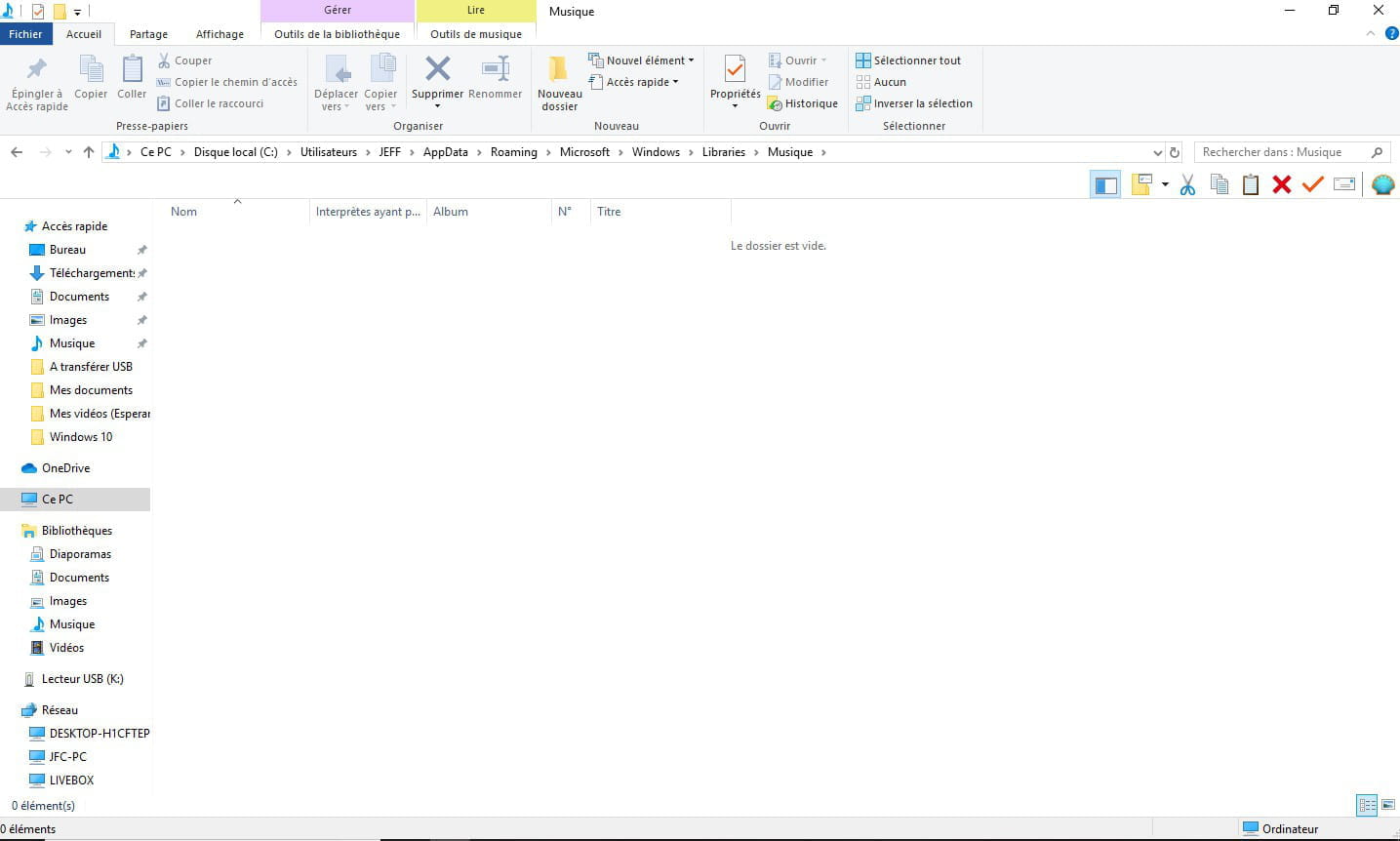
Photo 3
"Music" is missing in the library of libraries.
Show hidden folders and files
Then go to:
C:\Users or User\Your session or user name\AppData\Roaming\Microsoft\Windows\Libraries
Right-click on → Libraries (left pane).
Then click on the line → Restore default libraries
Check if "Music" is present.
Refresh the explorer or restart the PC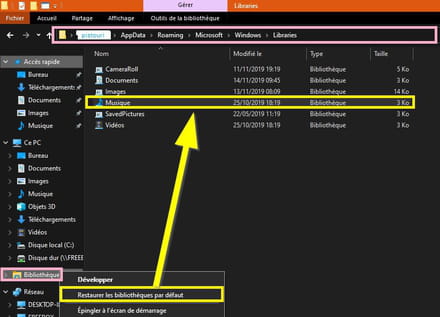
Info:
You can access it in an even simpler way.
Windows key + R then copy/paste → shell:Libraries
Then OK.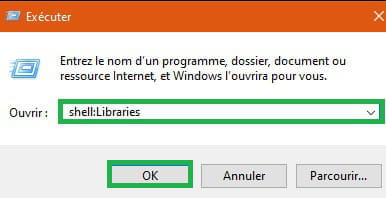
Photo 4
This PC
See and check if the .reg file displays it, step 1 (Photo 1).
In principle yes.
Photo 5
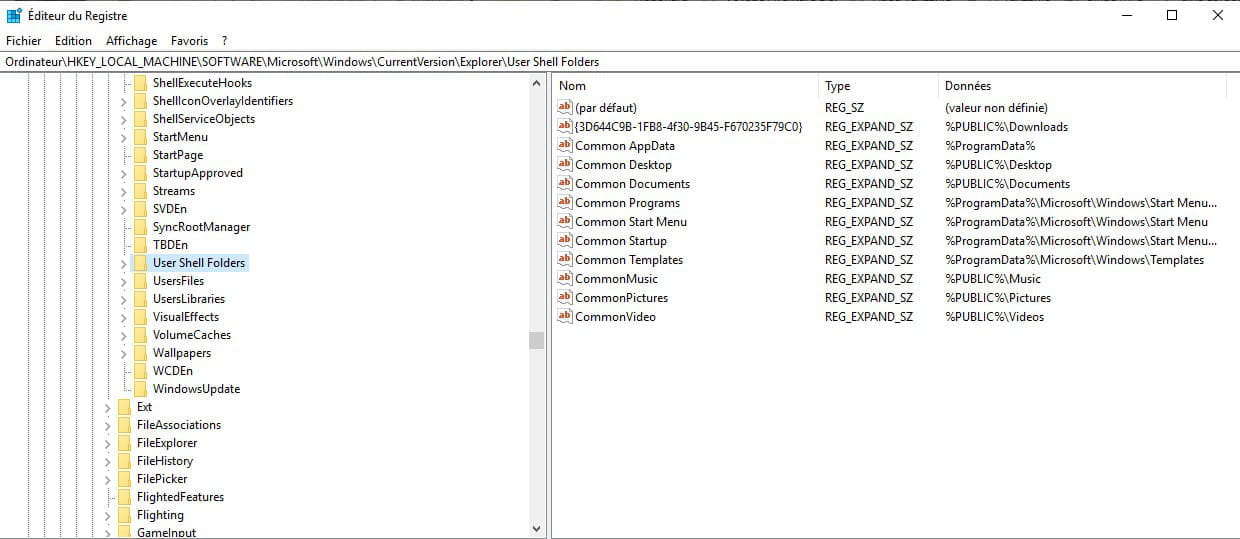
What a Zeus name!!, you didn’t take the right path.
Your path:
HKEY_LOCAL_MACHINE\SOFTWARE\Microsoft\Windows\CurrentVersion\Explorer\User Shell Folders
You shouldn't go into HKEY_LOCAL_MACHINE because you are in Public User
You should go into HKEY_CURRENT_USER
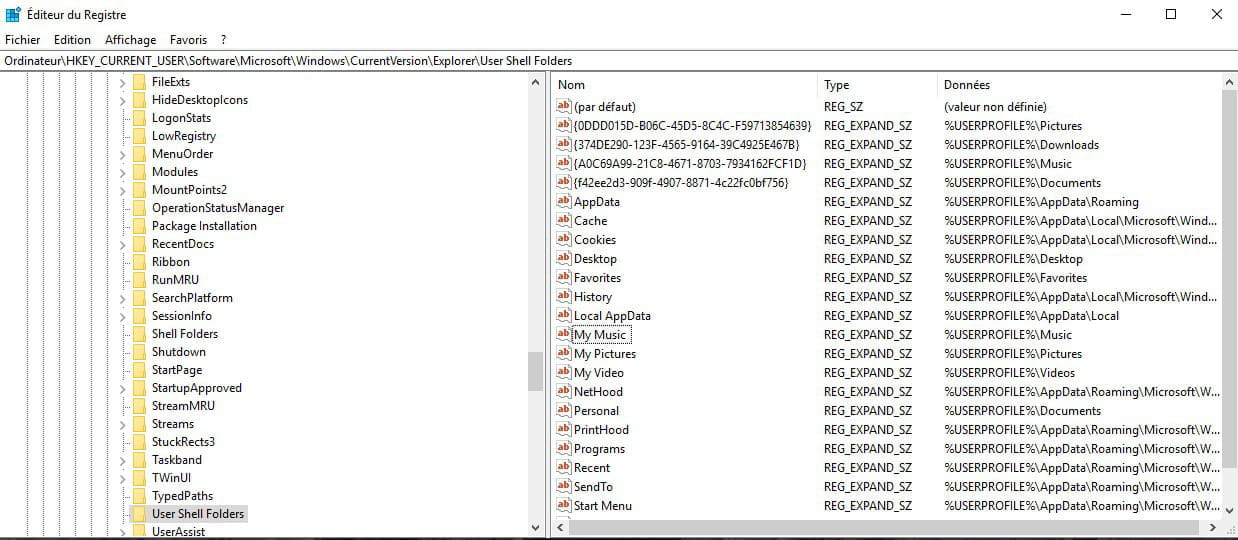
Delete the word Computer then Copy and paste into regedit
HKEY_CURRENT_USER\Software\Microsoft\Windows\CurrentVersion\Explorer\User Shell Folders
Then press enter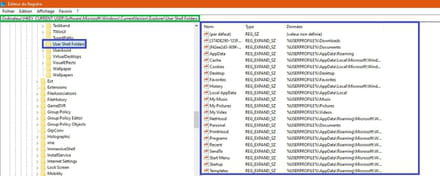
I think you should have the same thing as the image.
Otherwise check → My Music (In the right pane)
Double click on it.
Value data → %USERPROFILE%\Music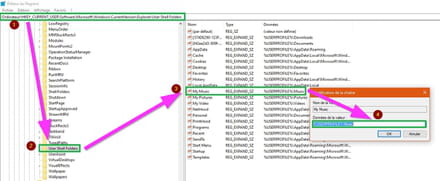
Close the registry.
Edit:
It’s Photo 3 that is important
"Music" is missing in the library of libraries.
Show hidden folders and files .....
In another case, we will reset the HKCU and HKLM registry
Save w10_usf_defaults_hkcu.zip
Save w10_usf_defaults_hklm.zip
These are archives
You can unzip them with the free version of WinRAR
Extract to → w10_usf_defaults_hkcu
Extract to → w10_usf_defaults_hklm
Open the new folder created
Then run the 2 .reg files
Or right-click and merge.
Restart the PC.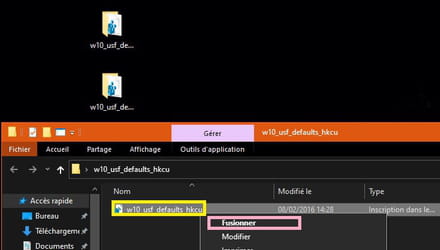
With Windows 10, you can double-click on the archive directly.
I hope you will manage.
Good luck.
--
scalpel -
pistouri Posted messages 19010 Registration date Status Contributor Last intervention Ambassador 8 732
For Photo 3, which is important:
''Music'' is missing from the libraries.
After thinking it over again (I eventually found a .reg file not in my toolbox) that will add ''Music'' to the libraries.
Save the .reg file → Add_Music_library.reg.
Run it.
Or right-click on the .reg file → Merge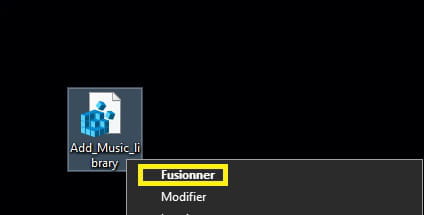
Restart the PC.(Very important)
Check if everything is back in order.
1- In the libraries.
2- On your Classic Shell Start button
See you later
--
scalpel -
pistouri Posted messages 19010 Registration date Status Contributor Last intervention Ambassador 8 732
Always for Photo 3 which is important:
you're missing "Music" in the libraries.
But you're also missing → "Saved Pictures"
The ideal is to restore all the default libraries at once.
Save / Download the .reg file → Restore_Default_Libraries.reg
Run it.
Or right-click on the .reg file → Merge
Restart the PC.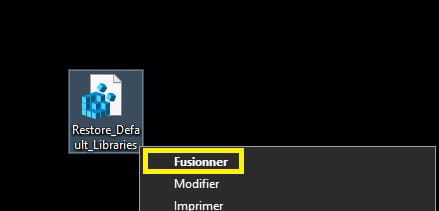
Verification:
Keyboard shortcut Windows + R then copy/paste → shell:Libraries
This gives: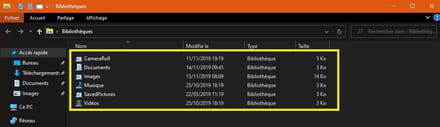
If you only want "Saved Pictures"
Save / Download the .reg file → Add_Saved_Pictures_library.reg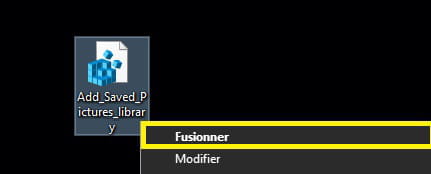
Then check if you see the folder "Music" in your "Classic Shell" Start button
A+
--
pistouri-
I have just completed everything mentioned above:
64-bit_Restore_Music_Folder_in_This_PC.reg
w10_usf_defaults_hkcu
w10_usf_defaults_hklm
Add_Music_library.reg
Restore_Default_Libraries.reg
but there hasn't been much change…
However, I have noticed a few anomalies, besides the fact that 'Music' still doesn’t appear in the 'Start' menu:
- In "This PC", I see "Network location (jfc (jfc-pc)" - Is it strange that jfc is still present, right?...
- In "Libraries", the content of "Music" still corresponds to folders from "Pictures"...
I am attaching the latest screenshots for a better visualization of the issue.
If you need more, feel free to ask…
See you later
-
-
pistouri Posted messages 19010 Registration date Status Contributor Last intervention Ambassador 8 732
You need to restart the PC when you re-enter the registry keys.
After that, it seems there is still a mess because I'm resetting all the libraries and the repositories to default.
It looks like it's stuck on your old User, and that's complicated → Strange that a jfc is still present, right? Ghost is back!!!
→ I'm attaching the latest screenshots taken for a better visualization of the problem.
You haven't posted anything, was it an oversight?
→ don't hesitate to ask me for them...
I'm willing, but I don't know where this is going to lead us.
Catch you later
-
pistouri Posted messages 19010 Registration date Status Contributor Last intervention Ambassador 8 732
Capture 1
Classic Shell Start Button
So the folder ''Music'' is still missing
Capture 2
You have your default libraries in the explorer in the right section or pane.
But also in Quick Access it's fine.
In This PC left pane, we see nothing
Expand the small arrow, take a screenshot.
Depending on what’s missing, I will give you the corresponding .reg files only for the left pane because as I said, it's fine in the explorer right pane.
This is your capture 4
Capture 3
In Library, the folder ''Music'' has come back, you didn't have it in message 11 in ''Library'' left pane.
Everything is fine.
Capture 4
You are in Library with hidden folders and files, and we can see that you have selected your Music folder.
Inside you have 2 folders
-Saved Images
- Camera Roll
This is where it’s not working well.
Try to delete these 2 folders because you already have your default libraries in capture 3.
I think it's a duplicate.
Just open them and check the content
Go back to Libraries (capture 3) and open the folder ''images'' and ''Music''
You should see the duplicate.
Capture 5
It’s good.
For capture 2
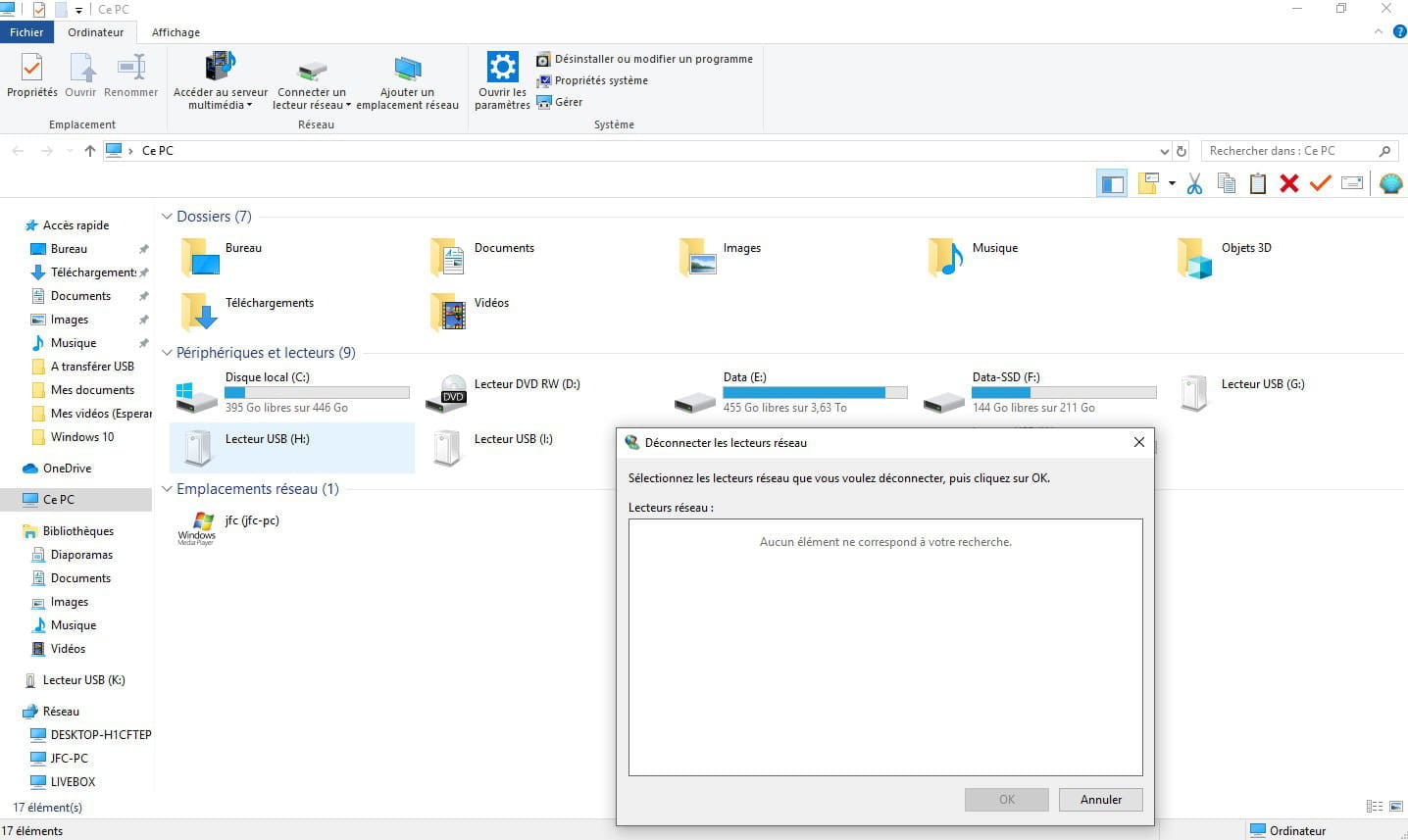
Network Location jfc (jfc-pc)
If it’s of no use to you (try to open it anyway, access denied message likely due to permissions)
You can delete it.
In fact, you don’t delete it, you just disconnect it
To do this, go to the explorer, go to ''Computer'' → Connect to a network drive → then the line disconnect a network drive.
jfc (jfc-pc) should display.
Click OK.
You needed to reinstall Classic Shell, it's possible that the ''Music'' folder will reappear because now you have it in the explorer and the library of libraries.
Try all this and leave a comment in your next message.
Don’t forget to post images if you want where you don’t understand.
I don’t know who is thinking the most among the three of us, sorry, the two of us (your friend or neighbor) :-)
See you later
--
pistouri-
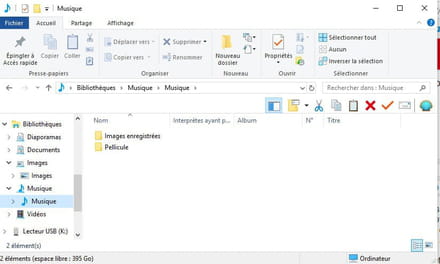
Capture 2: You have your default libraries in the explorer in the right pane.
But also in Quick Access, that’s good.
I do have "Pictures" and "Music" in the right pane, but the content of "Music" is: "Saved Pictures" and "Camera Roll".
Left pane:
Quick Access: the content of "Music" is "Saved Pictures" and "Camera Roll".
Libraries: "Pictures" opens to "Pictures" and opens to "Saved Pictures" and "Camera Roll" (OK)
"Music" opens to "Music" and opens to "Saved Pictures" and "Camera Roll" (not OK)
Is it normal that "Pictures" and "Music" expand respectively to "Pictures" and "Music" instead of opening directly to their content (redundancy?)
Capture 3
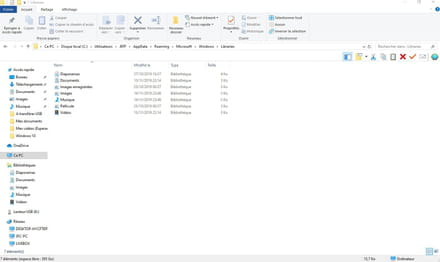
In Library, the "Music" folder has returned, you didn’t have it in message 11 in the "Library" left pane.
Everything is good.
I'm not sure everything is good because the 3 "Music" folders (1 in the right pane and 2 in the left pane (Quick Access and Libraries)) open to "Saved Pictures" and "Camera Roll".
Additionally, in the right pane, I see "Saved Pictures" and "Camera Roll" on their own: they are already found in "Pictures" (and "Music"). Is their presence outside of "Pictures" and "Music" normal?
Capture 4
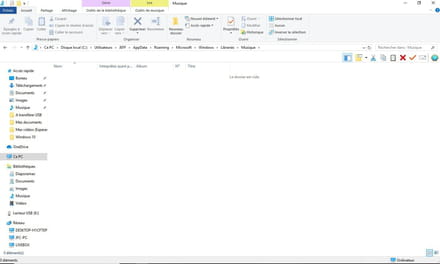
You are in Library with hidden folders and files and we can see that you have selected your Music folder.
Inside, you have 2 folders
-Saved Pictures
- Camera Roll
That’s where it goes wrong.
Try deleting these 2 folders because you already have your default libraries in capture 3.
I think it's a duplicate.
Just open them and check the content
Go back to Libraries (capture 3) and open the "Pictures" and "Music" folders
You should see the duplicate.<ital>
I have deleted the "Saved Pictures" and "Camera Roll" folders contained in "Music". "Music" now appears empty both in the right pane and in the two left panes. No sign of a duplicate. No sign of "Music" in the "Start" menu.
<ital>For capture 2
Network location jfc (jfc-pc)
If you don’t need it (try to open it, access denied probably due to permissions)
You can delete it.
Actually, you don’t delete it, you just disconnect it
To do that, go to the explorer, go to "Computer" → Connect a network drive → then the line disconnect a network drive.
jfc (jfc-pc) should appear.
Click OK.
I went to "Computer" → Connect a network drive → then the line disconnect a network drive: no trace of jfc (jfc-pc)…
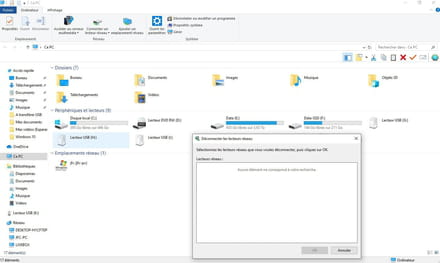
JFC-PC still appears in "Network". Why hasn’t it been replaced by "JEFF-PC during our (distant…) first interventions?) Is its replacement by JEFF-PC possible without repercussions on Internet/access?
Don’t worry about my thinking: I'm used to it and sometimes I even wonder if I'm a bit of a masochist... It's more for your sake that I'm a bit bothered because I can tell you are really trying hard to solve the problem... As for my friend-neighbor, he is not following all our exchanges (he's searching on his side), and I’ve asked him not to intervene while you are working on it. (Two can handle it, three, hello the damage!…)
By the way, how do I reinstall "Classic Shell"?
See you!
-
-
pistouri Posted messages 19010 Registration date Status Contributor Last intervention Ambassador 8 732
Hello,
Capture 2
Is it normal that "Images" and "Music" unfold respectively into "Images" and "Music" instead of opening directly to their content (redundancy?)
Yes (I have the same thing).
Except that your "Saved Images" and "Camera Roll" are not in the right place
Try right-clicking on these 2 folders and see if you can find the Location tab.
Or right-click then Open folder location.
Note the path.
Capture 3
I see "Saved Images" and "Camera Roll" all by themselves: they are already in "images" (and "Music"). Is their presence outside of "Images" and "Music" normal?
"Saved Images" and "Camera Roll" are fine in the library of the library.
The content if you open it is not in the right place, delete them as mentioned in Capture 2
Open "Saved Images" and "Camera Roll" and delete the content.
Capture 4
Nothing to report, you have deleted "Saved Images" and "Camera Roll".
For Network Location jfc (jfc-pc)
Check in the registry for this key
HKEY_USERS\.DEFAULT\Network
Expand → Network
You may see a drive letter or not in the subkeys.
Look in the right pane → RemotePath
Do not delete anything for now (take a screenshot if you want).
Or go back to the explorer.
Right-click on jfc (jfc-pc) → Disconnect
Or check this path
First, you need to display hidden folders and files.
Then go to This PC → Users\Your username\AppData\Roaming\Microsoft\Windows
Open the folder → Network Shortcuts
See if you can find it, delete it if necessary.
Source
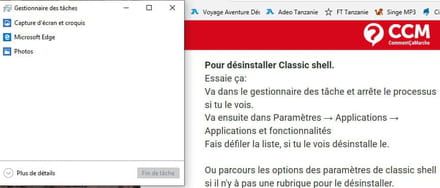
To uninstall Classic Shell.
Try this:
Go to the task manager and stop the process if you see it.
Then go to Settings → Apps → Apps & features
Scroll down the list, if you see it uninstall it.
Or browse the options in the Classic Shell settings if there is no section to uninstall it.
Or uninstall it with Revo
Restart the PC
Create a restore point beforehand.
Good luck.
-
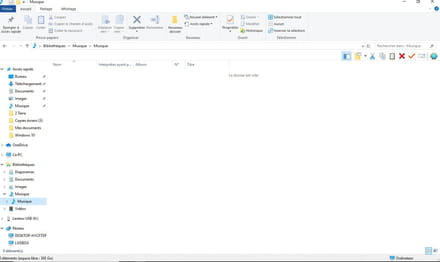
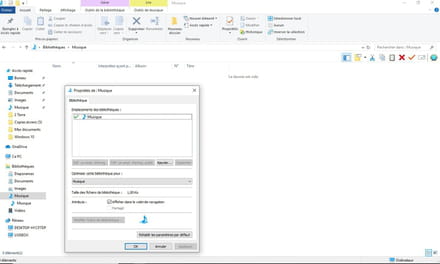
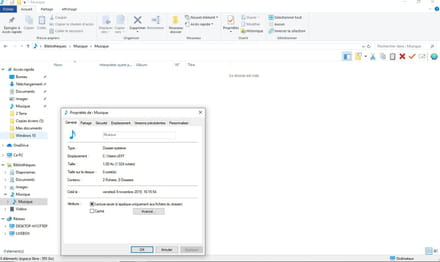
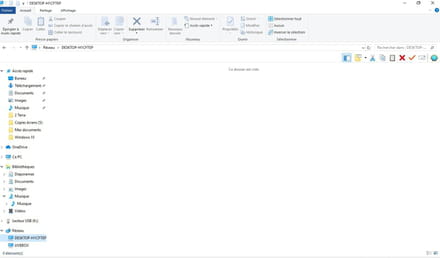
Well. Here is a whole series of screenshots (in the order of your message) highlighting the characteristics encountered of "Music" (still absent from the right pane of the "Start" menu) - captures 1, 2, 2a, 3, 3a, 3b), the characteristics of "Network" - captures 4, 5, 6) the "JFC" still present - captures 7 to 12) and Classic Shell not found in the task manager.
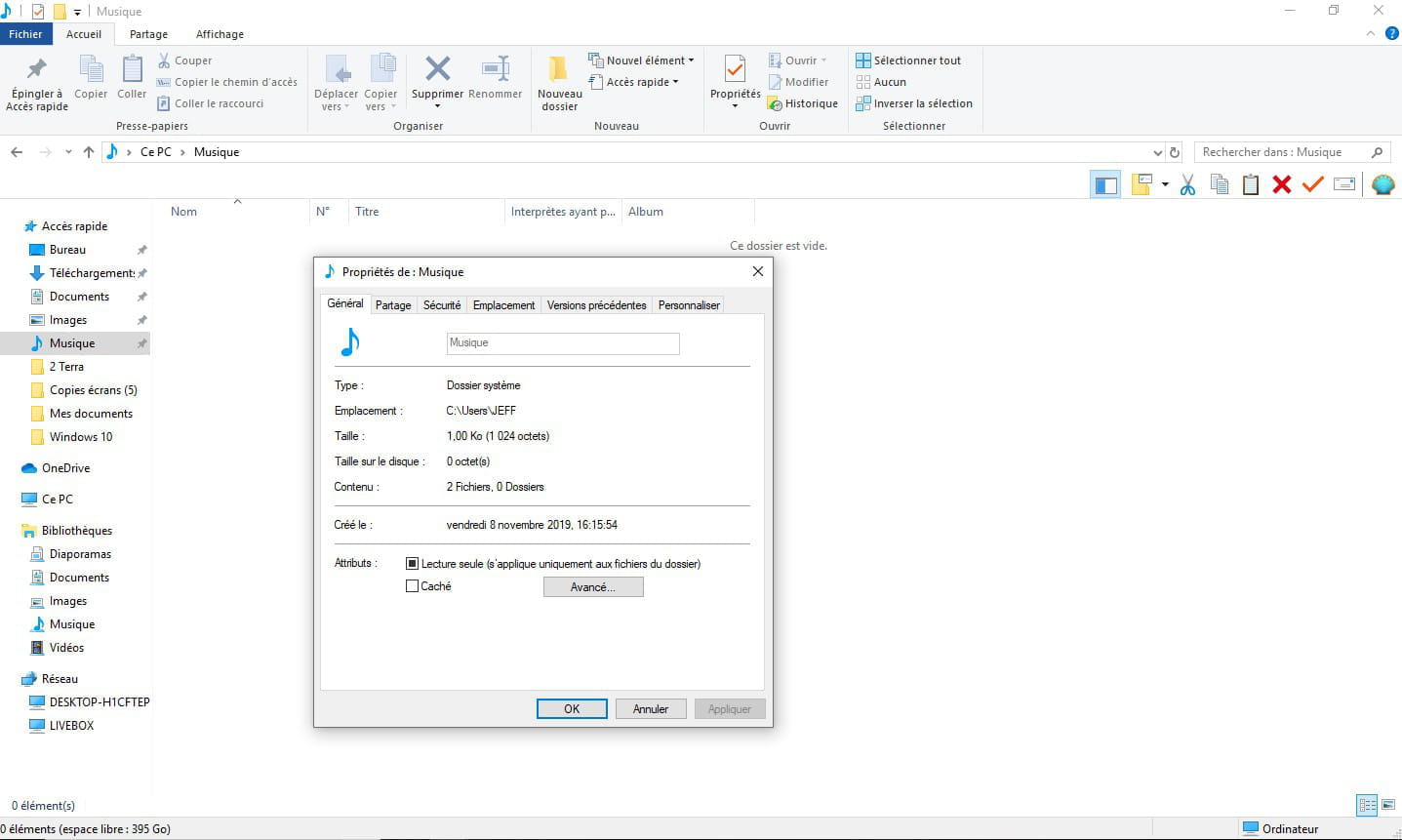
Note that all "Music" entries appear empty when I click on them, but the properties show 2 folders...
By the way, I wasn't talking about uninstalling "Classic Shell," but about finding a different appearance from the current blue background, while keeping the two columns.
Here are the screenshots:
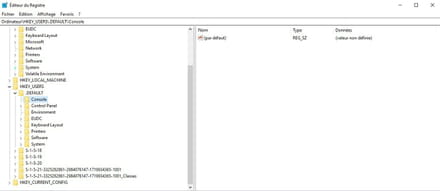
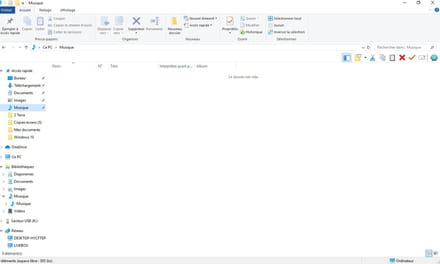
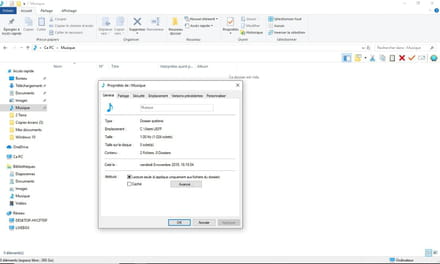
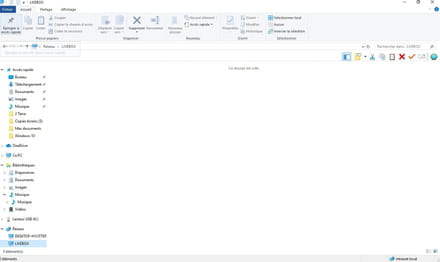
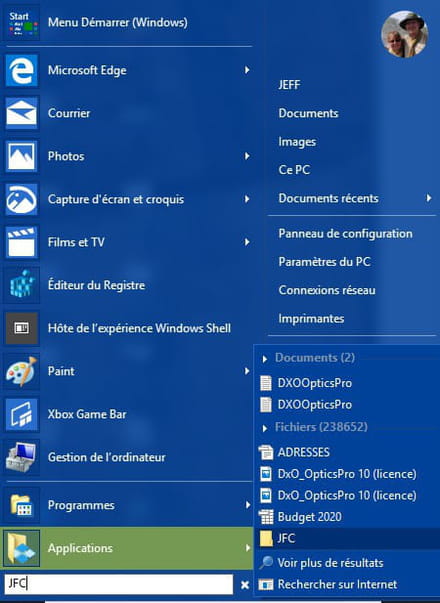
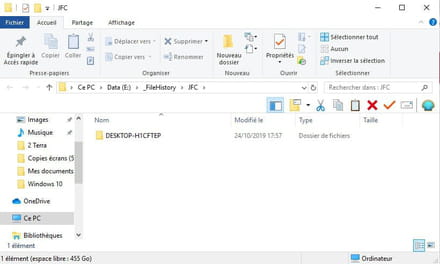

Good luck...
-
-
pistouri Posted messages 19010 Registration date Status Contributor Last intervention Ambassador 8 732
→Note that all the "Music" appear empty when I click on them, but the properties show 2 folders.
You need to perform a disk cleanup to delete temporary files.
→ the features of "Network" - captures 4, 5, 6) the "JFC" still present.
I don't have the solution since there are no drive letters, otherwise I would have suggested deleting it with the command prompt.
Capture 1
I didn't give you this path to follow in the registry → HKEY_USERS\.DEFAULT\Console
But this one → HKEY_USERS\.DEFAULT\Network
Capture 2
The library locations are correct and in the right place.
Capture 3
Like you, but in my downloads folder I have nothing since I download everything to the desktop and regardless of the browser, I have 1 file if I right-click then Properties.
Capture 4
Nothing to report.
Capture 5
Windows key + R and do a copy/paste → shell:Libraries
Library of libraries → Music
Open your Music folder.
Once inside, click on Manage (Library tools).
Then to the far left, click on Manage libraries.
A small window opens.
Check if the location is correct → C/User /..../Music
See if there are other lingering folders that you can delete if present.
Capture 6
Go to the location tab.
If the path is correct, it's → → C/User /../Music
It should be the case.
Capture 7
It's the name you gave to the computer, nothing unusual.
By the way, if you type ''info'' in the search bar, you'll find the same name under Computer.
Capture 8
It's your Orange box and it's normal that you see it, considered as a network.
Capture 9
It's your phone's wifi network and not the network location, only to connect.
Capture 10
It's JFC on your disk E
What we modified now is in C and not in E, hence you see JFC and not JEFF with captures 11,12,12 and 14.
Capture 15
OK no Classic Shell in the task manager.
I gave you the path to uninstall it → Settings → Apps → Apps & features
But you don't want to because you're stubborn → By the way, I wasn't talking about uninstalling "Classic Shell...to find another appearance
That's supposedly in the options of Classic Shell.
To avoid beating around the bush and to not reinstall Windows, I suggest creating a new user.
https://www.malekal.com/netplwiz-ajouter-un-utilisateur-windows-facilement/
Then check if everything is fine.
It should...
Then move your documents.
A+
--
pistouri-
I think we made it!... I have "Pictures" and "Music" back in the "Start" menu. They both point to (c:) Users/JEFF…
There are just two small details left
(Network and JFC) that should - in my opinion - be resolved quite easily…
1- First "JFC" (see following captures)
When I type JFC in the search box of the "Start" menu, it points to a JFC folder located on drive (E). Can I completely delete "_FileHistory" without any harm?
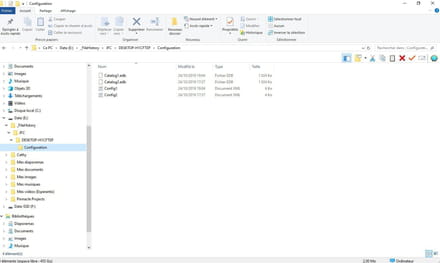
2- Network
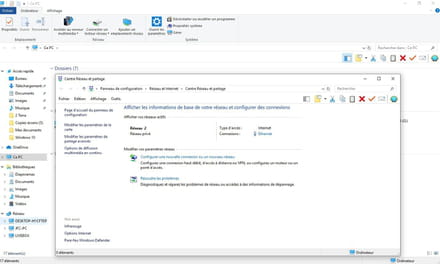
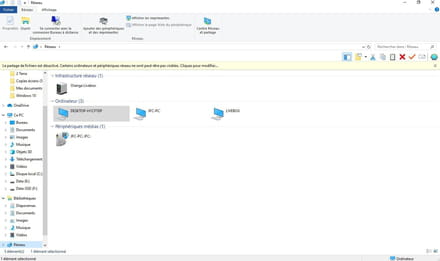
At the bottom of the left column, we see Network pointing to JFC-PC, so under (E).
In the main window, we see a network 2, which must be the one currently active. Can we delete the "JFC" network (presumably number 1) so that network 2 takes its place? (see JFC network status in the following captures):
Finally, (for your information) regarding Classic Shell, I ended up uninstalling it to see what Windows 10 would offer instead. But I really do not like the Start menu interface of Windows 10. I tried to see if Windows 10 offered other presentations, but did not find any. So… I reinstalled Classic Shell!
There you go, pistouri, I think we finally have a breakthrough… And if it can avoid creating a new user account, that would be great... (by the way, once a new user account is created, can we easily delete the previous one?
See you!
-
-
pistouri Posted messages 19010 Registration date Status Contributor Last intervention Ambassador 8 732
Hello,
(Network and JFC) which should - in my opinion - be fairly easily resolved…
Not so sure about celebrating victory too soon, it’s not going to be simple.
We’ll try to resolve this.
1- First “JFC”
Disk (E) → FileHistory
Can I completely delete “_FileHistory” without any damage?
FileHistory seems to be a backup.
Try right-clicking on the yellow folder of “JFC” and deleting it.
Restart the PC
Check FileHistory
In the search bar on the taskbar or press Windows + R type or copy/paste → FileHistory
Click on the gear icon in the top right: “Options”
Then “File History settings”.
Then → advanced settings
And “Clean up versions” choose “older than a year”
It’s better to disable the file history backup first.
The tutorial
You can access it on this page
Click on → Open link
More options → Your advanced settings
Or again
Press the Windows + R keys and copy/paste → control /name Microsoft.FileHistory
Then OK.
How does Windows 10 file history work?
The tutorial
→ You will also be able to remove a folder if you feel its backup is unnecessary. Just click on it, then click on “Delete”:
2- Network
Media devices → JFC-PC:JFC:
How to view and remove devices in Windows 10
The info
View available devices in Windows 10
Settings → Devices
Check the list to see if you see JFC-PC:JFC or JFC-PC
Check the section → Other devices
Delete it.
Take a screenshot → HKEY_USERS\.DEFAULT\Network
Right column visible.
Or again
Open WMP.
Library: dropdown menu.
Remove all shared computers.
Uncheck share media files.
Confirm.
Normally on the PC running Windows, the media device will have disappeared.
Another solution is to type in Regedit and delete all keys but it's tedious.
Can we therefore delete the network “JFC” (presumably number 1) so that network 2 takes its place?
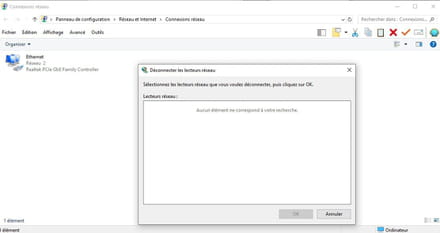
Go to Settings → Network and Internet
At the bottom click on the line → Network and Sharing Center
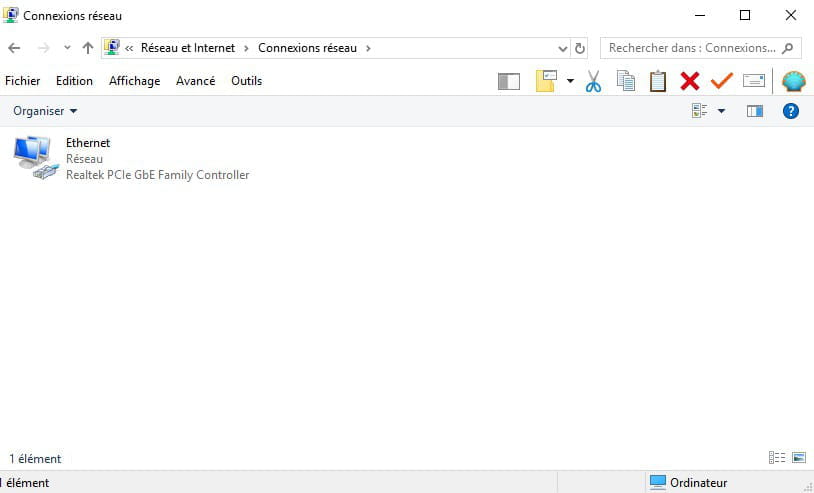
Click on the line → Change adapter settings
Click on → Organize → Layout
Check → Menu bar
In Tools you can disconnect a network drive
Take a screenshot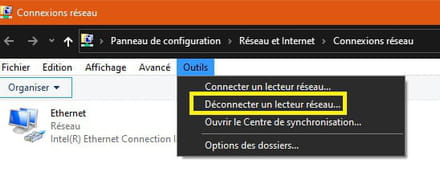
A+
--
pistouri -
pistouri Posted messages 19010 Registration date Status Contributor Last intervention Ambassador 8 732
Additional Information.
For → 2- Network
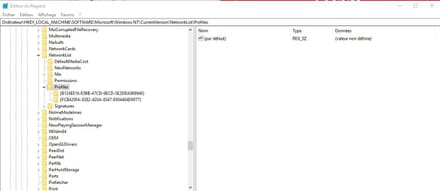
1- In the Windows registry, you can list your network profiles at this key:
HKEY_LOCAL_MACHINE\SOFTWARE\Microsoft\Windows NT\CurrentVersion\NetworkList\Profiles
You will find one or more subkeys in the form of
{8D8197D5-8BD7-4D9F-B259-0B65B28B000A}
In the right pane, check if you see several → ProfileName (REG_SZ)
You will recognize the correct current name of your PC → DESKOP-H1CFTEP
It is possible to see others; take a screenshot if needed.
2- Your question:
Can we therefore delete the network "JFC" (presumably number 1) so that network 2 takes its place?
That is to say delete:
- JFC-PC
- JFC-PC:JFC (this one is a multimedia device)
In the image (which I took back to better understand)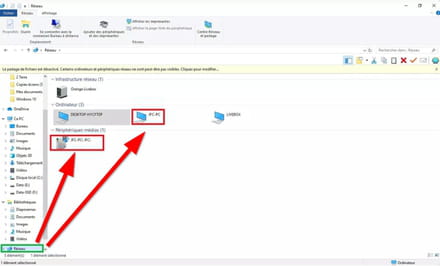
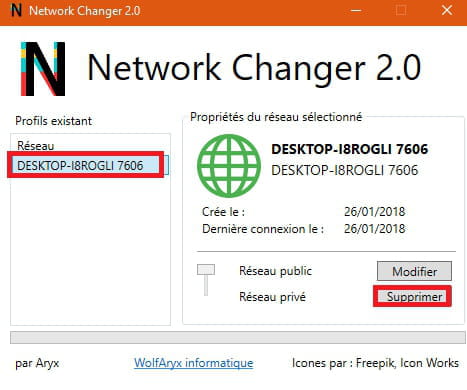
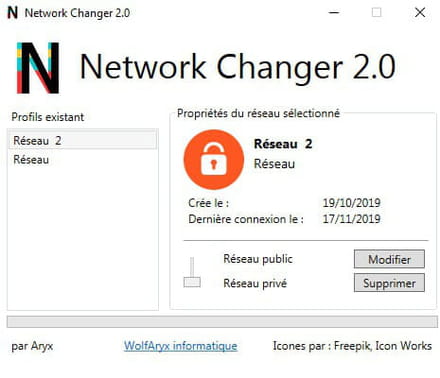
Download Network Changer
It is the Network Changer 2.0 version compatible with W10.
It is an archive.
Unzip it with the free version of Winrar or 7-Zip
Or double click on the archive.
Right-click on NetworkChanger2 → Run as Administrator (otherwise it won't open).
Take a screenshot if needed.
Make sure to see if there are other networks.
It is possible to delete them instead of going into the registry to do it manually.
Select the network and then on the right → Delete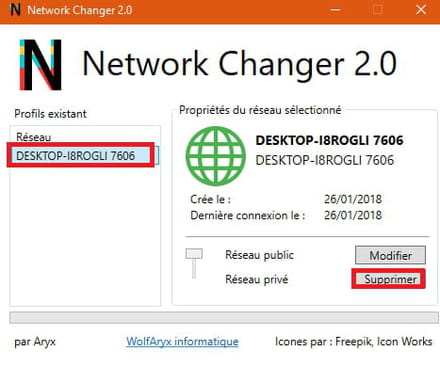
This is what Network Changer 2.0 can do with W10
The application started as an administrator presents a main window.
On the left side of the window are the networks registered by Windows. For each network, it is possible to modify its name and description as well as its category (private or public network). To do this, simply select a network from the list, then click on the “Edit” button; it is also possible to double-click on the network to modify it. Another window opens. In this window, you just need to make the desired changes. Finally, you must validate these changes by clicking the “Apply” button.
The category of the network can be changed directly from the main window by sliding the slider to the desired category. The category of the selected network is represented by an image: an orange padlock for a private network and a green globe for a public network.
Finally, it is possible to delete the selected network by clicking the “Delete” button.

Comment:
''Since the release of Windows 10, I have been looking for a way to regain the easily accessible option under Windows 7, and aside from going through the registry, I did not see how to do it.''
Oops, I didn't answer your question:
→ by the way, once a new User account is created, can the previous one be easily deleted?
Yes, you just need to use the keyboard keys Windows + L to switch between User accounts and do copy/paste.
Or save everything to an external drive (Documents, photos, videos, music..)
As for your programs, you will have to reinstall them.
Another thing, save your favorites or bookmarks from your browsers.
We're not there yet, and if it comes to that, I will provide a tip to back up all your browsers
in 3 clicks and 30 seconds.
A sneak peek
As a little story, I used it to help on this post where I had stripped down Firefox (Repair Firefox) and in the process restored everything and lost nothing.
First of all, create a restore point.
You should be close to the finish line after that.
Chinese Quote
''See this lamb being led to the slaughter: with each step, it draws closer to its end''
Good luck to you.
-
But it seems that everything would be just fine!!!...
Here are screenshots of what I did with the results obtained:
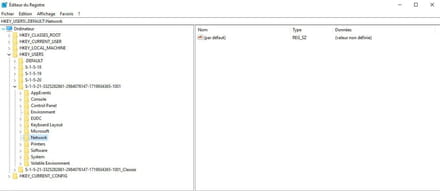
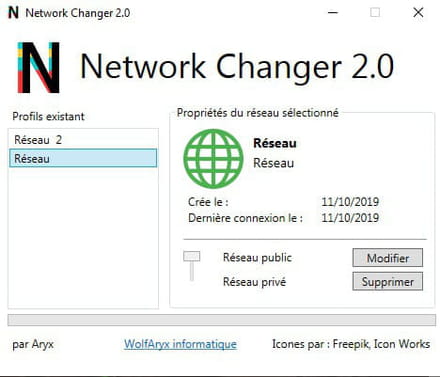
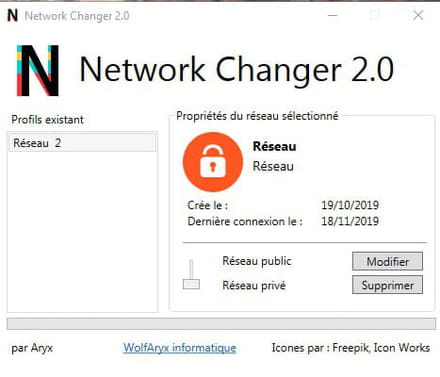
Is it normal that, in the left column, 'Network 2' did not apply the requested modification (OK in the right column) even though I removed 'Network' from the list?
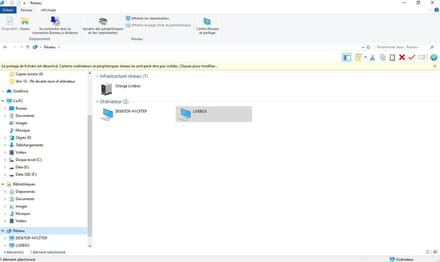
Unless you have any reservations, comments, or wish to do any final checks, I consider the problem resolved (I just need to remember how to indicate that in my request...)
Thank you very much, pistouri, for your precious help, your persistence in your research, your infinite patience, and your reassuring support in the intricacies of Windows 10 over the past two long weeks we've spent together...
Thanks again +++ -
Hello,
''Is it normal that, in the left column 'Network 2' did not apply the requested change (OK in the right column) even though I deleted 'Network' from the list ? ''
1- Relaunch Network Changer 2.0
Select left → Network 2
Click on the right → Edit
Remove the number 2
Restart the PC to consider the changes.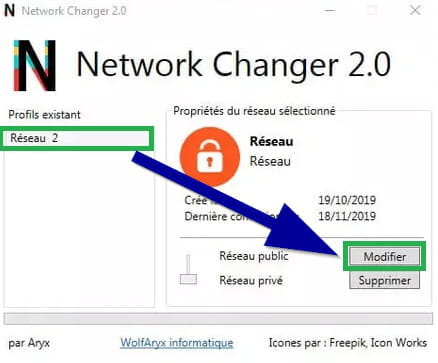
2- Library in the explorer left column.
Go to the explorer.
Open This PC.
Tab → View
Click on → Navigation pane
Uncheck → Show libraries.
Keep → Navigation pane
This is enough to avoid getting lost in the explorer, unless you want it.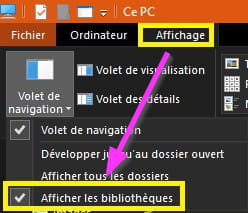
3- Check all your visible networks.
A) With Settings:
Go to Settings → Devices
On the right click on the line → Devices and printers
B) With Classic Shell you can add the God mode to access it.
Or create it on the Desktop in 2 clicks.
The tutorial CCM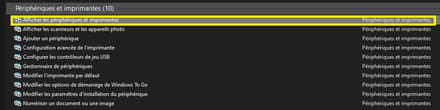
C) At the same time look for ''Network''.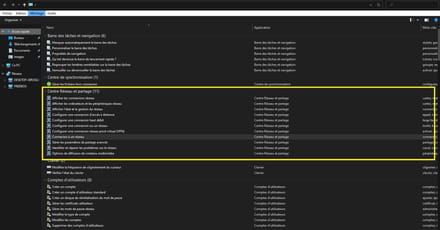
4- Enable network sharing
---- Manage advanced sharing settings
Select → Private (current profile)
Enable and select the boxes:
- Turn on network discovery.
- Turn on file and printer sharing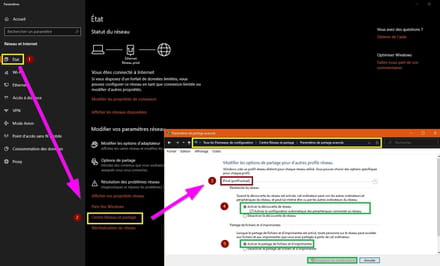
Another way to access:
Settings → Network and Internet
The line → Status
Click at the bottom of the page on → Network and Sharing Center
In the new window click on the line → Change advanced sharing settings
5- Classic Shell Start button.
Get started with the video.
- Classic shell part 1
- Classic shell part 2
Or this tutorial.
6- Close or mark your topic as resolved here.
A+... -
Thank you for God More and also for the very interesting tutorials on Classic Shell.
Notably, since the last changes, the computer starts up faster…
I just went through your latest suggestions point by point. Here are the results:

Strange, this jfc(jfc-pc) that keeps appearing while everything seems to have been renamed to JEFF, right?
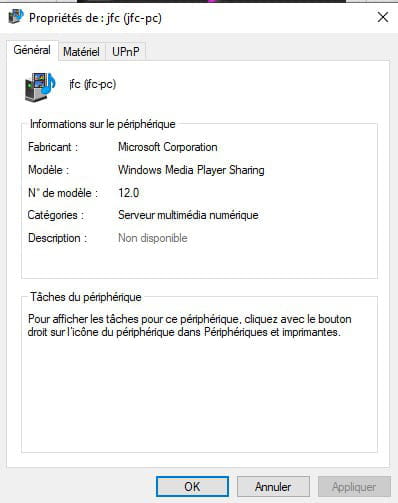
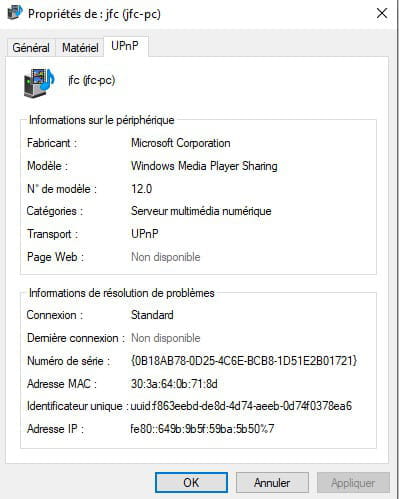
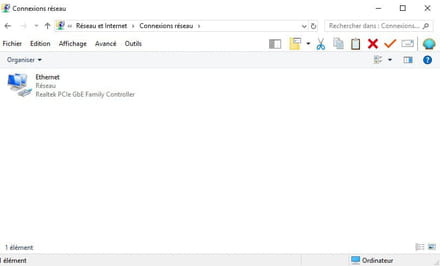
So, pistouri… Other than the jfc(jfc-pc) that continues living its life in a corner of the computer, everything is OK for me.
If we can do something to transform jfc(jfc-pc) into jeff(jeff-pc), that would be great.
It would look cleaner (either all in JEFF or all in JFC) and would save me from wondering about the name of my PC if someone asks me one day (JFC or JEFF). But, if that's not possible, it's not a big deal! -
Hello,
1- First, you need to locate it and then try to rename it.
Otherwise, we will delete it.
As you can see from your screenshot, it's Windows Media Player.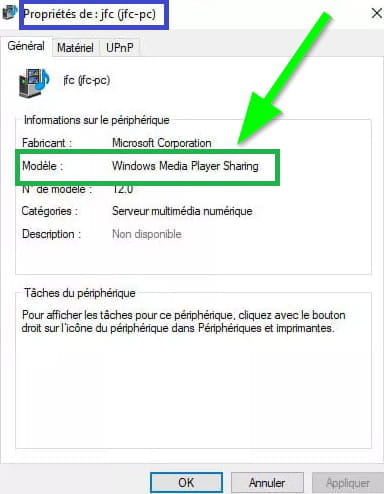
To make it disappear:
Open Windows Media Player.
If you can't find it, type it in the search bar on the taskbar.
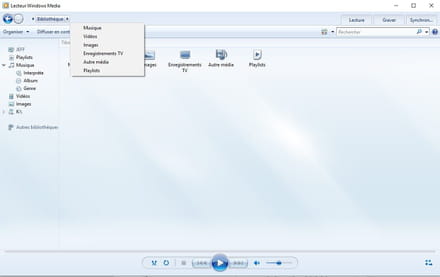
Go to Library: dropdown menu.
Remove all sharing computers.
Uncheck → share media files.
Confirm.
Normally, on a PC running Windows, the media device should have disappeared.
Check this at the same time:
In summary:
Click on the Library tab and uncheck the “media sharing” box.
Click on “Stream”, and uncheck the option “Allow devices to play media automatically”, as well as see for example “More streaming options”.
You can see this: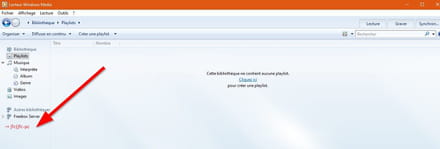
2- Locate the multimedia network jfc (jfc-pc).
I had given you the registry keys to check but it was chaos.
Let's go over this:
Option 1
Open the registry with regedit.
Delete the word Computer and copy/paste:
HKEY_LOCAL_MACHINE\SYSTEM\CurrentControlSet\Control\Network
Then hit Enter.
Or go there manually.
See if you can spot the network jfc (jfc-pc).
There are many subkeys, no need to post screenshots.
The tutorial with images.
Option 2
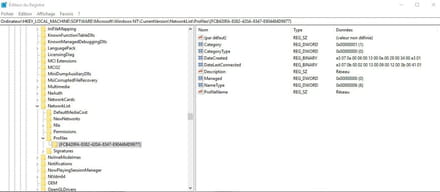
HKEY_LOCAL_MACHINE\SOFTWARE\Microsoft\Windows NT\CurrentVersion\NetworkList\Profiles
The 2 subkeys to check.
In the right pane, note the name;
-Description
-ProfileName
Option 3
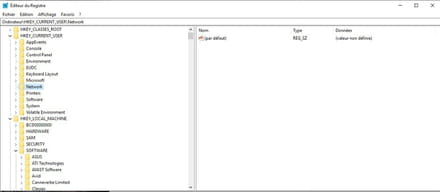
HKEY_CURRENT_USER\Network
Look at what you see below, and not in the right pane.
From there, you have subkeys that correspond to the letters of the network drives you have.
Example HKEY_CURRENT_USER\Network\X (for a drive X:)
Option 4
Launch a command prompt
In the search bar on the taskbar type → cmd
Right-click on cmd → Run as administrator.
It also works without running it as an Administrator.
Copy/paste or type → net use
Note if you see → jfc (jfc-pc)
I don't know if it will display it since there's no network drive letter.
Option 5
Go back to settings → Devices
Show a list of your devices
Good luck. -
1- Could not find "share media files" (or the following) in Windows Media Player.
2- Option 1: I opened ALL the folders and subfolders of HKEY_LOCAL_MACHINE\SYSTEM\CurrentControlSet\Control\Network. No trace of network jfc(jfc-PC)
2- Option 2: HKEY_LOCAL_MACHINE\SOFTWARE\Microsoft\Windows NT\CurrentVersion\NetworkList\Profiles. Only one subkey.
2- Option 3: No trace of subkeys that correspond to the letters of the network drives I have.
2- Option 4: The list is empty

2- Option 5: JFC-PC-JFC device found. Should I delete it? I have the option to do so... If yes, will it not delete Windows Media Player?
-