Windows installation cannot continue
Solved
Piloudie
-
Malekal_morte- Posted messages 178136 Registration date Status Moderator, Security Contributor Last intervention -
Malekal_morte- Posted messages 178136 Registration date Status Moderator, Security Contributor Last intervention -
Hello,
I wanted to reset my computer to start from scratch (while it was resetting, like an idiot I pressed the switch to turn on the light forgetting that this switch was connected to the outlet, which turned off the computer during the reset) I have a message: the computer has unexpectedly restarted or encountered an unexpected error. The installation of Windows cannot continue. To install Windows, click OK to restart the computer, then restart the installation. Which I do, but this message keeps coming back endlessly. I don't know much about it and it's really tough.
Thank you for your help.
asus v222uak-wa125t
Configuration: Android / Chrome 77.0.3865.116
I wanted to reset my computer to start from scratch (while it was resetting, like an idiot I pressed the switch to turn on the light forgetting that this switch was connected to the outlet, which turned off the computer during the reset) I have a message: the computer has unexpectedly restarted or encountered an unexpected error. The installation of Windows cannot continue. To install Windows, click OK to restart the computer, then restart the installation. Which I do, but this message keeps coming back endlessly. I don't know much about it and it's really tough.
Thank you for your help.
asus v222uak-wa125t
Configuration: Android / Chrome 77.0.3865.116
1 answer
-
Hello,
Restart the reset and if it doesn’t work then Reinstall Windows 10 without formatting:
The idea is to create a Windows 10 installation USB drive and boot the computer from it to reinstall Windows without formatting in order to keep the data.
Since the computer is frozen, you need to create this from another functional computer.
To create the USB drive:
You need a USB drive of at least 8 GB.- Create a USB drive with Media Creation Tool: Download and create a Windows 10 USB drive with Media Creation Tool
- Boot from it by changing the boot sequence and selecting the USB drive or DVD: How to boot the computer from USB drive
If the USB drive doesn’t work, try to create a new one with Rufus: how to download Rufus.
Download the ISO file, for example with Adguard: Download Windows ISO
Launch Rufus and then specify the path to the ISO file
In partition type, choose GPT.
For more details, refer to this tutorial for details: how to create a Windows installation USB drive
The Windows 10 installer should then start:
Follow this tutorial that explains how to install Windows 10: how to install Windows 10.
All the steps are provided from A to Z with tips at the end to secure Windows 10.- Let yourself be guided to install Windows 10.
- Choose customize (not upgrade)
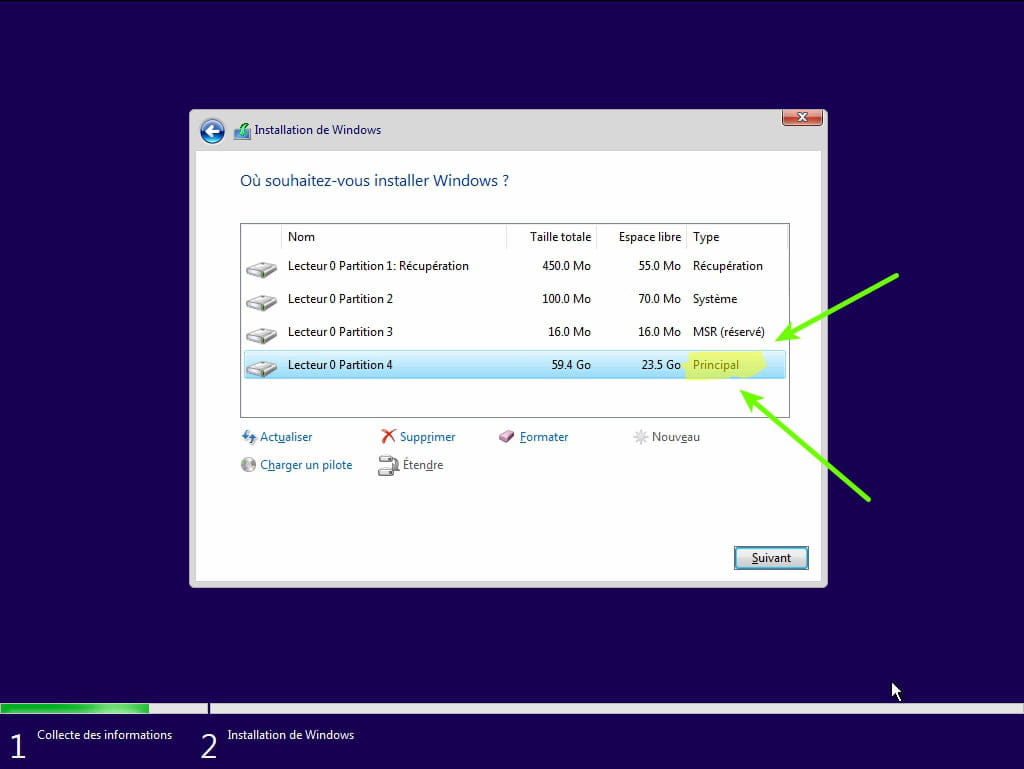
- During the partition phase, select the main partition and click next.
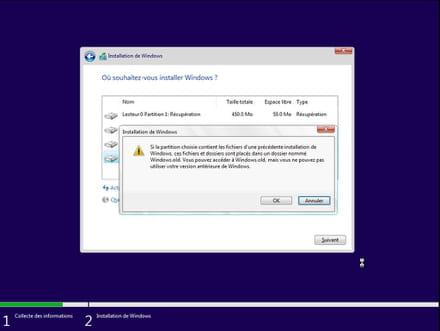
- The installer will tell you that Windows is already present and suggest moving it.
- Follow the Windows installation procedure using the tutorial above.
Just don't format.
Your user data will be copied in the Windows.old folder.
Once Windows is installed, I recommend following these tips to properly configure and use Windows: Tips after reinstalling Windows.
--
Please press any key to continue the disinfection...-
-
If you have formatted the data, it is lost.
So reinstall Windows 10 as indicated.
As soon as it is installed:
Try to recover the data using Photorec.- Download Photorec
- Run it and go to the filters to recover the necessary file types (only images, Word/Excel docs, etc.). Do this carefully, otherwise it will recover a lot of unnecessary files.
- Select the disk and start the recovery.
More help: Photorec Tutorial: Recover deleted and erased files