Hyperlink color in my signature
sandrine
-
Anonymous user -
Anonymous user -
Hello,
I added a hyperlink in the color of my website to my email signature, but when I write my message, it appears purple on my end, while the recipient sees it as blue.
What can I do to make the hyperlink color stay purple (I don't care if it changes color after the person clicks on it)?
I also add that this link is in my automatic email signature.
Thank you in advance.
Configuration: Macintosh / Safari 13.0.1
I added a hyperlink in the color of my website to my email signature, but when I write my message, it appears purple on my end, while the recipient sees it as blue.
What can I do to make the hyperlink color stay purple (I don't care if it changes color after the person clicks on it)?
I also add that this link is in my automatic email signature.
Thank you in advance.
Configuration: Macintosh / Safari 13.0.1
6 answers
-
Good evening,
It's doable when writing a message, but with a trick: inserting a link into plain text.
For example, instead of putting the link as "https://www.commentcamarche.net/forum/macos-14" in the message, I write "Go to the CCM Mac OS site", then I select that text, and through a right click, I ask to insert a hyperlink... in the following window I paste the link - example:


Then, I select the text to apply the desired color...
To go further, (signature), I experimented with this:
https://forums.commentcamarche.net/forum/affich-33123866-copier-coller-en-forme-sous-word#4 -
The most common style for hyperlinks displays blue for links that have not yet been visited and purple for links that have already been visited. It is not surprising that your correspondents see the link in blue... as long as they haven't clicked on it.
To apply a specific style in the recipient's browser or email software, I fear it might be complicated. I'm not a big specialist in HTML coding, but I think it must go through style sheets, which I am not sure are recognized and taken into account by email software.
It's quite easy to do with Outlook and Word (which is Outlook's complex HTML editor), since you can easily modify styles in Word. You assign the desired colors (and/or fonts, etc.) to the "Hyperlink" and "Visited Hyperlink" styles, and that's (almost) done:
After that, knowing whether the email software will correctly interpret the style is another story. For your information, when you paste from Word into Mail, for example, the specific style is not preserved, and it automatically reverts to "standard blue." And we're still just at the message preparation stage before sending...
Then, you have another solution, which is to put your link in the form of an image (e.g., a screenshot of the hyperlink to your site) to which you assign the hyperlink: your image becomes "clickable" and obviously has the color (and shape) you want.
NB: I hadn't seen *_Francis_*'s response above. Between the two, it will give you some avenues to explore... ;-)
--
Hello to you!
Bernard -
Hello,
Thank you very much for your answers. I tried the clickable image with the hyperlink. I'm creating everything in Word, but when I paste it into the signature, the hyperlink does not stick with the image. I also don't have the option to redo it in the signature creation on the image...
Help....-
-
I am on version 12.4 of Mail on macOS Mojave.
I create the image in Word version 16.29.1 for Mac, and the image with the link works, but when I copy it into Preferences (from my emails) then Signatures, the link no longer works.
I can also directly insert a link in a signature, but it appears in the wrong color for the recipient, and it's not possible to put the link directly on the image once it has already been pasted into the signature.- I don't use Mail and I'm not very familiar with it. Above all, I don't know how to insert a "clickable" image in a signature. But I'm not too surprised that it doesn't work from Word, as I mentioned earlier. That said, by selecting the image and pressing the Command K combination, we should be able to insert the hyperlink, right?
Regarding the color of the link with your correspondents, I stick to the explanation given earlier: as long as they haven't used the link, it is certainly in the "standard" color of hyperlinks, which is blue.
-
-
Hello,
have you tried using the link that I already mentioned above?
https://forums.commentcamarche.net/forum/affich-33123866-copier-coller-en-forme-sous-word#4 -
Hello,
I just tested another method. Very simple to implement.
I create a signature in any application, using Pages for example, just to have a font + color + size that suit me, and with any text.
I take a screenshot of this signature - I tested in jpeg format, it didn't work in .png format.
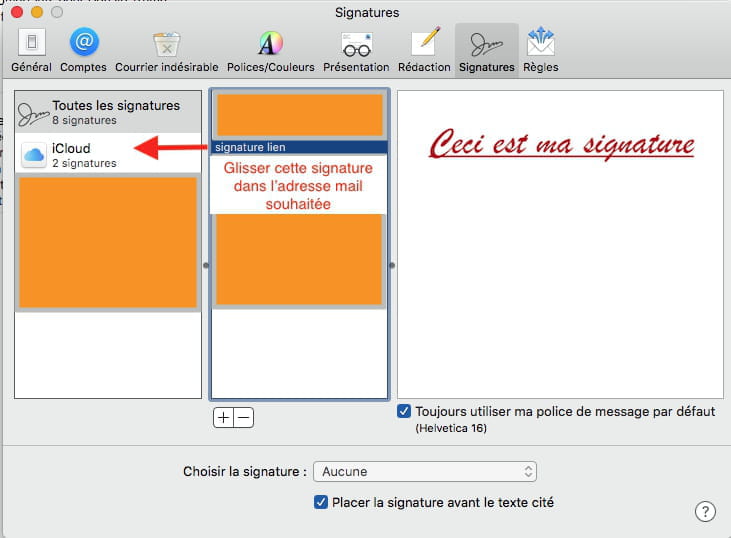
In the Mail preferences / Signature...
- I create a new signature,
- I drag the image into the designated area,
- then I use the key combination cmd K,
- in the following window, I paste the desired URL link.
- I assigned this signature to one of my email addresses,
- and sent myself a message to one of my other addresses... it works perfectly.
I get my text in the desired font and color, in the form of an image, the link is included in the image and clicking on it opens the page in my browser.
Best regards. -
Hello,
Thank you all for your replies.
I'm almost there. I managed to create a clickable image but in JPEG format indeed.
However, I have to copy and paste my email signature every time since I don’t have the "save as template" tab in the mail.....????-
In this last method, there is no need to create an email template; it is enough for the signature to be assigned to the email account that is supposed to use it, within the Mail Preferences / signatures... it will then be available from the message composition window when sending from this address.
Example:


-
-
-
Good evening,
but the clickable image is saved in a blank email
???
As I explained earlier, you need to create a simple jpeg image at the start, using an application like Pages, Preview, or another. This image can be anything, including text converted into a jpeg image. At this stage, this image is not clickable and can be located anywhere, on the desktop for example... but not in an email. For instance, drag your image to the desktop if you have it in an email; it won't be clickable at this stage.
Once this image is created and available anywhere on the Mac, for example on the desktop, we go to Mail, then to Mail / Preferences / Signatures...
There we ask to create a new signature, giving it any name.
In the signature destination area, we drag and drop the jpeg image taken from the desktop or elsewhere, but not from an email. Once the image is in the designated area, we press the cmd K keys; then in the window that appears, we paste the desired hyperlink.
At this moment, the signature is created. All that’s left is to assign this signature to the email accounts that will use it.
-