
Read the ".cda" file in Windows 10
anonymechris
Posted messages
1
Status
Member
-
cannelle -
cannelle -
Hello,
I discovered on some new CDs I purchased that the titles are in ".cda". Windows 10 won't read my CD in Windows Media like mp3-format or wma. My portable CD player can't read them either. How can I access these ".cda" music files? Christine, 64 years old. My computer is new: essential from Boulanger, and I am on Windows 10 with Wi-Fi.
Configuration: Windows / Chrome 64.0.3282.186
I discovered on some new CDs I purchased that the titles are in ".cda". Windows 10 won't read my CD in Windows Media like mp3-format or wma. My portable CD player can't read them either. How can I access these ".cda" music files? Christine, 64 years old. My computer is new: essential from Boulanger, and I am on Windows 10 with Wi-Fi.
Configuration: Windows / Chrome 64.0.3282.186
2 answers
-
pistouri Posted messages 19010 Registration date Status Contributor Last intervention Ambassador 8 732
Hello,
The VLC Media Player can play the .cda format.
VLC → HERE
Then proceed to the installation.
You then need to set it as the default.
With Windows 10:
Right-click on the Start button → Settings (or keyboard keys Windows + i)
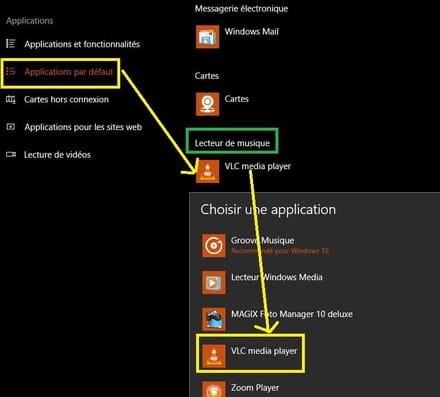
Go to → Apps
The line → Default apps
Music player → Select VLC
This is not yet finished:
You need to check that the default file type .cda is indeed set to open with VLC.
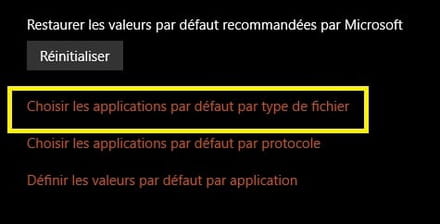
Still on the Default apps page,
Scroll to the bottom of the page
Click on the line → Choose default apps by file type
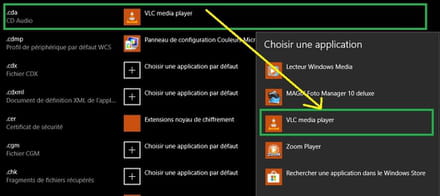
Scroll down to the letter C
Select → .cda (CD AUDIO)
Select VLC if it's not already done.
Not quite finished:
You now need to modify the autorun settings so that your Audio CD automatically plays with VLC when you insert it into your CD/DVD drive.
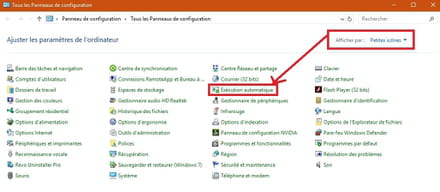
In the Cortana search box, type or copy/paste → control panel
Select → View by: Small icons (at the top right of the window)
Click on → Autoplay
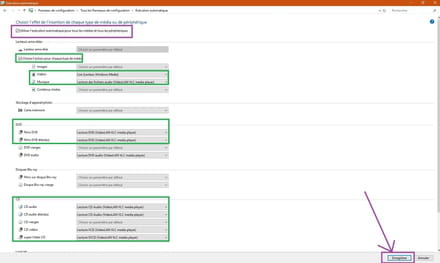
Check the box → Use autoplay for all media and all devices
Under removable drives check → Choose an action for each media type
Then what we're interested in is the DVD and CD section.
For DVD AND extended DVDs select → DVD Player (VideoLAN VLC media player)
For CD
Audio CD, extended audio CD, video CDs select → DVD Player (VideoLAN VLC media player)
Optional → Super Video CD
Finally, click at the bottom of the page on → Save
You can now launch your Audio CD and enjoy your music.
That's it.
See you later!
--
pistouri



