How to back up my SMS to PC and print them
Solved
10opera01
Posted messages
3
Status
Member
-
10opera01 Posted messages 3 Status Member -
10opera01 Posted messages 3 Status Member -
I need to back up my SMS to my PC so that I can print them and view them in a readable way (not encrypted in computer language).
I followed the advice given on your forum and installed the "SMS Backup & Restore" app: great!
However, when I retrieve my SMS on Gmail, they are unreadable (a series of incomprehensible alphanumeric characters for someone like me who is not tech-savvy).
Is there a way to recover them in their original format?
Thanks in advance for any help and have a good evening!
I followed the advice given on your forum and installed the "SMS Backup & Restore" app: great!
However, when I retrieve my SMS on Gmail, they are unreadable (a series of incomprehensible alphanumeric characters for someone like me who is not tech-savvy).
Is there a way to recover them in their original format?
Thanks in advance for any help and have a good evening!
2 answers
-
Hi,
I do have an idea.
There is an application that installs on the smartphone and you can back up everything to the PC (documents, photos, videos, texts, etc.).
You can even send texts directly from the PC without going through the smartphone.
I can't list everything, so I'll let you read all the possibilities of the application.
You can also see what is displayed on the smartphone from the PC. It's great for taking screenshots of the smartphone and printing them.
I'm adding my pre-filled tutorial:
Use AirDroid; it's easier for transferring data from the smartphone to the PC and vice versa.
Whether on the browser (PC) or on the Android app (smartphone), both need to be connected with the same Google account.
For the browser: http://web.airdroid.com/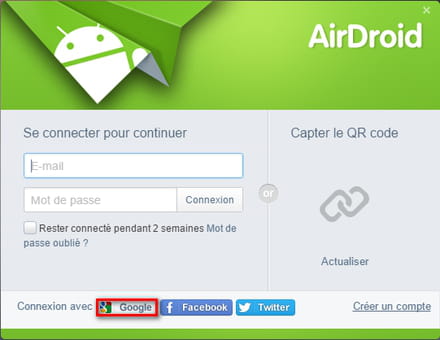
The AirDroid app for Android: https://play.google.com/store/apps/details?id=com.sand.airdroid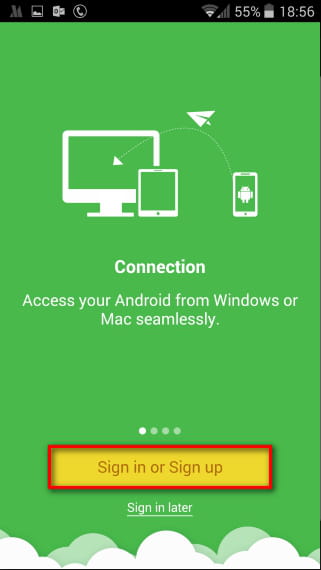
Video tutorial here: https://www.youtube.com/watch?v=CqQm-1JL-9A
You don't need to connect the smartphone to the PC with a cable since everything happens via Wi-Fi on the same network.
Also synchronize the Google Photos app on the smartphone; the photos will be directly uploaded to Google Cloud when connected to Wi-Fi, and you can see them from the PC at this address.
https://www.google.com/photos/about/
If you don't have the app, you can find it here: https://play.google.com/store/apps/details?id=com.google.android.apps.photos&hl=fr
It's great for automatic backup once you're connected to Wi-Fi at home.
I want to note that once you've logged into the app on your smartphone for the first time, you don't need to open it again since it runs in the background, so you just need to use your PC browser to be connected to the smartphone.
You'll just hear a notification on the smartphone once connected.
You have access to everything on the smartphone with your PC keyboard.-
Thank you for all this valuable information!
In the meantime, I successfully found the solution using the SMS Backup & Restore app.
However, I'm still unable to print it: neither through the Samsung printing service plug-in nor by saving it as a PDF.
In either case, I get the error message: "Unable to modify settings. Please try again." Obviously, the "Try Again" button is grayed out and inactive!
What should I do?
Thanks in advance!
-