My iMac shuts down at startup after 30 seconds
Solved/Closed
@nnie
Posted messages
2124
Registration date
Status
Member
Last intervention
-
@nnie Posted messages 2124 Registration date Status Member Last intervention -
@nnie Posted messages 2124 Registration date Status Member Last intervention -
Hello,
As stated in the title, I can no longer start my Mac because it shuts down by itself after about thirty seconds: the progress bar stops at around 25%.
This happened after the following events:
- my Mac was sluggish
- a glance at Activity Monitor showed the CrashReporter in action every few seconds
- a check of the logs allowed me to see that the problem seemed to come from locationd (I have no idea what that is!)
- I stopped all my apps one by one, but the crashes continued
- I then turned off my Mac normally and then booted in safe mode: that's when the problem occurred because in this mode or in normal mode, the same result => it shuts down by itself as explained.
- just in case, I did a PRAM reset, the only result being that it restored the screen brightness to maximum, but it still shuts down the same way.
SOS! I made a backup on Time Machine just before turning it off, but I’m too scared to do anything! I also have a disk clone, but it's less recent than this backup.
What steps do you recommend? Should I go through the Recovery partition? It appears when I press the Alt key at startup, but I haven’t dared to boot from it, not knowing what to do next.
Thank you very much in advance for any help!
PS: since it's after midnight here, I won't see the replies until tomorrow.
Configuration: iMac Intel Core 2 Duo 3.06 Ghz 12 Go DDR3 / OS 10.8.5
--
Please be patient: I have a 10-hour time difference...
As stated in the title, I can no longer start my Mac because it shuts down by itself after about thirty seconds: the progress bar stops at around 25%.
This happened after the following events:
- my Mac was sluggish
- a glance at Activity Monitor showed the CrashReporter in action every few seconds
- a check of the logs allowed me to see that the problem seemed to come from locationd (I have no idea what that is!)
- I stopped all my apps one by one, but the crashes continued
- I then turned off my Mac normally and then booted in safe mode: that's when the problem occurred because in this mode or in normal mode, the same result => it shuts down by itself as explained.
- just in case, I did a PRAM reset, the only result being that it restored the screen brightness to maximum, but it still shuts down the same way.
SOS! I made a backup on Time Machine just before turning it off, but I’m too scared to do anything! I also have a disk clone, but it's less recent than this backup.
What steps do you recommend? Should I go through the Recovery partition? It appears when I press the Alt key at startup, but I haven’t dared to boot from it, not knowing what to do next.
Thank you very much in advance for any help!
PS: since it's after midnight here, I won't see the replies until tomorrow.
Configuration: iMac Intel Core 2 Duo 3.06 Ghz 12 Go DDR3 / OS 10.8.5
--
Please be patient: I have a 10-hour time difference...
19 answers
-
Hello @nnie and best wishes for 2015, to you and your Macs!
I found this: https://support.apple.com/fr-fr/TS3680 but, by doing a Google search for "iMac shuts down by itself," you can find various messages.
However, you won't risk anything by starting, or attempting to start, from the recovery partition (Recovery HD) — just hold down the cmd and R keys until you reach the utilities window, launch Disk Utility, and run a disk repair; it could be the culprit.
If it’s not the hard disk that’s dead, it could be the power supply or a capacitor that has swollen on the motherboard.
You can also try running an AHT by holding the D key during startup:
To use Apple Hardware Test:
1 Disconnect all peripherals from your iMac except the keyboard and mouse.
If an Ethernet cable is connected, disconnect it.
2 Insert the "Mac OS X Install Disc 1" that came with your iMac.
3 Restart your iMac while holding down the D key during startup.
4 When the Apple Hardware Test language selector appears on the screen, choose
the language that suits you.
5 Press the Return key or the Continue button.
6 When the main Apple Hardware Test screen appears (about 45 seconds later),
follow the on-screen instructions.
7 If a problem is detected, Apple Hardware Test will display an error code. Make a note of
the error code before seeking assistance. If Apple Hardware Test does not find any hardware failure, it’s likely the issue is software-related.
For Lion:
Using Apple Hardware Test
If you think there is a problem with the hardware components of the MacBook Pro,
you can use the Apple Hardware Test application to see if that is the case (the
affected components could be the memory or the processor, for example).
To use Apple Hardware Test:
1 Disconnect all external devices from your computer, except for the power
adapter. If an Ethernet cable is connected, disconnect it.
2 Then restart your MacBook Pro while holding down the D key during the
startup.
3 When the Apple Hardware Test selection screen appears, choose your language.
4 Press the Return key or click the right arrow.
5 When the main Apple Hardware Test screen appears (after about 45 seconds),
follow the on-screen instructions.
6 If a problem is detected, Apple Hardware Test will display an error code.
Make a note of the error code before seeking assistance. If
Apple Hardware Test does not find any hardware failure, it’s likely that the
problem is software-related.
You can also try the SMC:
Resetting the System Management Controller (SMC)
1. Turn off the computer.
2. Disconnect the power cord from the computer.
3. Hold down the power button for five seconds.
4. Release the power button.
5. Plug the power cord back into the computer.
6. Press the power button to turn on the computer.
I won't say m**** to you but good luck ;-)
--
When it's urgent, it's already too late (Talleyrand) -
Hello Annie and Dede,
Best Wishes to you again :)
This Mac has clearly decided to make you always think of it, it's sentimental; better to think that than to think it was made on a strike day :)
Dede has already given quite a comprehensive answer...
- The first thing to do would be to reset the management unit, the “SMC”; the method indicated by Dede is good, except that personally I hold down the power button for more than five seconds, in order to properly drain all the capacitors and reset the entire electronics to “zero”.
- Then, indeed, from the recovery partition / Disk Utility... repairing the disk, followed by a repair of permissions poses no risk; on the contrary, it can solve many issues. This would be the second thing to do. If booting from the recovery partition is also subject to sudden shutdowns, so there's no time to perform repairs from that recovery partition, you can try the fsck method.
This kind of failure can also be explained by hardware malfunctions or “extreme” working conditions. (temperature, CPU overload...)
What does the crash log say about locationd exactly?
I don't think that it is really responsible. locationd doesn't contain much other than the basic Mac settings and connections with Apple. The crash log sometimes contains errors related to locationd, but these are “benign” errors... for example:
Jan 5 00:08:26 iMac-de-Francis-3.local locationd[154]: Couldn't find a requirement string for masquerading client /System/Library/PrivateFrameworks/Parsec.framework
Jan 5 00:08:26 iMac-de-Francis-3.local locationd[154]: could not get apple languages array, assuming english
Jan 5 10:01:25 iMac-de-Francis-3.local locationd[154]: Couldn't find a requirement string for masquerading client /System/Library/PrivateFrameworks/Parsec.framework
Jan 5 15:46:31 iMac-de-Francis-3 kernel[0]: PM response took 196 ms (154, locationd)
The hardware failure we might think of would be overheating of the power supply block, or, one that I personally experienced on my old G5, a widespread failure of a series of identical capacitors on the motherboard and/or on the power module. At that time, Apple covered the full replacement of the motherboard and power supply, even though the Mac was over 3 years old, because the defect was recognized as a manufacturing fault of the original third-party capacitors. (PCs encountered the same issues with that series of capacitors). But that was on a G5. I haven't heard of similar cases on Intel Macs.
If you want to know whether your Mac is part of an Apple support program, you can enter its serial number on this page:
https://checkcoverage.apple.com
As for working conditions, (temperature of internal sensors too high), due to too high ambient temperature, CPU overload, it is possible to check this with tools like TG Pro: you can download a demo here:
https://www.tunabellysoftware.com/tgpro/
And possibly increase the fan speed with a utility like SMC Fan Control:
https://www.eidac.de/
However, this requires that the Mac runs long enough to implement these software. (When I had my failure, I wouldn't have been able to... it was just barely giving me time to check for any potential support from Apple...)
I mentioned earlier that locationd is certainly not to blame, but that is if there hasn't been any pollution due to malware.
It would therefore be interesting to check this point as well, particularly in the folders containing the daemons that launch at boot on the Mac.
For this verification, you can use this procedure I just published last night :)
https://forums.commentcamarche.net/forum/affich-37636572-supprimer-adwares-et-publicites-indesirables-sur-mac-os
If you cannot perform these checks from the Mac itself, you will need to connect it to your other Mac (the working one), using a FireWire cable, and then start the faulty Mac in target mode, that is, by holding the T key down during startup. It will then act as a simple external disk that you can browse...
Let us know what happens next...
To obtain an appropriate response, always indicate your exact system configuration.
Have a nice day :-) - Francis -
Hello to both of you, thank you for your good wishes and I wish you all the best in return!
A big thank you also for your answers to which I will reply in turn, but certainly in no particular order!
It warms my heart to see that the Dream Team is still ready to help! :-))
So here’s what I’ve already done:
1) reset the SMC by pressing for at least 30 seconds => no effect
2) booting with the D key => same as before, it shuts down after 1'10" after the Apple logo appears (this time, I timed it)
3) I therefore do not enter the operating system at all since it shuts down well before
4) I booted into Recovery and launched the Utility: there, things got even worse => the disk does not mount and the repair fails with the traditional error message: Disk Utility cannot repair this disk. Please back up as many files as possible, reformat the disk, then restore ...
However, it did not shut down while I was in this partition.
5) it is not used in extreme conditions: as soon as it gets hot, I turn on the AC!
6) it is not even half full.
I do not have a copy of the crash log from locationd.
Perhaps recoverable in Target mode? I will try.
Questions regarding this: would it be possible to use Disk Warrior in this mode?
Knowing that it would be from my old Leo on my cursed ML? And knowing that I don’t have it, so which version would be necessary?
I’m not too worried about my data since I have a fresh Time Machine backup and an older clone, but since bad luck hasn’t left me alone since I got this darn iMac, I’m still cautious!
.........
Well, I just tried Target mode: ML took a long time to appear in the Finder and I first got a window informing me that this disk could not be repaired (I hadn’t requested anything yet). I then went to check in the utility and ran a verification whose result I copied (see next post).
Following that, ML simply disappeared from the Finder, although it still appears in the Utility.
When I restarted Target mode, it reappeared and stays in place. It even appeared mounted in the Utility unlike before, but there are no longer any Verify and Repair buttons.
Then, I tried booting in Single User and did a fsck: final message => The volume iMac ML could not, be repaired.
There you go! This clearly smells bad, doesn’t it?
I found this in another forum:
I had the same problem of a damaged disk that could not be repaired from Disk Utility. But I managed to recover everything.
First, I plugged in an external hard drive that I formatted.
Then I restarted the computer and at the installation moment, I chose to install Mavericks on this external hard drive.
At the end of the installation, I was offered to recover data from another computer, from iCloud, ... so I chose from another computer and I selected Macintosh HD.
All my data was transferred to this external hard drive, but then you need to boot from this hard drive and no longer from Macintosh HD.
Then, I did the same thing with the computer's hard drive: format, install Mavericks, recover data from another computer by choosing the external disk.
And thus, I recovered everything, but I admit it takes time.
Since I am on ML and I had a lot of trouble installing it, does this seem like a feasible solution in my case?
I will stop here for now, hoping to have given you some ideas - not too gloomy, please!
Thanks again for your kindness and help.
See you soon for the next steps!
Annie
--
Please be patient: I have a 10-hour time difference ...-
And here is the result of the verification launched in Target mode:
Verification of the volume "iMac ML"
Verification of the journaled HFS Plus volume.
Verification of the block data overflow file.
Verification of the catalog.
Invalid extent information
Invalid extent information
Invalid extent information
Invalid extent information
The size of the file fillscreen_lr.pdf is incorrect.
(normally 0 instead of 20266198323167232)
Invalid extent information
Invalid extent information
Invalid extent information
The number of blocks of the file fullscreen-roll?ver-lion.png is incorrect.
(normally 1 instead of 327681)
Invalid extent information
The size of the file fullscreen-rollover-lion@2x.png is incorrect.
(normally 0 instead of 177)
Invalid extent information
Invalid extent information
Invalid extent information
Invalid extent information
Invalid number of segment records.
Verification of the multi-link files.
Verification of the catalog hierarchy.
Verification of the extended attributes file.
Volume bitmap verification.
The volume bitmap requires minor repair
Verification of volume information.
Invalid number of volume files
(normally 752473 instead of 744967)
Invalid number of volume directories
(normally 139719 instead of 138242)
Erroneous number of free blocks on the volume.
(normally 112471550 instead of 139284721)
The volume header requires minor repairs.
The iMac ML volume requires repairs.
Error: The verification or repair of the file system failed.
==========================================
I would like to add that, in any case, the Repair button is grayed out... -
Hello @nnie,
Ouch! I'm not able to analyze the verification, but certain terms make me think that the hard drive is sick or dead!!
It's certain that the disk utility is not powerful enough to repair a disk with such verification issues. Disk Warrior, which is the best in this area, might be able to help, but you need to boot from the DW disk or another disk where it is installed.
Francis will tell you more; he knows it well, and his experience is vast.
But, as you say, unfortunately, it smells like burnt.
Have you checked, according to Francis's advice, if your iMac is part of a faulty series regarding the HD?
Good luck and have a great day @nnie, which is already quite advanced for you, it's true!! -
Hi Dede,
I had forgotten to check according to the serial number, you were right to remind me!
Unfortunately, there’s nothing abnormal with this device, according to Apple...
Yes, not very encouraging, all of this, is it? And the more I think about it, the more I believe that the temperature of the Mac was really higher than usual.
There’s still hope that between Time Machine, the clone, and Disk Warrior, Francis will find a way out of this deadlock: if anyone can still do it, it's him!
Thank you for your support, Dede, and have a nice day! :-*
-
-
Hello @nnie and dede,
The Mac being warmer in target mode can be explained by the fact that there is no fan management in this mode.
As for the error report, it is typical of a corrupted directory. DiskWarrior could fix this kind of issue, but only up to a certain limit. I have only known 2 failures with DW if my memory serves me right. For Leo and ML, you need version 4.4 (version 5 has been released, but I don't have it yet, since the transition from 4.4 to 5 is no longer done as it was between 4.x and 4.X by simple download)
But in your case, it is possible that DW may fail, if we refer to these error messages:The size of the file fillscreen_lr.pdf is incorrect.
(normally 0 instead of 20266198323167232)
or this one:The number of blocks in the file fullscreen-roll?ver-lion.png is incorrect.
(normally 1 instead of 327681)
or:Invalid volume directory count
(normally 139719 instead of 138242)
Incorrect number of free blocks on the volume.
(normally 112471550 instead of 139284721)
It seems that some files are completely corrupted and excessively fragmented to be recoverable.
The file fillscreen_lr.pdf often has issues, but under Windows, on PC or on Mac using WMware Fusion or Parallels...
http://www.knownfile.com/...
But it should be noted that this file "fillscreen_lr.pdf" is also found on Mac in the resources of the MplayerX application. If this file comes from MplayerX, you could attempt a repair with DW, but after having removed MplayerX when the Mac is in target mode, to avoid a long job for DW.
That said, I wouldn't spend time with DW in this case, but I would wipe the hard drive - redo the GUID partition, format it to Mac OS Extended, and perform a clean re-install. You need to go through the "Partition" phase to destroy the recovery partition if it is corrupted.
Is the recovery partition corrupted?
You say that since booting in Recovery mode the disk does not mount, but at the same time the Disk Utility was launched from this mode and refused the repair, but that's not contradictory...
How does it go? When you boot in Recovery mode (holding down cmd and R at startup), the Mac starts normally from its internal recovery partition, but if that one is dead, it will try to start from a recovery partition available on the Apple server, but only if the Mac is recent enough for that and is connected to the internet.
So, if it’s indeed the internal recovery partition that was used, the hard disk is presumably not dead. Besides, I don't believe the hard disk is dead for another reason, with a dead hard drive, target mode wouldn't work...
or else, is the disk functioning erratically?, in which case, it would be good to check what the SMART status says in Disk Utility when the Mac has booted from the recovery partition and Disk Utility is launched. The SMART status of the internal disk is not indicated when the Mac boots from another volume or target mode.
If the Mac boots from a recovery partition via the internet, the internal recovery partition could have been corrupted by the use of Windows under Parallels or WMware Fusion... does this Mac use Windows?
The solution you found on another forum is a solution that works, it’s quite lengthy to implement, but it's good, especially if you're absolutely keen on recovering all your data, but wouldn’t it be better to recover only what is strictly necessary? and avoid bringing in any potential issues? For my part, I prefer to start completely from scratch and gradually recover only what is necessary.
In short, at this stage, I would say:
- that the hard drive is not dead, but that the entire standard partition is heavily corrupted.
- DW can be used from the other Mac, provided you have version 4.4, but the result is uncertain.
- I think it's better to reformat the disk, even redo its GUID partition and reinstall ML, update it, and restore your data as needed.
- Data that you can already start recovering manually in target mode based on the locations I indicated in another discussion, which I will copy-paste here:
Location of files to back up under the current OS X:
NB1: to recover data from an old session, you need to copy and replace these various files and folders in the new session, preferably before launching the relevant applications, to avoid having to accept the deletion of new but empty files or folders.

NB2: If the user's library is not visible, (it is hidden under Mountain Lion, for Lion I don’t remember), you have to go to the Finder’s Go menu while holding the alt key down to see the Library line appear.
It can also be made permanently visible from OS X 10.8 by going into a window of your own directory to request to display the presentation options and then check the appropriate box.

NB3: Furthermore, it may be wise to recover the entire Container folder. It contains other important things linked to user data, especially to recover all files starting with com.Apple....and possibly files and folders known to be related to important data of a third-party application.

For Mail:
Users / Username / Library / Mail
Users / Username / Library / Preferences / com.apple.mail.plist
Users / Username / Library / Containers / Mail

For contacts (addresses), this folder:
Users / Username / Library / Application Support / AddressBook

For calendars, this folder:
Users / Username / Library / Calendars

Safari bookmarks, this file:
Hard_drive / Users / Username / Library / Safari / Bookmarks.plist

Safari extensions, this folder:
Hard_drive / Users / Username / Library / Safari / Extensions

Firefox bookmarks and extensions, this folder:
Users / Username / Library / Application Support / Firefox / Profiles
NB: You can only take the bookmarks from Firefox; they should then be taken from a sub-folder of profiles with a "strange" name like 2z24yh43.default, or "1ipw4var.default"
This can help avoid importing infected extensions that are sometimes found in Firefox extensions.

Thunderbird data, this folder:
Users / Username / Library / Thunderbird

Keychain, this folder:
Users / Username / Library / Keychains

Notes app data, this folder:
Users / Username / Library / StickiesDatabase

iTunes music and/or its iPhone applications
-The iTunes Media folder (or iTunes Music), which contains all the music albums and Podcasts, is located wherever it was decided to place it in the iTunes preferences (iTunes / Preferences / Advanced / iTunes Media folder location)
-The "iTunes" folder, located in the "Music" folder under your username, which contains: Album Artwork, iTunes Library, iTunes Library Extras.itdb, iTunes Library Genius.itdb, iTunes Music Library.xml... etc... these are the files that manage the content of iTunes.

iPhoto
The "iPhoto Library" Photothèque located in the Images folder under the username. Possibly other phototheques placed here or there, which may have a custom name.

Microsoft
Entourage data
The entire "Microsoft User Data" folder located directly in the Documents folder.

iLife
here it depends on whether one has an installation DVD of iLife or if the Mac came with iLife, in which case, you need to "accept" them on your Apple Store account to then be able to download the various components again. In this case, you should read the section about iLife on this Apple page:
http://support.apple.com/kb/HT4718?viewlocale=en_US&locale=en_US

When all that is done,
-restart the Mac while holding down cmd and R to boot from the recovery partition. Then
-choose Disk Utility,
-erase the disk,
-exit Disk Utility

-in the Mac OS 10 Utilities window that has returned, choose to reinstall Mac OS 10

NB4: this will be done via the internet from the Apple site, so a good internet connection is required.

That's about it, hoping not to have forgotten anything essential...
Good luck, "you can do it," you've proven it already ;-)
PS: if I realize that I said something foolish, I’ll return...
--
To get an appropriate answer, always provide your exact system configuration.
Have a great day :-) - Francis-
Wow! Francis, as always, you impress me both with your skills and the time you dedicate to helping others! Thank you soooo much! Whatever happens, I already thank you for all of that. :-))
Well, I'm going to need to digest all this information quietly before I jump into anything.
Tell me, the files to be backed up that you gave me the list of, are they not on Time Machine?
Because otherwise, I’ll need to buy another external hard drive to make these copies.
On another note, I don’t know if you remember the HUGE difficulties I had installing ML on that cursed machine... so I still have big fears regarding that.
Right now, I just restarted ML in Recovery partition and I am sure I am on it because I unplugged it from the net. The hard drive shows up properly, with a SMART status indicating "verified." It’s the main partition that won’t mount.
If I run a check on the hard drive, it indicates that "the partition seems to be in good condition."
It’s the repair of the main partition that fails, which confirms your diagnosis => hard drive still OK but partition dead.
BUT! now, in T mode and via the Utility of my Leo, the partition mounted!
However, after running a check on the hard drive, the partition is unmounted again and the check gives the bad results copied above.
It’s enough to pull your hair out!
To the extent that Recovery seems to be uncorrupted, what would happen if I launched a restore from a Time Machine session older than the one before the crash? Unless it automatically goes to the last one?
In that case, reinstall my clone and use the last TM session for the data?
Besides that, Windows does not run on my ML but it seems to me that at one point I briefly installed VMware Fusion and uninstalled it properly, or so I thought.
On the other hand, I do have MplayerX on it.
But there’s another issue: in T mode, I only have read-only access, which means I can’t delete anything.
That’s the latest news of the evening. I’m not quite ready to go to bed yet, so maybe see you later!
Hugs!
-
-
At this point, and based on your diagnoses and conclusions that seem perfectly coherent, I think you won’t risk anything by attempting to erase and reformat the main partition, so without going through partition and deleting the backup partition, but you won’t be able to avoid reinstalling ML, since you can only recover your Time Machine data if your OS is fully functional.
Unless, and I can't remember if this was already the case under ML, it is now possible to start a Mac from a Time Machine backup and, it seems, also to restore not only the data but also the system after starting from a Time Machine backup.
I admit I haven’t tested this possibility; I’ve read about it, and I wonder if this system restoration doesn’t actually take place via the internet...
I must admit I haven't explored this possibility of system reinstallation via startup from Time Machine any further, let alone tested it.
https://support.apple.com/fr-fr/HT201250
https://support.apple.com/fr-fr/HT201314
In any case, Time Machine can very well restore your data without needing to do it manually, but this will inevitably involve a prior erasure of your standard partition and a proper reinstallation of the system. I remember very well your enormous troubles installing ML, and I’ve never truly understood why you had all those difficulties. I had attributed it to either a corrupted installation package or an internal problem with the Mac. I now remember that this Mac had undergone a hard drive exchange by Apple and that you had issues with your local agent. (Did he properly install this new drive?).
So, try to start from your Time Machine backup; then you’ll see what you can do. And if the system installation takes place via the internet, it would be better for you to use your USB key given your internet speed at home...
--
To get an appropriate response, always specify your exact system configuration.
Have a good day :-) - Francis -
Ah! The nightmare with the local customer service!
Indeed, not only had I been at war with them over the warranty, but they also weren't able to perform a clean install (starting from the SL DVDs), and it was I who managed to do it after hours of various trials!
And as you said, the cause was never identified, which is why I'm freaking out at the thought of having to reinstall ML.
As for restoring directly from Time Machine, the option is part of the Recovery menu, but if the restoration happens automatically with the latest backup, I'm likely to recover the same corrupted files, right?
In that case, I might try installing the clone instead, then backing up the data via TM, what do you think?
Oh dear! You could say this iMac has really gotten on my nerves! And you too, by the way. ;-)
Worse than Windows, that says a lot...
Well, I'll come back to report here on my attempts, crossing my fingers for them to be successful!
Good night to you.
--
Please be patient: I'm 10 hours behind... -
Eventually, the restoration was much quicker than announced. The verification via the utility is fine. This should be excellent news!
But ... because there is always a but, otherwise it would be too good ... I'm missing several tens of gigabytes of data! A folder that was never backed up on TM even though there are no exclusions in its config!
I think I understand why: I have 2 folders with the same name, one of which has just a space before the first letter.
TM apparently considered that it was the same folder and only backed up one. The less important one for me, of course. :-(((
I definitely haven't finished with bad luck ...
I was able to recover part of it thanks to the clone, but of course, goodbye to the most recent ... and the most numerous data.
Anyway. End of the story.
Thanks again for everything and certainly see you soon for new disasters, hahaha!
Best regards and have a good day.
P.S.: I removed MplayerX
Be patient: I have a 10-hour time difference ... -
Hello to both of you :)
@nnie,
As for restoring directly from Time Machine, the choice is part of the Recovery menu, but if the restoration happens automatically with the last backup, I might end up recovering the same corrupted files, right?
That's the main reason why I prefer manual restorations. But I didn't push it further, so as not to complicate your task even more. (I was worried you might have a breakdown :-)... )
Regarding the missing folder, I don't believe the "almost identical" name explanation. In computing, a string of characters is equal to a binary value, so a space more or less equals a completely different binary value, and cannot be a source of confusion.
Try searching with EasyFind across your entire Time Machine backup. The folder is probably located in a different place than you expect (or on another date...), which is why a manual search of the entire backup could be useful.
As for MplayerX, it is a very good software, it’s clean, but you did well to get rid of it, as your copy must have been corrupted. However, do re-download the latest version from the official site:
http://mplayerx.org/#sthash.EPc4l7bc.dpbs
Best wishes, hoping for a much better year in 2015 than the last... :)
Best regards :)
--
To get an appropriate response, always indicate your exact system configuration.
Have a good day :-) - Francis-
Hello Francis !
Unfortunately, my file is indeed missing from TM: I had already done a thorough search with EasyFinder before coming here to cry about my misfortune!
That's what made me think the problem was the name. Because otherwise what???
For the restoration with TM via the Recovery partition, it kindly gives the choice of the backup date. I opted for the one made 2 days before. It wasn't too long, after all... probably because there were so few gigabytes missing!
Regarding MplayerX, I think I know what happened: I launched it to play a video that was actually in .rar format: I realized this when I saw the distorted images and stopped it, but I bet that's the source of the infamous fillscreen_lr.pdf file!
I'll reinstall it later: by the way, it was you who recommended it to me and indeed, it's very good.
A thousand thanks to you, Francis!
Wishing you a 2015 that is 100% to your liking as well!
Best regards :-))
-
-
When there's more, there's still more!
New problem, related or not to the previous one, but since I started talking about it here, I will continue (Francis, let me know if you prefer that I open another post).
I started a backup on TM after recovering the missing folder from the clone and renaming the one that had the same name except for a space. TM reported a volume of data to back up corresponding to these 2 folders, including 210 in the missing folder.
However, when checking after the backup was complete, I find the renamed folder, but still no trace of my famous folder!
So now I'm freaking out! And I'm freaking out even more: as I mentioned before, when I noticed that this folder was missing, I immediately checked the TM exclusion list => empty, except for the Trash.
This time I go back and my folder's name is there!
So, double freak-out because:
1) TM added this folder to the exclusions on its own: is it possessed or what???
2) what about the 211 GB it backed up earlier?
But what have I done to the iMac gods to make them want to punish me this much?! Or is it a full moon thing?
This is going to drive me crazy, all of this!
Francis, my savior... any clues?
I'm signing off for the night: too bummed out. :-((
--
Be patient: I have a 10-hour time difference... -
@nnie, no need to open another post,
In the meantime, I did some research on your Time Machine issue, knowing that you are perfectly skilled with your Macs and that you know what you're doing, and I found this:
https://macperformanceguide.com/Mac-TimeMachine-exclude-bug.html
It strongly resembles your case.
It seems that you might be a victim of a rather unknown Time Machine bug.
After reading this article, I wonder if the TM bug occurs when a voluntary exclusion is not present and is then replaced by "something else"...
For example: in my TM list, I exclude a certain disk or folder...
When the next backup occurs, if the excluded disk is not connected, or the excluded folder is not accessible to TM because it’s on a disconnected volume, then TM defaults to another item in its exclusion list, depending on... mystery!!
This is pure speculation; you would need to do a TM backup with a blank exclusion list to verify...
And what happened to the 211 Go? another mystery
Try a backup without any exclusions, "just to see" ...
but after deleting your preference files:
Look in both libraries, here:
Hard drive / Users / your name / Library / Preferences /
and also in
Hard drive / Library / Preferences /
Delete these files and empty the trash
com.apple.TimeMachine.plist
com.apple.TMHelperAgent.plist
In any case, your case deserves feedback to Apple...
To get an appropriate response, always indicate your exact system configuration.
Have a good day :-) - Francis -
OK Francis, thanks again. :-)
I'll follow your advice and see how it goes. However, I just had a KP pointing to TechToolProDaemon and furthermore, Firefox crashes often, as well as Safari.
Only Google Chrome is holding up, but I know what you think of it; plus, it's very resource-hungry.
I feel like I'm in for a series of troubles with this cursed machine: it's been too long since I had peace, it couldn't last!
I just tried to run a memory test with Tech Tool (which I wasn't using before the KP) and the test has failed three times. I don't know how to interpret that, except that it's definitely not a good sign!
On the other hand, I hesitate to make an updated clone, because if it's just to clone all the things that aren't working, it doesn't hold much interest...
Alright, see you later for the follow-up!
--
Please be patient: I have a 10-hour time difference... -
Hello Annie,
Tech Tool fails a memory test... I don’t remember if you did an AHT test during our discussion or if you had so many problems installing OS X on this machine... if we didn’t do it, (we should have), it needs to be done. Defective RAM sticks could be the cause of your ongoing issues... some OS versions are more sensitive than others to low-quality RAM.
To get an appropriate response, always provide your exact system configuration.
Have a nice day :-) - Francis-
Hello Francis!
Honestly, I don't remember either: I've done so many manipulations that I no longer know. However, I had upgraded from 4 to 12 GB of memory (from Macway), which at the time seemed to solve my repeated crashes: however, remember, I had to use a hammer to fit the new memory sticks!!
Well, now that I have control over the beast again, I will try to do this test and I will come back to give you the result.
As for TM, although I am relieved to know that I am not the only one in the world with these kinds of issues, I still encountered something weird: earlier, I connected my backup hard drive, TM recognized it but it didn't show up in the Finder. And in the Utility, it was there but I couldn't eject it. I emphasize that of course, it was not performing a backup!
As you can see, the fun continues...
Talk to you later for the next episode of the adventures! ;-)) -
Hi there, I'm back!
So, I made a new TM backup after deleting the first .plist you mentioned (the second one doesn't exist on my system) and also after renaming my stubborn folder. This time, it's OK, except that the TM hard drive is saturated: the 211 ghost GB from the previous session are certainly not helping...
No way to run the AHT test: when I boot while holding the D key, the computer takes four times longer to start (I timed it) but in the end, it’s a normal startup.
So, I looked online and found this:
If you have updated your Mac with OS X 10.8.4 or later, use the system software disk or USB drive provided with your Mac.
However, I am on 10.8.5 and of course, this is an internet update, so I don't have any disk or USB drive provided! So... stuck!
TechToolPro still fails: when I launch it, the available RAM drops from 10.6 Go to 25 Mo in just a few seconds! (Memory Clean data).
I think I told you everything on the subject.
Thanks again for all your help!
-
-
Hello Annie,
If I remember correctly, your Mac originally came with Mac OS 10.6.
In this case, the AHT can only be launched from the original installation DVD, the one that came with the Mac. Theoretically, you need to disconnect all third-party devices, insert the DVD #1 that came with the Mac, turn off the Mac, and restart it while holding down the D key.
https://support.apple.com/fr-fr/HT201257
If that doesn't work, it means the DVD is not recognized...
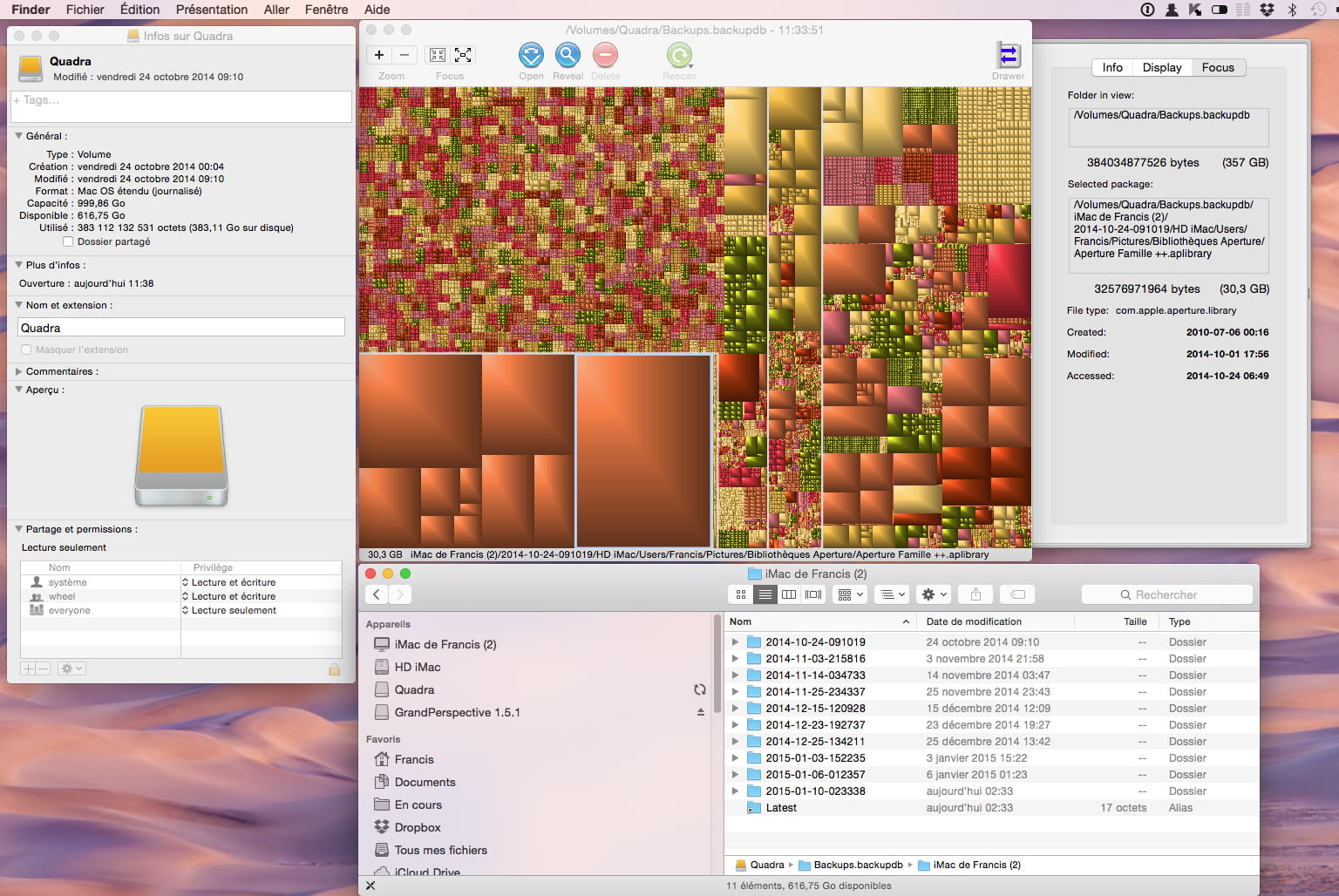
Regarding the 221 GB that seem to have vanished, if TM is full and the 211 GB is the cause, it means that the space occupied by those 211 GB is being accounted for, so we should be able to locate them. Why not mount the sparsebundle.dmg backup file and inspect it with GrandPerspective (or Disk Inventory X)?
Preferably using GrandPerspective, as it is more up-to-date with the system.
http://grandperspectiv.sourceforge.net
http://www.derlien.com
What does Activity Monitor say about available memory? Maybe Tech Tool is faulty? or not suitable for your system?
http://support.apple.com/fr-fr/HT1342
The latest version of Tech Tool highlights its memory analysis capability, but I don't use it so cannot test.
As for Memory Clean, is the one you're referring to included in Tech Tool? I ask this question because a while ago, I tested an application by that name from the App Store, and I removed it because it was useless and was causing me issues. Since then, if needed, I just type "sudo purge" in the Terminal.
That said, if your version of Tech Tool is reliable, we might seriously question the RAM sticks. We need to find a way to confirm or refute Tech Tool's diagnosis...
PS: I found memtest, inexpensive but paid in its latest version, or Rember which is older but seems to still work, even under Yosemite.
https://www.macplanete.com/astuces/11607/tester-la-ram-de-son-mac
I am going to test Rember right now. If it works for me, it MUST work for you too...
Talk to you later, after my tests... :)
EDIT: And there you have it, the test duration with Rember was about 40 minutes = OK.
To get an appropriate answer, always indicate your exact system configuration.
Have a good day :-) - Francis-
Indeed Francis, you will never cease to amaze me!
OK, I'll try all that: AHT test with the original DVD (it won't risk anything, will it???) and if that doesn't work, I'll try with Rember that I just downloaded.
Unless I can just stick with the latter, if you think it's reliable enough?
As for the sparsebundle.dmg file, where is it located? on TM?
Uh ... I'm not sure I know how to interpret the results of the 2 software programs you mentioned.
Anyway, I won't do anything before tomorrow, because now, it's bedtime.
As for the latest version of TechToolPro, that's the one I have: the problem is that when the test fails, it doesn't say why, so it's not really useful.
MemoryClean is a small independent app that I have been using for quite some time and I find it quite handy: in the taskbar, I can see at a glance where I am and do a clean memory with a single click. So far, as far as I can judge via the Monitor, it is not resource-hungry (except when it's doing the cleaning it’s asked to do) and doesn't crash, which is quite a good sign, right?
I'm much less comfortable with the Terminal: I'm always afraid of doing something stupid!
Thank you once again: you are a true fountain of knowledge ... and kindness! :-))
-
-
The backup file of type sparsebundle.dmg is a disk image that is found on the Time Machine drive when that drive is a network type drive. It is a disk image that has the ability to increase in size when needed. This means that this disk image becomes larger and larger as TM backups are made.
You can "mount" this disk image like a classic .dmg disk image, and you will then find the content of the various backups, but you should never modify its content, as this will break the links and the coherence of TM.
But NB: you may not have a sparsebundle.dmg file, but simply a folder named Backups.backupdb on your TM drive; in this case, it's even simpler to explore it with GrandPerspective.
It depends on the type of hard drive you are using for TM (network drive or classic drive). In this folder as well, you can browse and copy, but do not modify anything manually, unless you are an expert in the matter and know not to touch what is included and recognized in the TM backup.
Just for info: I have 2 TM backups, one on a Time Capsule (network drive type), therefore including a sparsebundle.dmg image, and the other on a classic drive. On the network drive, there is a disk image to allow the use of the Mac OS Extended format for backup, while other computers, possibly using Windows, are supposed to be able to use this network drive, thus under a format other than Mac OS.
The GrandPerspective software will show you graphically where the largest folders and files are located in this backup. Its use is very simple, and you may find your 211 GB folder in the backup - a 211 GB folder doesn't go unnoticed. Once the path is indicated, you can restart TM and see if that folder is indeed in the indicated place.
As for Memory Clean, it may ultimately be a good application and I just had no luck with it, perhaps because I launched it while several applications were running. In any case, whether it is with Terminal using sudo purge (which does exactly the same thing as Memory Clean), or with a third-party application like Memory Clean, today I only purge when all applications are closed.
Rember worked perfectly for me. The report is simplistic in my case, as there was nothing to report.
See you later for the rest of the adventures :)
--
To get an appropriate response, always indicate your exact system configuration.
Have a good day :-) - Francis-
Oh yes Francis, the adventures continue!
I used GrandPerspective on the Backups.backupdb file: I didn't find a folder corresponding to the famous 211 GB, but the operation wasn't without result => now I can no longer use my TM drive!!!
Here's what I got:
Time Machine could not complete the backup to "TimeMachine".
Files cannot be copied to the backup disk as it appears to be in read-only mode.
You may need to repair or reformat the disk using Disk Utility. If this disk is unrecoverable, you must use another backup disk. Open Time Machine Preferences to select another backup disk.
So I attempted a repair:
Checking and repairing the volume "TimeMachine"
Checking the file system Checking the HFS Plus journaled volume.
Checking for excess block files.
Checking the catalog file.
The file reference has a physical link chain indicator (id = 1506562)
Incorrect file link count (id = 1506562)
(normally 1 instead of 1070842)
Invalid key length
The TimeMachine volume could not be fully verified.
Repair of the volume completed. Updating startup support partitions for the volume, as required. Error: Disk Utility cannot repair this disk. Back up as many files as possible, reformat the disk, then restore your backed-up files.
And there you go: isn't life beautiful with my iMac?
I'm so mad!
Strangely, I can still access the disk via TM and restore: I tried a small file. But now, I'm too scared: I hadn't run a memory test and I don't dare to move a muscle, because if it crashes badly again, I won't be able to fall back on TM.
And making a clone in the current state of things doesn't seem like a good idea.
As our former President of the Republic so aptly put it: troubles always come in squadrons!
Today, it's too late to buy a new HDD and tomorrow is Sunday... that's a no-go too. I can only cross my fingers for my ML to hold out until Monday. :-(((
Have a good day and see you soon for the next turn of events! -
Just one more question, please: in the files to be backed up, you wrote earlier
Users / Username / Library / Containers / Mail
But at that location, all the folders have the form com.apple.xxx: I can only find com.apple.mail. And when I try to copy it to my Leo, here's the error I get:
Operation could not be completed because one or more required items could not be found.
Mail is closed, of course. Do you know what this is about and is it important if I can't back up that thing?
Thanks again :-)
-
-
I'm hesitating to say hello Annie, I need to find something more effective :)
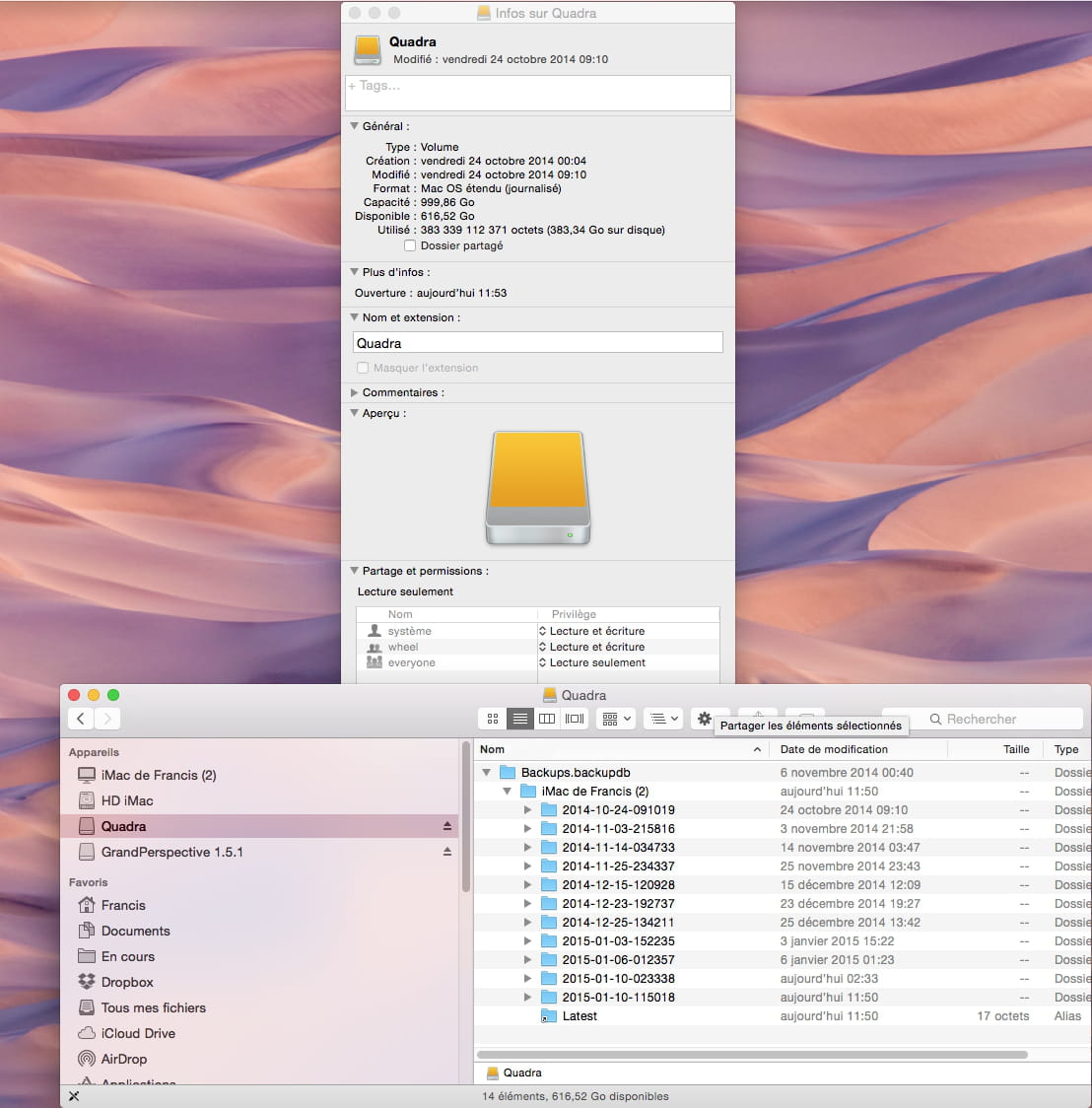
GrandPerspective is probably not responsible for the TM problem. GrandPerspective doesn’t write anything on the backup, it doesn’t modify the content, nor the write permissions of the disk. I just launched it on my disk containing the last TM backup made today at 2:33 AM, and I just did it again right now at 11:50 after reading your message.
Status by GrandPerspective before this very last TM backup:
As you can see, my TM disk, a Quadra, has read & write permissions, the TM backup is from 2:33 AM, and it still has write permissions after the new backup, made after running GrandPerspective:

I think your backup is fine, but there is a permissions error. Check this page to fix the issue:
https://www.lifewire.com/fix-time-machine-errors-2259975
and:
http://pondini.org/TM/C6.html
https://support.apple.com/en-us/HT3275
For Mail, you are right, I messed up, in Containers, the file is a folder, and its name is indeed com.apple.mail
But the Containers folder itself only exists from Mac OS 10.7, or 10.8 if my memory serves me right. I know I've already re-installed ML or Mavericks, without recovering the latter, but only the Mail folder located at the root of the user Library; and it works very well. Simply, recovering the content of the Containers folder helps to retrieve a completely identical situation transparently after a restoration. But, just recovering the Mail folder from the Library is sufficient.
On the other hand, between a Mail folder from ML and a Mail folder found on Leopard or SL, I would need to review the structural differences. I will check on my old PowerPC Mac still running Leopard. I’m not sure that one can simply swap one for the other... I’ll verify....
@+++
EDIT: I just compared the structures of the Mail folder under 10.10 (it should be the same as under ML), and under 10.5; they are not the same structures, the index files, for example, are not in the same places, to recover a Mail folder from ML to 10.5, the folder will need to be re-organized, and maybe the index rebuilt.
To obtain an appropriate response, always indicate your exact system configuration.
Have a nice day :-) - Francis-
Thank you for coming to my rescue again, Francis, but I followed all the instructions and nothing works.
Whether TM is On or Off, it makes no difference at all. Unplugging, plugging back in, repairing => same message as before.
Once the repair failed, the HDD disappears from the Finder, but not from Disk Utility: ejection only grays out the partition. I'm telling you EVERYTHING in case it rings a bell!
Do you really think that if it were just a matter of permissions it would generate such error messages?
For Mail, I'm sorry, I misspoke: I meant that I backed up (or at least tried) the files in question not in Leo's Library, but in a regular folder in Documents. Does this explain why I can't copy com.apple.mail?
Oh dear, I'm completely discouraged by now...
By the way, do you know a good spell breaker around your place? Someone capable of working remotely? At this point, I could really use that! ;-))
With that said, off to bed! See you tomorrow for the next step... if you happen to have another idea...
Have a nice day again, hugs :-)
-
-
I understand your concern with the folder com.apple.mail
I tested it at my place by copying this folder to an external drive. I didn't encounter any issues. I did this to check if copying a folder in the standard way could cause a problem when the said folder contains quite a few aliases. But I had no trouble on my end, other than the fact that obviously the aliases contained in this folder are not valid from the external drive. If I ask to "show original," the system tells me it cannot be found. Normal, since the starting path is no longer the same on the external drive.
What worries me in your case, then, is that the message seems to indicate that this folder contains ghost items. In a way, as if one or more elements are well represented, but the corresponding files cannot be found on the drive. This is typical of a corrupted directory. This suggests that the initial problem, when the Mac was shutting down by itself, is not completely resolved. The system works, but there are still anomalies in the directory. This is certainly what caused the issue with TM.
Repairing the disk with Disk Utility can often resolve the problem, but not always. That's where DiskWarrior proves useful. DW is expensive, so the question is whether the expense is better invested in an additional external drive.
I currently have no idea what is causing all these issues from the beginning with this Mac...
Is the hard drive defective, poorly installed?
Are the memory sticks defective or non-compliant, mismatched?
Other problems or hidden defects?
You still have your ML installation USB stick, so what you could do is use an external drive, not a portable 2.5" that runs at 5400 RPM, but a 3.5" external drive that runs at 7200 RPM, install ML on it, boot your Mac from this external drive, manually transfer your data, and work with this external drive for some time. (set the Mac to boot from this external drive). If you have an iCloud account, a large part of the data comes back automatically. (calendars, contacts, notes, etc...)
If all goes well after several days, erase your standard partition on the internal hard drive, and clone your external drive onto this partition.
I think I'm going to look for low-cost flight rates to Nouméa... I definitely need a vacation in the sun, too much gray weather here for ages :)
--
To get an appropriate response, always indicate your exact system configuration.
Have a good day :-) - Francis-
Ah! So there is still a Directory problem... pffff...
I will follow your purchasing advice. Unfortunately, it's not just 1, but 2 external hard drives that I need to buy, as I also have to replace the one from TM that's now unusable. I could certainly try to reformat it, but I prefer to leave it as is just in case I need to recover something from it... if I manage!
Before that, I will see if someone can lend me a DiskWarrior.
Otherwise, I saw a version 4 here, at $29.95, which is a steal compared to other sites. What do you think?
In any case, the day you come to visit me on my Island, rest assured that I will roll out the red carpet for you when you land!!!
-
-
Hello @nnie,
DiskWarrior version 4 at $29.95 is indeed not expensive, but it has to be at least version 4.3 for ML according to what I believe. (version 4.3 was released to be compatible with Lion, and 4.4 for some improvements)
Today, the publisher's website only offers upgrades to version 5, and that is through a USB key. With shipping costs to Europe or NC, it amounts to around $72. However, for Yosemite, version 5 seems mandatory to me. In the past, DW updates were free and were provided by downloading a patch.
So, if the publisher's policy changes and future updates are only available by sending a USB key; DW will become expensive as OS X evolves.
For now, the version 4 you saw at $29.95 can indeed help you if it is at least version 4.3, but if you later upgrade to OS X 10.10 or higher, you'll have to reach for your wallet again...
There is also the new version of DriveGenius, now capable of repairing the Directory, but not in its Demo version... also expensive, especially if you also get the USB key offered with the software.
https://www.prosofteng.com/drive-genius-mac-protection-software
What I would do if I were in your situation is not to buy 2 external drives, but just 1 for now...
Here's how I do it in this case:
-On the new external drive, I do a fresh and clean installation of ML.
-Once all the updates are done on it, permissions repaired, the disk checked,
-I declare it as the startup disk.
-Then I boot normally from this external drive and;
-gradually, I transfer the necessary data onto it as needed.
-I keep TM disabled.
If I find that everything is fine, that I've transferred everything that needs to be transferred and that it's running well,
-I clone this external drive onto the internal disk after formatting the latter.
Only then do I reformat the TM disk to apply a new backup from the Mac running on its internal disk.
This way you keep your TM backup available in case of a problem, and you only destroy it after you have a functioning Mac, and a functioning external drive as well...
Have a good evening, and good luck :)
To get an appropriate response, always indicate your exact system configuration.
Have a nice day :-) - Francis-
Hi Francis!
Since my evening is already pretty much over, I'll read you again calmly tomorrow morning, but before that, I want to thank you again for your help and patience.
I might find a DiskWarrior 4.4 to borrow: will it be usable on my ML?
Fingers crossed!
Have a nice Sunday and see you soon for the next part. ;-) -
-
Hello Francis !
Definitely not lucky, I haven't completed a full round yet but so far I've only found poorly performing external hard drives. I'm wondering if I might have to order from France.
I saw one on Macway: a 2.5 but with 7200rpm: do you think that would work? Is the format really important?
On another note, Rember ... yes ... are you sure it won't cause any issues if there are defective RAM sticks? Wouldn't it be better to wait until I'm equipped before doing that?
And you didn't answer me about DiskWarrior?
I admit that right now, I'm walking on eggshells!
Thank you and have a nice day. :-)
-
-
Hi @nnie,
I replied to you about DW :)
For the external hard drive, the format doesn't matter, 2.5 or 3.5", it’s all the same. Having a 7200 RPM disk instead of a 5400 is better because using it as a boot drive will be less cumbersome.
That said, I recently bought a WD external hard drive in 2.5 format and 750 GB capacity for 49 euros in Germany (I'm lucky not to live too far away, and in Germany, there are no copyright fees paid to Sacem, which are extremely high in France for a relatively minor right), and I used this drive yesterday for quite a while as a boot drive, without any major issues in the end. So it also depends on the disk model.
Rember shouldn't cause any problems. It worked for me; you should count on 40 to 45 minutes for the test, maybe a bit more for you, but at worst, if the system crashes, there shouldn't be any consequences since it doesn't touch the files; it just tests the RAM without modifying the system... if the sticks are defective, it will make that clear, and that's what we want. It's important to know where the issue comes from and why TechTool fails in this regard. If on the contrary, the test goes well, we’ll know not to look in that direction. Long ago, I had a big issue with a generic cache memory from CLG.
...@++
--
To get an appropriate response, always provide your exact system configuration.
Have a nice day :-) - Francis-
Good evening Francis, probably in bed at this hour. ;-)
Thank you for these clarifications.
I will take another local tour to see if I really can't find anything and if that's the case, I will order: it annoys me because of the delivery delays, but if I have no choice...
OK for Rember, I will give it a try and will get back to you with the result.
This iMac must be haunted: remember, when it went through the local service center, it automatically underwent the hard test that only Apple techs use and it didn't reveal anything abnormal. So if something comes up today, it probably won't be the same thing that's been wrong from the start, don't you think?
Well, we shall see. For now, it's behaving relatively well: let's hope it lasts!
I wish you a good night, don't dream too much about little apples. :-))
-
-
Update and end of this post.
Thanks to the ever-insightful advice from Francis, I was able to resolve the issue with my iMac. It was actually a faulty RAM stick.
Here’s a summary of a matter that actually took several hours over multiple days:
- Rember reported a defect in the RAM
- other issues arose, including the Finder crashing repeatedly, preventing me from using the computer normally
- Resetting the PRAM (waiting at least 4 chimes before restarting)
- Resetting the SMC (System Management Controller)
- launching Onyx: repairing permissions and rebuilding launch services
- shutting down the iMac and restarting (important: a simple restart did nothing, I had to turn it off and then turn it back on).
- testing the RAM sticks via Rember and removing the troublemaker.
Everything is now back to normal, thanks to the incredibly patient and competent Francis! Who I can never thank enough ... :-)))
P.S. The Time Machine hard drive is still not repaired, but I’m marking this post as resolved because the original issue is.
--
Please be patient: I have a 10-hour time difference ...-
-
-
Hi Francis,
Yes, the problem I mentioned to you in a private message, as well as in this message
Having been unable to find a solution to the problem, I took it to the local Apple Reseller for a diagnosis, but they are not in too much of a hurry or are overloaded with broken Macs, as I haven't received a response yet. For now, I'm struggling with this PC :-)
I'll let you know what happens when I find out!! -
-
Thank you!
I haven't had any problems for 3 weeks, and then it started again, and I couldn't stabilize it. From what I've read, especially on MacBid, it could be the power supply (Power Supply 980w) but since I don't have the right tools to check, I turned to customer service. If that's the case, they can be found online, in the US, England, and Germany. In England, one site offers a good discount if you return the defective part.
A Mac user who replaced theirs with one purchased from this site returned it because it only worked for two days :-)
But, I might have a local shop that collects and refurbishes, which could fix it for a reasonable price. If it exceeds the purchase price and accessories of a mid-range Mac mini, I will consider that option. But, I'm not excited about Yosemite!
-