
Keep cells unchanged while running a macro
SolvedHello,
I'm creating a macro. I know how to do it. Well, not completely since I'm reaching out to you. :-)
During the macro, I want to sort. However, some cells have red characters, while others have green ones. When I look at what the macro produced, I see the colors, but not in the correct cells.
What am I missing?
Thank you for your responses.
13 answers
-
Thank you, Bruno
I succeeded. I fiddled with the macro using your information and it works.
I can't really say how I did it, but the result is there.
Thanks again.
-
Hello,
If you can show me:
your sorting code
how the colors are appliedI can tell you exactly where it gets stuck...
-
Hello
I don't know if this is what you want.
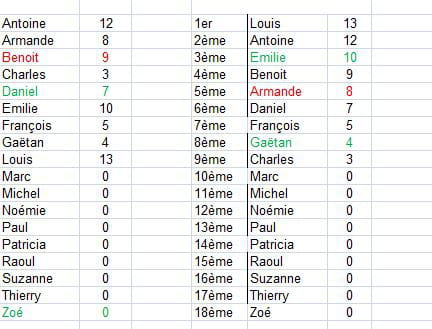
I took a screenshot of the Excel sheet after using the macro. You can see that the colors are not with the correct cell.
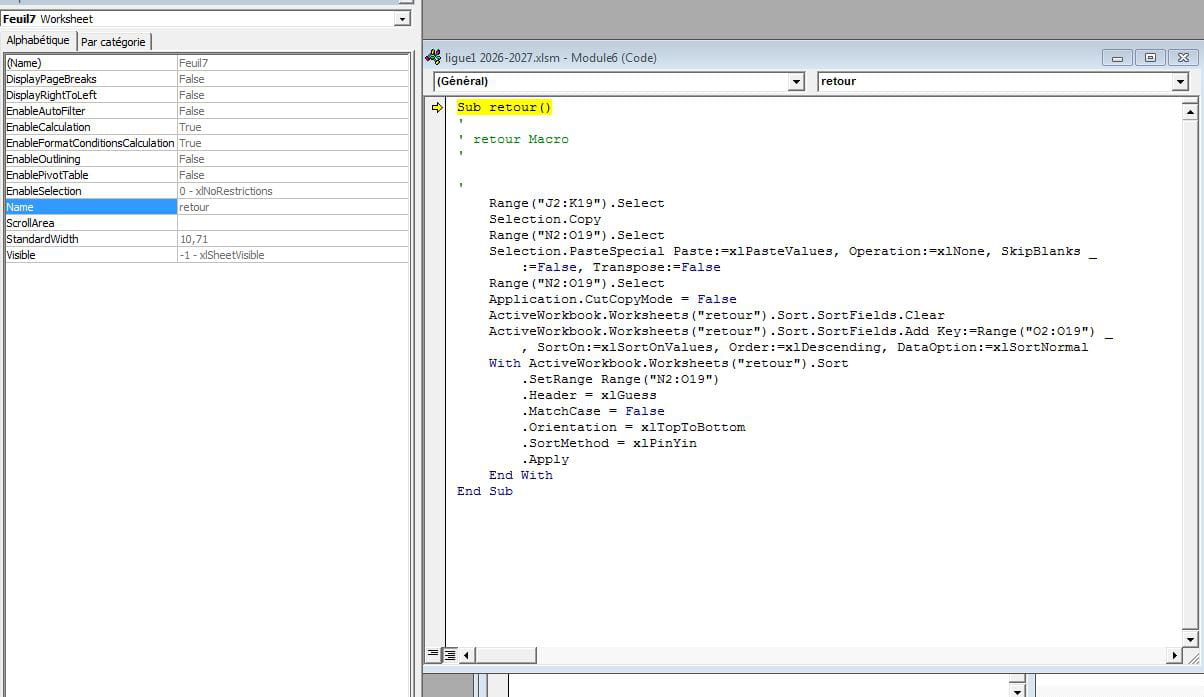
And the screenshot of the concerned macro, hoping that this is what you want.
Thank you for your help.
-
Re suite...
Thanks for the screenshot, it’s very revealing
And now, we can be much more precise.What you observe confirms this 99%:
You are sorting the values, but NOT the entire range (or not correctly linked)
The classic error in VBA
Very often, we have code like this:
Range("B2:B20").Sort Key1:=Range("B2"), Order1:=xlDescendingThis only sorts the score column
BUT NOT the names next to it
What you need to do
You must sort the entire area, for example:
Range("A2:B20").Sort Key1:=Range("B2"), Order1:=xlDescending, Header:=xlNo
There:the names
the values
the colorseverything stays aligned
Clean version (recommended)
Even better:
With ActiveSheet.Sort .SetRange Range("A2:B20") .SortFields.Clear .SortFields.Add Key:=Range("B2:B20"), Order:=xlDescending .Header = xlNo .Apply End WithSimple little test
To check on your end:
Take your table
Do a manual sort in Excel (Data menu → Sort)
If everything remains OK → your VBA is the issue
If it breaks too → structural problem
-
I understand what you're telling me, but I can't do it.
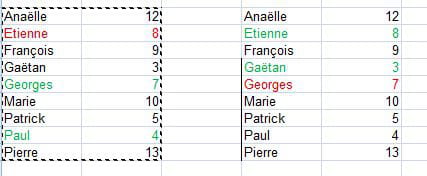
When I do it manually, the first names have the correct score but not the right color.
I do columns 1-2 Ctrl C, then 4-5 paste special values
-
Why isn't it workingWhen you do:
special paste → values
Excel copies:
the numbers
the text
NOT the formats (so not the colors)So:
the scores are right
the first names are right
the colors remain the same as beforeTHE SOLUTIONS (depending on your need)
Solution 1 — Copy WITH formats (the simplest)Instead of:
Special paste → Values
do:
Special paste → Values + formats
Solution 2 — Copy only the formats afterwards
Paste the values
Then redo:Special paste → Formats
THE REAL GOOD METHOD (recommended)
Don't copy at all anymore
Do your sorting directly on the final table
Example:
You work directly in columns 4-5
You sort on thatLike this:
no more copying
no more color problemsIf you want
I can:
correct your entire macro
Send me your code
-
I am indeed going to ask you to correct my macro.
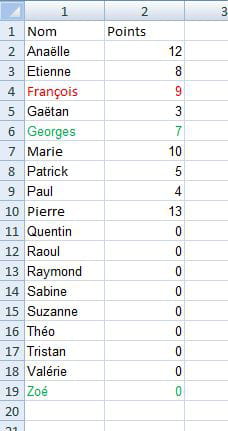
For your information, and this may be the reason, the cell values come from another sheet.I am therefore sending you sheet 1, sheet 2 with the indication for one cell of the formula (the others below are similar and with the use of the macro that desperately does not want to keep the correct colors.
And
of course the macro.
Thank you

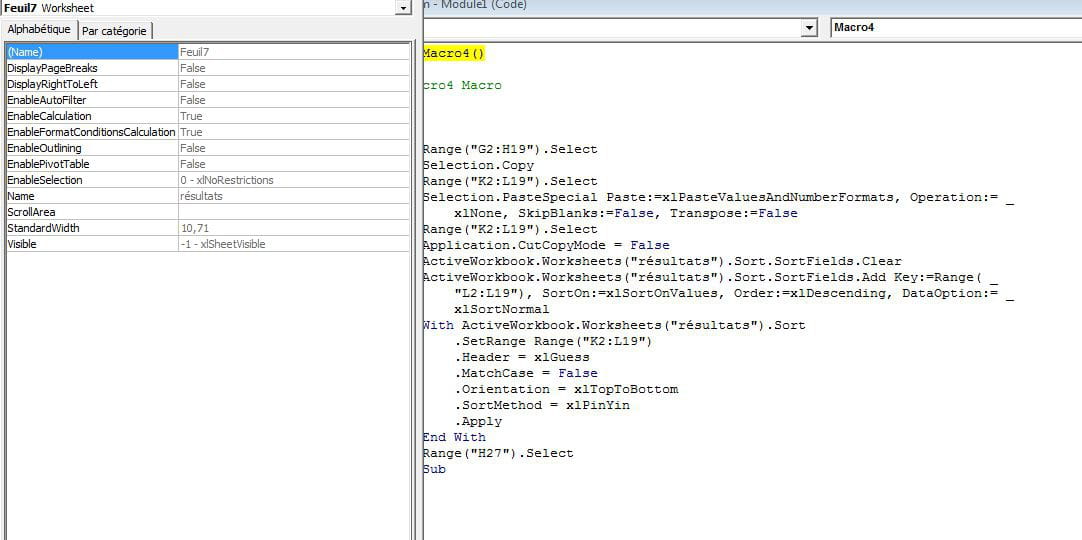
-
Thank you!
Your mistakes:
Your macro does this:
Selection.PasteSpecial Paste:=xlPasteValuesAndNumberFormats
Problem:
You are copying values + number formats
BUT NOT the font colorsAnd there is a second problem
You are doing a .Select + Selection
This is:
fragile
a source of errors
unnecessaryTHE SIMPLE FIX (your corrected macro)
Sub Macro4() Dim ws As Worksheet Set ws = ActiveWorkbook.Worksheets("results") ' Full copy (WITH colors) ws.Range("G2:H19").Copy Destination:=ws.Range("K2") ' Clean sort With ws.Sort .SortFields.Clear .SortFields.Add Key:=ws.Range("L2:L19"), _ SortOn:=xlSortOnValues, Order:=xlDescending, DataOption:=xlSortNormal .SetRange ws.Range("K2:L19") .Header = xlNo .MatchCase = False .Orientation = xlTopToBottom .SortMethod = xlPinYin .Apply End With End Sub
IMPORTANT (in YOUR specific case)You say:
the values come from another sheet
So:
the colors do NOT come from formulas
they are already in G:Hso the full copy is the right solution
If you want to go further
You can also:
automate the colors according to the score (much more robust)
or
simplify your whole system (fewer intermediate columns)You are already very close to something clean
If you need any help, let me know!
-
Good evening
Clearly, I really can't manage it, no matter the method.
I can't get the color to stay fixed for the two adjacent cells.
If the color works, then the number values are wrong, and if the numbers are correct, the green and red colors wander all over the place, and that adds to it! ?https://docs.google.com/spreadsheets/d/1G8uUYFA4qVpF71UWx_v9nc_Y3SZhTgeAW921CxSoJkk/edit?usp=sharing
I'm giving you the link to the file. If you can write the macro. Thank you
-
Hello,
Okay, I understand your frustration... and I'll be direct with you:
You're fighting against Excel for nothing, because your current approach is inherently unstable.
But we'll fix this properly once and for all.
As soon as I have a moment, I'll give you another method to reformat your sheet! See you soon!
-
Hi there,
The real underlying problem
You’re doing:
Formulas between sheets
Manual colors
A copy
A sortResult:
either the values are correct
or the colors are correct
never both at the same timeThis is NORMAL, not an error on your part.
THE robust solution (the one that works 100%)
We completely stop copying colors
And we do it correctly:
Principle
Colors should depend on a rule
NOT on copy/pasteStep 1 — REMOVE current colors
In your results sheet:
remove all manual colorsStep 2 — Conditional formatting
On the score column (e.g.: L2:L19):
Rule 1 (red)
= L2 < 10Rule 2 (green)
= L2 >= 10Apply to:
K2:L19 (to color name + score together)Step 3 — SIMPLIFIED Macro (without format copying)
Here’s YOUR clean macro:
Sub Classement_Propre() ``` Dim ws As Worksheet Set ws = ThisWorkbook.Worksheets("résultats") ' Copy only values (not formats!) ws.Range("K2:L19").Value = ws.Range("G2:H19").Value ' Sort With ws.Sort .SortFields.Clear .SortFields.Add Key:=ws.Range("L2:L19"), _ Order:=xlDescending .SetRange ws.Range("K2:L19") .Header = xlNo .Apply End With ``` End Sub
Why it works (and why it bugs for you)Before:
you copied colors → they shifted
or you lost them → inconsistencyNow:
you only copy the data
the colors recalculate automatically
the sorting doesn’t break anythingFinal result
You can:
sort 100 times
change the values
restart the macroThe colors will ALWAYS be correct
-
Hello,
On which sheet are you sorting? From reading your code, you are basing it on columns J and K which do not contain color. Please explain exactly what you want to do.
Daniel
-
