Unable to install Java

Hello,
I want to install Java on my Windows PC, mainly to run Minecraft and a few other software programs, but unfortunately I haven't been able to do it.
During the installation, I get this window:
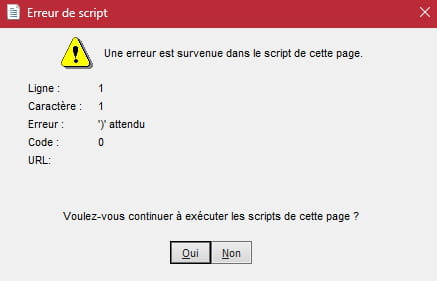
And whether I click "yes" or "no," it doesn't change anything; it closes and Java doesn't install...
I've seen different forums, several solutions, but none of them work. I've tried:
- Uninstalling Java using the uninstaller provided on the official site
- Installing an older version (Java 7 and 5 just in case)
- Disabling the antivirus
- Changing browsers
But none of that changes anything, so if someone is knowledgeable enough to help me, I’d appreciate it!
For your information, I am running Windows 11 24H2 x64 and I am trying to install it on my main NVME (the one Windows is on) to avoid any issues.
4 answers
-
It seems that multiple instances of Java are running or that residual processes are causing the issue. Here’s what you can try next:
End all Java processes: Make sure that all "Java Platform SE binary" processes are terminated in the Task Manager. You can do this by selecting each of them and clicking on "End Task".
Check for residual files: Even after uninstallation, some Java files may remain. Search your system for "java" or "jre" folders (for example, in C:\Program Files or C:\Program Files (x86)) and delete them manually if found.
Restart in Safe Mode: Restart your PC in Safe Mode and try the installation again to rule out any interference from other software.
Reinstall Java: Download the latest version again from the official Java website and install it as an administrator, making sure that no other programs are running.Unless this comes from the permissions of your main NVME.
-
To modify the JAVA PATH:
Find the installation path of Java
Windows: Java is typically installed in C:\Program Files\Java\jdk-<version>\bin (for example, C:\Program Files\Java\jdk-17\bin).Open the environment variables settings:
Right-click on "This PC" or "Computer" > Properties > Advanced system settings > Environment Variables.
Or search for "Environment Variables" in the Windows search bar.
Modify the PATH variable:
In the "System variables" section, find the Path variable and click on "Edit".
Add a new entry with the path to the Java bin folder (for example, C:\Program Files\Java\jdk-17\bin).
Make sure the path is correct and does not contain spaces or erroneous characters.Check:
Open a new command prompt (cmd) and type:java -version
If Java is installed and the PATH is correct, you will see the version (for example, "Java version 17.0.8")
-
Thank you very much for all these explanations.
I followed your recommendations and was able to install Java SE Development Kit 24.0.1. I used it to locate the installation folder and modify the variable.
I then wanted to check with cmd, but nothing appears: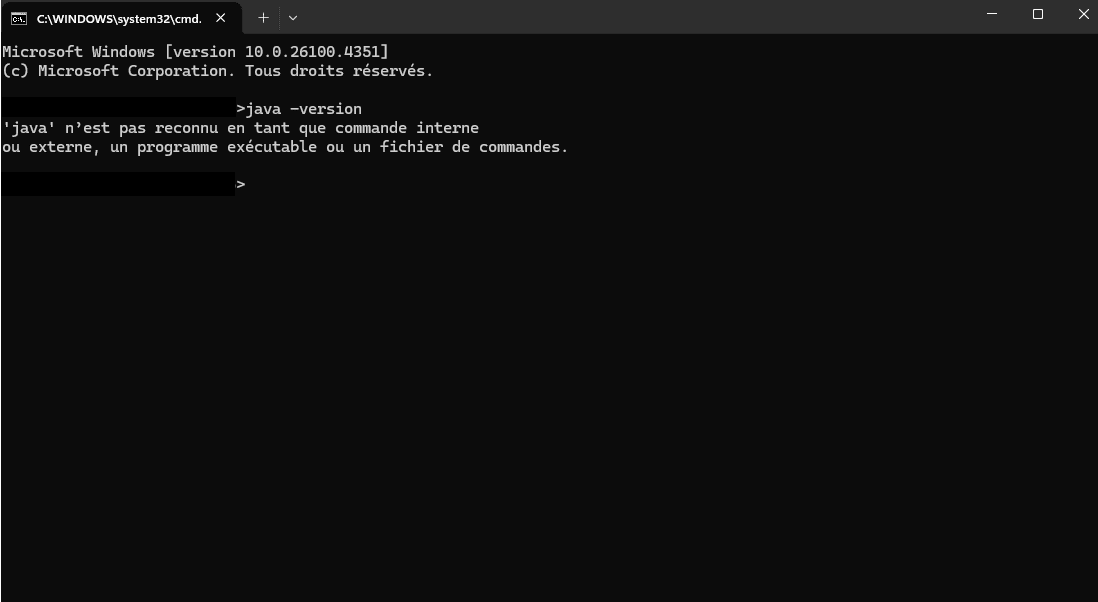
After that, I tried to install Java Jre 8u451, but the error message came back...
However, with the jdk, everything works. So I assume my problem is solved? Or is it a bad idea to keep a developer version?
-
@LoloDdr
Hello,
If everything is working with the JDK, that’s good news, and your issue seems resolved for the usage you have. Regarding JRE 8u451 and the persistent error, it could be due to incompatibility or residual files.
Using a developer version (JDK) instead of a runtime version (JRE) is not a bad idea in itself, especially if you are doing development or if the applications you are using require it. The JDK includes the JRE, so it covers the runtime needs. However, if you don’t need the development tools (like the compiler), a lighter JRE version might suffice and avoid conflicts.
To ensure everything is correctly set up with the JDK:
Open a command prompt (cmd) and type java -version. If the JDK is properly configured, you should see the version (24.0.1).
If nothing appears, make sure the JAVA_HOME environment variable points to the JDK installation folder (for example, C:\Program Files\Java\jdk-24.0.1) and that %JAVA_HOME%\bin is in the Path.
-
-
Hello,
The error you are encountering seems to indicate a script issue during the installation of Java, which could be due to a conflict or corruption of the installation files. Here are some additional steps to try and resolve this problem on Windows 11 24H2 x64:
Download a clean version from the official website: Make sure to download the installer directly from java.com or oracle.com to avoid corrupted files.
Run as administrator: Right-click on the installation file and select "Run as administrator."
Temporarily disable Windows Firewall: In addition to your antivirus, try disabling the Windows Firewall during the installation, as it may be blocking certain scripts.
Clean the registry: Use a tool like CCleaner to clean any residual Java entries after uninstallation, then restart before trying again.
Compatibility mode: Launch the installer in compatibility mode with a previous version of Windows (for example, Windows 10) by right-clicking on the file > Properties > Compatibility.
Check Windows updates: Make sure your system is up to date, as a bug in Windows 11 24H2 could be the cause.
-
Hello,
Apart from what is mentioned above (corrupted installation to redo, role of security software), the third regular enemy is the PATH (or its absence).
The subject is addressed quite regularly, see for example here:
https://forums.commentcamarche.net/forum/affich-37643805-erreur-de-script-installation-java -
Thank you for taking the time to respond to me, and in a very clear manner to boot.
So I proceeded as follows:
- I uninstalled all traces of Java
- I ran CCleaner and updated all drivers, software, and cleaned the registry
- I restarted my PC
- I disabled my firewall (I didn’t specify, but my antivirus is Windows Defender)
- I ran the latest version of Java that I downloaded from the official Java website as an administrator
Unfortunately, I still get the same error message.However, when I try to initiate another installation (in compatibility mode or otherwise), I get a window telling me that the program is already running, so I open the task manager, and I see this:
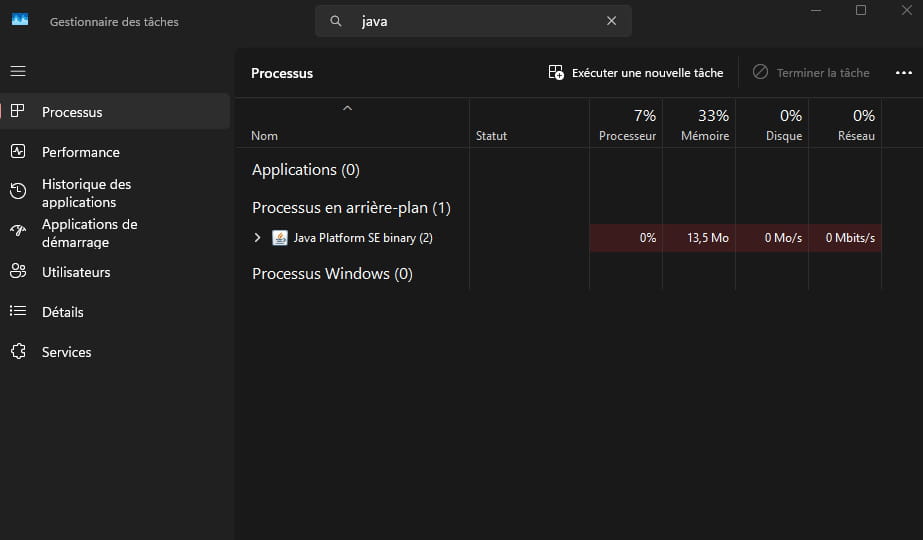
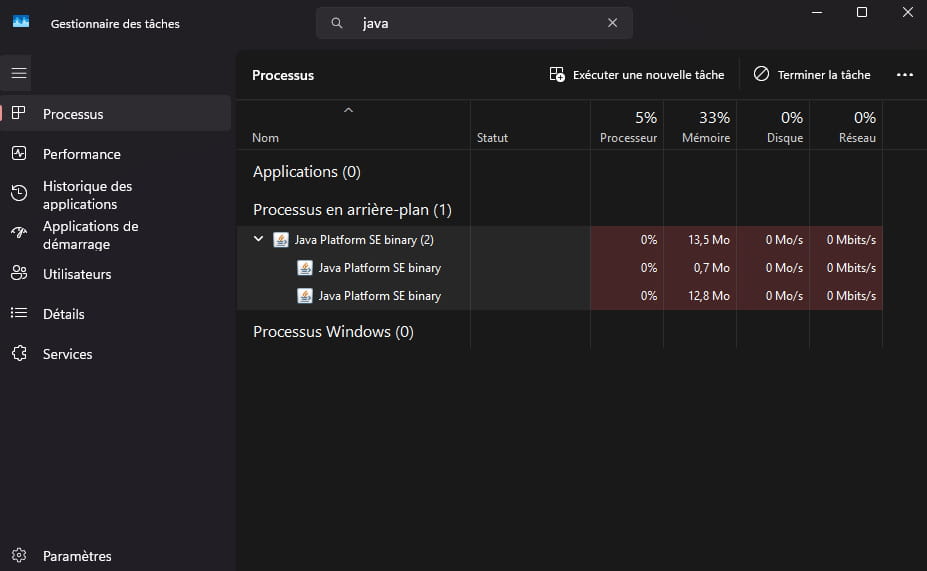
And I have to close Java from the task manager to try again...
-
@brucine
Hello,
Thank you for this information.
I had already looked at this topic, unfortunately, since the configurations are all different, I don't know what to enter in the various dialog boxes to match the correct path on my PC.
If you have an idea of how I should proceed and a little patience, I’m all ears!
-
-
Moderator
Hello,
Have you tried uninstalling everything cleanly with Revo Uninstaller?
Download and install --> Revo Uninstaller
Run it as an administrator
Uninstall all versions of Java
Follow the tutorial carefully to uninstall everything cleanly including residual folders and keys.
For the residual scan, check --> advanced mode
Restart the PC.Download and install Java the offline version
--> https://www.java.com/fr/download/manual.jsp