
128GB microSD card
SATS_fr Posted messages 4849 Registration date Status Member Last intervention -
Hello, I received a 128GB micro SD to replace the defective one on my phone. When I checked on my PC, it showed 117GB, the rest unallocated. I formatted it but I couldn't recover the 128GB. I unfortunately tried to recover it and I deleted the 117GB volume. Now I can't format it anymore.
Can I recover it and how? Otherwise I will return it.
Thanks for your help.
jld272
10 answers
-
Hello.
A small utility very useful in your case is HPUsbDisk.
https://www.commentcamarche.net/telecharger/utilitaires/11843-hp-usb-disk-storage-format-tool/
-
thank you for your response but I just tried and it’s still the same.
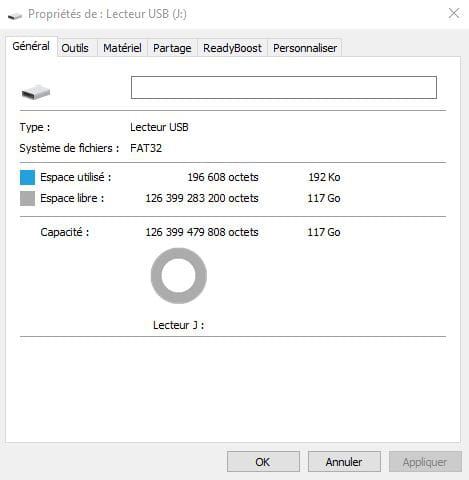
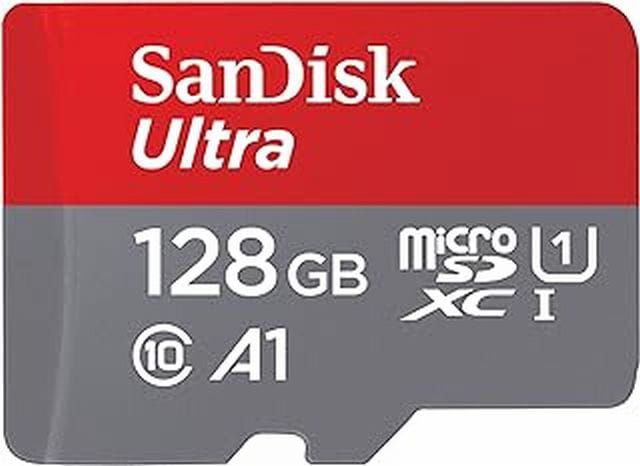
while my original card is this one:
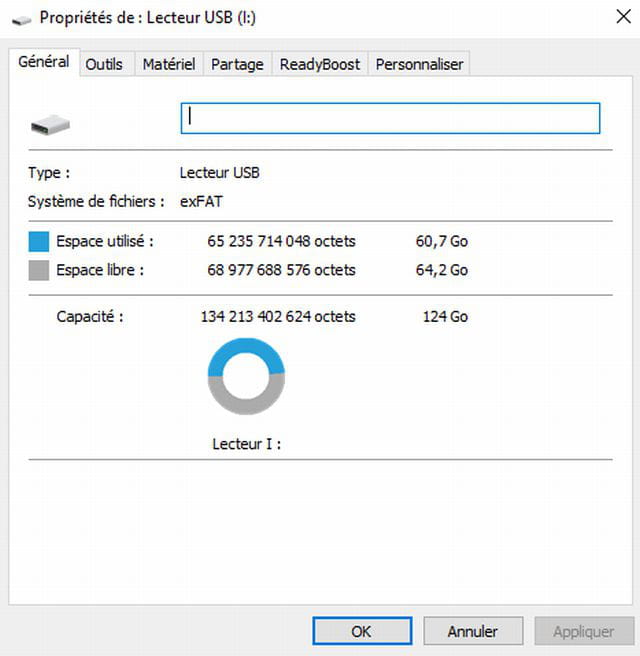
and yet it is listed as 128GB. I got it on Amazon, I’m going to return it.
-
you saw my original it’s a Sandisk 128GB, reported 134GB, 124 real. the new 128GB reported 126 real, 117GB. my problem is that when I try to clone it, it tells me the destination is smaller and it doesn’t work.
-
-
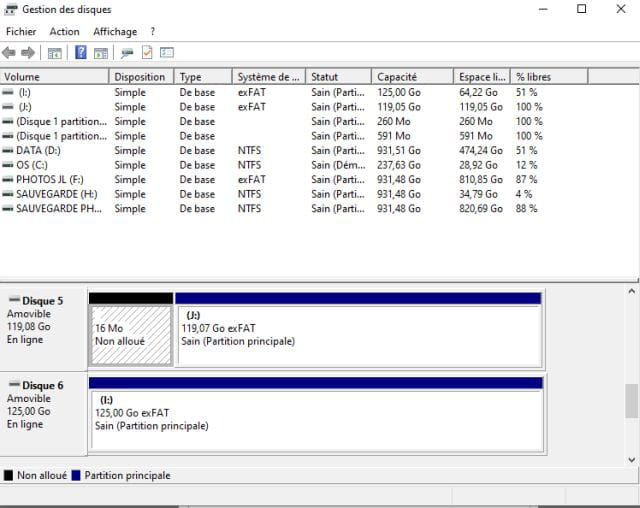
I’m getting back to you because I just received a new SD card of the same brand and capacity as the first one (Sandisk 128GB). This time the properties show 119GB with 16GB unallocated.
How can I recover this unallocated space of drive 5 and merge it with the 119GB on J: to have a new identical SD card of 125GB as I: on disk 6?
I’ve tried all the EASE software without success. I cannot increase these 119GB despite 16GB of free space. Please help me.
Thank you
-
Hello,
Reiterating what was said previously, a 128 GB storage does not actually amount to 128 GB because this capacity is expressed by manufacturers in decimal.
By dividing 128 000 000 successively 3 times by 1,024 we indeed get 119 209 289 bytes, or 119 GB.
Your parasite partition is not 16 GB but 16 MB; it is a Microsoft reserved partition that exists in principle only if the drive is formatted with a GPT allocation table (which has no reason to be for an SD card, but we won't argue about 16 MB).
-
-
okay thanks for your answer but why does my old SD, labeled 128GB, show as 125GB?
If I understand correctly, I will never be able to recover that data and my 2 SDs will always differ in size.
The problem is that to replace an SD on a phone without data loss, you need to clone the new SD, but I can't clone it because it refuses to clone a 125GB SD onto a 119GB SD, telling me the destination is smaller than the original.
Applications that rely on this new SD must find the same volume name, hence the cloning.
-
Hello.
Try the Easus Partition Master software; in the free version it can clone partitions.
If you want to get rid of the 16 MB, indeed Aomei or Easeus when trying to assign a letter and a volume to this unallocated space and merging (or simply reformatting without GPT). But it is arithmetically impossible for a 128 GB drive to occupy 125 GB: either it is actually larger than 128 GB or it is a “falsified” card claimed to have a certain capacity, while in fact it has another.
I tried with it but it does the same thing. My SD has a problem:
I did a surface test > no problem, everything is normal
I tested the system with EASUS > it found errors that it corrected, I redid a CHKDSK check > no problem.
I copy mp3s into a directory on the SD, I run EASUS test >> again it finds errors, corrects them and I end up with the mp3 directory empty.
I can start over 100 times and it will do the same thing, test ok, copy ok, re-test corrects the errors and the mp3s disappear.
I think it’s not the surface at fault but rather the MBR or the place where the system writes or saves the files. And that’s more troublesome to fix. If you have any ideas?
-
What did you try to do, to make the 16 MB disappear, to format, on what device, the new SD card?
If it’s a brand-name card and not a shady No Name, there’s no reason for the new one to be defective. Formatting destroys the allocation table (here GPT since we have a Microsoft reserved partition); formatting it without GPT will, as I said, both remove those 16 MB and recreate an MBR.
I understand well what you mean, except that the two cards are exactly identical to this one, from Sandisk and both marked: 128Go
So I would understand if they were two different brands but here, why is one labeled: capacity 134Go real 124Go and the other 119Go, even if I remove the 16Mo the count is not correct. Is it formatting, NTFS or exFAT, or the cluster size during formatting?
Even if it doesn’t bother me since I’m now using the new one, I’d like to understand so I don’t stay stupid, and if you read my last message, there is still a problem with files copied that disappear, as well as CHKDSK which at one time sees no errors and after copying finds errors again, corrects them and makes the files disappear.
-
If a 128 GB card appears as 134 GB, it is fake (and that would explain your troubles).
If it's a card claiming 134 GB nominal (curious, not binary, and therefore probably also fake), the reality is around 124 GB.
Apart from these two scenarios, if a genuine 128 GB card continues to show errors, it is defective.
The cluster size only affects how many files you can store on it; the difference between what is labeled on it (when accurate) results solely from the deliberate confusion between decimal and binary.
It must be defective, 1: because of the deleted files explained in my post above, 2: yesterday I spent more than the night testing the surface with EaseUS Partition Master.
I will try to clone my new 119GB card to see if its capacity will be changed.
yes you are right, I no longer use it but I don’t explain this flaw, all the surface tests carried out turned out to be correct, I think it is the FAT that is the problem, I even tried to rebuild the MBR without results.
I don’t like not understanding.
-