
Firefox message: "Couldn't load XPCOM"

A "missing XPCOM error" is always an issue with files in the Firefox program folder and is generally caused by security software that locks files and prevents Firefox from replacing all the files.
You should always remove the Firefox program folder and possibly disable your security software or start Windows in safe mode for a clean reinstall.
Your steps may have worked if you rebooted multiple times in case an update did not finish correctly.
An error message about missing XPCOM or platform version usually occurs due to a failed Firefox update that left you with a mix of old and updated files in the Firefox program folder. This can happen if the security software was holding onto certain files in the Firefox program folder, preventing Firefox from replacing all the files. You can perform a clean reinstall to ensure all files are replaced. You may need to temporarily disable the security software if the problem persists.
Reinstall with the current version of Firefox using a full installer.
Where does the error Couldn't load XPCOM! come from?
This error is generally caused by an operation external to Firefox but that affects it:
-Installing another program or Firefox extension
-Update (aka Windows Update)
-Virus attack
-Profile folder corruption (less common)
-Corrupted profile

Or with Revo
Perform a deep scan while uninstalling to remove obsolete registry keys
Then Show hidden files and folders
Delete the MOZILLA directory if it exists.
Drive C:\Users\YourUserName\AppData\Local
-Open the LOCAL folder and delete the Mozilla folder
Do the same in Drive C:\Users\YourUserName\AppData\Roaming
Open the ROAMING folder and delete the Mozilla folder
Delete everything in the Temp folder and disable your antivirus program.
Press Windows + R
And enter %temp%
Press Enter or click OK
The Temp folder will now open.
Select and delete everything. (Press Ctrl + A to select all).
This problem would normally be resolved with a clean reinstall which involved removing the Firefox program folder.
Reinstall Firefox:
Get the 32-bit or 64-bit version depending on your version on the CCM practical sheet
32 or 64 bits How to know?
Disable them and re-enable them gradually to find the culprit.
You can also reapply Firefox's default settings, but you'll lose all your settings.
Type "msconfig" and run the system configuration utility.
In the General tab, select Selective Startup.

Then click on the Services tab. Then check the box against Hide all Microsoft services.
Uncheck the box: Hide all Microsoft services.
Then OK.

Restart your PC and check if Firefox is running without the error.
And type or copy/paste:
firefox.exe -p
Press Enter or click OK
Click on the Create Profile button.
Click Next.
Enter the name of your new profile and click Finish. If you wish, you can also set the storage directory for this profile.
Select the profile you just created and click the Start Firefox button.
After creating a new profile, check if this problem is resolved.

- Run Malwarebytes
If after cleaning with AdwCleaner and Malwarebytes, Firefox continues to crash with the error "Couldn't load XPCOM".
Hold down the Shift key
Double-click the Firefox icon while still holding down the Shift key.
You should see the following message offering to reset Firefox
Start the reset.
--
pistouri
You should always remove the Firefox program folder and possibly disable your security software or start Windows in safe mode for a clean reinstall.
Your steps may have worked if you rebooted multiple times in case an update did not finish correctly.
An error message about missing XPCOM or platform version usually occurs due to a failed Firefox update that left you with a mix of old and updated files in the Firefox program folder. This can happen if the security software was holding onto certain files in the Firefox program folder, preventing Firefox from replacing all the files. You can perform a clean reinstall to ensure all files are replaced. You may need to temporarily disable the security software if the problem persists.
Reinstall with the current version of Firefox using a full installer.
Where does the error Couldn't load XPCOM! come from?
This error is generally caused by an operation external to Firefox but that affects it:
-Installing another program or Firefox extension
-Update (aka Windows Update)
-Virus attack
-Profile folder corruption (less common)
-Corrupted profile
- Method 1: Uninstall and reinstall Firefox.
- Method 2: Start in Safe Mode
- Method 3: Hide all Microsoft services
- Method 4: Create a new Firefox profile.
- Method 5: Virus attack.
Method 1: Uninstall and reinstall Firefox.
Uninstall Firefox using the control panel, then Programs, then Features, then Uninstall a program.
Or with Revo
Perform a deep scan while uninstalling to remove obsolete registry keys
Then Show hidden files and folders
Delete the MOZILLA directory if it exists.
Drive C:\Users\YourUserName\AppData\Local
-Open the LOCAL folder and delete the Mozilla folder
Do the same in Drive C:\Users\YourUserName\AppData\Roaming
Open the ROAMING folder and delete the Mozilla folder
Delete everything in the Temp folder and disable your antivirus program.
Press Windows + R
And enter %temp%
Press Enter or click OK
The Temp folder will now open.
Select and delete everything. (Press Ctrl + A to select all).
This problem would normally be resolved with a clean reinstall which involved removing the Firefox program folder.
Reinstall Firefox:
Get the 32-bit or 64-bit version depending on your version on the CCM practical sheet
32 or 64 bits How to know?
Method 2: Start in Safe Mode
If you can start in Safe Mode: by holding down the Shift key while starting Firefox, then the problem comes from a Firefox extension.Disable them and re-enable them gradually to find the culprit.
You can also reapply Firefox's default settings, but you'll lose all your settings.
Method 3: Hide all Microsoft services
Press Windows + R to open the Run dialog.Type "msconfig" and run the system configuration utility.
In the General tab, select Selective Startup.

Then click on the Services tab. Then check the box against Hide all Microsoft services.
Uncheck the box: Hide all Microsoft services.
Then OK.
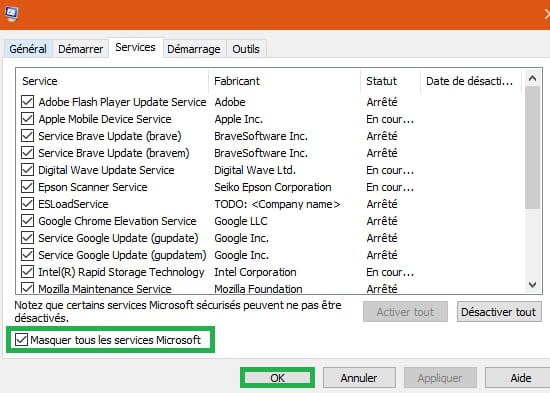
Restart your PC and check if Firefox is running without the error.
Method 4: Create a new Firefox profile.
Press Windows + RAnd type or copy/paste:
firefox.exe -p
Press Enter or click OK
Click on the Create Profile button.
Click Next.
Enter the name of your new profile and click Finish. If you wish, you can also set the storage directory for this profile.
Select the profile you just created and click the Start Firefox button.
After creating a new profile, check if this problem is resolved.

Method 5: Virus attack.
- Run AdwCleaner- Run Malwarebytes
If after cleaning with AdwCleaner and Malwarebytes, Firefox continues to crash with the error "Couldn't load XPCOM".
Hold down the Shift key
Double-click the Firefox icon while still holding down the Shift key.
You should see the following message offering to reset Firefox
Start the reset.
--
pistouri