Repair (C:), step 1: 0%
AdrienR
-
jfmimi Posted messages 13658 Registration date Status Contributor Last intervention -
jfmimi Posted messages 13658 Registration date Status Contributor Last intervention -
Hello,
My computer displays the following text:
"Repair (C:), step 1: 0% (5284 out of 739072); Total: 0%; Estimated finish time: 428:41:25.."
The time is impressive! The computer contains information for an association, which is important.
Moreover, when I launch it with Shift+F10, I skip the check, the homepage appears, but it gets stuck at one point on the desktop.
Thank you in advance for your responses!
PS: I did a hard restart, it’s probably because of that :/
Have a good evening,
Adrien
Configuration: Android / Chrome 86.0.4240.75
My computer displays the following text:
"Repair (C:), step 1: 0% (5284 out of 739072); Total: 0%; Estimated finish time: 428:41:25.."
The time is impressive! The computer contains information for an association, which is important.
Moreover, when I launch it with Shift+F10, I skip the check, the homepage appears, but it gets stuck at one point on the desktop.
Thank you in advance for your responses!
PS: I did a hard restart, it’s probably because of that :/
Have a good evening,
Adrien
Configuration: Android / Chrome 86.0.4240.75
1 answer
-
Hi, do you still have access to your office or can you not do anything?
--
Computer Science: The alliance of an inexact science and a fallible human activity.-
-
-
-
Hello
To fix your computer, we are going to create a bootable USB drive
it contains a mini Windows 10
Since the computer is crashed, we need to create it from another functional computer.
Download the ISO file (win10PESE_x64_1703-v2.iso) Here
then we are going to create the USB drive
Follow the steps to create the USB drive.
Insert your USB drive into the computer
Download "Rufus" Here
launch it.
At the top in "Device" your USB drive should be displayed.
Click on the "Select" button then navigate to the download folder and double-click on the ISO file.
In "Boot selection", the ISO file will then be present.
In the "Partition scheme" field:
If the computer is old (more than 8 years, Non UEFI BIOS), you should put "MBR"
If the computer is recent (UEFI BIOS), you should put "GPT"
To start creating the USB drive, click on the Start button at the bottom.
Then click on "OK" on the data deletion warning for the USB drive
The preparation and copying to the USB drive will take place, this will take several minutes.
Once the progress bar is full and on "READY", the USB drive is then ready for use.
Start the PC from the USB drive
here is what you should have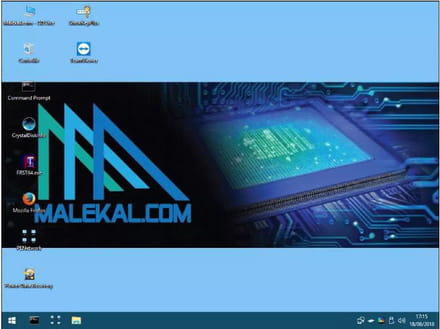
-
-