I can't download from Google Drive.
Alice
-
pistouri Posted messages 19010 Registration date Status Contributor Last intervention -
pistouri Posted messages 19010 Registration date Status Contributor Last intervention -
Hello,
I can't download from my Google Drive anymore. When I click on download, it shows "waiting for docs.google" at the bottom and then nothing happens. No error message. But no download.
I've already checked in my Chrome security settings that Google is allowed. I still have storage space left. There is only one account connected to Drive.
Does anyone have any idea?
I can't download from my Google Drive anymore. When I click on download, it shows "waiting for docs.google" at the bottom and then nothing happens. No error message. But no download.
I've already checked in my Chrome security settings that Google is allowed. I still have storage space left. There is only one account connected to Drive.
Does anyone have any idea?
4 answers
-
pistouri Posted messages 19010 Registration date Status Contributor Last intervention Ambassador 8 732
Browsers have an option to delete Cookies upon closing, so sites do not remember you or the visited sites.
Google Chrome:
Firefox:
Edge Chromium:
Cleaning software also deletes cookies, for example that pesky Ccleaner, which is not recommended for having stolen a lot of user data and does not go well with W10. There even had to be an agreement between the Piriform company that manages Avast, AVG, and Ccleaner and Microsoft, whose Windows Defender detected them as a threat. The case is currently closed, but the war is surely not over, to be continued....
@Alice
Try to allow cookies in Google Chrome with the tutorial message #3
Please give us feedback.
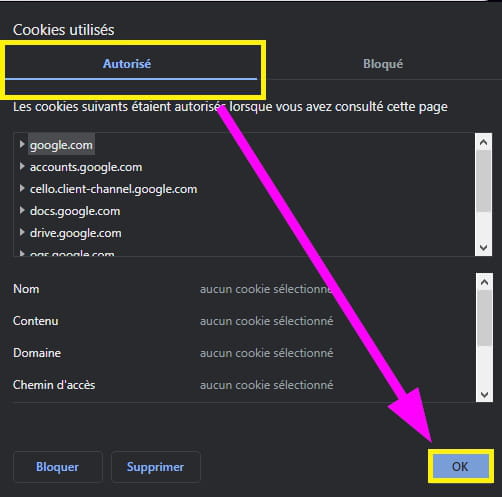
With this method if you prefer:
Once logged into Google Drive on Google Chrome.
In the address bar, click on the padlock located at the very beginning of the address bar (URL).
Click on the line --► Cookies
Click or move the slider to --► Allow
Click on OK
That's all.
A+
-
pistouri Posted messages 19010 Registration date Status Contributor Last intervention Ambassador 8 732
Hello,
1- Clear the cache of Google Chrome.
2- Log out and log back into your Google account with the Backup and Sync app
Link direct
Go to Backup and Sync by clicking on its cloud icon in the notification area of the taskbar.
Then, click on the vertical selection menu icon (the three dotted lines)--► Preferences --► Settings--► Disconnect account--► OK
Once your account is disconnected, click on Backup and Sync in the menu and log in to your Google account.
3- Extensions that block downloads.
The way to check is to try in incognito mode
Some antivirus programs install their own extensions which can block downloads from Google Drive.
And disable any ad blocker if installed, like Adblock or Ublock.
4- Check the status of Google Drive ==► G Suite Status Dashboard
5- Enable images in Google Chrome.
Settings-►Privacy and security-►Site settings-►Images (Content section)--►Show all.
6- Network issues.
- Disable the VPN if present.
- Restart the modem or router.
7- The antivirus.
Temporarily disable your antivirus.
Or add the Google Drive application as an exception.
8- The file may have a problem.
If the file is extremely large (over 2 GB), try to split it.
Also check that there are no characters in the file name (such as? <> \ /).
9- Google accounts.
When 2 Google accounts are signed in on the same browser, Google Drive doesn’t know where to download the file, apparently it confuses it.
The problem goes away when only one account is signed in.
10- Reset Google Chrome settings with ResetBrowser
11- Use another browser.
A) In normal mode.
B) In incognito mode.
12- System restore to a previous date.
A+
--
scalpel -
Hello,
I think it's a bug in Chrome (also noticed by someone close to me).
I have already reported the problem on the forum. I also reported it to Google.
For now, the best option is to use another browser like Firefox or Edge. No issues with Drive on Android either.
Another possibility: create a link in Drive to access the file (not very practical!).
Maybe Pistouri (Hello!) has found a solution. I haven't tried everything yet.
What is well conceived is expressed clearly,
And the words to say it come easily.
(Boileau) -
pistouri Posted messages 19010 Registration date Status Contributor Last intervention Ambassador 8 732
Hi Pierrot,
With the Google Chrome browser, try this procedure:
1-Set up Chrome to Allow Cookies:
Go to the three dots located at the top right in Chrome.
Click on the Settings line.
In the left menu, click on the section --►Privacy and security
In the right part, again click on --►Privacy and security
Click on the line below --► Cookies and other site data
Select the round button --►Allow all cookies
2- Log in to the site Google Drive
With a single account.
3- Right-click on an image or document -►Download
For an image, the explorer opens; just save it, for example, to the Desktop.
For other documents, my download manager IDM downloads it; I couldn't manually check if a dialog box appears at the bottom left of the screen asking to save it.
4- In another scenario, it could be due to the latest version of Google Chrome preventing downloads from Google Drive.
A fix to correct this in a future Chrome update or a temporary workaround, why not.
It works with other browsers, notably Firefox as indicated, but also in Edge Chromium (With W10, the clone of Google Chrome) which correctly displays the download explorer window.
We'll see what the so-called Experts (platinum..Gold ....) on the Google Chrome forum think.
A+
A+
--
pistouri-
Indeed, it's indeed a cookie issue!
I had blocked third-party cookies in Chrome. By allowing them, I can download.
With Edge, the problem is the same: I could download because third-party cookies were allowed. If I block them, it no longer works.
With Firefox, the situation is less clear, as Firefox has to manage tracking cookies itself. If I block everything, I get a message asking what to do with the file: downloading remains possible.
In any case, I don't want to allow third-party cookies in Chrome. So the situation will remain as is.
The main thing is to know the problem and to be aware that there are possible workarounds.
Thank you for the solution and have a nice afternoon!
-