IDM does not capture audio or video links from Opera while Chrome does.
Solved
Hello.
On Opera.
How do I add the iDM capturer since I've installed the module? They refer me to GitHub. But I don't understand anything there.
Configuration: Windows / Chrome 75.0.3770.100
On Opera.
How do I add the iDM capturer since I've installed the module? They refer me to GitHub. But I don't understand anything there.
https://github.com/belaviyo/native-client/releases?fbclid=IwAR3iVhUlSHketpTNuBdGb4xtWUkLUTIp9PgZGlH9X35pTL3CGTP1PwE_dXE
Configuration: Windows / Chrome 75.0.3770.100
3 answers
-
AmbassadorHello,
Add the download panel of iDM above or below a video or audio.
1- Go to Computer (or This PC with W10)
Go to → Local Disk C
Go to → Program Files (x86)
Go to → Internet Download Manager
Minimize the window
2- Open Opera
Go to Menu (located at the top left with the red O icon).
Go to the line in → Extensions
Click on the other line → Extensions
Minimize Opera and File Explorer so you can see both windows as you will need to drag a file.
3- Go to the file explorer window
This one→ C:\Program Files (x86)\Internet Download Manager
In Internet Download Manager, drag the file IDMGCExt.crx into the Opera extensions.
Click on → Install
Click on → Yes install
Close the file explorer window.
Maximize Opera (full screen)
No need to close Opera.
4- Go to YouTube for example.
Play a video.
You will see the download panel.
If you don't see it:
Open IDM
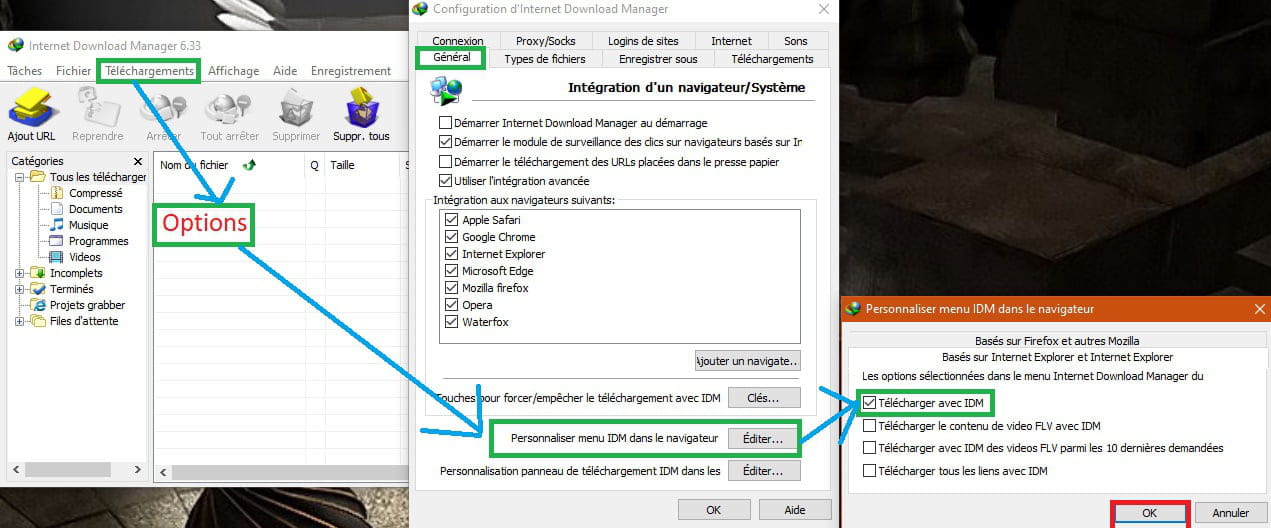
Go to → Downloads → Options
Go to the bottom box → Edit
Select → Full Mode
The settings you can adjust afterward

If you prefer to watch the English video for the procedure:
It's here
Procedure duration → 5 minutes
Good luck
See you later