Connected to the internet but no access
Solved
Kevinj14
-
kaneagle Posted messages 86302 Registration date Status Moderator Last intervention -
kaneagle Posted messages 86302 Registration date Status Moderator Last intervention -
Hello,
So here it is, I have a PC built by a professional 5 years ago.
Previously, I had never had any issues either with Wi-Fi or with Ethernet.
Now, I’ve moved and I can't connect at all.
It says I’m connected to the Wi-Fi, but nothing works in any browser.
I have the same issue with the Ethernet cable.
I thought it was my computer since all the other devices in the house work perfectly with Wi-Fi and Ethernet.
But when I share my phone's connection, my computer can access the internet...
I don’t understand anymore.
When I run a diagnosis, it mentions a DNS problem.
If anyone has a solution...
Thank you.
So here it is, I have a PC built by a professional 5 years ago.
Previously, I had never had any issues either with Wi-Fi or with Ethernet.
Now, I’ve moved and I can't connect at all.
It says I’m connected to the Wi-Fi, but nothing works in any browser.
I have the same issue with the Ethernet cable.
I thought it was my computer since all the other devices in the house work perfectly with Wi-Fi and Ethernet.
But when I share my phone's connection, my computer can access the internet...
I don’t understand anymore.
When I run a diagnosis, it mentions a DNS problem.
If anyone has a solution...
Thank you.
8 answers
-
Hello,
Shut down the computer
Unplug the modem (box) and router from the wall socket
Wait a few minutes
Plug the modem and router back into the wall socket
Wait until all the LEDs are on
Start the computer.
If the problem persists:
Go to Start
Control Panel
Network and Sharing Center
Change adapter settings
Right-click on Ethernet connection
Properties
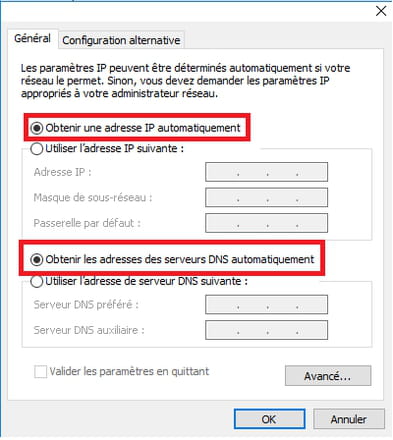
Select --> Internet Protocol Version 4 (TCP/IPv4)
Click on --> Properties
Ensure that both boxes are checked:
--> Obtain an IP address automatically
--> Obtain DNS server addresses automatically
Do the same for Internet Protocol Version 6 (TCP/IPv6)
Also check for the Wi-Fi adapter.