
HP Deskjet 6840 Driver for Win7/Win8/Win10
shmft
Posted messages
703
Status
Member
-
am5038 Posted messages 3 Status Member -
am5038 Posted messages 3 Status Member -
Hello,
I am about to buy a second-hand HP Deskjet 6840 printer and I would like to know if it is compatible (does it have drivers for) with Win7, Win8, and Win10.
Thank you for your help before the purchase.
Best regards
Configuration: Gigabyte GA-78LMT-USB3 motherboard, AMD Phenom II X4 965 processor, WinXP SP3
--
Best regards,
Clearly explaining one's problem is already a step towards the solution.
I am about to buy a second-hand HP Deskjet 6840 printer and I would like to know if it is compatible (does it have drivers for) with Win7, Win8, and Win10.
Thank you for your help before the purchase.
Best regards
Configuration: Gigabyte GA-78LMT-USB3 motherboard, AMD Phenom II X4 965 processor, WinXP SP3
--
Best regards,
Clearly explaining one's problem is already a step towards the solution.
6 answers
-
Hello
Just go check on the manufacturer's website, as usual and to not change, if the drivers are available.
HP Deskjet 6840 <= of course, it's too hard to do that...
Before asking a question: 1° Turn on your brain, your PC doesn't think for you!
2° Google is your friend, the search engine on CCM is too, do a search! -
LOL! Thank you.
Best regards
--
Best regards,
Clearly explaining your problem is already a step towards the solution. -
Hello,
Thank you for the tip.
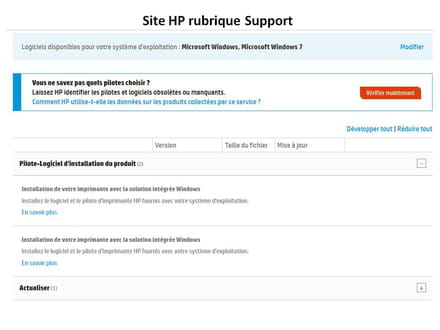
Just to inform you about the next steps: research done, HP site selected for the driver. BUT I can't get any driver for Win7 unless I agree to let HP install software on my PC and dig through it to tell me what software I am missing: see image below. This is terrible!! I will therefore look for other download sources.
Best regards
--
Best regards,
Clearly explaining your problem is already a step towards finding a solution. -
https://support.hp.com/en-us/drivers/selfservice/HP-Deskjet-6800-Printer-series/385457/model/385459
This is what I see:
--
Before asking a question: 1° Turn on your brain, your PC doesn't think for you!
2° Google is your friend, the search engine from CCM is too, do a search!-
Hello and thank you for your response.
If you look closely at my image, it is exactly the same as yours with an expansion of the section Driver-Product Installation Software.
There is no software to download, but I found the following instruction
'Install the HP printer software and driver provided with your operating system.
and links (learn more) to the installation procedures.
No matter, I will try to install with the Win7 CDs and see what happens. I'll keep you updated.
Best regards
-
-
Hello,
I have an HP Deskjet 6840 and like many others, it seems
that since I've been on Seven,
it no longer works in WiFi.
Explanation: HP has abandoned driver updates after Vista
claiming that it is now integrated into Windows.
Well yes, but this (primitive) driver is not able to establish the WiFi connection with this printer.
What a bummer! -
Hello,
Undoubtedly due to the transition to Seven
My DHP Deskjet 6840 printer no longer worked over WiFi, only via USB and Ethernet network.
HP no longer provides driver updates for this printer since Vista.
They would be integrated (more basic) into Win 7... Except for WiFi!
I seem to have solved the problem:
So if you encounter issues with the WiFi printer drivers while using Seven:
• Check that the network is preferably configured in WPA-PSK with the key below:
Configure your Box (Via Internet Portal) in WPA-PSK
Here with Freebox:
>Free Portal >My account
>My box >Set up WiFi network
>Turn on the WiFi module
>Your personal network >Status = Active
>SSID of my network: xxxxxxxxxxxxxxxxxxxx
>Network security:
Do not hide my network
Protection = WPA (TKIP+AES)
WiFi Key = xxxxxxxxxxxxxxxxxxxxxxxxxxxxxxxxxxxxxxxxxxxxxxxxxxxxxxxx
• Check that the PC and all WiFi Devices are configured in WPA-PSK with the same key.
• To install & configure the printer:
>Connect the printer with a straight Ethernet cable directly to the PC
>Open the printer console in Explorer
(For this, you will find the address like http://169.254.10.49 on the report to print by pressing the right button on the printer)
>Connections >Wireless (802.11) >Network
Activate the WiFi module
Network name = freebox_ALMAR
Network parameter = Infrastructure = WPA-PSK Authentication
Encoding = Auto (AES or TKIP)
Key = (Above)
Disable Firewall and Antivirus (Optional)
Here’s the trick: Make the driver compatible with Vista SP2:
>Right-click on the driver file "SF_CDB_Full_Network_fra 4.exe" (Downloaded from the HP Site)
>Resolve Compatibility Issue >Troubleshoot the program... >Next
>Check "The program worked in an earlier version...
>Choice: Windows Vista (SP2) >Start the program
Install the wireless network printer by following the various steps
The software components will install.
Restart PC and Printer.
Good luck.-
Hello,
I am back to correct my previous response as follows:
Due to the migration from Vista to Seven or Win10,
the HP Deskjet 6840 printer no longer works via WiFi, only via USB or Ethernet Network.
Since Win7, the driver for this printer is integrated into Windows (without the apps)
So if you encounter issues with the printer driver via WiFi under Win Seven, Win10... :
• Check that the network is configured preferably in WPA-PSK:
Configure your Box (via Internet Portal) in WPA-PSK (TKIP+AES)
• Check that the PC and all WiFi peripherals are configured in WPA-PSK with the same key.
• To install & configure the printer:
>Connect the printer with a straight Ethernet cable directly to the PC or router (Box)
>Open the printer console in Explorer
(To do this, you will find the address like http://169.254.10.49 on the report to print by pressing the right button on the printer) then
>Connections >Wireless (802.11) >Network
Enable the WiFi module
Network Name = SSID of your network
Network Parameter = Infrastructure = WPA-PSK Authentication
Encoding = Auto (AES or TKIP)
Key = Your key up to 63 characters
Disable the Firewall and Antivirus (Optional)
• Disconnect the Ethernet cable. The printer switches to WiFi and connects to your (Private) network
>On each PC >Add a printer. Once detected >Install the proposed driver (That of Win7, Win10...)
At this stage only the printer driver is installed.
Print a test page.
To install the apps from the old driver file: Make the driver file compatible with Vista SP2:
>Right-click on the driver file "SF_CDB_Full_Network_fra 4.exe" (Downloaded from the HP Site)
>Resolve Compatibility Issues >Troubleshoot the program… >Next
>Check “The program worked in an earlier version…
>Choice: Windows Vista (Service Pack 2) >Start the program for a “Custom” installation
Install all or part of the apps EXCEPT (the old) driver by following the different steps
The software components will install.
Restart the PC and Printer.
Good luck.
-

